

Before you can create a district that uses the Utimaco Atalla HSM, you must enable it on the Management Console.
To enable an Appliance to use an Atalla HSM:
-
Verify that each Key Server is connected to an Atalla HSM, as described in Configure the DPP Appliance.
-
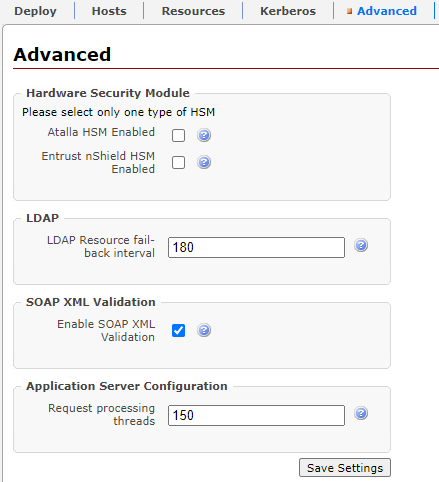
On the Management Console, navigate to the System > Advanced page. The Advanced Configuration page opens.
-
Select the Atalla HSM Enabled check box.
You cannot select this check box if the Entrust nShield HSM Enabled check box is already selected. If any Entrust nShield districts already exist, you must remove them before you can enable Atalla HSMs.
This setting controls whether or not the Management Console and Key Server use the Atalla HSM for cryptographic operations. When enabled, the master secrets are stored in the HSM and are used to derive cryptographic keys that are sent directly to the client. After this setting is enabled, any new districts that are created use the HSM to generate the master secret key data.
This setting affects only the creation of new districts and whether the Management Console database settings are encrypted using the HSM. Key derivation operations in the Key Server for these districts also use the HSM. Enabling the Atalla HSM does not change existing software-based districts and they are not converted to be HSM districts. If any HSM districts are in the district list, the district list includes an HSM column to indicate which districts are HSM-based and which are software-based.
This setting also controls how the Management Console protects sensitive settings, such as shared secrets in the Appliance database. If Atalla HSM support is enabled, then these settings are encrypted using the Atalla HSM; otherwise they are encrypted in software.
If the Appliance on which the Management Console is running is not configured to use Atalla HSMs, then attempting to enable HSM support gives an error. If an HSM-enabled district is deployed to a remote host that does not support Atalla HSMs, an error occurs when attempting a key request for that district.
If the system was originally configured with the Atalla HSM Enabled check box not selected (unchecked), and an HSM-district is restored or imported, you must:
-
"Bounce" (uncheck, save, check, save) the restored check box setting to ensure HSM FEK is being used. On the System > Advanced page, unselect the Atalla HSM Enabled check box and click Save Settings, and then select the Atalla HSM Enabled check box and click Save Settings.
-
Restart the Management Console (in the Appliance Menu: Configure Services > Restart Management Console, or run systemctl restart vsmgmt).
-
Restart the Web Service (in the Appliance Menu: Configure Services > Restart IBE and SOA Service, or run systemctl restart vssoa).
-
Click Save Settings.
-
Click the Key Management tab. The District page opens.
-
If your system does not have a district set, specify the domain name for the district, then click Set District Domain Name. If your system already includes a district, the district domain name is already set and you do not need to complete this step.
-
Click the New District link.
If the system already has an existing district, a message displays to confirm that you want to create a new district and to specify whether to set the new district as the current district.
Leave the "Set the new district as current district" check box selected, then click OK.
A message displays at the top of the District page, indicating that the new district is being generated. This process can take several minutes. When the process completes, the District page displays the new district. The page includes a column labeled HSM, showing that the district is for use with the Atalla HSM.
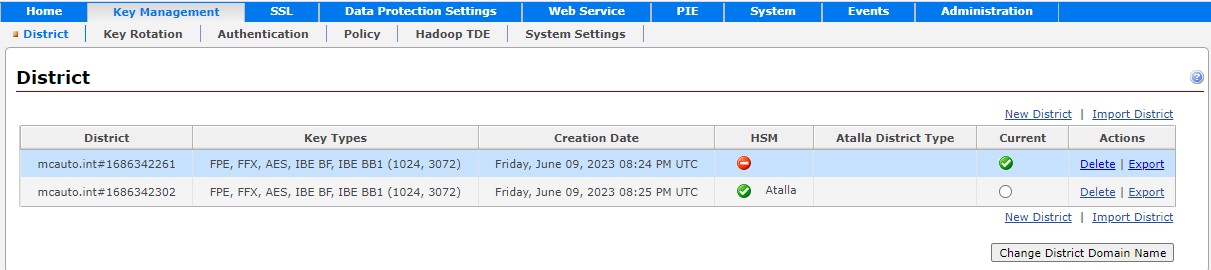
If the MFK is encrypted with AES, AES is displayed in the Atalla District Type column.
-
Complete the remaining initial configuration steps on the Management Console (creating an authentication method and obtaining an SSL certificate). See “Getting Started” in the OpenText™ Data Privacy and Protection Appliance Administrator Guide for details.
-
Click the System tab, then click Deploy.
You cannot successfully deploy a cluster unless an Atalla HSM is configured to work with every Appliance that has the Key Management service enabled.