

Installation instructions for EncryptRIGHT are provided in the EncryptRIGHT Setup and Security Configuration Guide included with your download.
Hardware Registration
To set up the u.trust GP HSM as part of a new EncryptRIGHT installation or add one to an existing EncryptRIGHT installation:
-
Open Hardware Registration:
-
If you are setting up your u.trust GP HSM/EncryptRIGHT integration during the EncryptRIGHT setup, you will come to the Hardware Registration options as part of post-installation configuration steps.
-
If you are adding a u.trust GP HSM to an existing EncryptRIGHT installation, log on to your EncryptRIGHT Primary Server first and then go to Admin > Options > Hardware Registration.
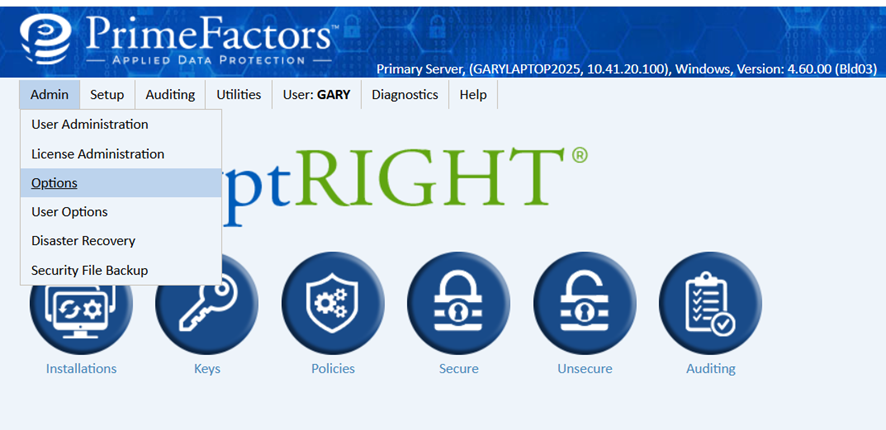
EncryptRIGHT admin menu and dashboard interface
-
If the hardware library is not automatically detected then you will need to supply the library location. Otherwise, skip to step 3.
-
Supply the location of the u.trust GP HSM PKCS#11 library. In most cases, clicking Default Library will supply the correct location. If you installed it to a custom location, you will need to manually specify it (or navigate to it via the browse button).
-
If you are going to use a u.trust GP HSM on multiple machines of the same operating system, their installation location will need to be the same on each system.
-
If you have the u.trust GP HSM software installed to different locations on different machines with the same operating system, you will need to uninstall/reinstall as appropriate so that the software is installed to the same locations. If not in the same location, then the LD_LIBRARY_PATH on each machine will need to be set to the appropriate directory for that machine and just the .so file name in the EncryptRIGHT field.
-
If you will be using u.trust GP HSM on multiple operating systems, you will need to add the library for each operating system on your EncryptRIGHT Primary Server, regardless of its platform. For example, even if your EncryptRIGHT Primary Server is running Windows, if you are also planning to use HSM support via EncryptRIGHT on Linux machines, you will need to supply the location of the PKCS#11 library there as well. You cannot browse to the location of a library on another operating system.
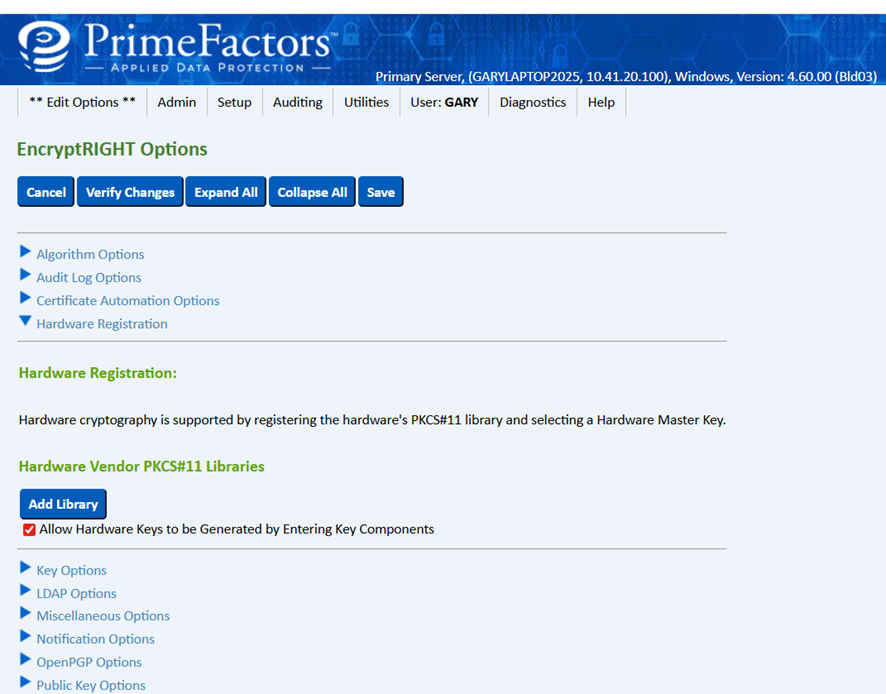
EncryptRIGHT options
-
Select Add Library.
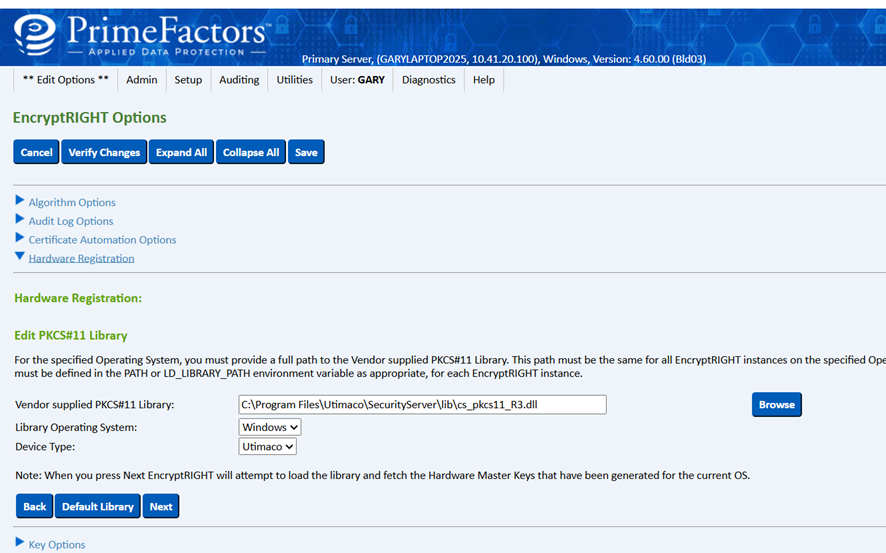
Edit PKCS#11 library
-
Select Next.
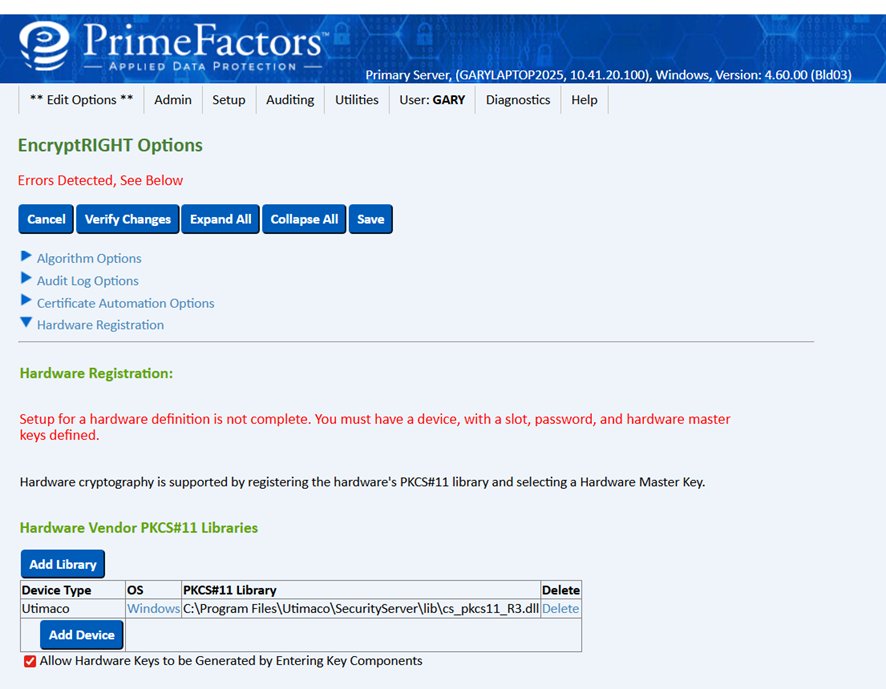
Hardware vendor PKCS#11 libraries
-
Select Add Device.
-
At this point EncryptRIGHT is able to communicate with the hardware library. You will need to select the slot and provide a password that your administrator has provided.
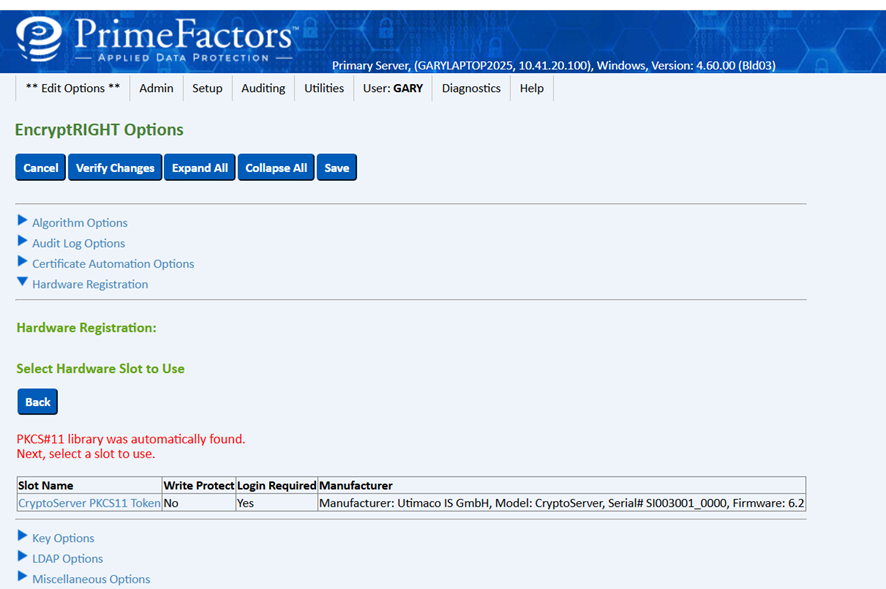
Hardware registration
-
Select the Slot Name to use.
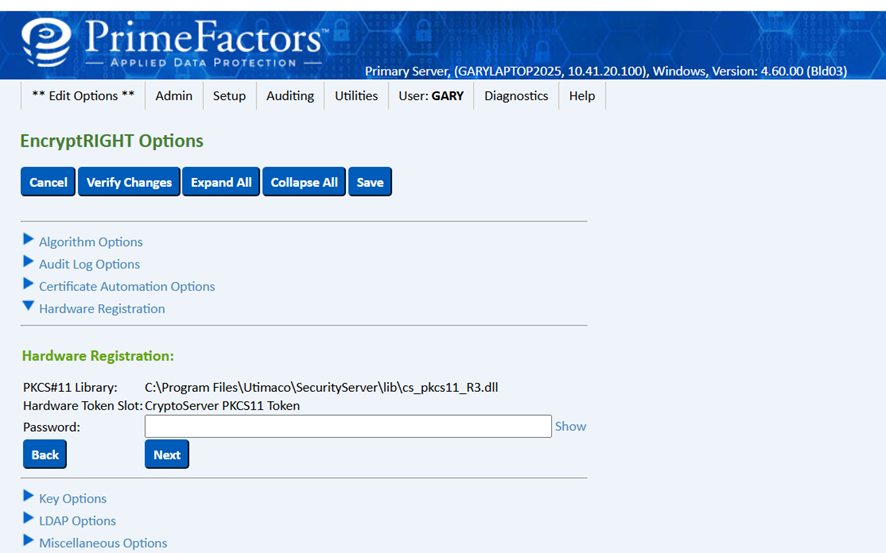
Hardware registration
-
Enter the password
-
EncryptRIGHT uses a Hardware Master Key (HMK) that is used to setup and access all the hardware keys used that are managed by EncryptRIGHT. Normally this is a randomly generated key within the hardware and only known and used by the hardware. Data keys generated for your use will be encrypted under this KEK key and stored within the EncryptRIGHT ZSS file. When data keys are used, the HMK encrypted key value is given to the hardware API and decrypted in the hardware for use.
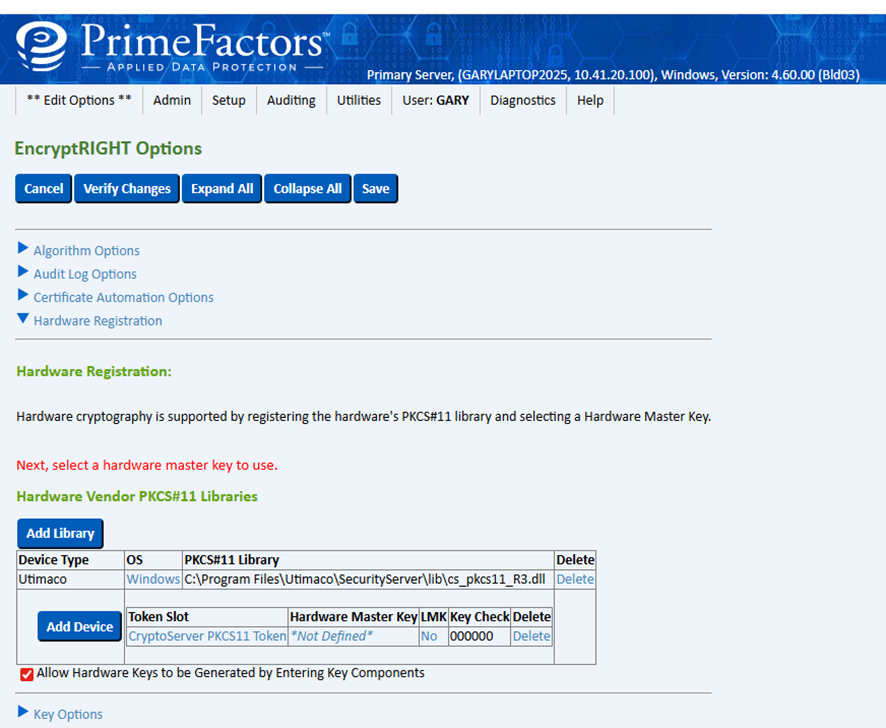
Hardware vendor PKCS#11 libraries
-
Select the *Not Defined* field to continue. Any existing HMK keys are listed and you may choose one, or generate a key HMK key.
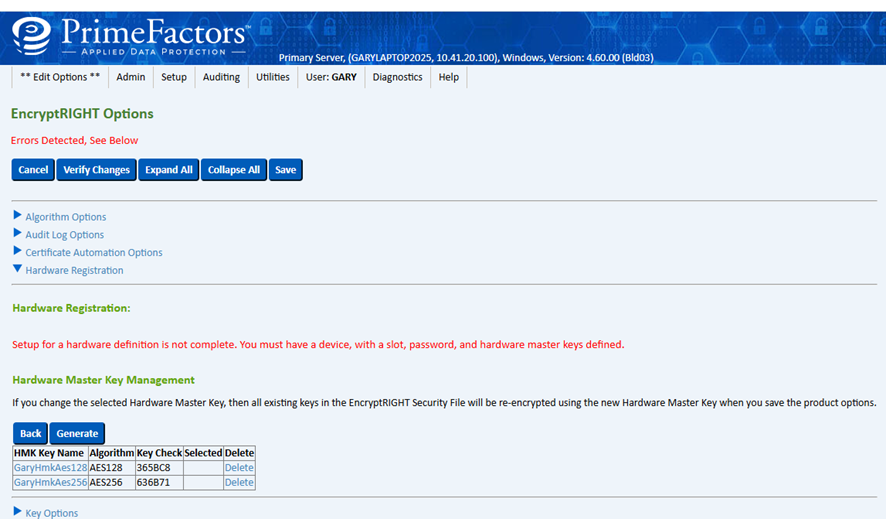
Hardware Master Key management
-
If you choose to generate a new HMK key, press Generate.
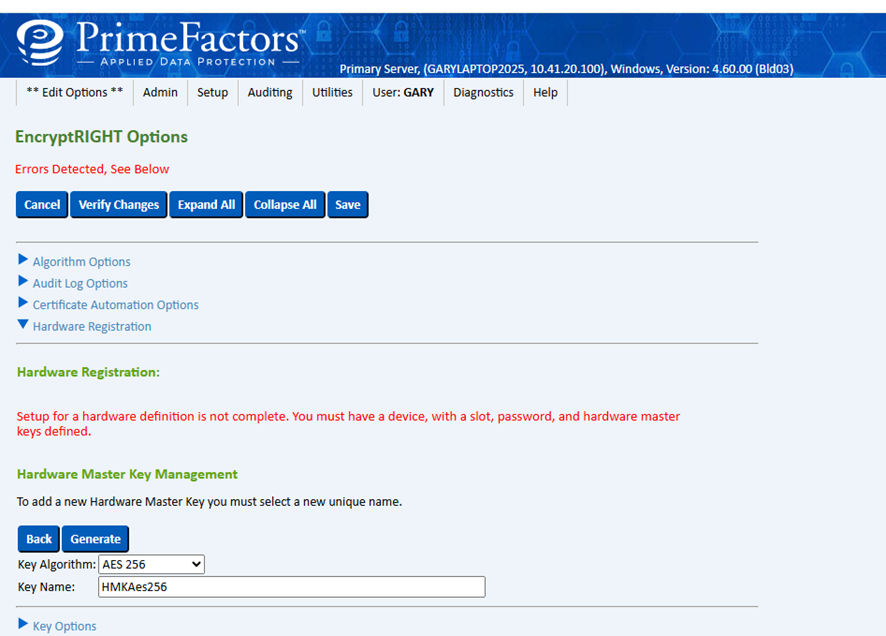
Hardware Master Key management
-
Select the Algorithm and enter a new key name. Press Generate.
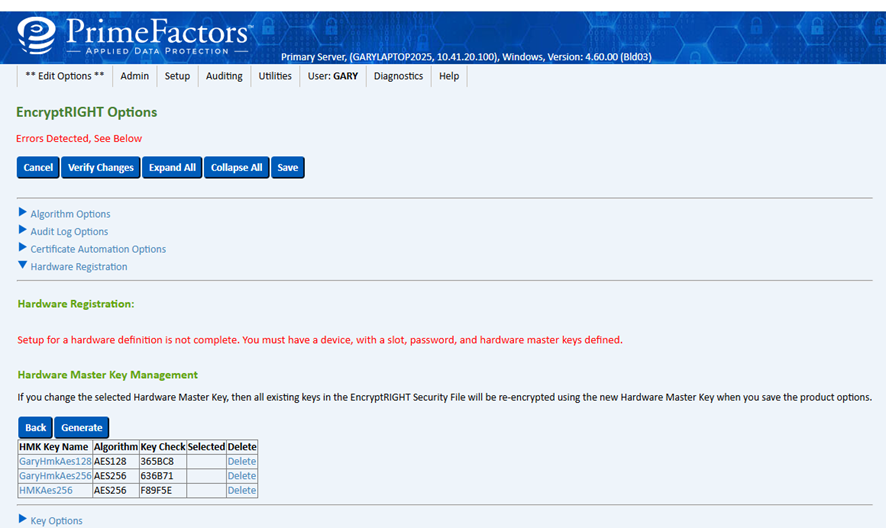
Hardware Master Key management
-
Select the new HMK key to use it.
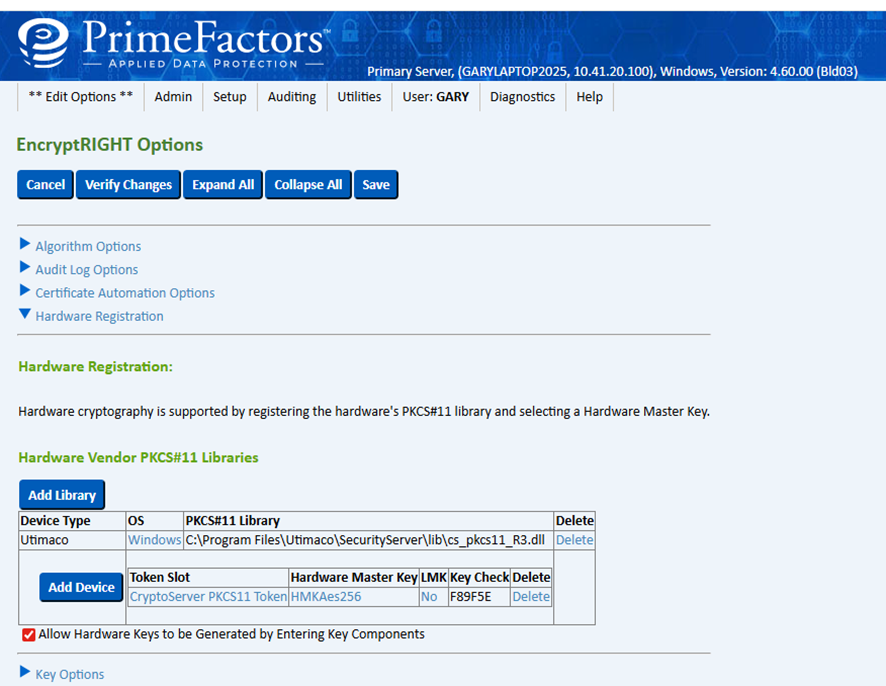
Hardware vendor PKCS#11 libraries
-
Press Save to save the configuration changes.