

SAP Sybase ASE supports internal key rotation only and does not natively support external HSM key rotation. A limitation was identified whereby SAP Sybase ASE does not allow generation of a new HSM key while an existing HSM key is already configured and actively referenced by the ASE server. As external HSM key rotation is not supported by SAP Sybase ASE, verification was therefore performed using the alternative approach. The database will initially encrypted using a Data Encryption Key (DEK) protected by a master key associated with the current HSM key, the database will be decrypted using the existing DEK. Then DEK, master key and HSM key will be removed from the ASE server respectively. Then a new HSM key, master key and DEK will be created respectively and the database will be re‑encrypted using the new DEK protected by the new master key associated with the newly created HSM key.
-
Decrypt the encrypted database:
ASE reads encrypted pages and decrypts them using the DEK then writes them back in plaintext.
1>use master
2>go
1>alter database tde_test decrypt
2>go
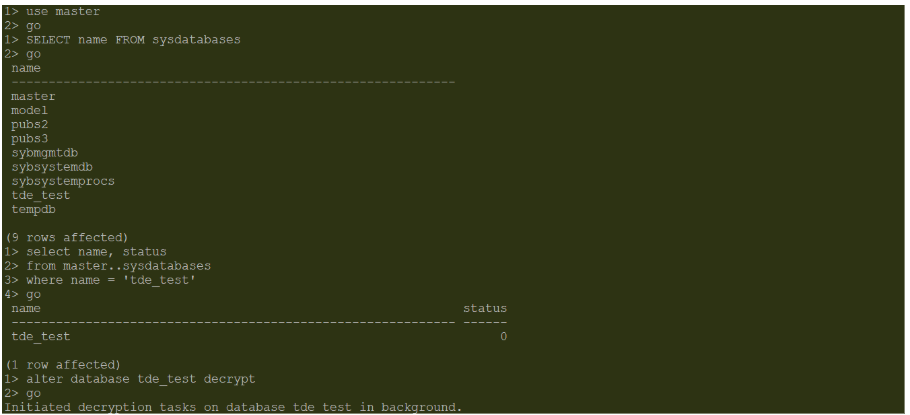
Database Decrypted
-
Drop the database encryption key (DEK):
The drop encryption key command is used to drop the encryption key. It deletes the database encryption key from the sysencryptkeys table in the master database.
1>use master
2>go
1>drop encryption key tde_key
2>go
1>sp_encryption helpkey
2>go
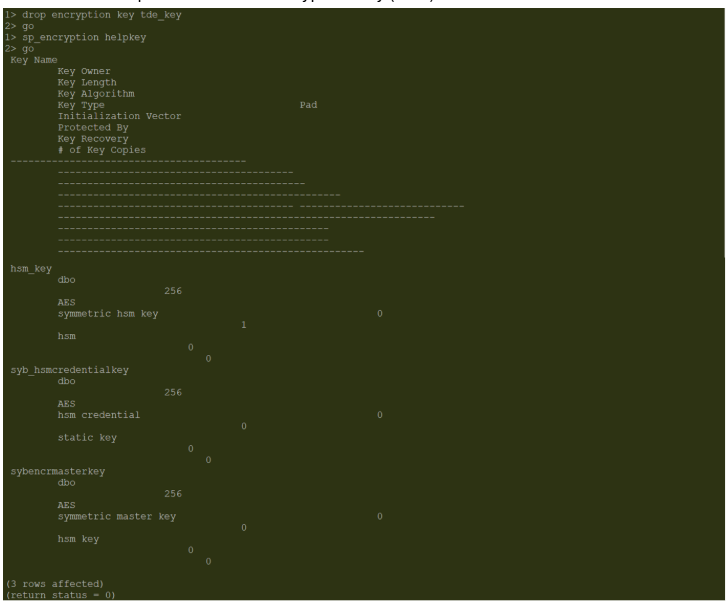
DEK Dropped
-
Drop the master key:
The drop encryption key command is used to drop the master key.
1>use master
2>go
1>drop encryption key master
2>go
1>sp_encryption helpkey
2>go
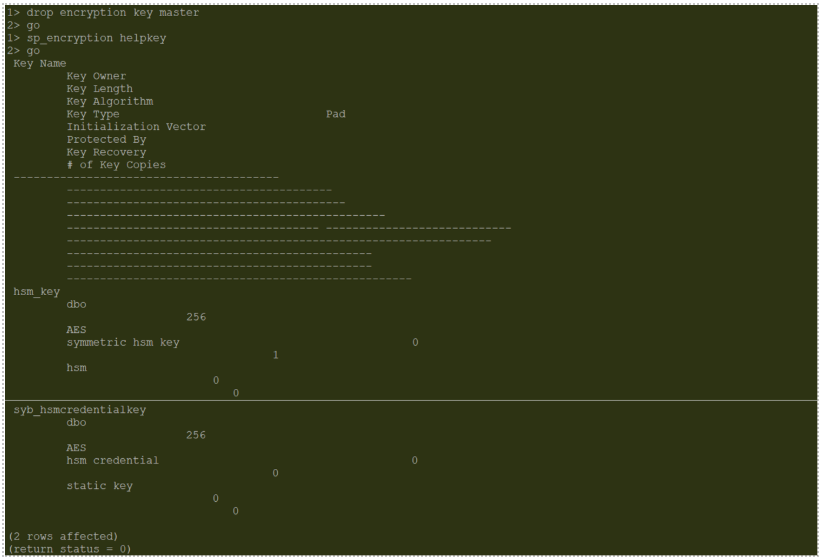
ASE Master Key Dropped
-
Drop the HSM key:
The HSM key 'hsm_key' will be dropped using drop encryption key command. The key will be removed from the HSM as well if we are using the cascade argument.
1>drop encryption key hsm_key cascade
2>go
1>sp_encryption helpkey
2>go
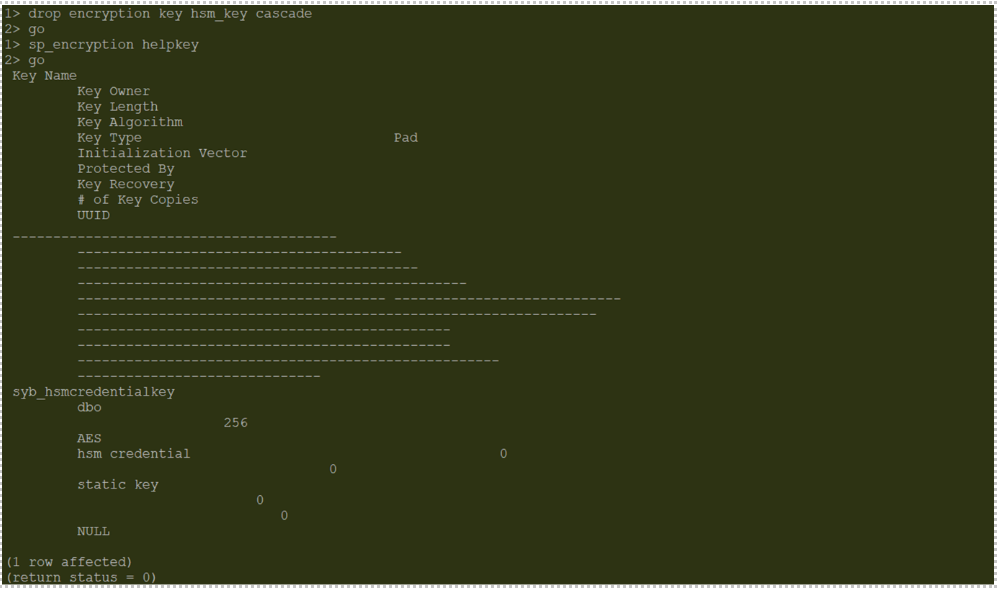
HSM Key Dropped
-
Create a new HSM key:
A new HSM key ‘hsm_new_key’ is created using create encryption key command.
1>create encryption key hsm_new_key on external keystore
2>with keylength 256 init_vector random
3>go
1>sp_encryption helpkey
2>go
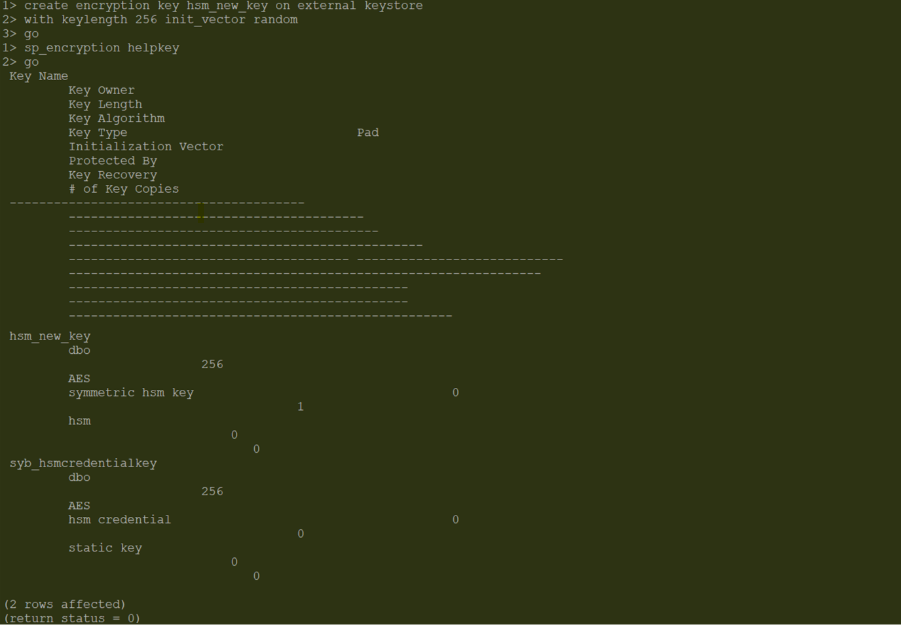
New HSM key ‘hsm_new_key’ Got Created
-
Verify the new HSM key in ASE Server:
1>sp_encryption helpkey,hsm_new_key
2>go
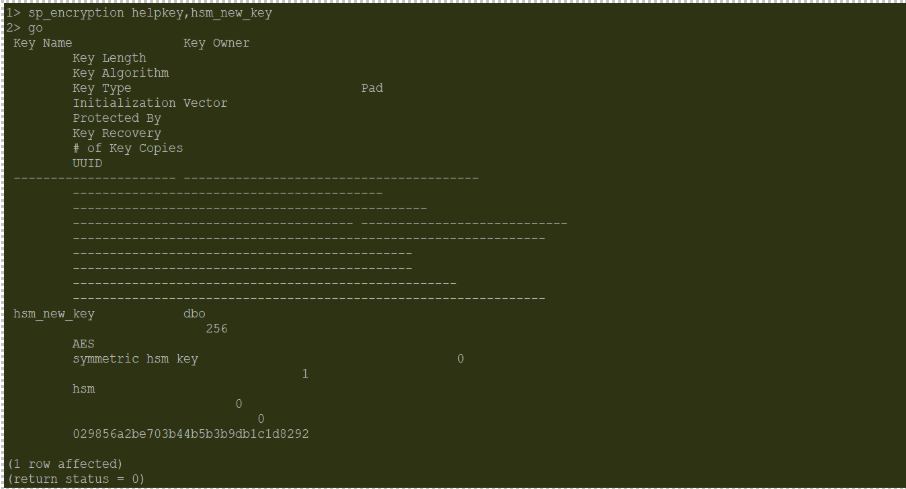
New HSM Key Available in ASE Server
-
Verify the new HSM key in HSM:
$./p11tool2 LoginUser=<Crypto User PIN> ListObjects
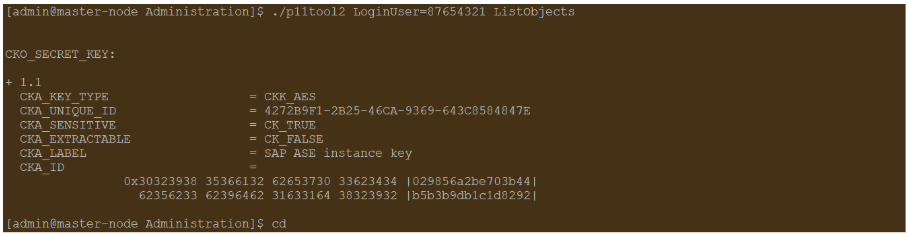
New HSM Key Update in HSM
-
Create a new Master key:
1>create encryption key master with external key
2>go
1>sp_encryption helpkey
2>go
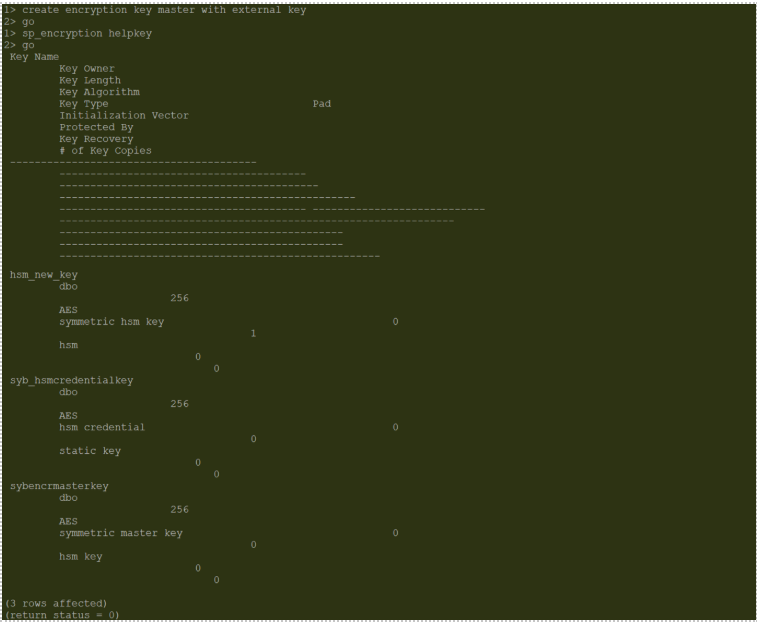
New Master Key Created
-
Create a Database Encryption Key (DEK) to encrypt the database:
1>create encryption key tde_key for database encryption
2>go
1>sp_encryption helpkey
2>go
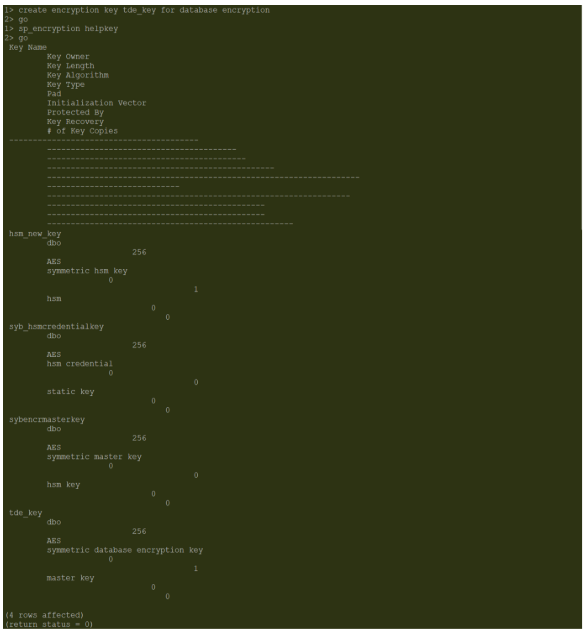
New DEK Created
-
Turn on the encryption for the database and verify the status of encrypted database:
Status of database encryption can be identified by running the dbencryption_status() built-in function. The status will be 0 if the database is not encrypted and status will be 1 if the database is encrypted.
1>alter database tde_test encrypt with tde_key
2>go
1>select dbencryption_status('status',db_id('tde_test')) as tde_status
2>go

Database Encrypted
-
Verify encrypted database ‘tde_test’ access after ASE server restart:
Shutdown the ASE server then restart the ASE server using startserver.
1>shutdown
2>go
$cd ASE-16_1/install
$/opt/sap/ASE16_1/bin/startserver -f RUN_SAP01
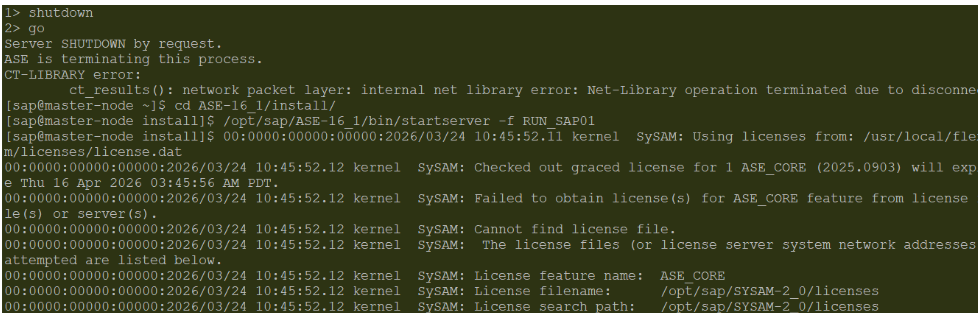
ASE Server Restarted
-
Verify encrypted database access after ASE server restart.
1>use tde_test
2>go
1>select * from emp_details
2>go
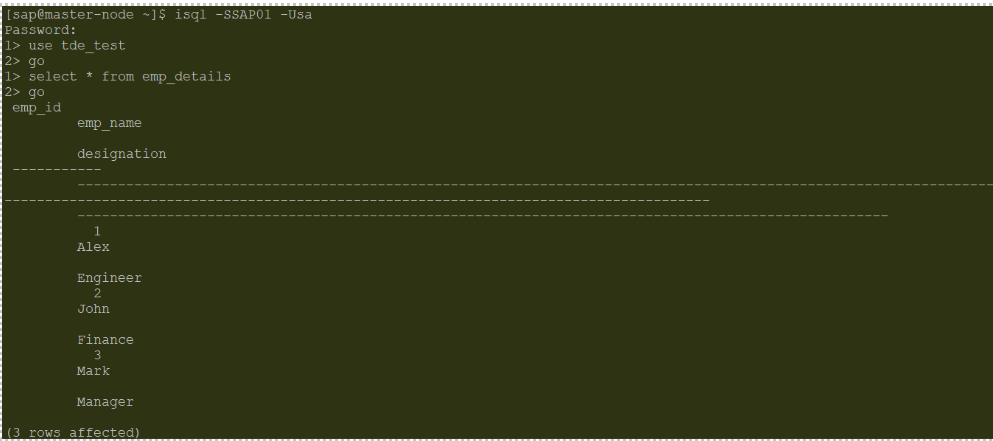
Encrypted Database Access