

-
Navigate to Licenses view from the left panel options.
-
Click on Activate License.

Activate License on IDcentral
-
Enter the Account Name and License Key provided by Sixscape. Click on Add License.
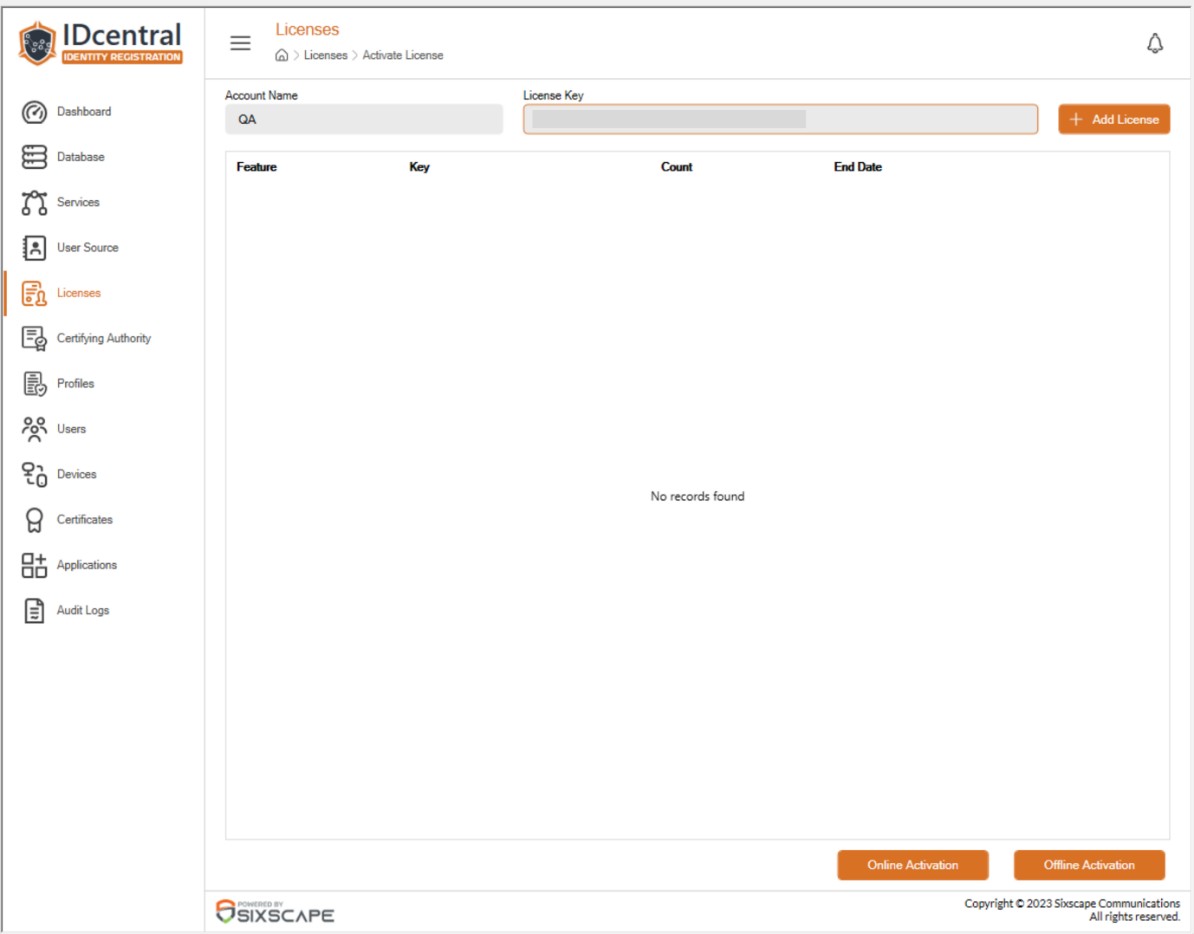
Add License window
-
The hardware token license with the relevant information is displayed. Select the license in the center panel and click on Offline Activation to generate the license request file for the selected license. Alternatively, the administrator can also try clicking Online Activation.
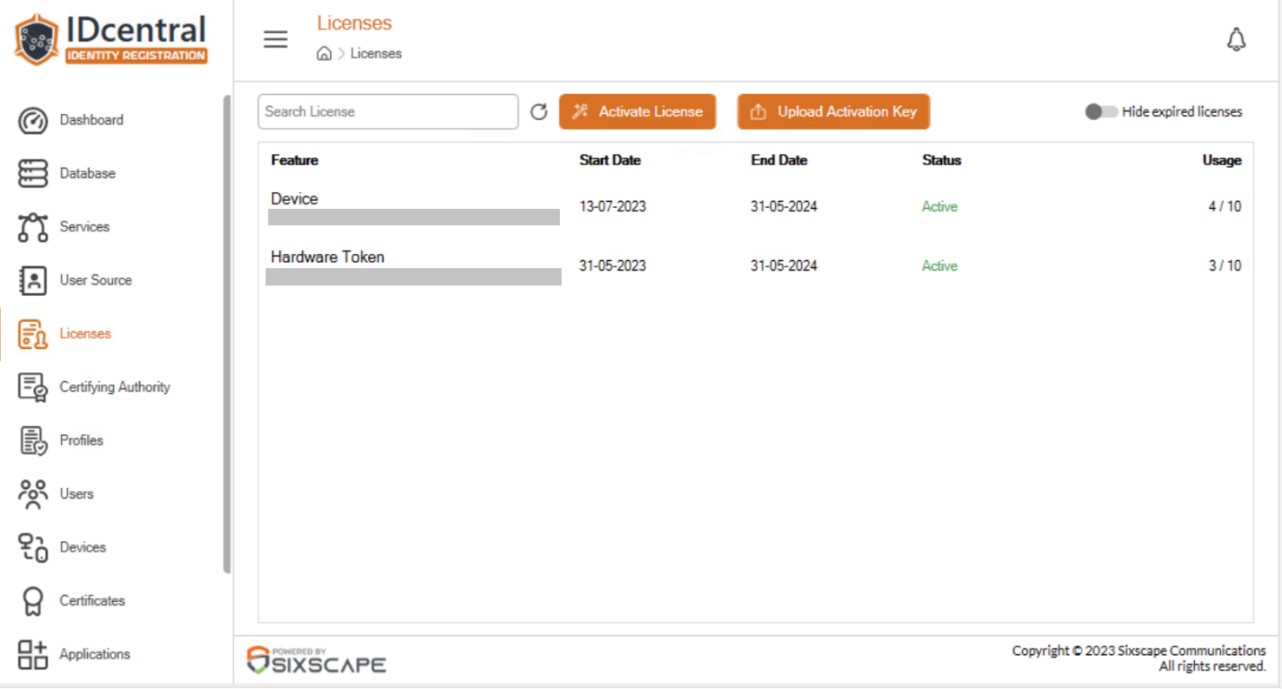
Offline Activation window
-
If you have chosen Offline Activation, the license request file will be generated in
C:\Users\Public\SixscapeCertManager\OfflineLicenses. Send the license request file to Sixscape for license activation. -
After receiving the license activation file from Sixscape, go back to the IDcentral console. Under Licenses, select Upload Activation Key.

Upload Activation Key in Licenses window
-
Browse to the license activation file from Sixscape.
-
After the license is activated, the license details will appear in the IDcentral management console.
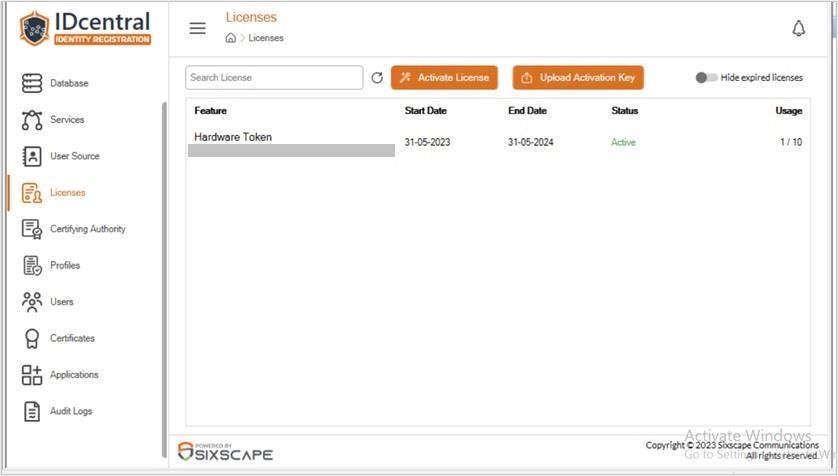
Verifying Activated License