

Now the CA has been set up to issue PGP User certificates, we can enroll it and one can create a key and request a certificate.
-
Open the
certmgr.mscfrom the locationC:\Windows\SysWow64. -
In the Microsoft Management Console that appears, right-click on the Personal folder and select All Tasks Request New Certificate…
-
Click Next, select Active Directory Enrollment Policy and then click Next. It will show the certificate template that has been configured, i.e. PGP User.
-
Click on Details and then Properties.
-
The Certificate Properties window will open. Select the Subject tab.
-
Select Common Name under Subject Name and provide the fully qualified domain name for the computer on which you are installing the certificate in the Value field. Click Add.
-
Click on General tab and provide the Friendly Name. For example, PGP User.
-
Click on Private Key tab, and ensure that RSA, Utimaco CryptoServer Key Storage Provider is selected as cryptographic service provider (CSP).
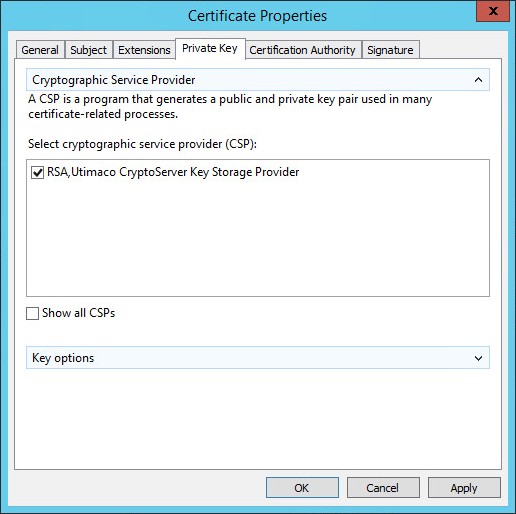
Certificate Properties
-
Click on Certificate Authority tab and make sure that Enterprise Root CA is selected.
-
Click Apply and then OK.
-
Select the PGP User certificate template and click Enroll.
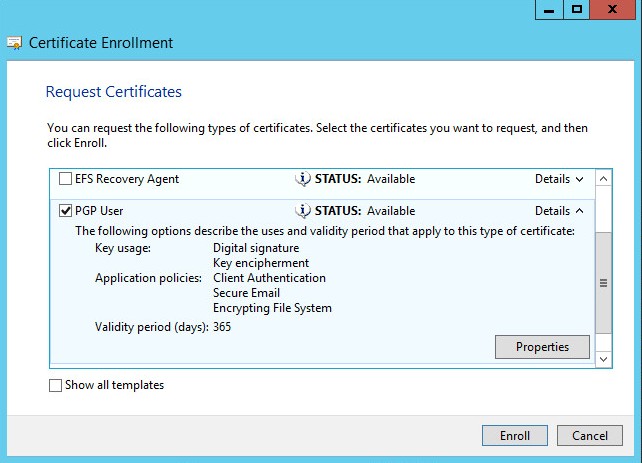
Certificate Enrollment
-
When enrollment has succeeded, click Finish.
-
Make sure that the PGP User certificate is now available in the Personal Certificate store.
-
Double click on the certificate and see the You have a private key that corresponds to this certificate message.
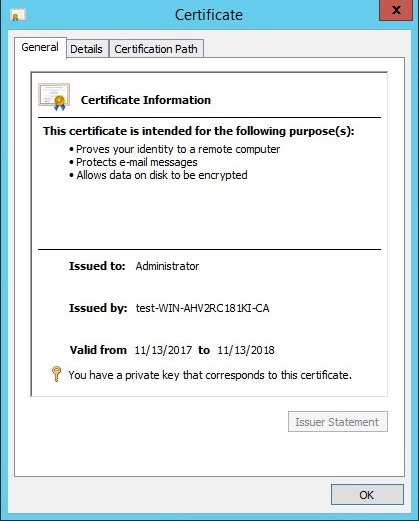
Certificate
-
The keys for this certificate have been generated on the CryptoServer. You can list the keys on the CryptoServer by means of invoking the cngtool ListKeys command from the command prompt.