

To set up the DKE Anchor Manager and DKE Anchor Service on Windows, follow these steps.
You must have Windows administrator rights to perform the installation.
-
Copy the
UtimacoDKEAnchor-1.0.2.msiyou downloaded from Utimaco Support portal to a appropriate location on the Windows Server. -
Run
UtimacoDKEAnchor-1.0.2.msiwith administrative privileges. Double-click onUtimacoDKEAnchor-1.0.2.msito start the installation process.
The Utimaco DKE Anchor Setup dialog will be displayed. -
Click on Next.
To change the default installation path, click on the Browse button and choose the desired installation location.
Click on Next.
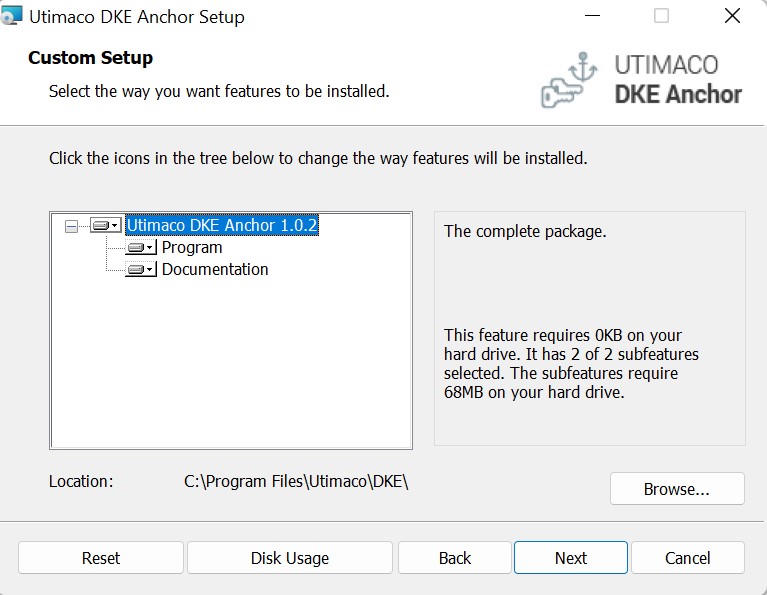
Windows Custom Setup dialog
-
In the Ready to install Utimao DKE Anchor dialog, click on Install to start installation process. When you’re prompted to allow this app from an unknown publisher, click on Yes.
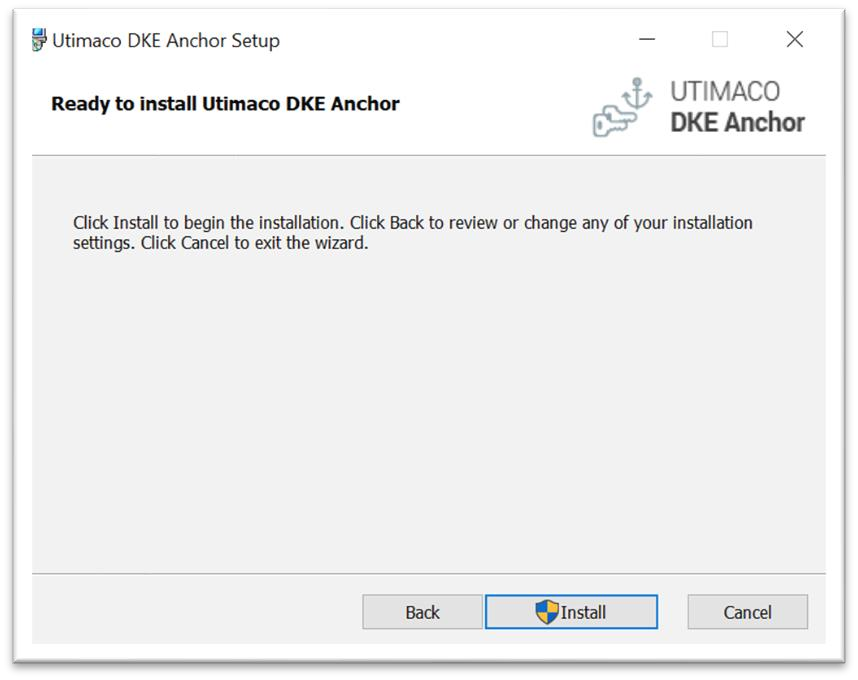
Windows Ready to Install dialog
-
Click on Finish to complete the installation.
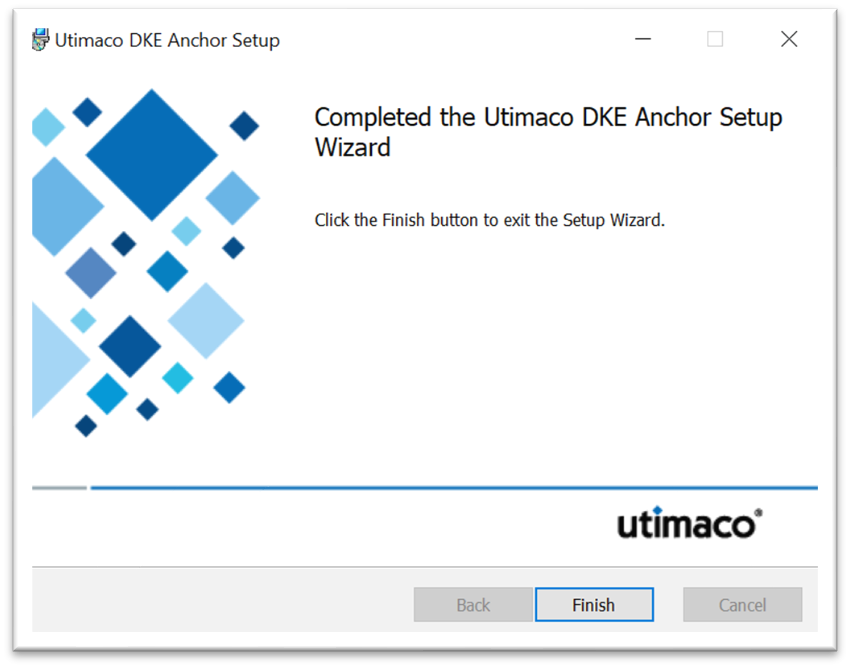
Windows Completed Setup Wizzard dialog
Shortcuts on the Windows desktop and entries in the Windows Program Menu are created:
-
Start Utimaco DKE Service
-
Stop Utimaco DKE Service
-
The Installation guide shortcut will only be available in the Program Menu if you selected the install option to add it.