

Service Startup and Integration Validation
Nginx Installation and Configuration
This section describes the installation and configuration of the Nginx web server, which is used to handle HTTP/HTTPS requests and assist in validating the Keyless SSL setup.
-
Install the Nginx package using the following command:
sudo dnf install -y nginx
-
Enable the Nginx service to start automatically on system boot, and start the service.
sudo systemctl enable nginx
sudo systemctl start nginx
sudo systemctl status nginx
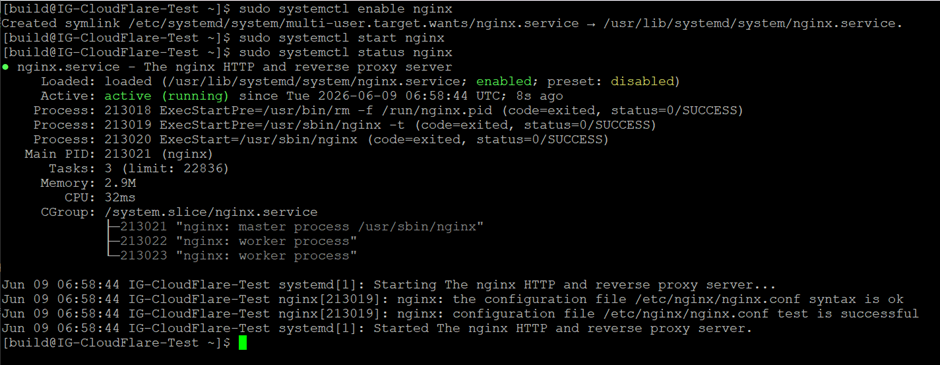
Starting and verifying nginx service
-
Open the required firewall ports to allow HTTP and HTTPS traffic.
sudo firewall-cmd --add-service=http --permanent
sudo firewall-cmd --add-service=https --per
-
Ports 80 (HTTP) and 443 (HTTPS) must be accessible to allow incoming client connections.
-
This ensures that the web server can receive traffic for testing and validation of the SSL setup.
-
Verify that Nginx is successfully listening on the required ports.
ss -tulnp | grep -E '80|443'
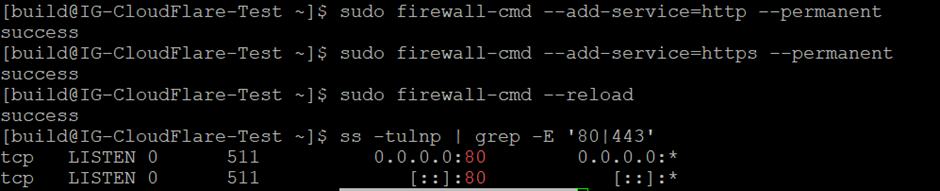
Firewall configuration and verification of HTTP/HTTPS ports
GoKeyless Service Setup and Initialization
This section describes the creation of a systemd service for the GoKeyless server and the steps required to start, enable, and verify the service. Configuring GoKeyless as a system service ensures it runs consistently and starts automatically during system boot.
-
Create
systemdservice for GoKeyless.
sudo nano /usr/lib/systemd/system/gokeyless.service
Add the following configuration:
[Unit]
Description=gokeyless daemon
After=network.target

[Service]
Type=simple
User=gokeyless
Group=gokeyless
WorkingDirectory=/etc/keyless
ExecStart=/usr/bin/gokeyless

[Install]
WantedBy=multi-user.target
-
Reload
systemdconfiguration.
sudo systemctl daemon-reexec
sudo systemctl daemon-reload
-
Enable and start the GoKeyless service.
sudo systemctl enable gokeyless
sudo systemctl start gokeyless
-
Verify service status.
sudo systemctl status gokeyless
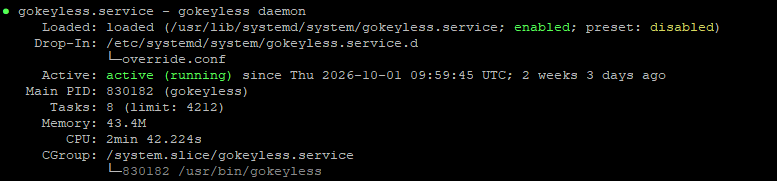
Monitoring GoKeyless daemon status
Logs and Validation Steps
-
Run the following command to verify the GoKeyless log verification.
journalctl -u gokeyless -f
Logs:
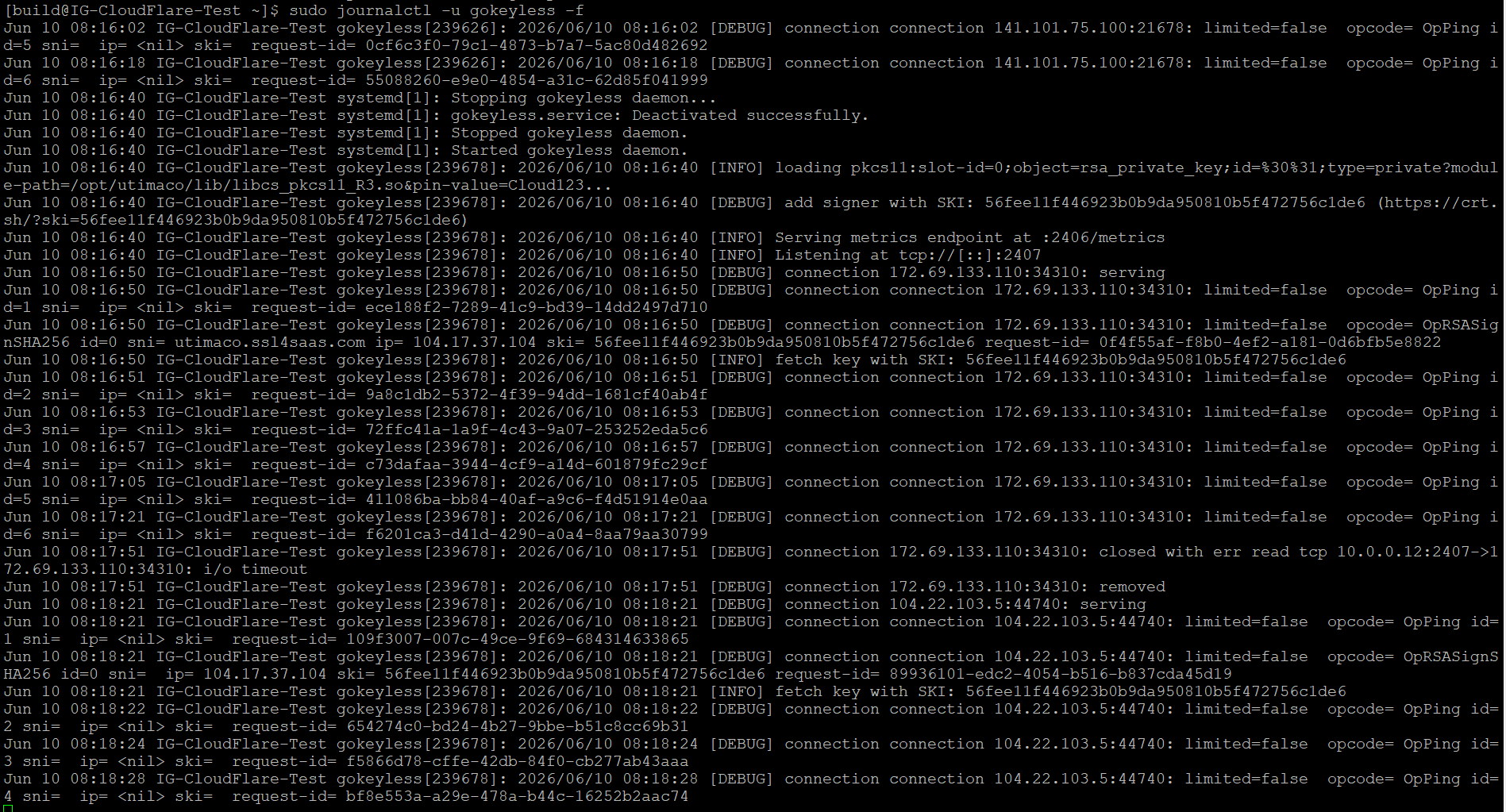
GoKeyless logs
curl -v https://utimaco.ssl4saas.com
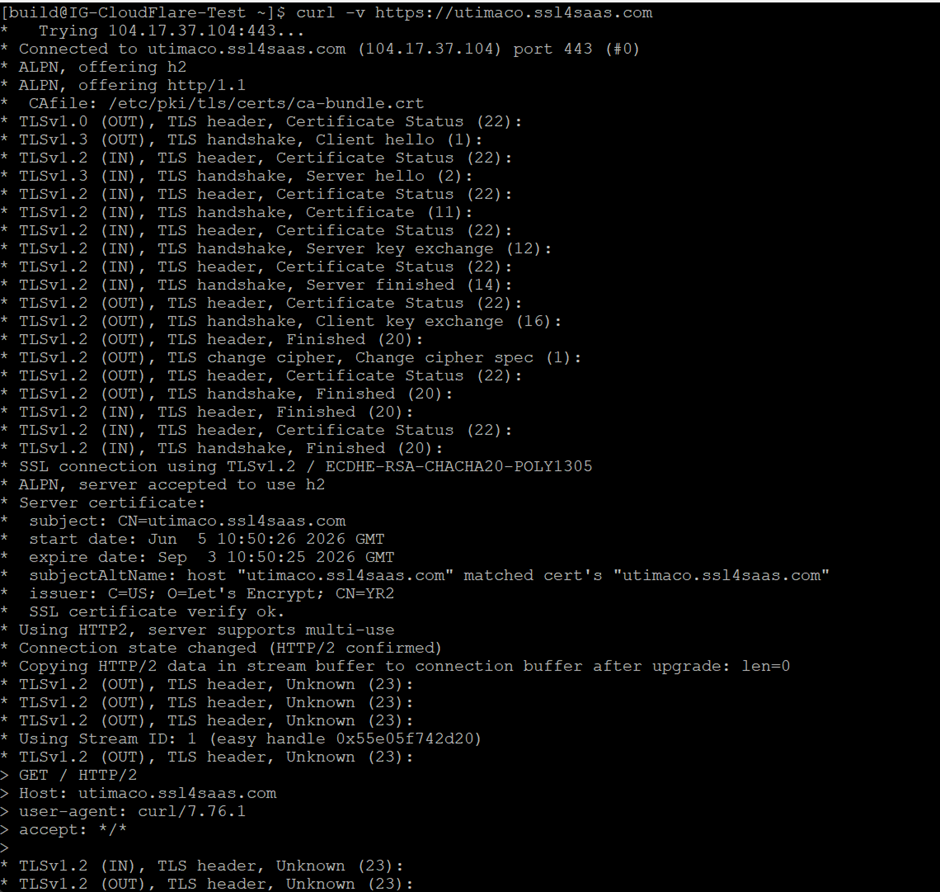
TLS handshake and server response validation using curl command
Note: GoKeyless v1.18 accepts only TLS 1.2 connections on the key server interface (port 2407). TLS 1.3 connection attempts are expected to fail during the handshake. Successful Cloudflare-to-GoKeyless communication uses TLS 1.2 with mutual TLS authentication.