-
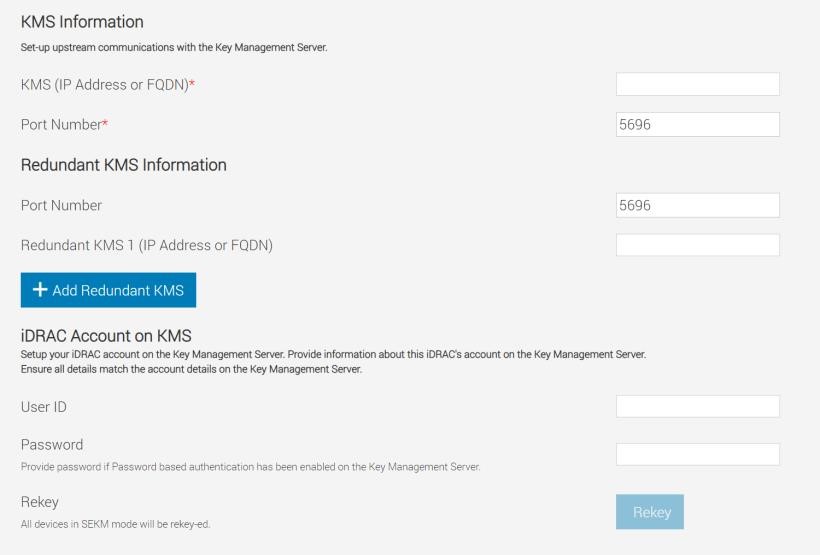
Enter or select data in the fields, and then click Apply
Make sure you already have a user created on the KMS you will be using for key exchange with the iDRAC. For the username, ensure it matches the exact value in the CSR certificate property you selected for the ESKM KMIP Username field in client certificate Authentication Settings.
For example, in the signed CSR Certificate on iDRAC used in this experiment, the Common Name property is set to “R840_18R5QM2”. On the ESKM server, in the KMIP Authentication Settings, the “Username field in client certificate” field is set to “Common Name”. For creating a username on ESKM, you must create a user with the name “R840_18R5QM2”. This is the user which iDRAC will be using for key exchange.
-
Provide the username and password which you created on ESKM in the User ID and Password fields below
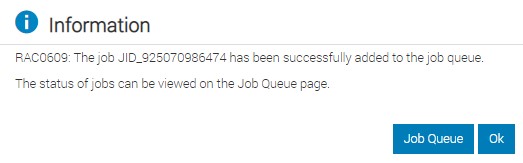
A message is displayed indicating that a job ID has been created
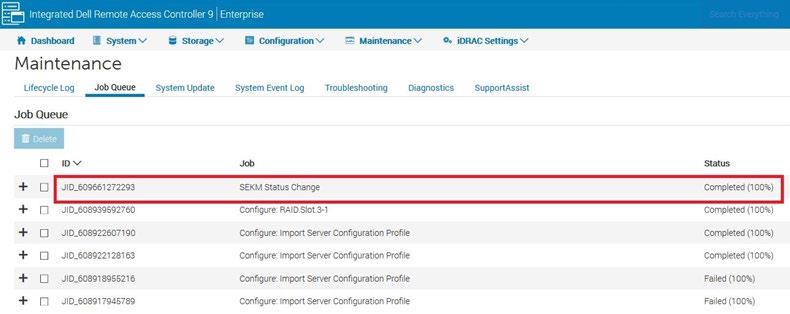
3. Go to the Job Queue page and ensure that the job ID is marked as successfully completed. If you see any job status failures, view Lifecycle Logs for more information about the failure. iDRAC SEKM configuration with Utimaco is now complete