

We must create “temporary credentials” on the ESKM for the iLO to authenticate and execute the enrollment steps.
-
Log in to the ESKM Management Console using the admin username and the password.
-
Go to Security > Users & Groups > Local Users.
-
Click on ADD.
-
Create a local user with the username “ilo_reg_user”
-
Enable “User Administration Permission” to allow this user to create other client users.
-
Enable “Change Password Permission” to allow this user to change client user passwords.
-
Uncheck “Enable KMIP” and leave this field blank.
-
Do not assign this user to any User group. It must remain stand-alone.
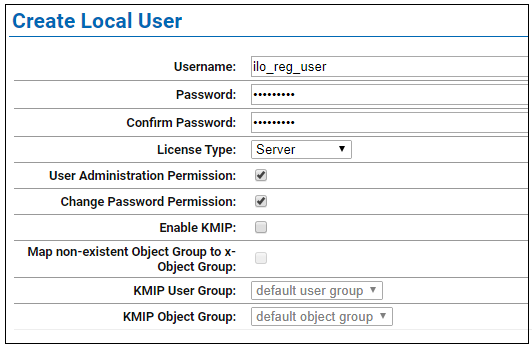
Create Local User
-
Go to Security > Users & Groups > Local Groups.
-
Click on ADD.
-
Create a user group that lists all servers under the “Group” that serves the same applications or function.
-
Group: “FinanceGroup”, for the servers used by Finance applications, for example
-
Group Type: ESKM.
-
Utimaco recommends grouping ProLiant Servers based on organizational unit/department.
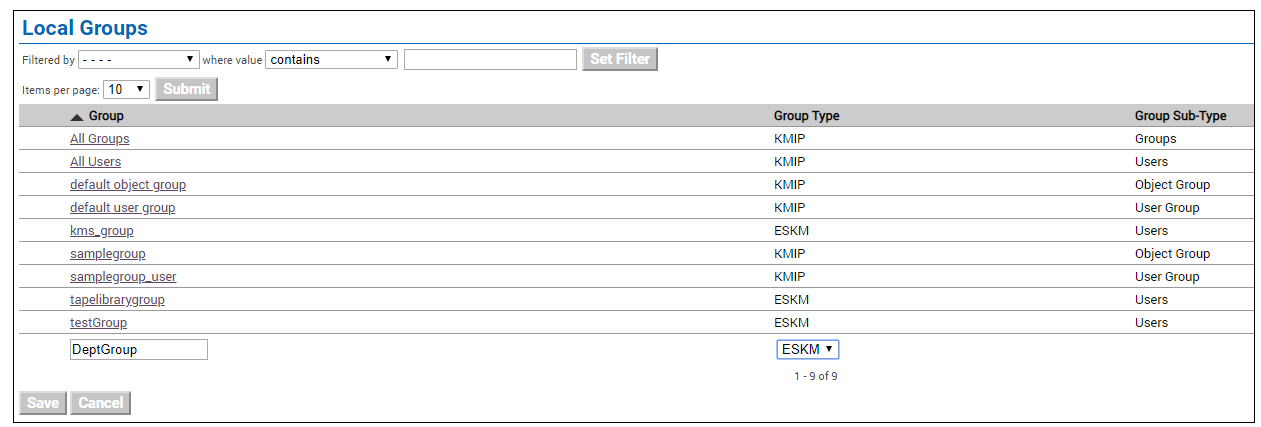
Local Groups
-
Click on Save.
-
Go to Security > Keys & KMIP Objects > Create Keys.
-
Create a Key that will be used as a “master key” to encrypt “drive keys”.
-
Key Name: “FinanceMasterKey”, for example, or some preferred name.
-
Owner Username: ilo_reg_user.
-
Key Type: ESKM.
-
Algorithm: AES-256.
-
Exportable: Enable.
-
Owner Username is the master user created earlier.
-
Click on Create.
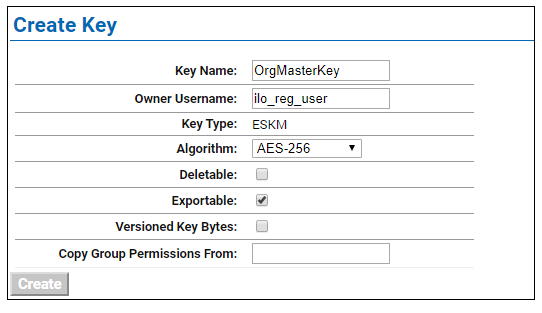
Create Key
-
Assign the master key to the group that was previously created.
-
Run a Key Query in the ESKM
-
Find the key that you created in step 10.
-
Click on the key to view its properties.
-
Under “Group Permissions”, add the group to which this key is going to be a part of.
-
Export: select “Always”.
-
Full: select “Always”.
-
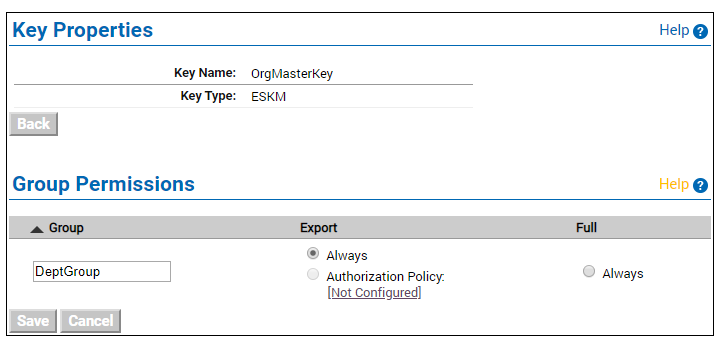
Group Permissions
-
Click on Save.