

-
Click the Manage keys icon in the cloud instance and select Delete from the drop down.
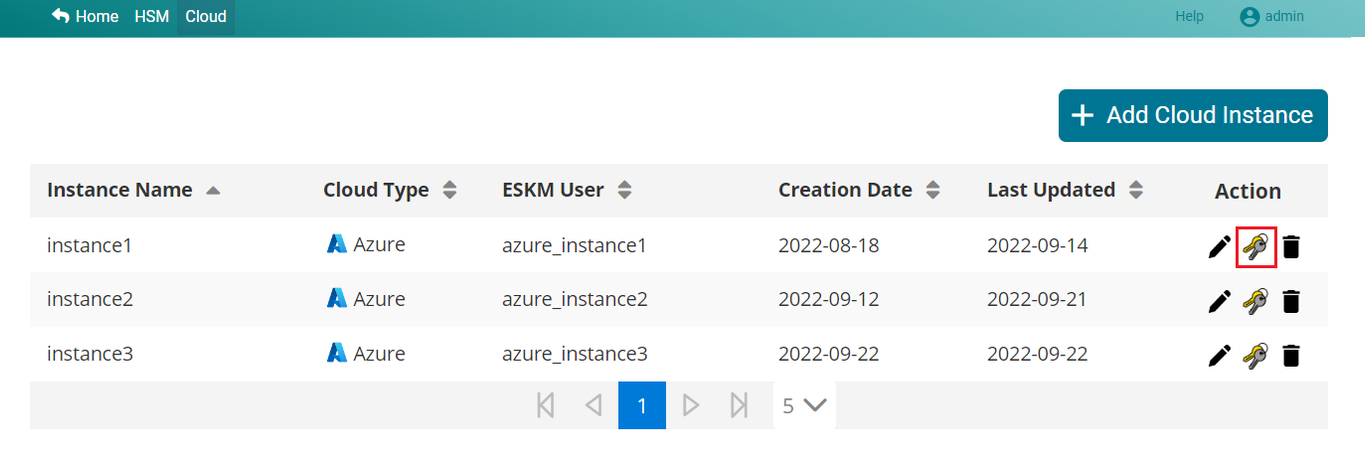
Manage Keys
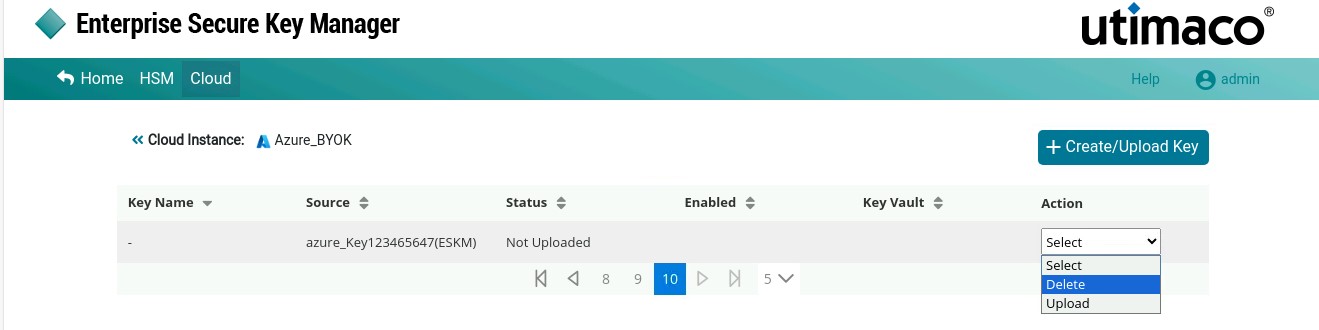
Delete Keys
-
If the selected key is uploaded and is not associated with any other instance, a pop-up window will appear with a message “Are you sure you want to delete key (Key987654321) from instance1 (Azure) ?”.
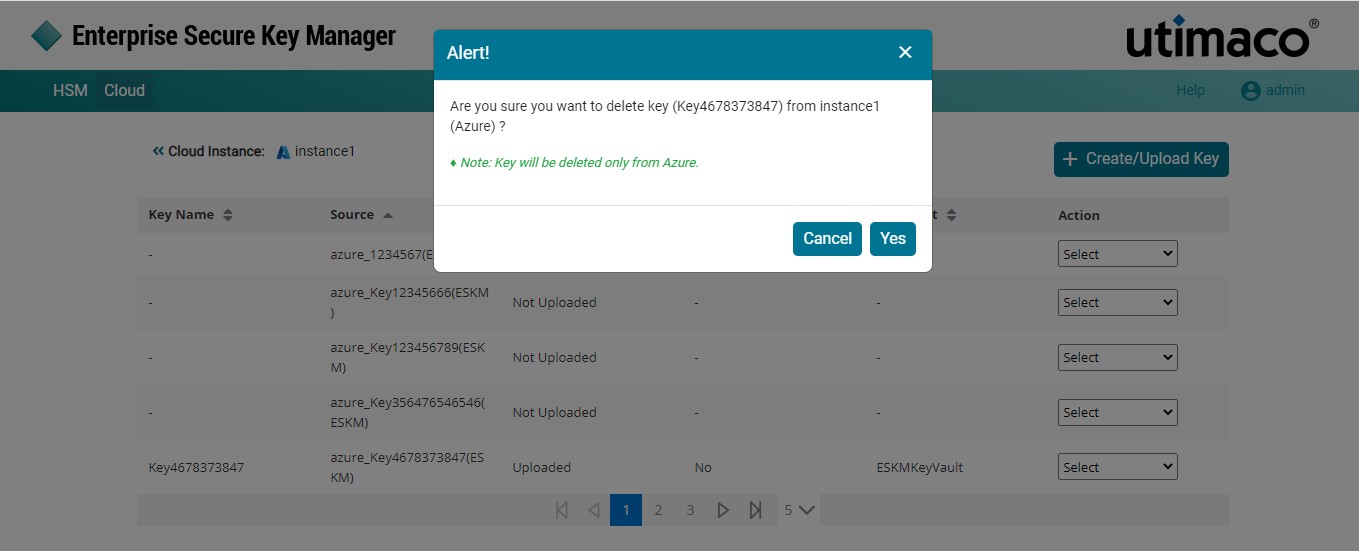
Delete Key from Cloud
a. Click Yes and the key will be deleted from the cloud.
-
If the key is uploaded and associated with another instance, a pop-up window will appear with a message “ Are you sure you want to delete key (azurekey15) from instance1 (Azure) ?”.
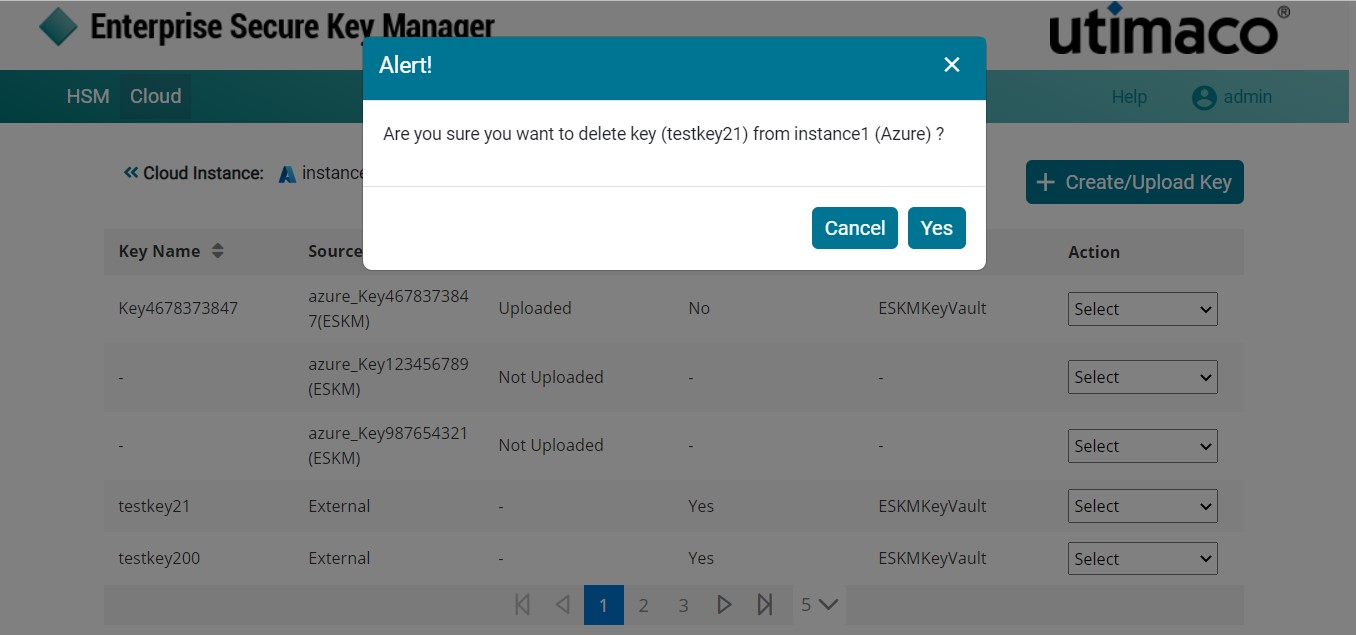
Delete External Key from Cloud
a. Click Yes and the key will be deleted from Cloud.
-
If the selected key is not uploaded and is not associated with another instance, a popup window will appear with a message “Are you sure you want to delete key [azure_11] from ESKM ?”.
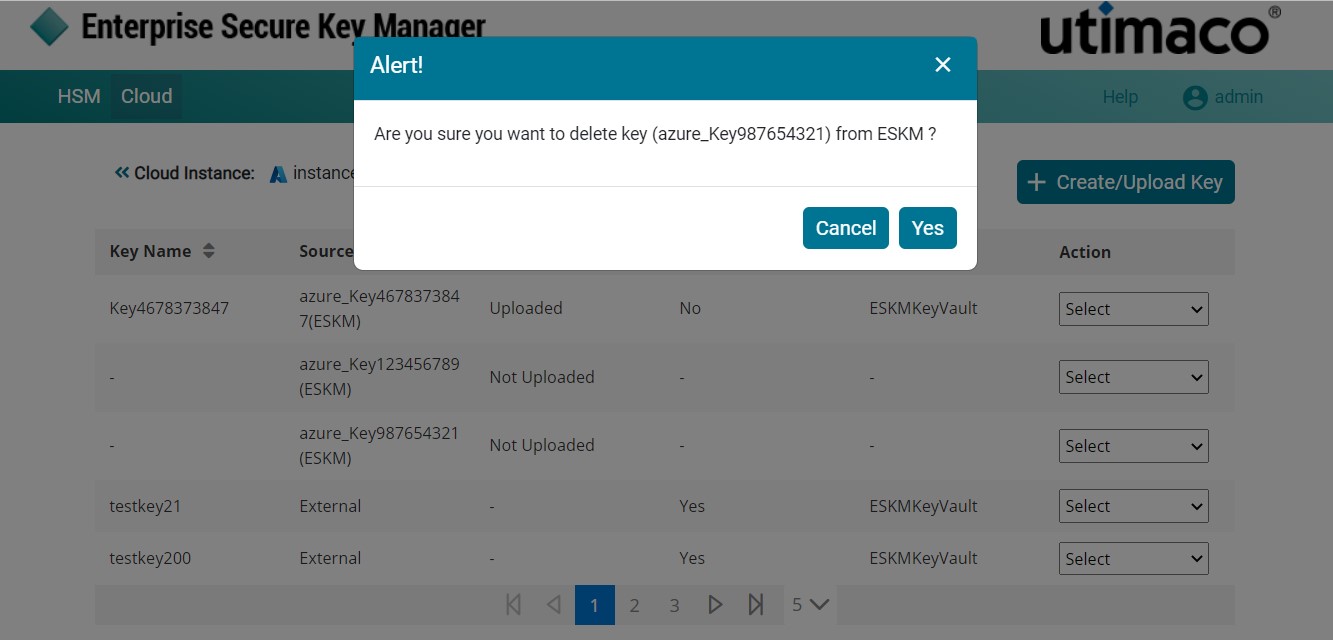
Delete key from ESKM
a. Click Yes and the key will be deleted from ESKM.
Cloud Instance key [key name] removed successfully from instance1 [Azure].