

This section describes the procedure to upload existing Keys from Utimaco ESKM to Microsoft Azure Cloud.
To upload existing key
-
Click the Manage Keys icon to view keys list available in the cloud instance.
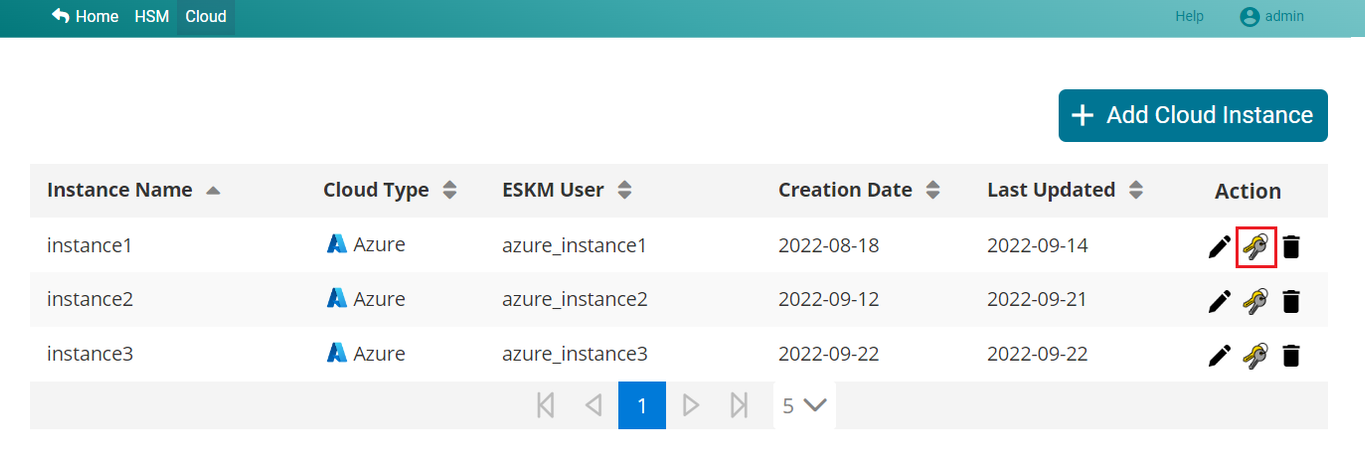
Manage Keys
-
Click +Create/Upload Key button at the top right corner of the page.
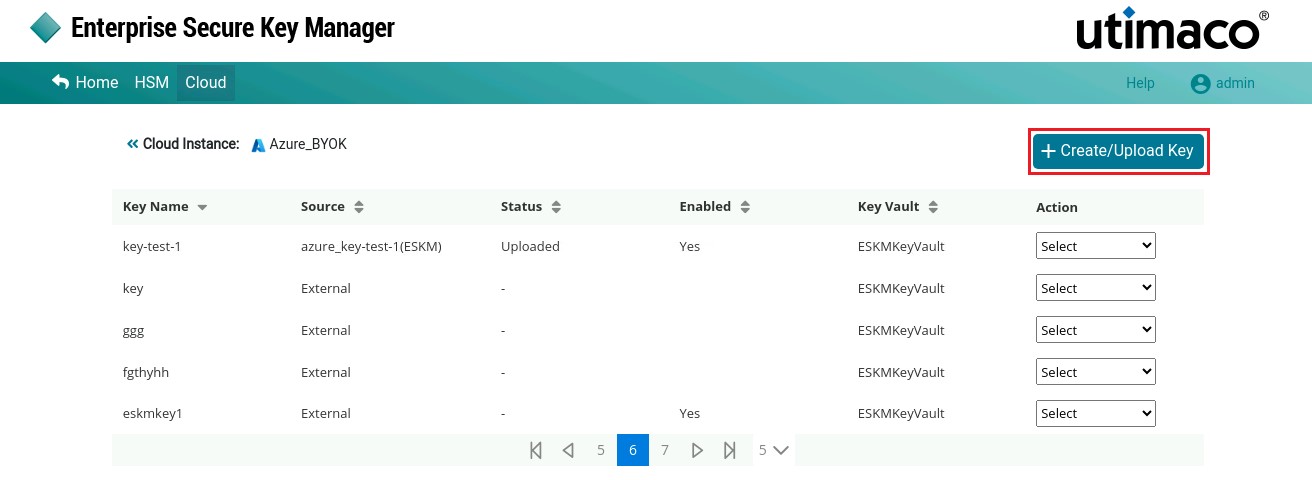
Keys List
-
Choose “Select Existing Key” option to upload existing keys to the Cloud Instance.
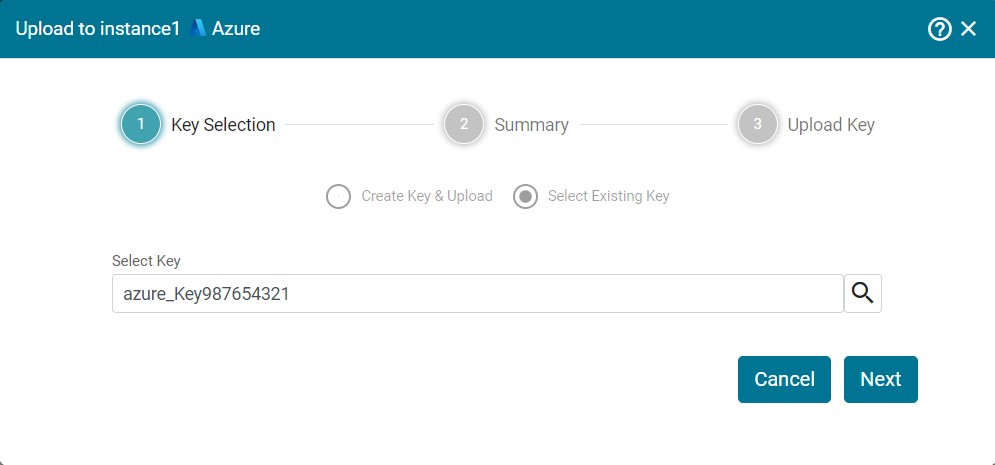
Select Existing Key
-
Search for and select Key that you want to upload. Click Next.
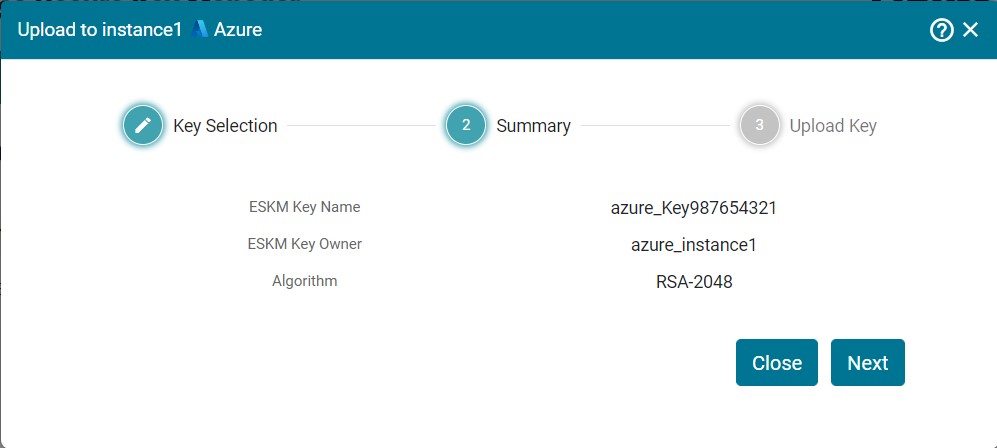
Review Summary
-
Now, you will be navigated to the Summary section. Review Summary and click Next.
-
Enter the details such as Key Vault Name, Key Vault, Enabled, Activation Date and Expiration Date. Click Upload.
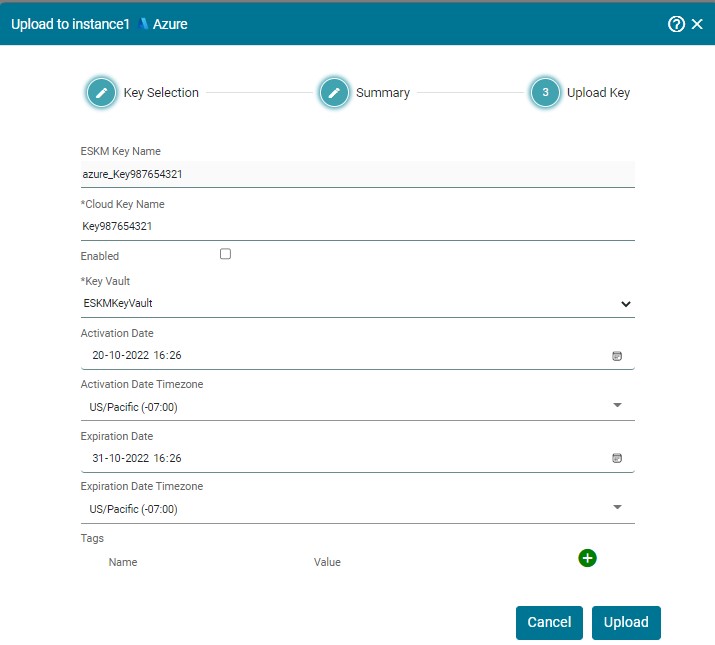
Upload Existing Key
Key [Key987654321] has been successfully uploaded to instance1 [Azure].