

-
Open Run and use certlm.msc command
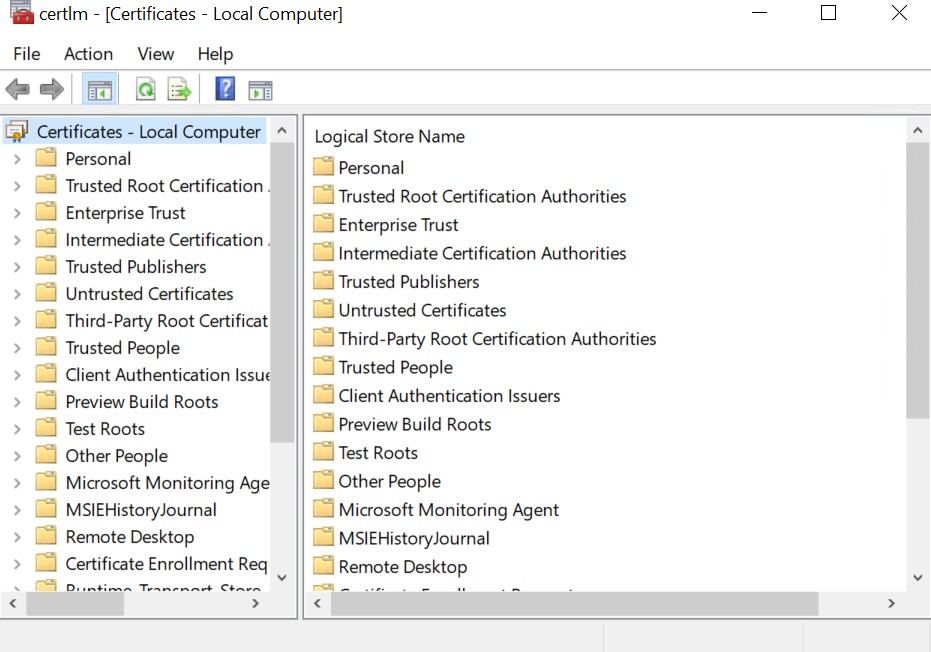
Figure 9: Local Computer – Certificates
-
Right click on Personal → All Tasks → Advanced Operations → Create custom requests
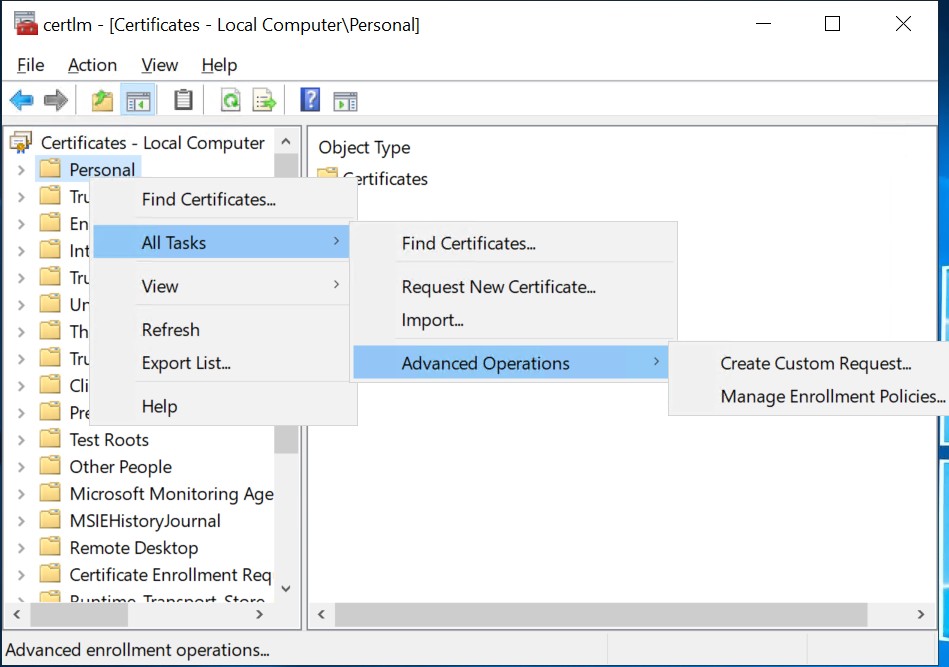
Figure 10: Create Custom Request
-
Click next button on Before you begin wizard screen
-
Select next on Select Certificate Enrollment Policy wizard
-
On Custom Request wizard use Template (No Template) CNG Key and Request format PKCS #10 and click next
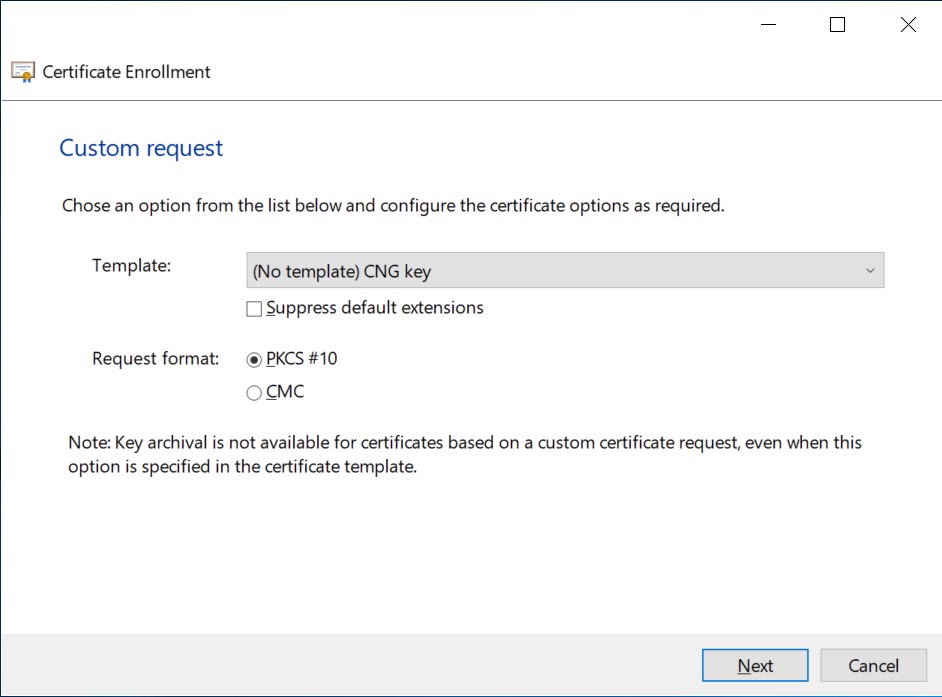
Figure 11: Certificate Enrollment - Custom request
-
Select details and click on Properties button
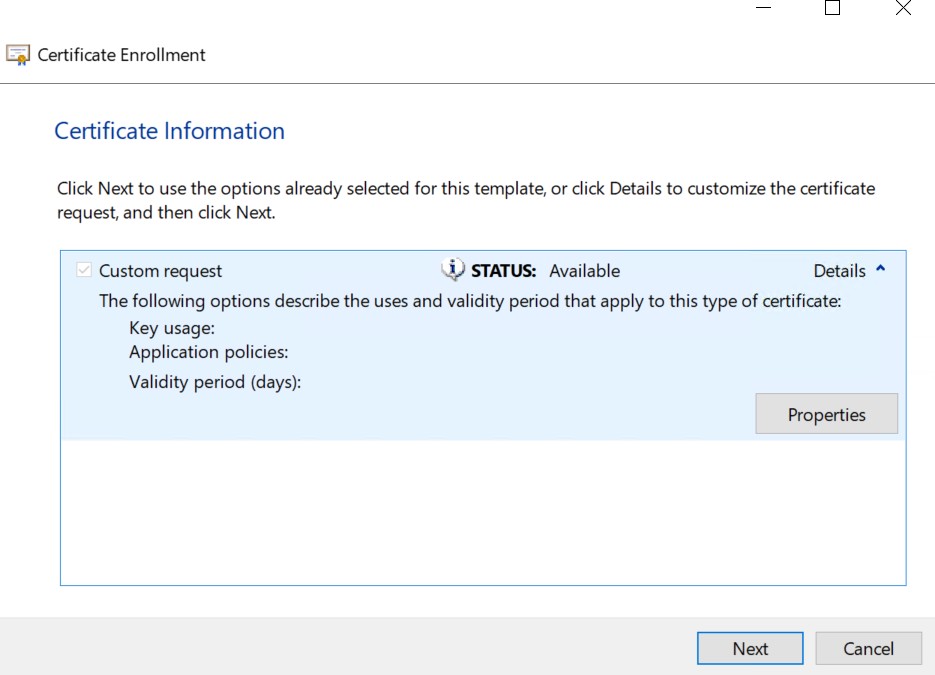
Figure 12: Certificate Information
-
On Certificate Properties Assign Friendly name and Description
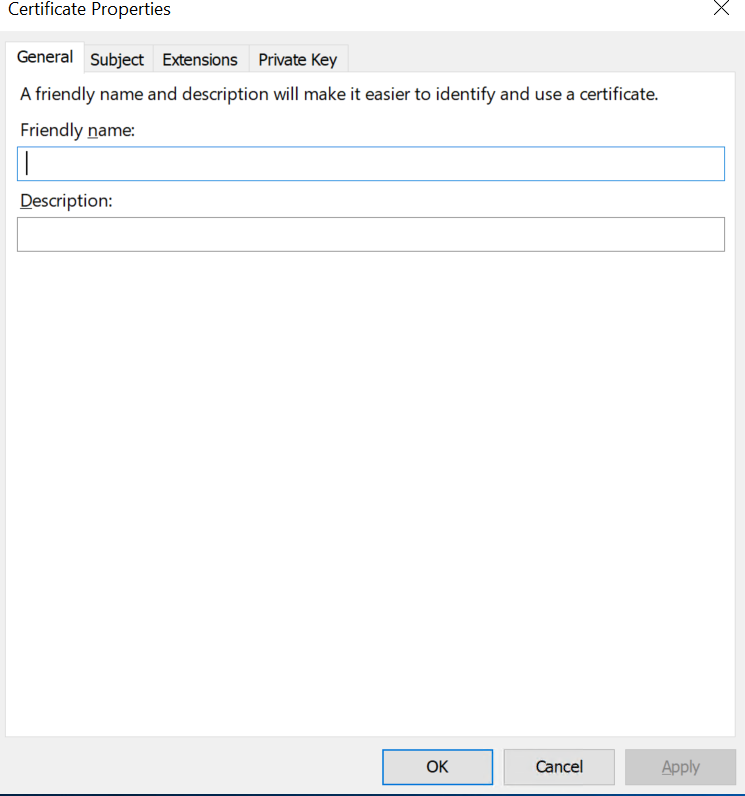
Figure 13: Certificate Information
-
On Subject tab select Subject Name Type and enter information for Full DN, Common Name, Country, Email, Given Name, Locality, Organization, Organization Unit, State etc.,
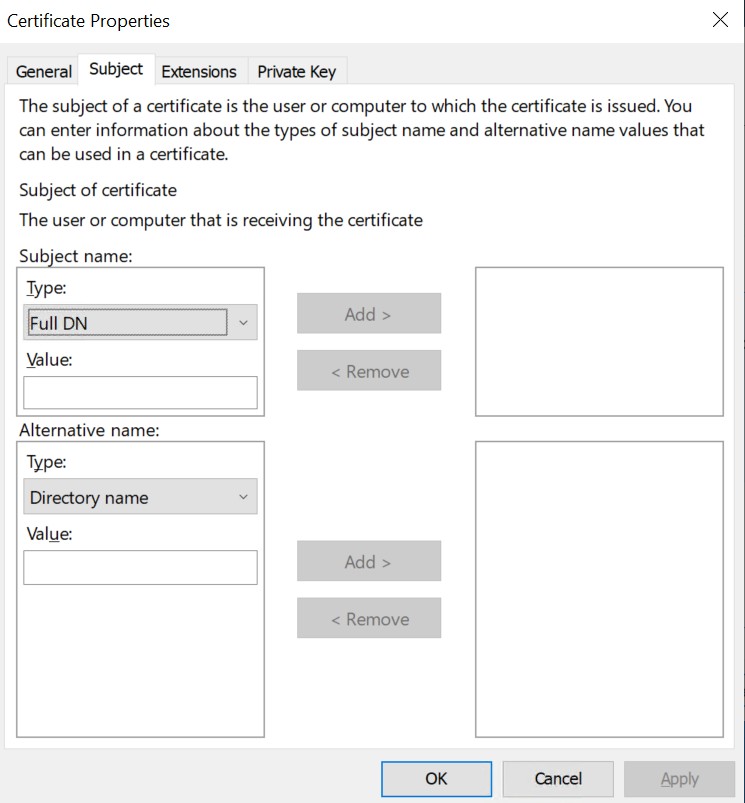
Figure 14: Certificate Properties – Subject
-
On Private Key Tab Click on Cryptographic Service Provider and unselect the RSA, Microsoft Software Key Storage Provider and Select RSA, Utimaco CryptoServer Key Storage Provider
-
On select Hash Algorithm select sha256
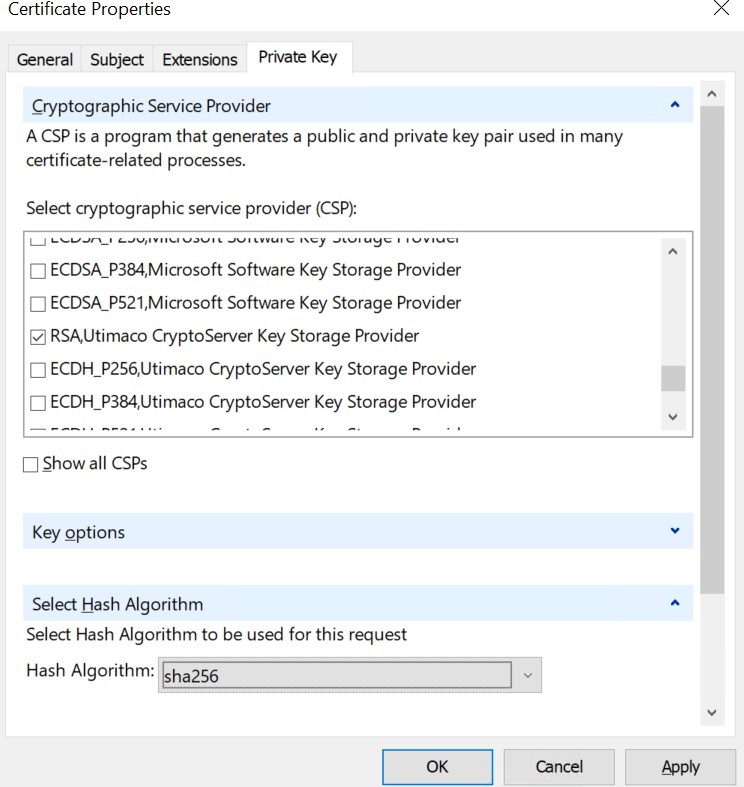
Figure 15: Certificate Properties - Private Key
-
Click Apply and OK
-
Check on HSM using below command that Certificate/Key is generated
|
›_ Console |
|
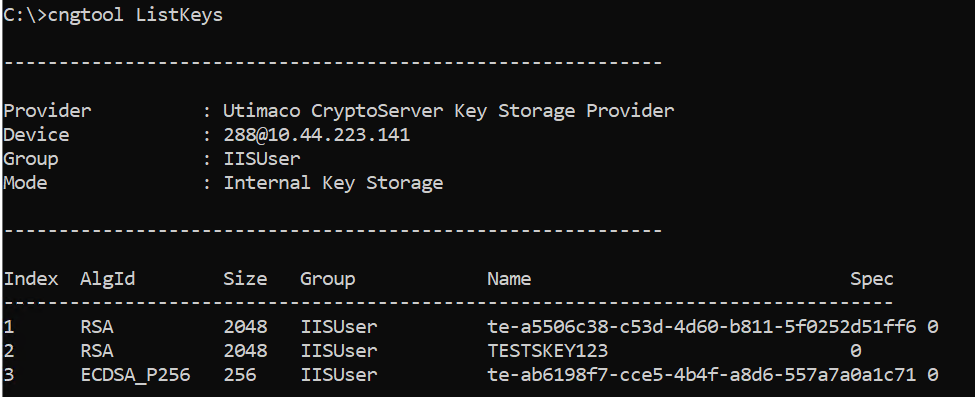
Figure 16: Key Listing