

Generate a Signing Certificate
1. Generate the key pair using the below p11tool2 command.
p11tool2.exe Slot=0 LoginUser=<passcode> PubKeyAttr='CKA_LABEL="jk_public_key",CKA_MODULUS_BITS=2048,CKA_ID="01"' PrvKeyAttr='CKA_LABEL="jk_private_key",CKA_EXTRACTABLE=CK_TRUE,CKA_ID="01"' GenerateKeyPair=RSA
-
Verify that the keys are generated.
p11tool2.exe LoginUser=<passcode> ListObjects
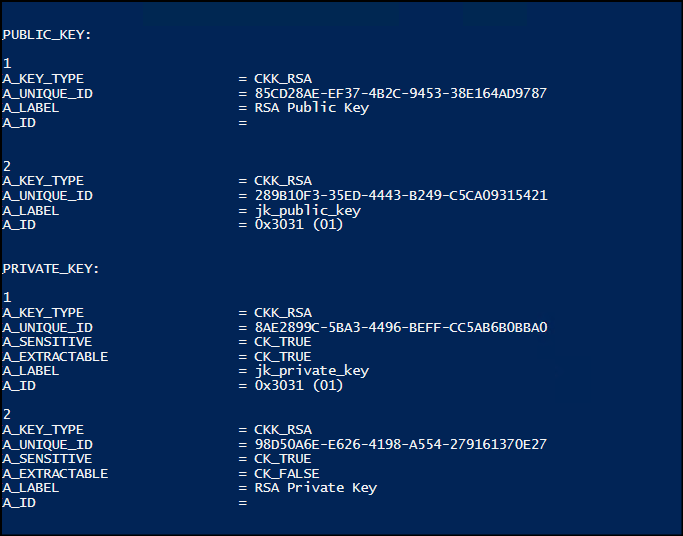
Generated keys displayed
-
Generate a certificate signing request using the HSM-based private key.
p11tool2.exe Slot=0 LoginUser=<passcode> PubKeyAttr=CKA_LABEL="jk_public_key",CKA_MODULUS_BITS=2048,CKA_ID="01" PrvKeyAttr=CKA_LABEL="jk_private_key",CKA_EXTRACTABLE=CK_TRUE,CKA_ID="01" Mech=CKM_SHA256_RSA_PKCS DN="O=Utimaco,CN=Utimaco JCode Signing" ExportP10=testhsm_js.csr

openssl req -in "<path>\testhsm_js.csr" -text -noout
This command generates a CSR using an RSA key pair stored in the HSM by specifying key
attributes, authentication details, and the required certificate subject information.
DN="O=Utimaco,CN=Utimaco JCode Signing"
Defines the subject name for the CSR:
O → Organization name (Utimaco)
CN → Common Name (name associated with the code-signing certificate subject)

CSR generated
-
Submit the generated Certificate Signing Request (CSR) to a trusted Public Certificate Authority (CA) to obtain a signed certificate. Store the signed certificate in JSign environment.
The choice of Certificate Authority and certificate lifecycle management (renewal, revocation, etc.) should align with organizational security policies.
-
Convert the signed certificate to an HSM supported format and import to HSM.
 openssl x509 -in "<path>\testhsm_js.cer" -outform DER -out "<path>\testhsm_js.der"

 p11tool2.exe Slot=0 LoginUser=<passcode> CertAttr='CKA_LABEL="jk_private_key",CKA_ID="01"' ImportCert="<path>\testhsm_js.der"
-
Verify the imported certificate available in HSM.
p11tool2.exe LoginUser=<password> ListObjects

Imported certificate displayed in HSM
Create a Self-Signed Certificate
1. Use the following Java keytool command to generate an RSA key and certificate through the Utimaco PKCS#11 provider. The private key and self-signed certificate will be stored in the HSM.
keytool -genkeypair -alias <key label> -keystore NONE -storetype PKCS11 -storepass <passcode> -keyalg RSA -dname "CN=Utimaco Code Signing,O=Utimaco,L=Aachen,C=DE" -providerClass sun.security.pkcs11.SunPKCS11 -providerArg "C:\Tools\jsign\utimaco-pkcs11-java.cfg"
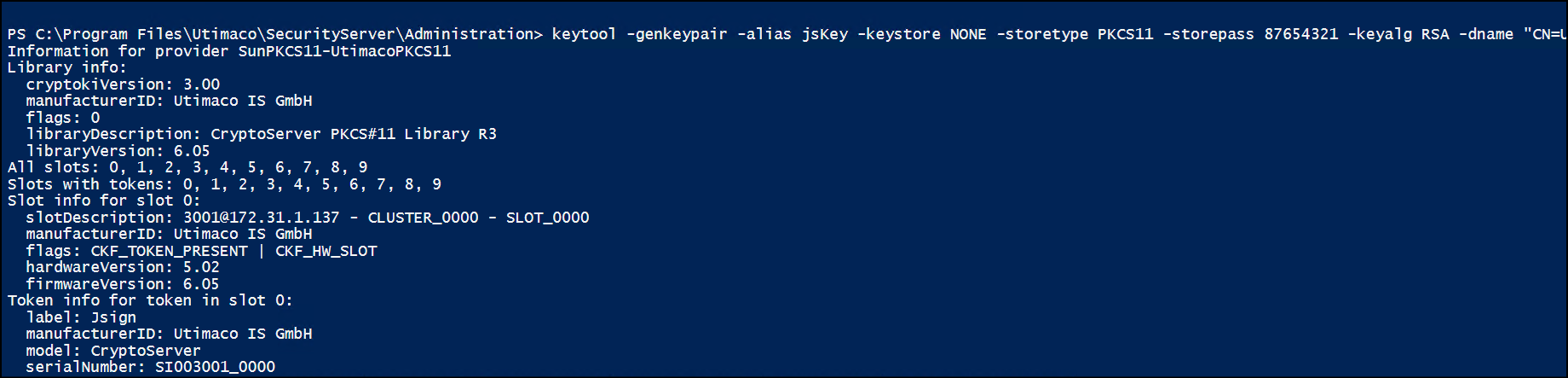
Self-signed certificate created
-
Use the command below to connect Java Keytool directly to the HSM via PKCS#11, and list the keys and certificates available in the token. Upon successful execution get a response as “Your keystore contains <n> entry”.
keytool -list -keystore NONE -storetype PKCS11 -storepass <passcode> -providerClass sun.security.pkcs11.SunPKCS11 -providerArg "C:\Tools\jsign\utimaco-pkcs11-java.cfg"
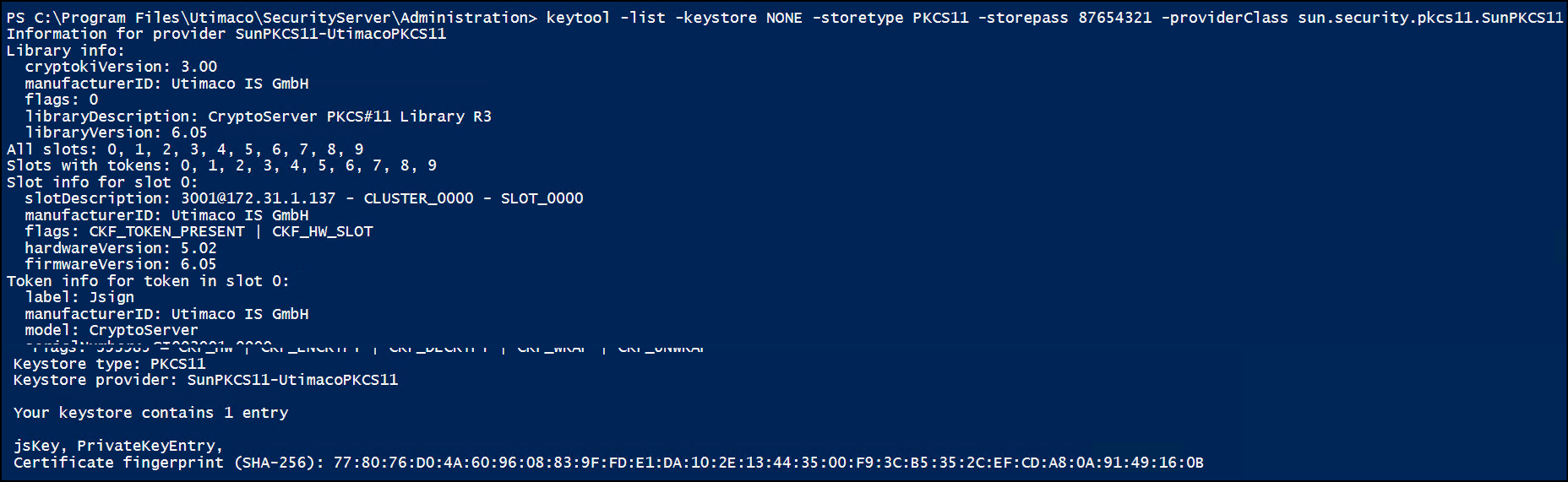
Key and certificate available in HSM
-
Verify the key and certificate available in HSM.
p11tool2.exe LoginUser=<passcode> ListObjects
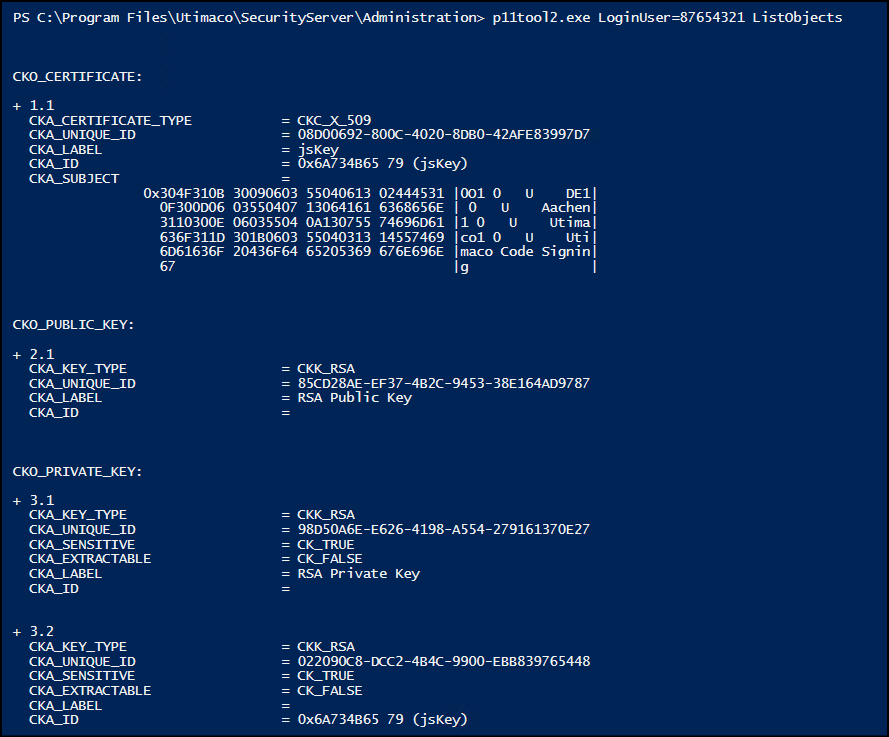
Key and certificate details in HSM