

Code Signing
Once the signing certificate has been imported to the HSM, executables, dynamic-link libraries (DLLs), and cabinet (CAB) files can be digitally signed. Use the following PowerShell command to sign the application. In this example, TestSign.exe is used as a test application to validate the signing process.
java -jar "C:\Tools\jsign\jsign-7.4.jar" --keystore "C:\Tools\jsign\utimaco-pkcs11-java.cfg" --storetype PKCS11 --storepass <passcode> --alias jsKey --tsaurl http://timestamp.digicert.com "C:\Tools\jsign\TestSign.exe"
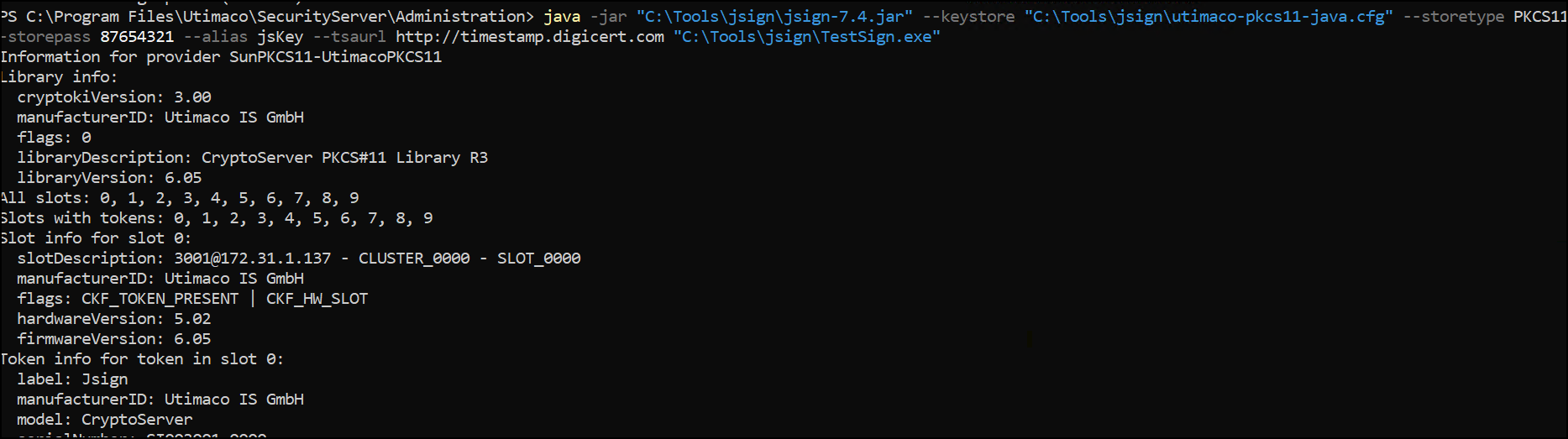
Code-signing
If the code-signing operation is successful, the message "Adding Authenticode signature" is displayed, indicating that the digital signature has been successfully applied to the file.

Code-signing completed
Verification
-
Using the below command verify that the application is now signed.
Get-AuthenticodeSignature "<executable file path>\<application name>.exe"

Valid certificate details
-
Verify that the application is now signed by right-clicking on it and selecting Properties. On the Digital Signatures tab (if it exists), you can view the signing certificate and timestamp.
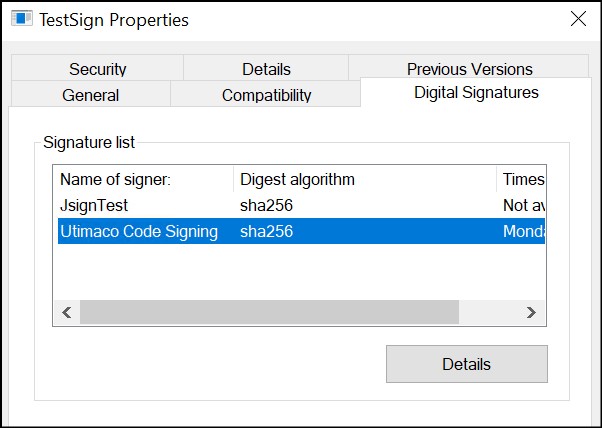
Signing certificate details