

Now, as the certificate and the private key are ready for signing, open Windows Hardware Lab Kit Studio and import/open the HLK project that you want to sign. Browse through the various tabs to check if the project imported is the correct. After verification, go to the Package tab and click on Create Package to sign the package. You will be asked about how you want to sign the package.
-
Select Use the certificate store and click on the OK button.
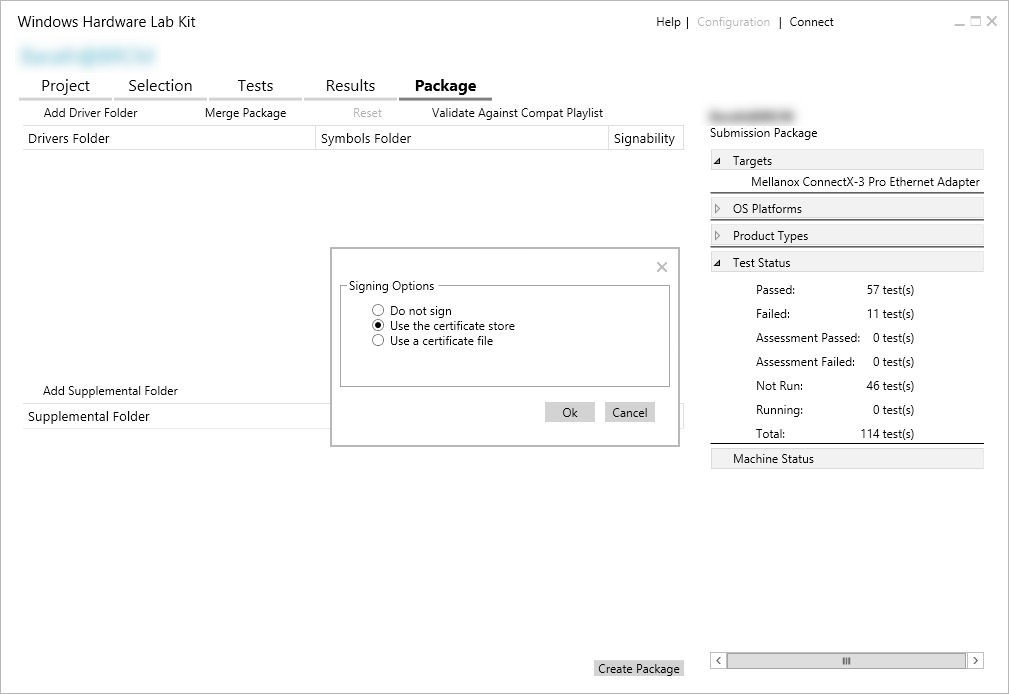
Signing options
-
Next you will have to select the signing certificate. From the pop-up, select the certificate that was imported earlier on the local machines personal certificate store and click OK.
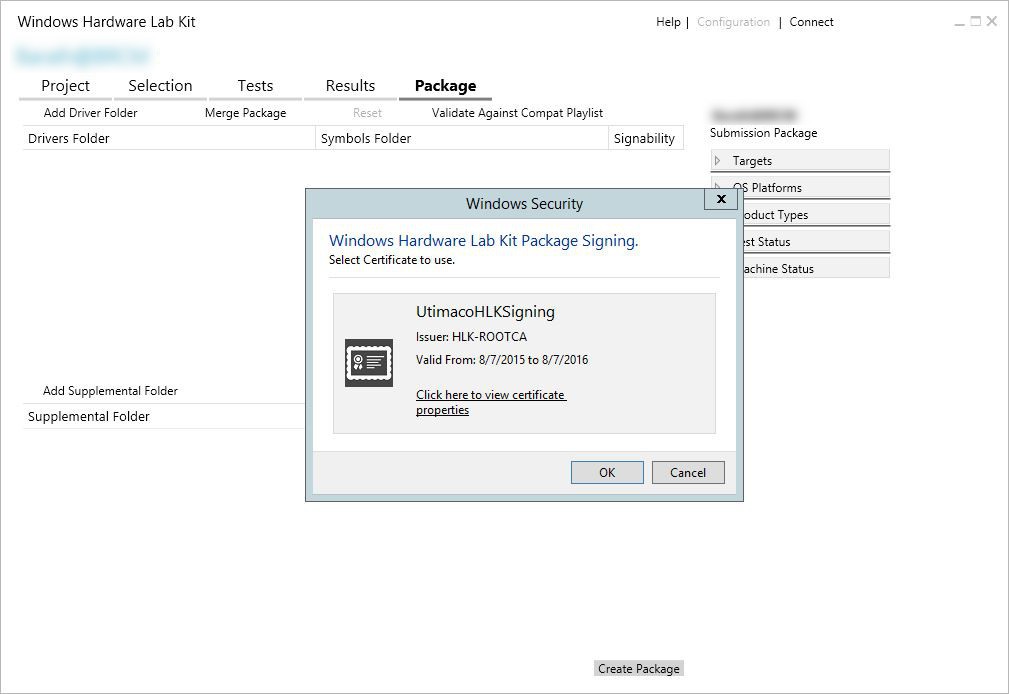
Select the signing certificate
-
Select a location to save the signed package and click Save.
-
As soon as you click Save, signing will begin with a Creating Package window.
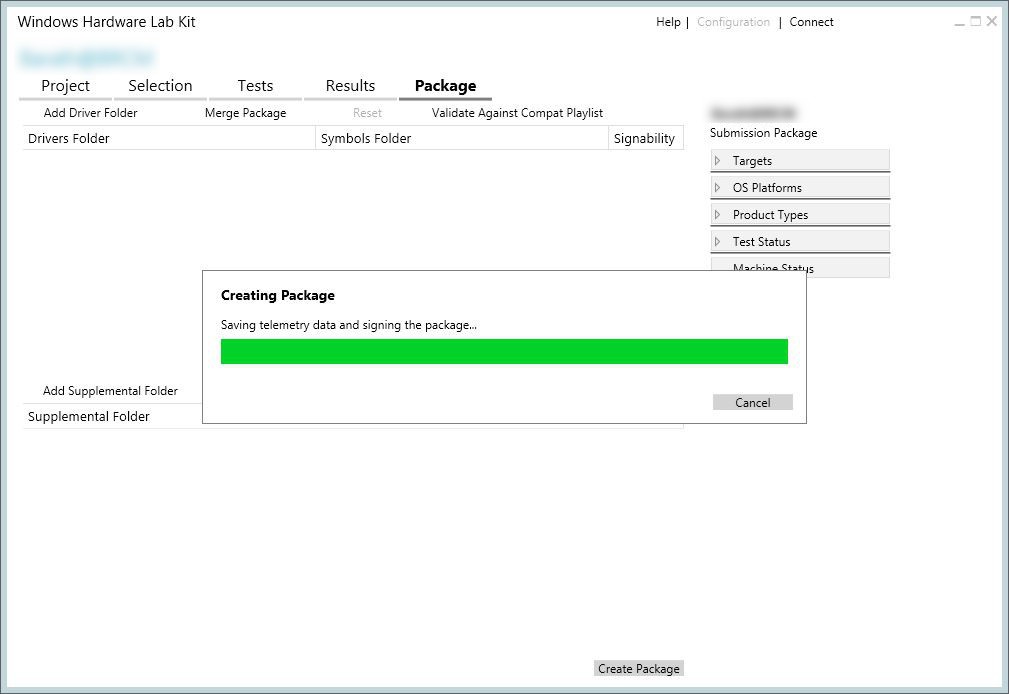
Creating package
-
In the end, if the certificate and the private key are correctly mapped, a success message is displayed and you can verify the signed package in the location you saved it.
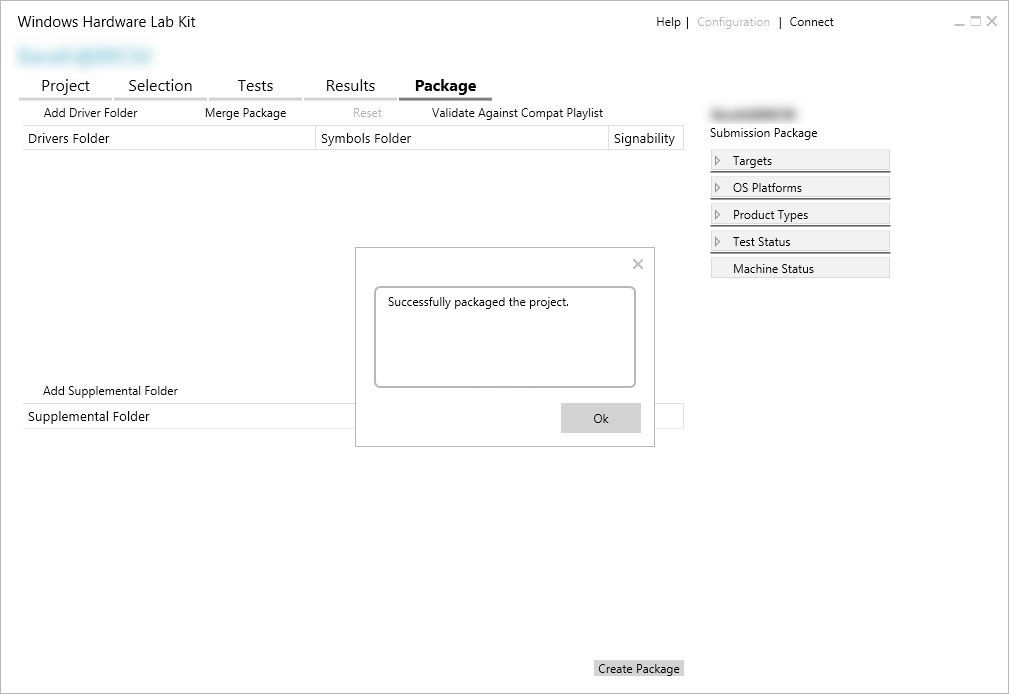
Successfully packaged