

To set up a CryptoServer device for Utimaco CSP open the Control Panel and select Utimaco CSP Configuration applet.
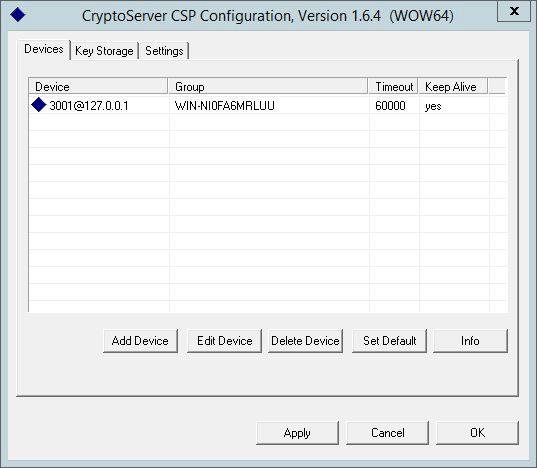
CryptoServer CSP configuration
1. Go to the Devices tab in the CryptoServer CSP Configuration window.
2. Click the Add Device button.
This opens the Device Settings dialog box. In Device Specifier, enter the device specifier relevant for your CryptoServer device.
• If this is a CryptoServer PCI or PCIe card, this is PCI:0.
• If this is a CryptoServer LAN, enter an IP address (for example 192.168.5.17).
• If you want to use the CryptoServer Simulator, enter 3001@127.0.0.1 as the device address.
3. In Group you now see the name of a computer. You may change this to your or keep it as default.
4. Click on the OK button. This opens the User Logon dialog box. This window displays all users available in the user database of the given CryptoServer device.
5. Select the ADMIN user in the user list.
6. Click on the Logon button. The authentication with Key dialog box opens.
7. Select the source of private user key, either smartcard token or key file.
8. Click the OK button.
9. Authenticate yourself with the intended authentication method. Once you have successfully authenticated yourself to the CryptoServer, you see a key lock symbol in the User Logon dialog box next to the entry for the ADMIN user.
10. Click OK to close the User Logon dialog box.
11. Click OK to close the CryptoServer CSP Configuration window and the CSP Configuration applet.