

-
List the certificate to get the serialized id using below command.
|
›_ Console |
|---|
|
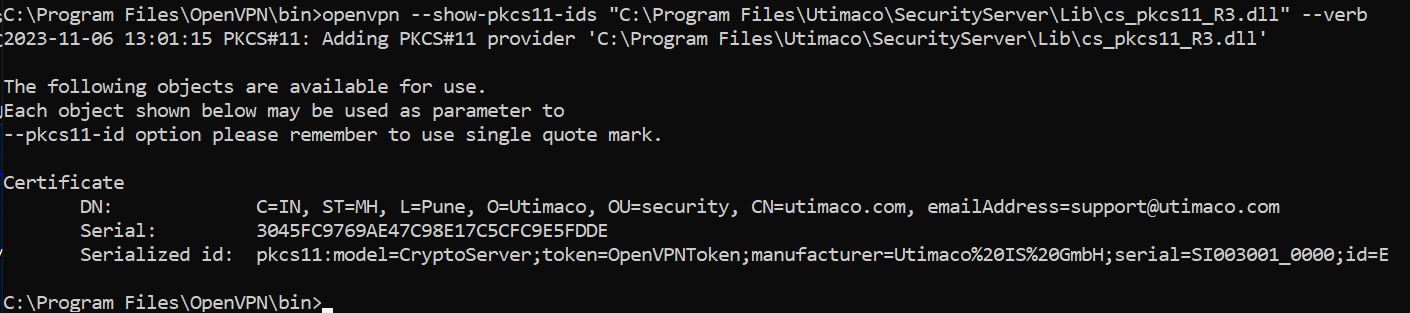
List pkcs11 ids
Copy the serialized id from above command output.
-
Right-click on OpenVPN GUI in system tray select client and click on Edit Config.
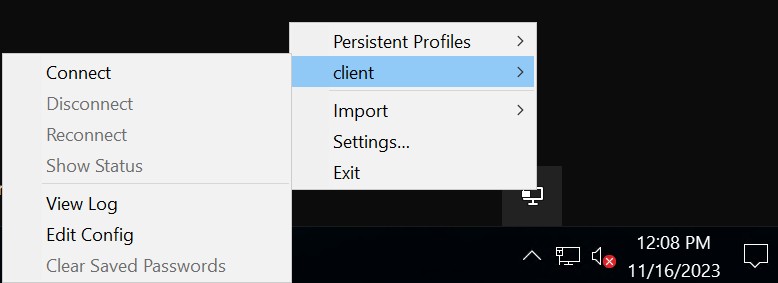
Edit Config window
-
Client Config file will open. Add below lines to this file and save.
|
client.ovpn |
|---|
|
Add entries into client config file
-
Right-click on OpenVPN GUI in system tray select client and click on Connect.
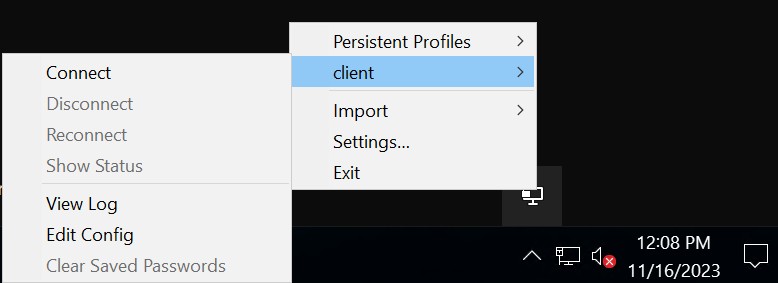
Client Connect window
-
A window will appear. Provide the slot PIN when prompted for token password and click on OK.
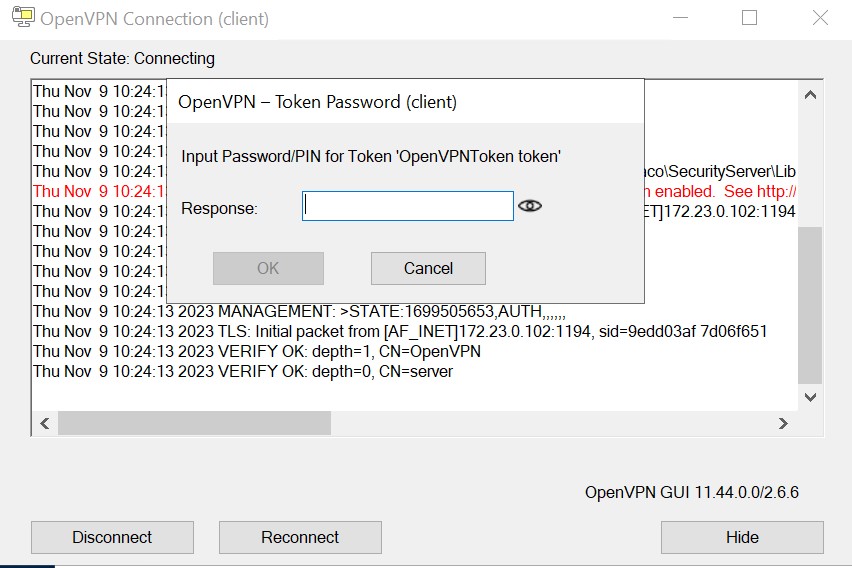
Connection establishment output
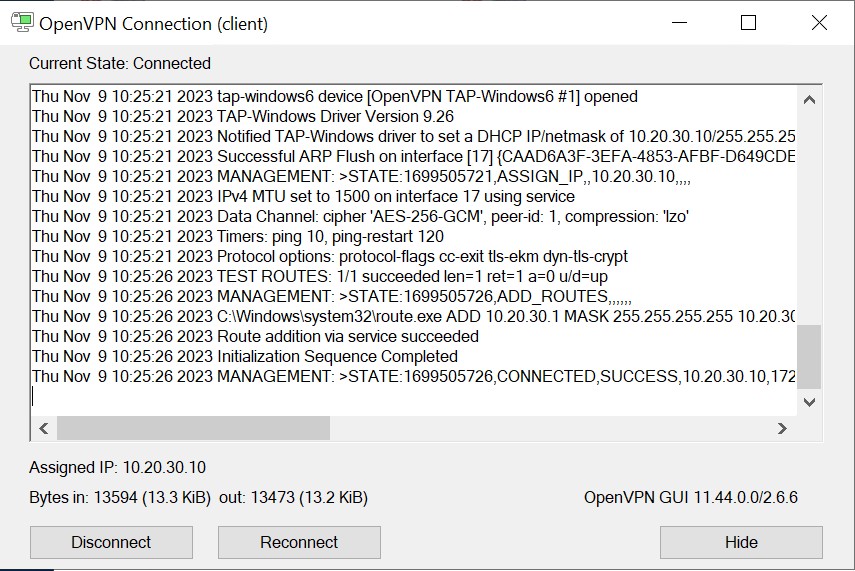
Connection establishment output
-
After it is connected successfully, the OpenVPN GUI icon will turn green as shown below.

OpenVPN GUI on successful connection
This completes the Integration of OpenVPN with Utimaco SecurityServer.