

-
Download and install OpenSSL 3 if not installed, refer to https://slproweb.com/products/Win32OpenSSL.html for windows build. Here OpenSSL is installed in
C:\OpenSSL-Win64. -
Download libp11 from https://github.com/OpenSC/libp11/releases.
-
Download and Install Visual Studio, refer to https://visualstudio.microsoft.com/vs/older-downloads/.
-
Open the Native x64 VS Command Prompt and go to the directory where libp11 is extracted.
-
Run the following command to build and install libp11 with openssl.
|
›_ Console |
|---|
|
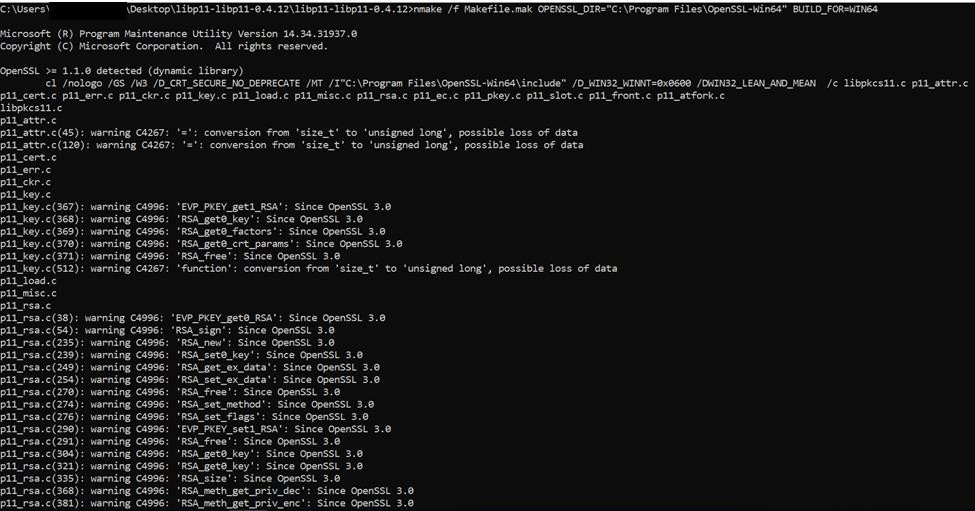
Output of nmake command
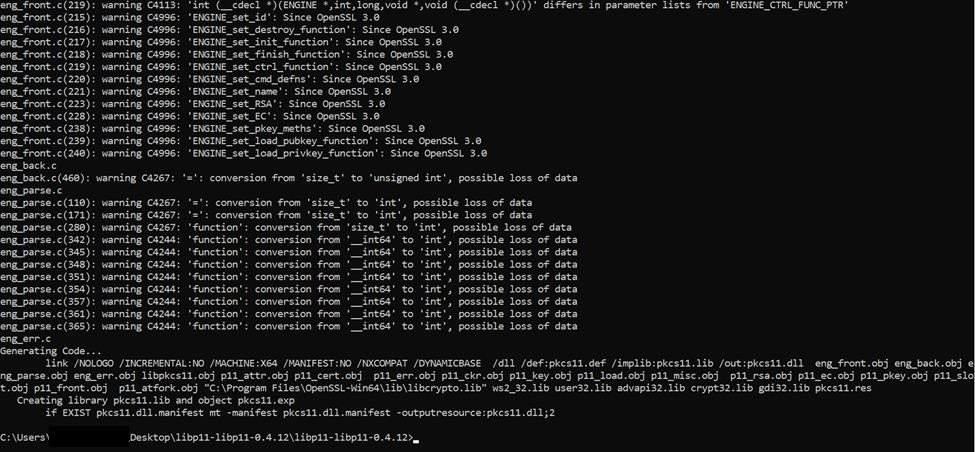
Output of nmake command
-
Verify pkcs11.dll is available inside
<libp11>/src/ folder. -
Edit
openssl.cnffromC:\Program Files\Common Files\SSL\openssl.cnfand add the following line in the first line of the file.
|
openssl.cnf |
|---|
|
-
Enter the following lines under last section of
openssl.cnffile.
|
openssl.cnf |
|---|
|
Dynamic path and Module path will get changed according to the user environment.
-
Run the command below to verify if the OpenSSL Engine is available or not.
|
›_ Console |
|---|
|

Verification of pkcs11 engine