

-
From the OCI-BYOK Keys page, click Create/Upload Key.
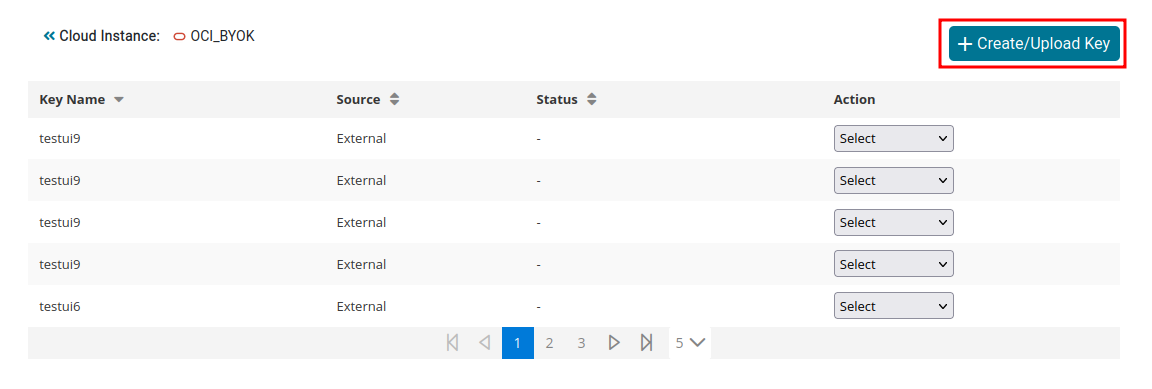
Create/Upload Key
-
Select Create Key & Upload.
-
Enter the ESKM Key Name and select the required Algorithm.
-
Click Create.
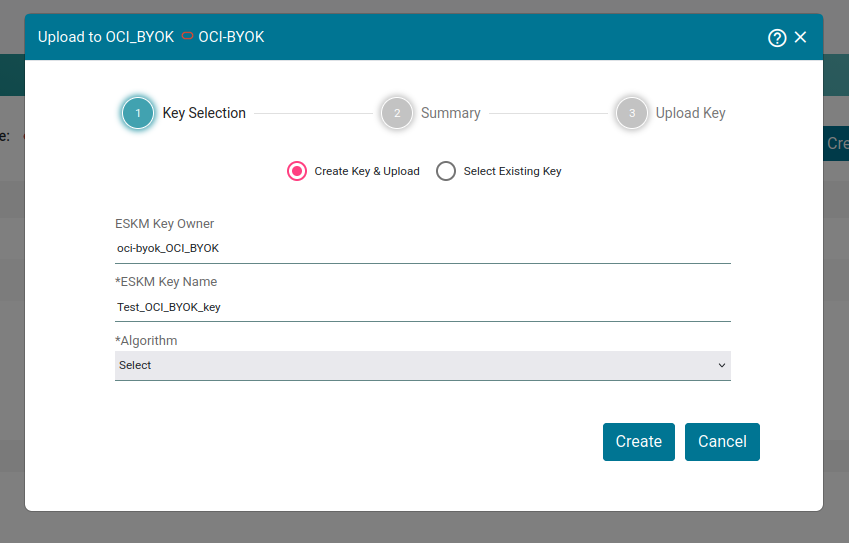
Key Selection — ESKM Key Name and Algorithm
-
Review the key information displayed on the Key Summary page.
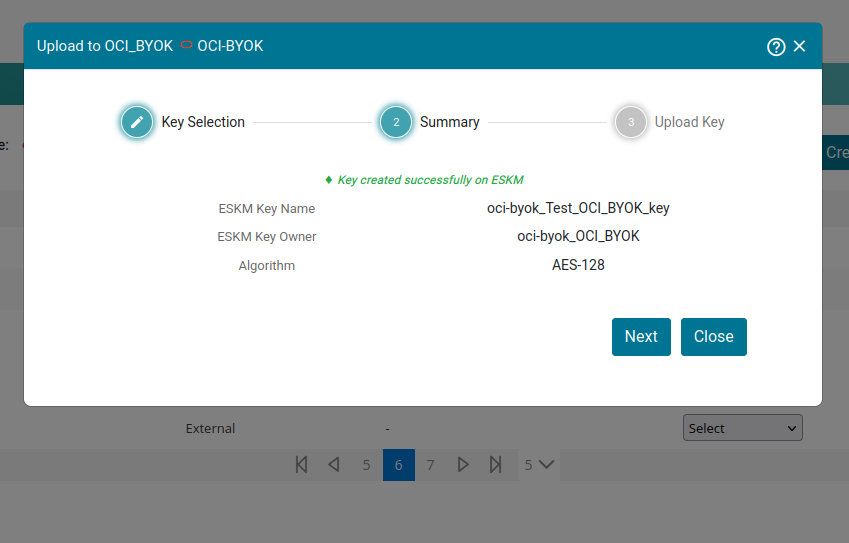
Key Summary
-
Click Next.
-
Verify the Cloud Key Name and Vault OCID.
-
Add the required tags, if applicable.
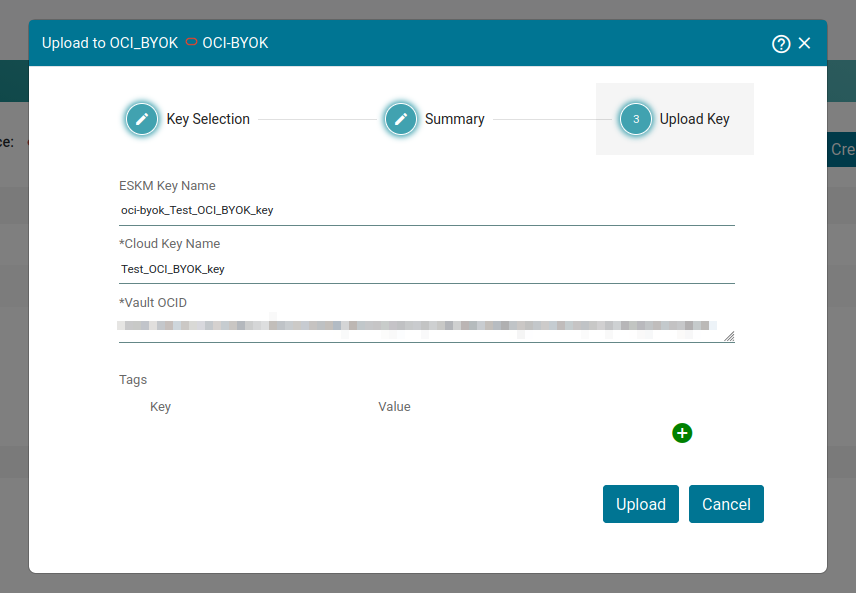
Upload Key
-
Click Upload to upload the key to OCI.
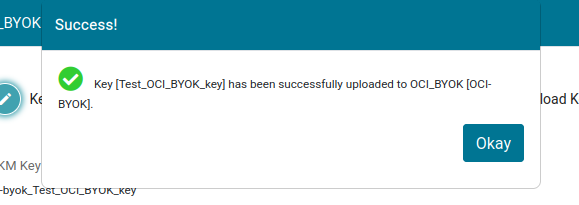
Successful Key Upload
Alternatively, an existing key can be uploaded to OCI without creating a new key.
The Search option allows you to select an existing key that was created in another cloud instance through the dashboard and use it for the upload operation.
-
From the OCI-BYOK Keys page, click Create/Upload Key.
-
Select “Select Existing Key”.
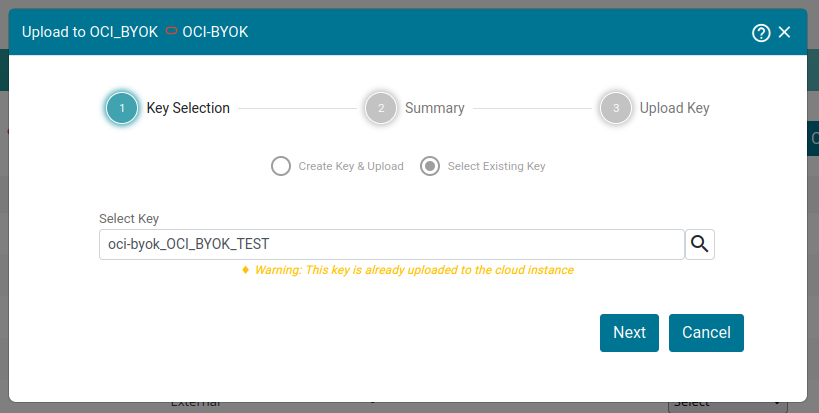
Upload Key Selection
If the key is already uploaded to the cloud instance or is owned by another cloud instance, a warning will be displayed to the user.
-
Select the key to be uploaded and Click Next.
-
Review the key information displayed on the Key Summary page.
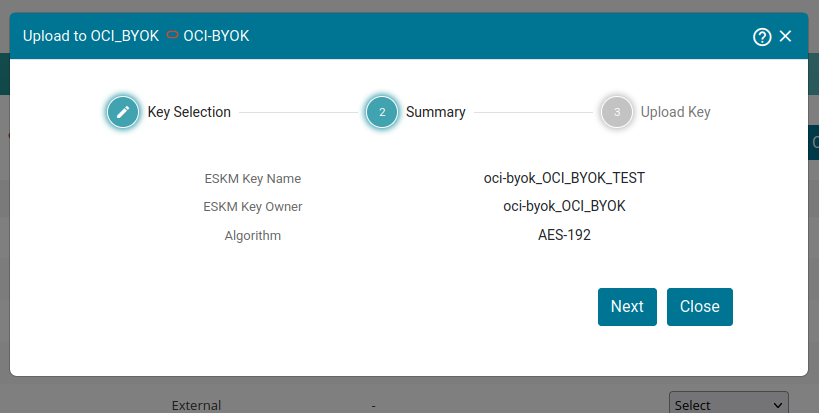
Upload Key Summary
-
Click Next.
-
Add the required tags, if applicable.
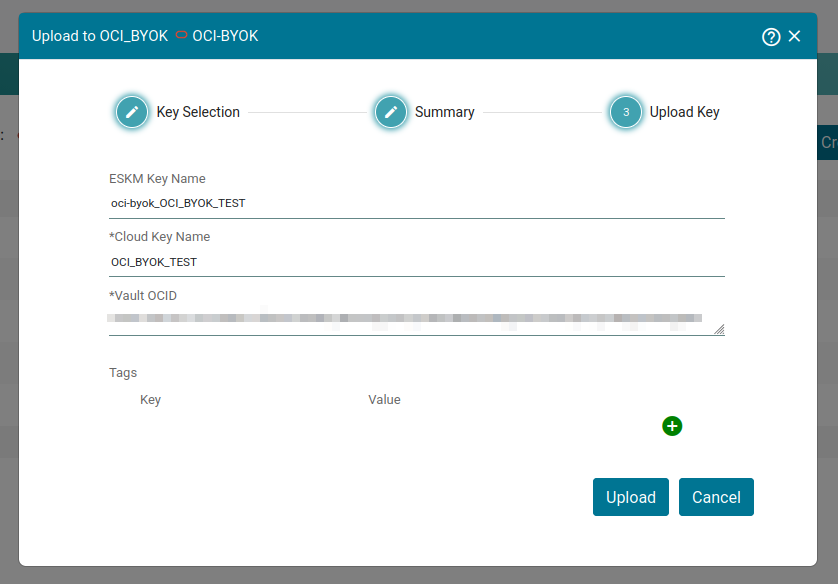
Upload Key
-
Click Upload.