

Before proceeding with the configuration of the OCI-BYOK cloud instance on ESKM, verify that the following OCI information is available and valid. These values are required later during the subsequent integration steps on the ESKM side.
Tenancy OCID
-
In the OCI Console, go to Governance & Administration > Account Management > Tenancy Details.
-
Verify that the Tenancy OCID is available and valid.
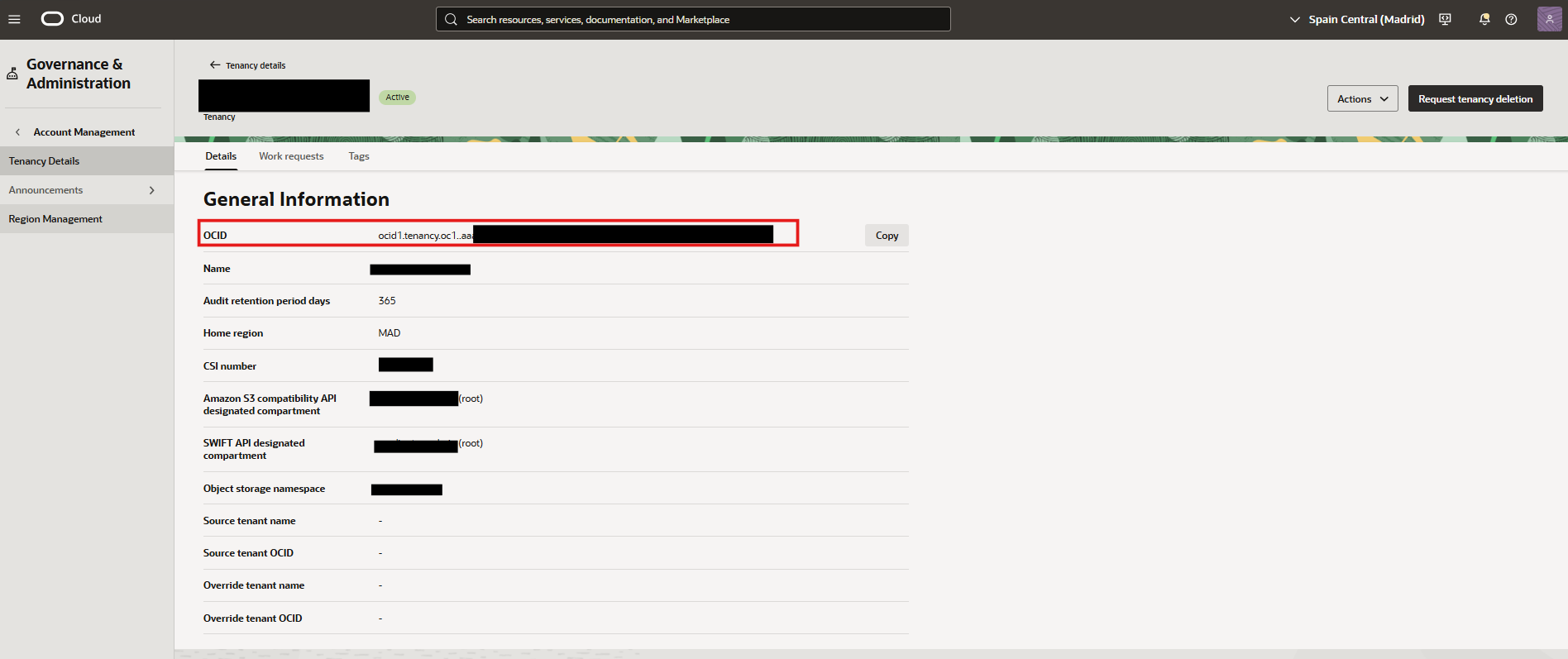
Tenancy OCID
User OCID
-
In the OCI Console, go to Identity & Security > Identity > Domains > Default > User Management.
-
Select the user created for the integration.
-
Verify that the User OCID is available and valid.
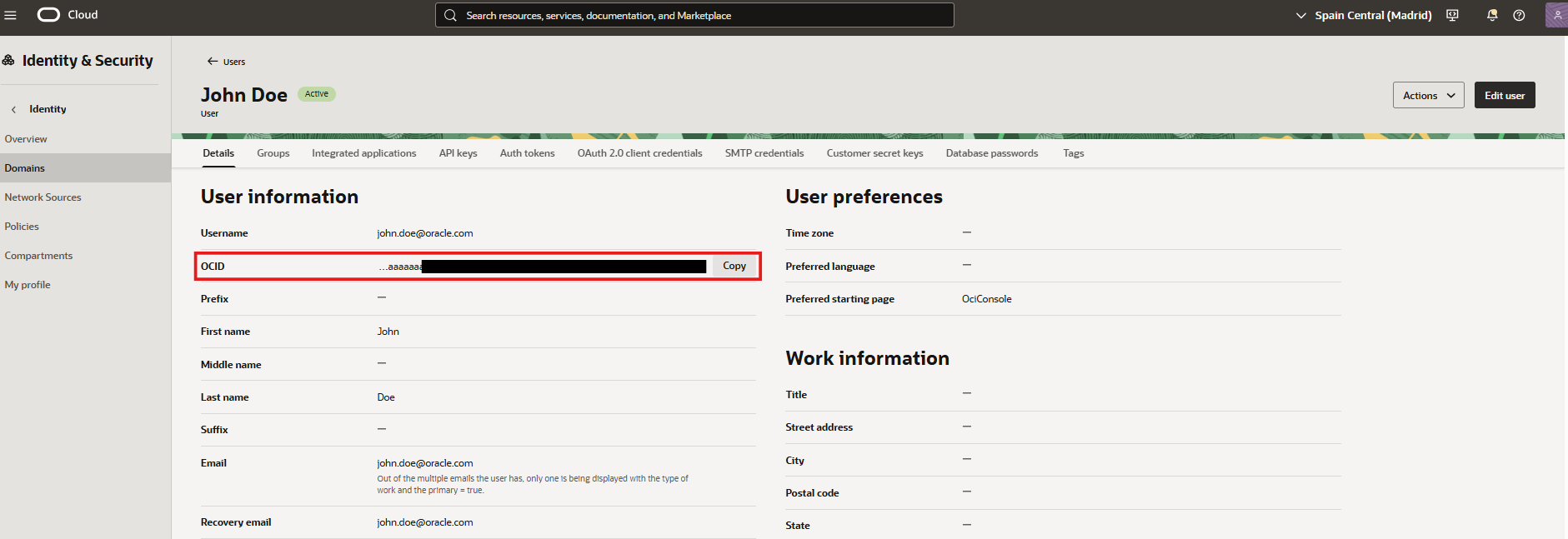
User OCID
Fingerprint and Private Key
-
In the OCI Console, go to Identity & Security > Identity > My Profile > Tokens and Keys.
-
Verify that the Fingerprint associated with the OCI API key is available.
-
Verify that the corresponding Private Key is available for the ESKM configuration.
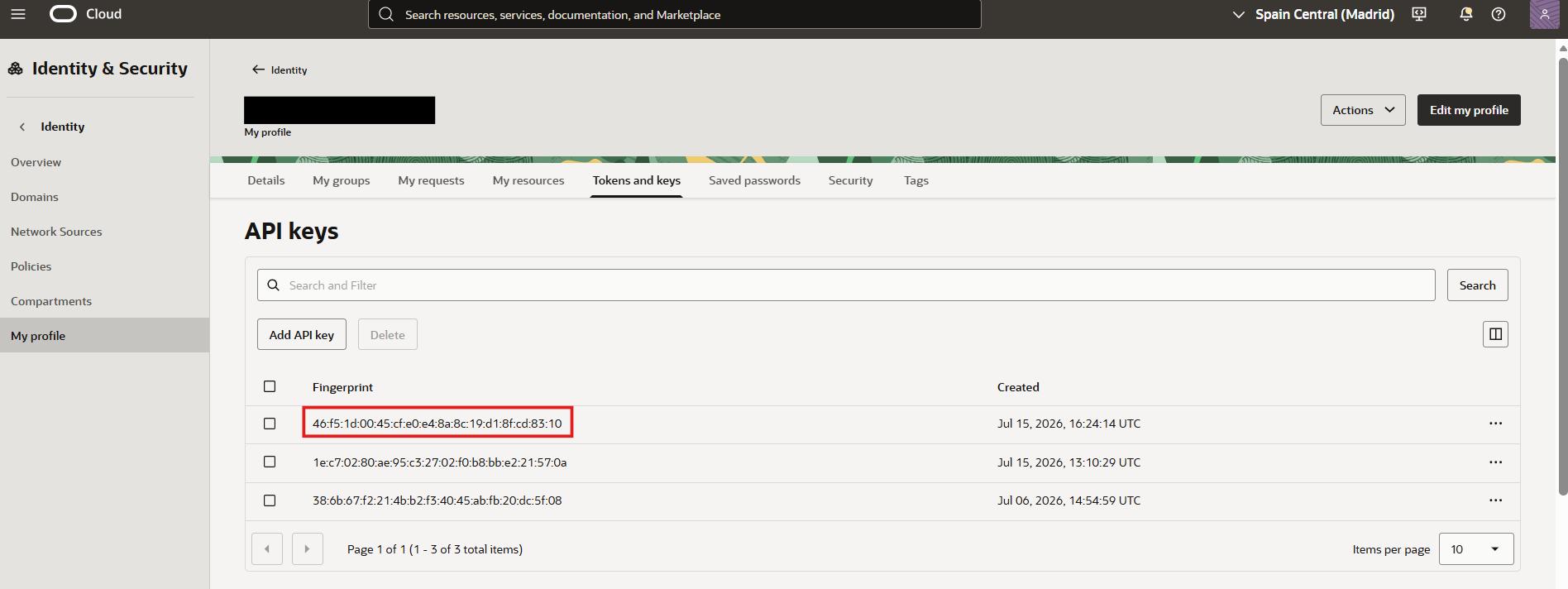
Fingerprint
The Private Key should have been downloaded during the Create API Key Section.
Region
-
In the OCI Console, go to Governance & Administration > Account Management > Region Management.
-
Verify the region in which the Vault is deployed.
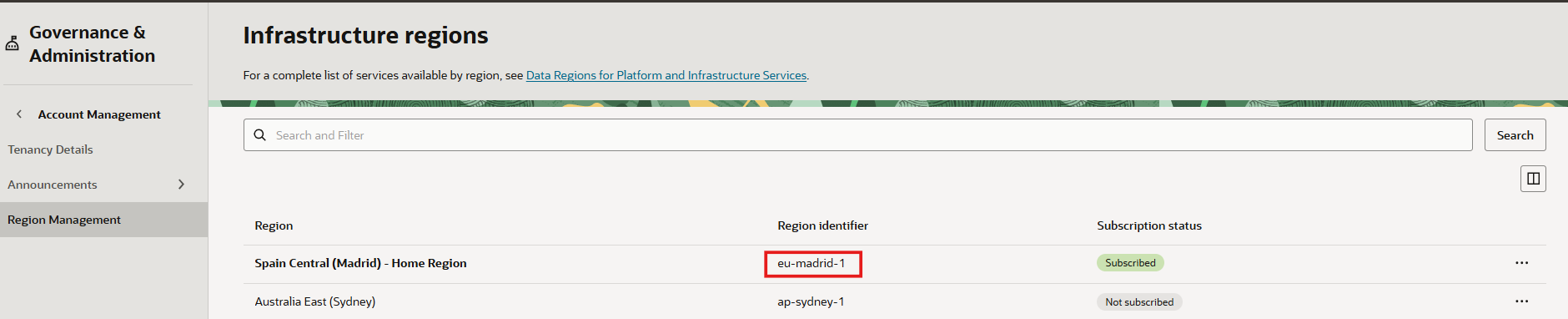
Region
Compartment OCID
-
In the OCI Console, go to Identity & Security > Identity > Compartments.
-
Select the root compartment.
-
Verify that the Compartment OCID is available and valid.
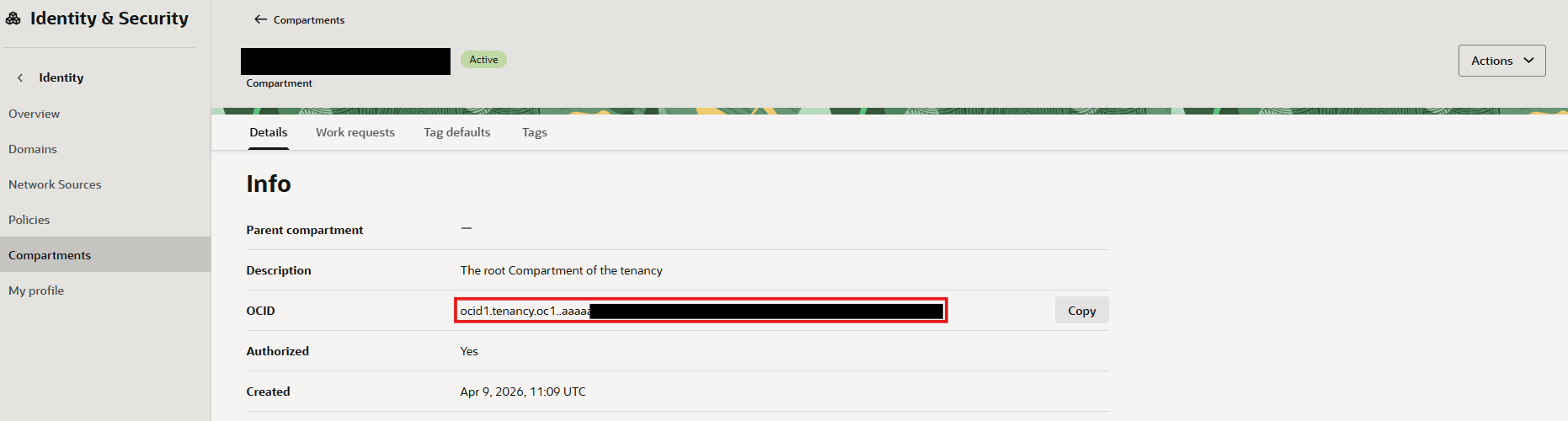
Compartment OCID
Vault OCID
-
In the OCI Console, go to Identity & Security > Key Management > Vaults.
-
Select the Vault created for the integration.
-
Verify that the Vault OCID is available and valid.
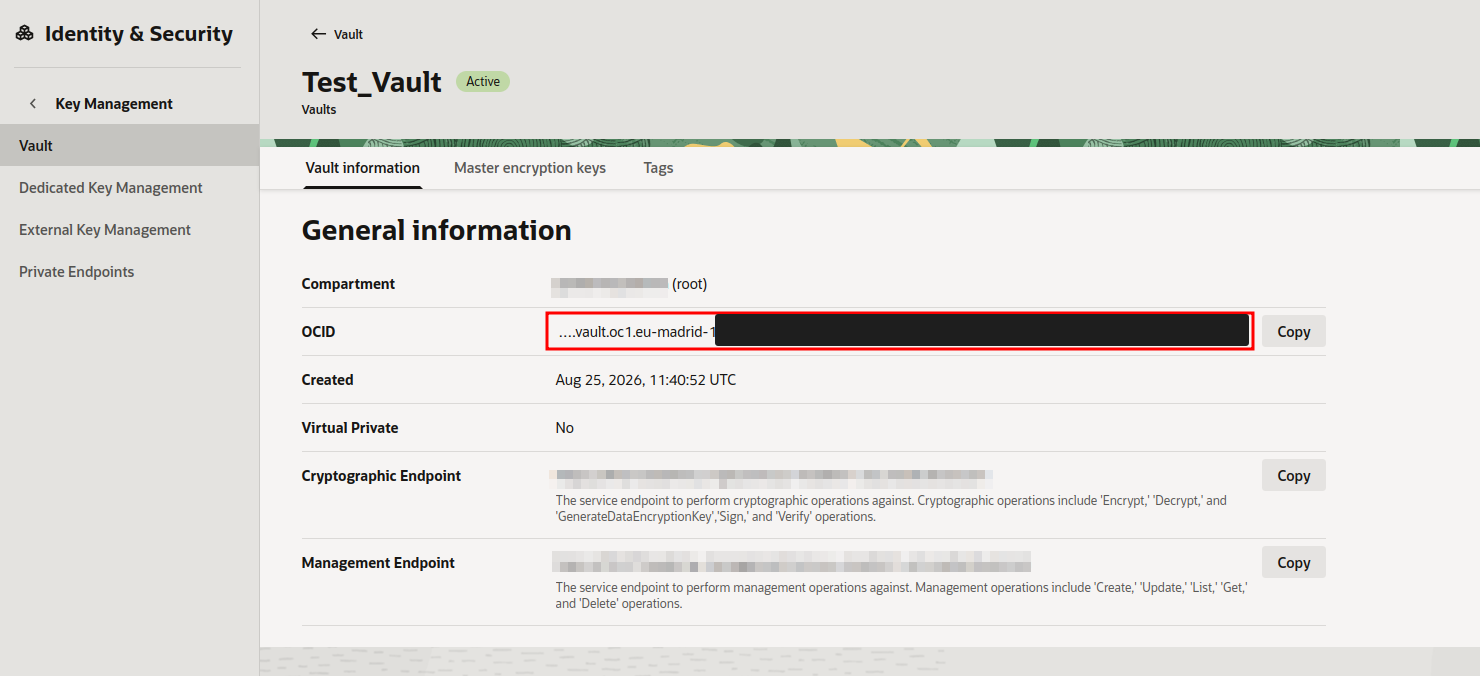
Vault OCID