

In this step, you will create the virtual smart card on the client computer by using the command-line tool, Tpmvscmgr.exe. You must have TPM supported machine to enable Virtual Smartcard.
To create the TPM virtual smartcard:
-
On a domain-joined computer, open a Command Prompt window with Administrative credentials.
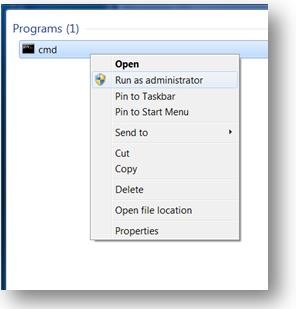
Open elevated command prompt
-
In the command prompt, type the following command, and then press ENTER.
|
›_ Console |
|---|
|
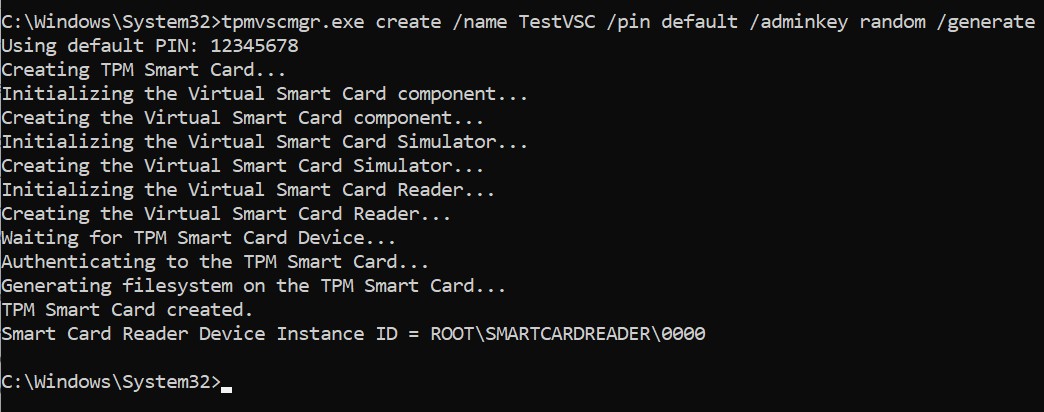
Virtual smartcard
-
This will create a virtual smart card with the name TestVSC and generate the file system on the card. The PIN will be set to the default, 12345678. To be prompted for a PIN, instead of
/pindefault you can type/pinprompt.
Wait several seconds for the process to finish. Upon completion, Tpmvscmgr.exe will provide you with the device instance ID for the TPM Virtual Smart Card. Store this ID for later reference because you will need it to manage or remove the virtual smart card.