

This section describes in detail the smartcard certificate enrolment steps using the SAS application. Before starting the device certificate enrolment, confirm whether IRPService is running.
-
From system tray, open the SAS application.
-
Provide the logon device user’s email address or user principal name in username textbox. Note that the domain name will be auto filled from the username.
-
Click on Connect.
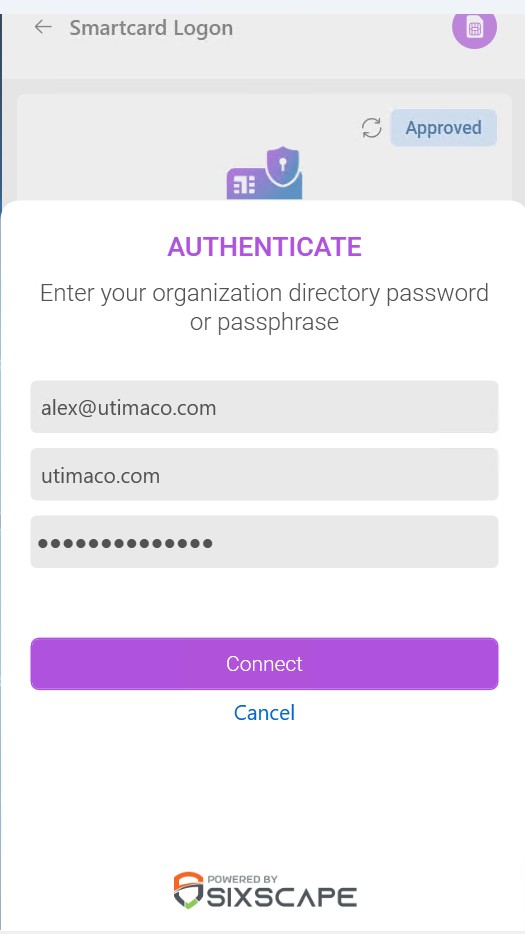
Authenticate user window
-
While authenticating user credential with IRP service, Authentication in progress screen will be displayed.
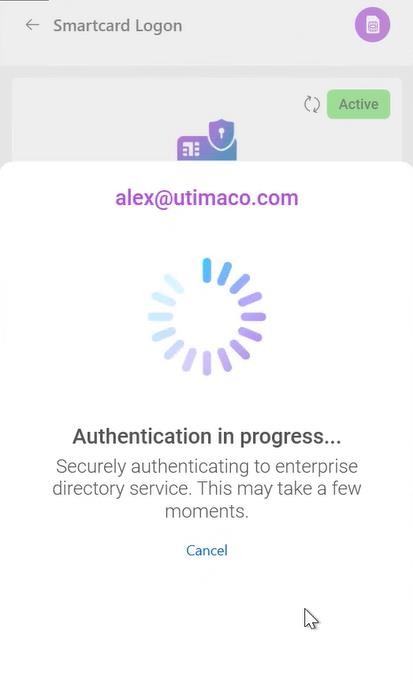
Authentication in progress window
-
On successful user authentication, a list of products view will be displayed.
-
If device user is allotted with Hardware Token license in IDcentral Identity Registration, Smartcard Logon will be enabled and in Inactive status. If license is not allotted, then the product status would be Unavailable.
-
Click on Smartcard Logon to initiate device registration.
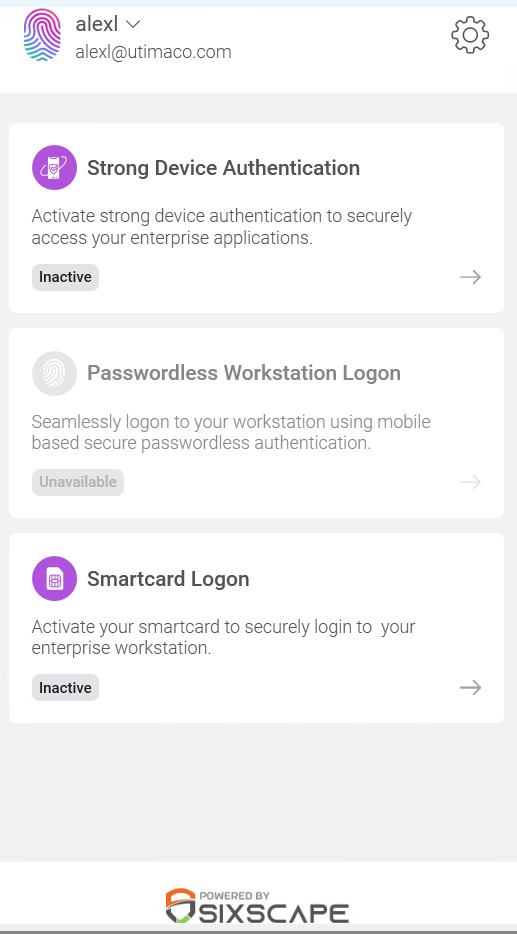
Smartcard Logon activation
-
Begin Registration view will be displayed. Click on Begin.
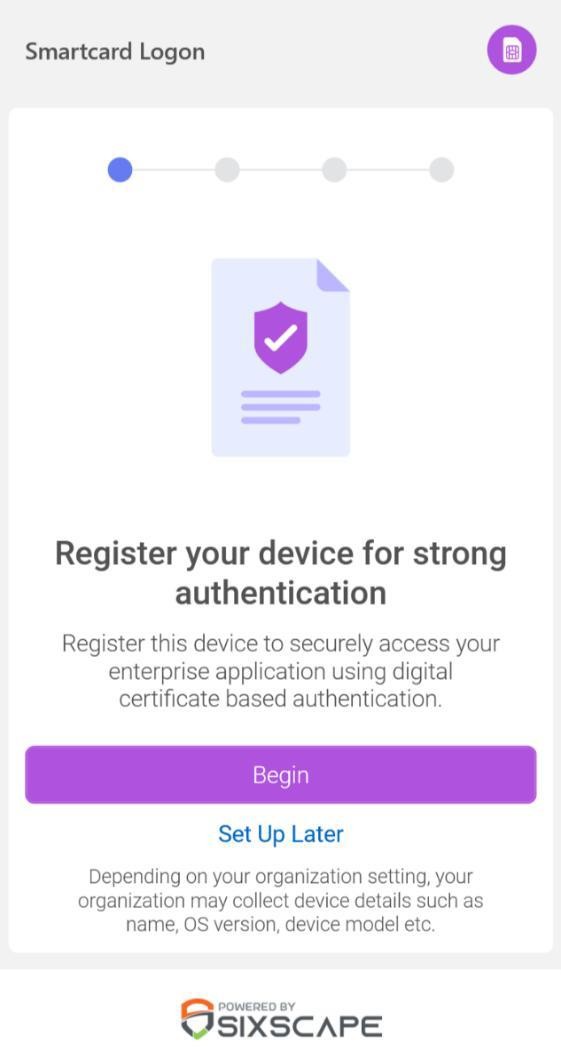
Registration window
-
If smartcard is not connected to the window’s device, Windows Security dialog will be prompted to connect the necessary smartcard.
-
Now plug in your smartcard. Smartcard name will be displayed on the screen.
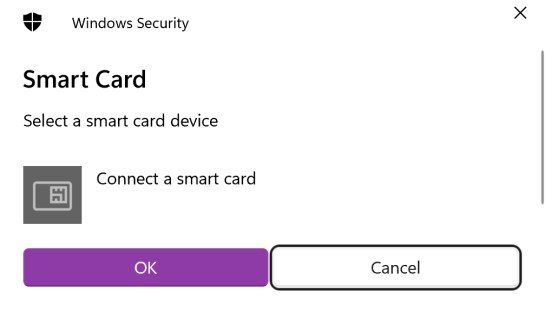
Smart Card plugin window
-
Click OK to proceed with device registration.
-
Now the application fetches smartcard device properties and registers the device to IDcentral Identity Registration.
-
On successful registration, Awaiting for approval view will be displayed.
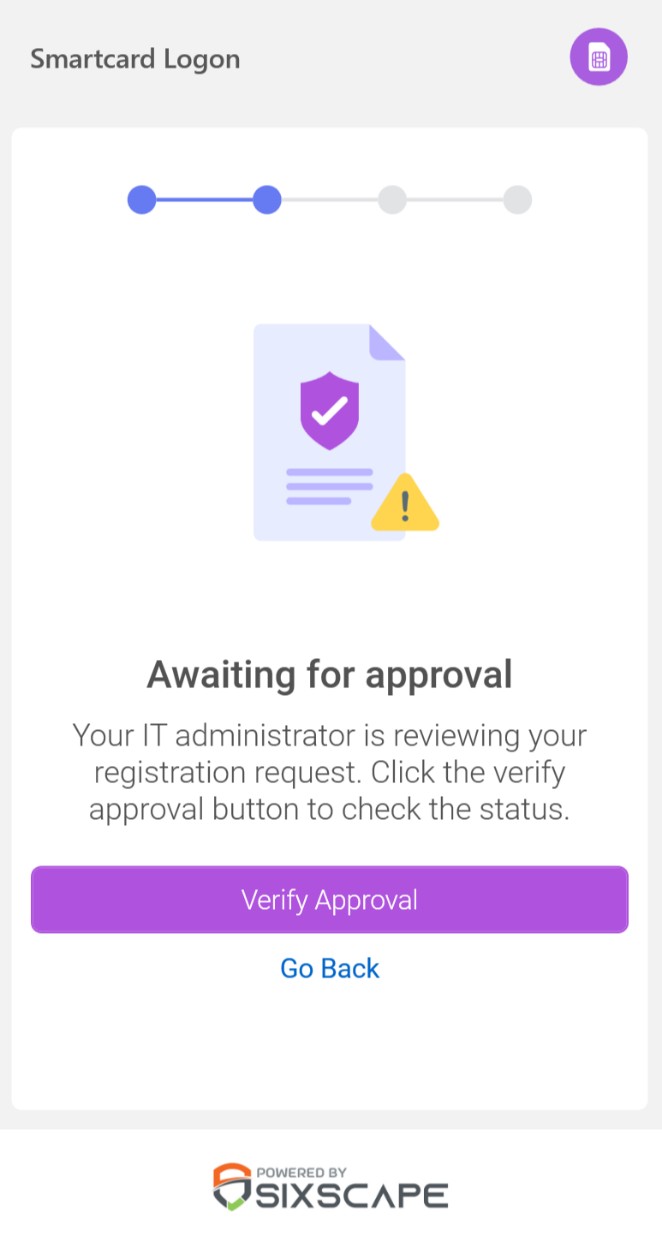
Verify approval window
-
Go to the IDcentral machine. The administrator can view the device’s properties and choose to approve the device from IDcentral Identity Registration Devices view.
-
Go Back to SAS application. Click on Verify Approval. If smartcard device is approved by the IDcentral administrator, device activation process will be initiated. If it is not, Device detail’s view will be navigated to view the current device status. To check on device status updates, click on sync button on the top right corner of the view.
-
While activating the smartcard device, Windows prompts to enter smartcard PIN to provision certificate within the smartcard. Enter the smartcard PIN in the dialog and click OK.
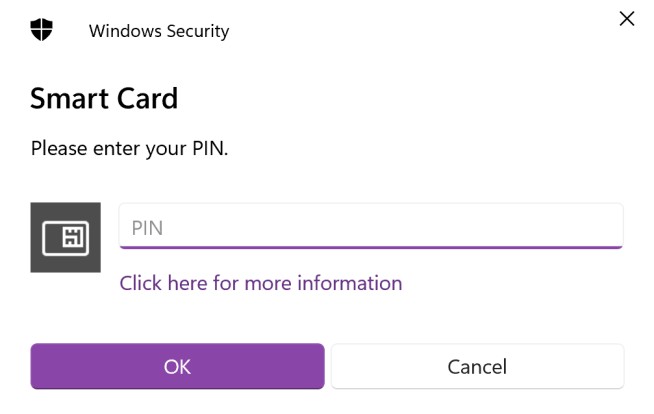
Smartcard PIN prompt
-
On successful smartcard certificate provision, success completion screen will be displayed. Click OK.
-
In device detail’s view, the smartcard device now will be in Active status.
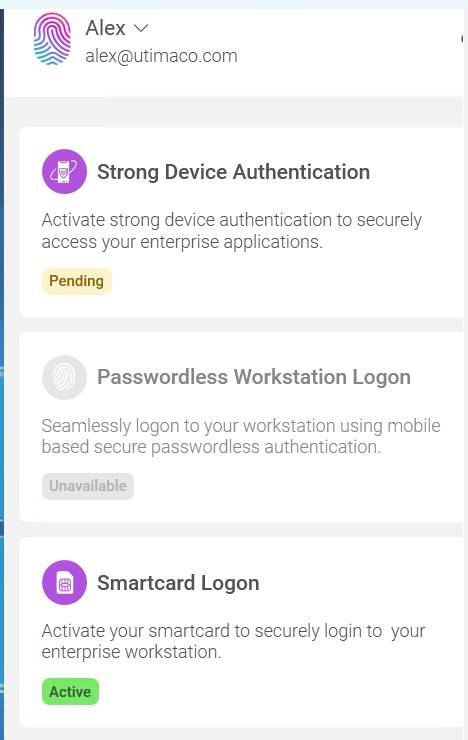
Verifying active status for Smartcard Logon
-
Click on Certificates to view device certificate information.
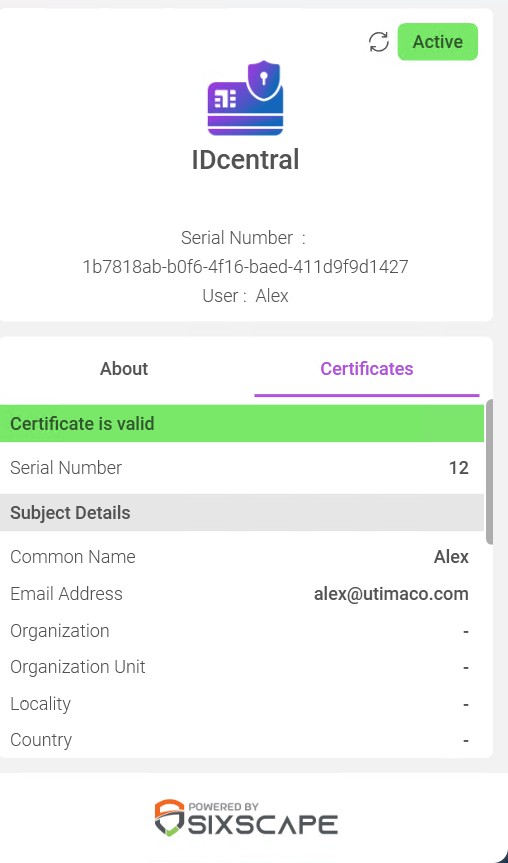
Viewing certificate information