

The following section describes the installation of the Secure Authentication Suite application.
-
Log on to the domain joined machine with user which was assigned Hardware Token and Device License.
-
Go to the folder where you have downloaded SAS software.
-
Double-click on the Secure Authentication Suite application installer.

Secure Authentication Suite software
-
The installer will launch. Click Next.
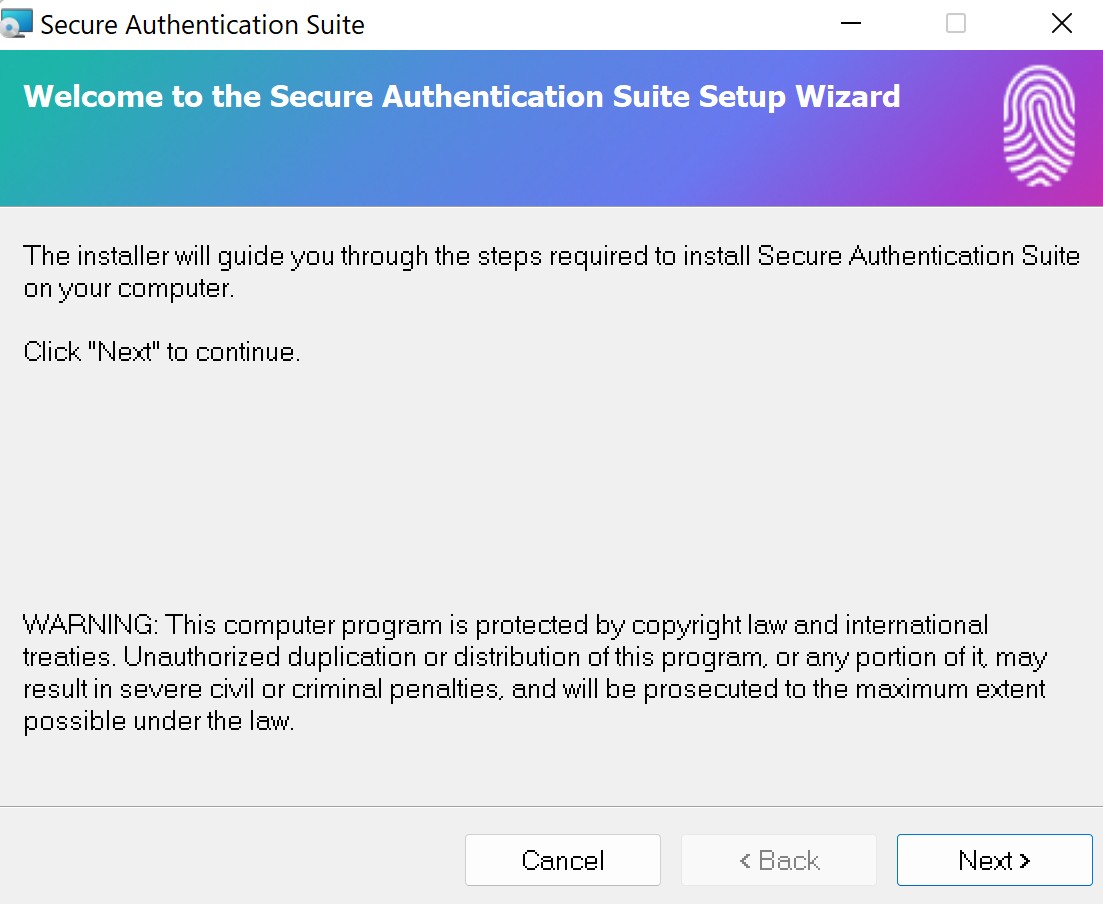
Installer window
-
Select Everyone to install for all users within the same machine. Select Just me to install specifically for a single user within the machine. Click Next.
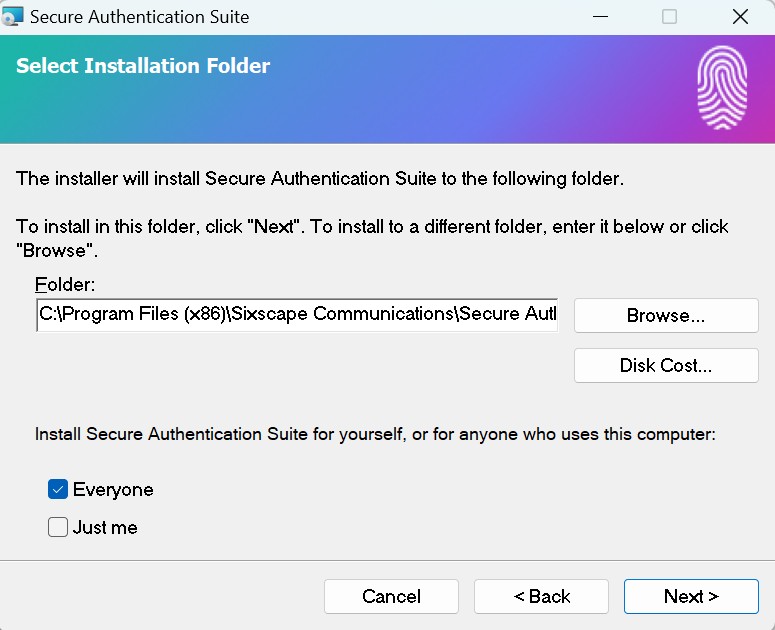
Select Installation Folder and user
-
To start installation, click Next.
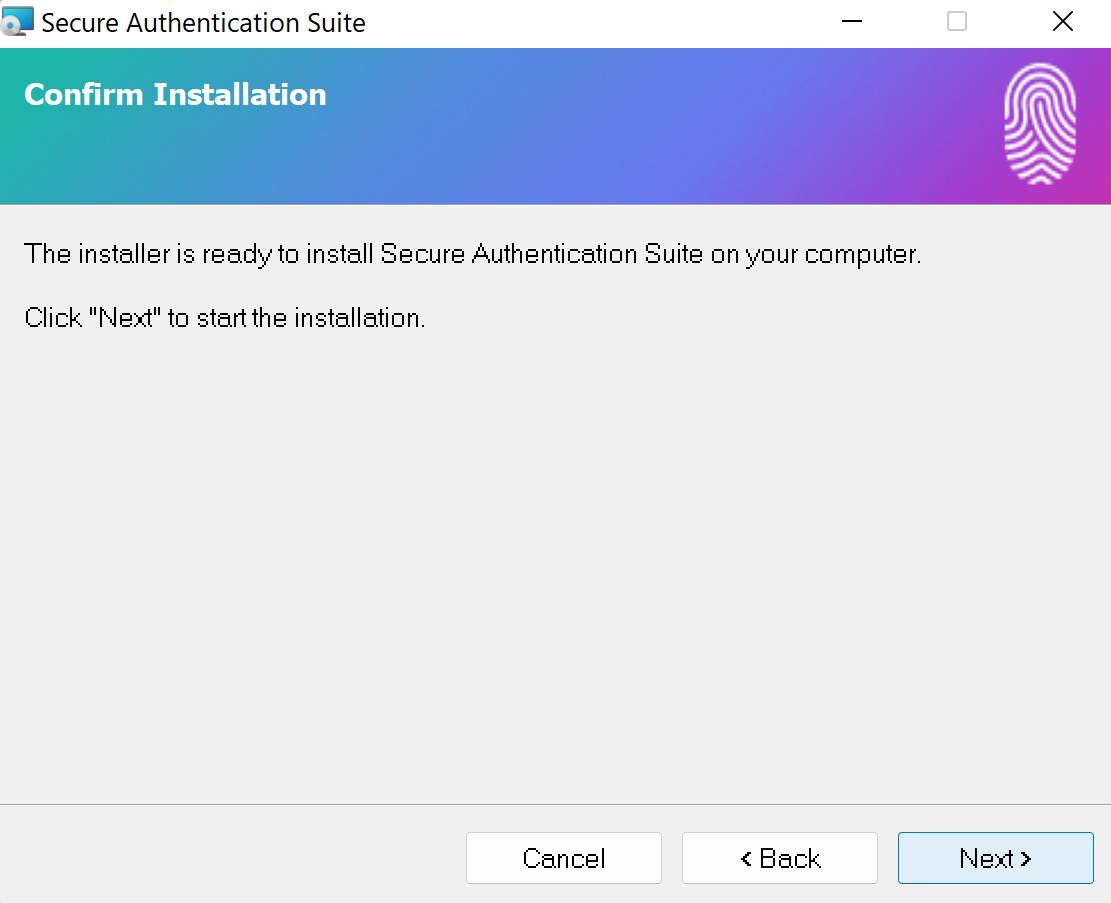
Confirm Installation
-
Click Close after the installation has completed.
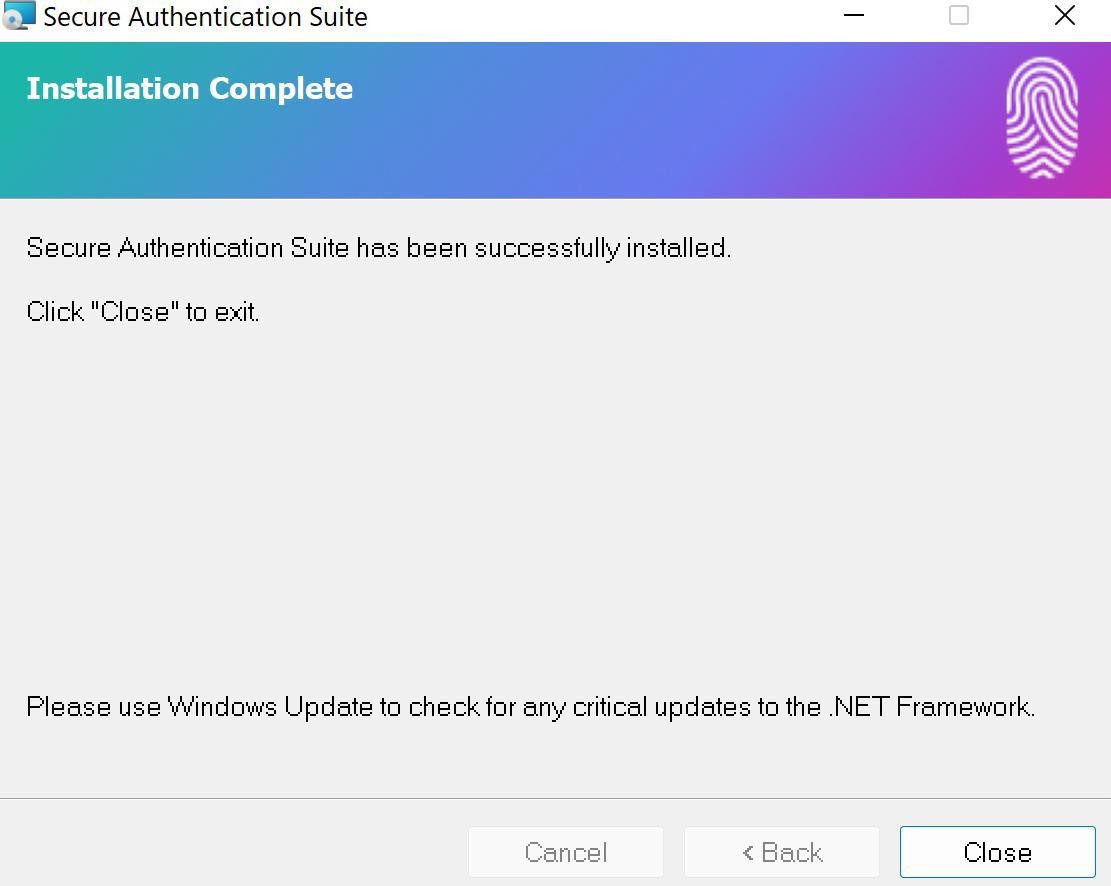
Installation Complete window
-
Search for Secure Authentication Suite in windows search to open the application.
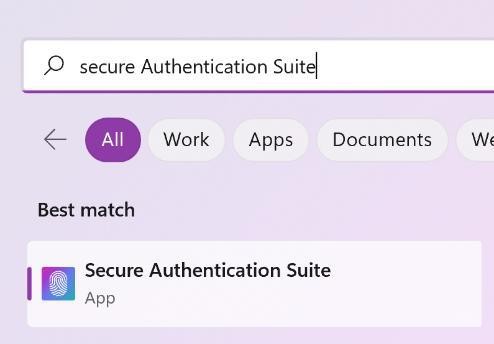
Starting Secure Authenticate Suite
-
Click on the application name. The application will be launched in windows tray section.
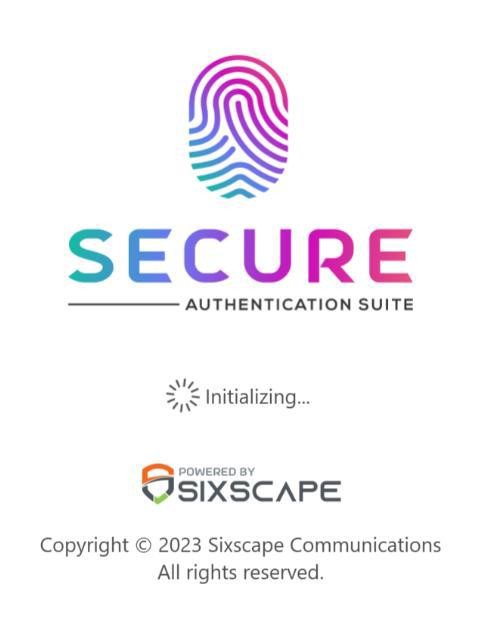
SAS Initializing window
-
To hide and open the application, use the application’s tray icon.
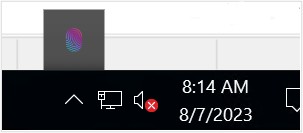
System tray