

-
Update the following configuration in
filebeat.yml, located inC:\filebeat.
filebeat.inputs:
  - type: udp
    enabled: true
    host: "0.0.0.0:514"
    max_message_size: 10KiB
    tags: ["eskm", "syslog"]

  - type: tcp
    enabled: true
    host: "0.0.0.0:514"
    max_message_size: 10KiB
    tags: ["eskm", "syslog"]

output.elasticsearch:
  hosts: ["https://<host_ip>:9200"]
  username: "<username>"
  password: "<password>"
  ssl.certificate_authorities: ["C:/ELK/elasticsearch-9.2.0/config/certs/ca.crt"]
Replace <host_ip> with the Elasticsearch server IP, and <username>/<password> with the created superuser credentials.
-
Run the following commands in PowerShell to permit inbound Syslog messages (UDP & TCP):
netsh advfirewall firewall add rule name="Syslog UDP 514" dir=in action=allow protocol=UDP localport=514 netsh advfirewall firewall add rule name="Syslog TCP 514" dir=in action=allow protocol=TCP localport=514 -
Open PowerShell as administrator from
C:\filebeatand enter the following command to initialize Filebeat index templates and dashboards:.\filebeat.exe setup

Setup Filebeat
-
Enter the following command to verify that Filebeat is configured without any errors:
.\filebeat.exe -e -
Open PowerShell as an administrator from
C:\filebeatand enter the following command to install Filebeat as a service:.\install-service-filebeat.ps1
If PowerShell execution policy blocks the above script execution, run Set-ExecutionPolicy -Scope Process -ExecutionPolicy Bypass.
-
Start the Filebeat service and verify the status.
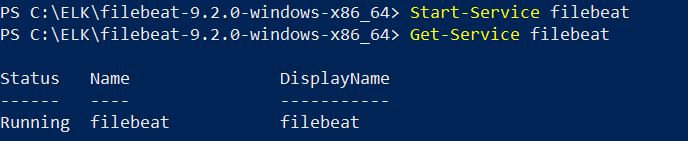
Filebeat service status