

First, a symmetric cryptographic key with no key material associated is created.
-
Go to the Key Management under Security page in the Cloud Console.
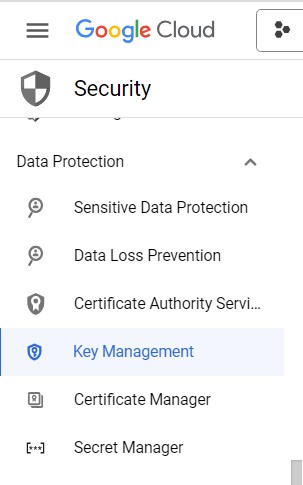
Google Cloud Key Management
-
Click Create key ring.
-
In the Key ring name field, enter the name for your key ring.
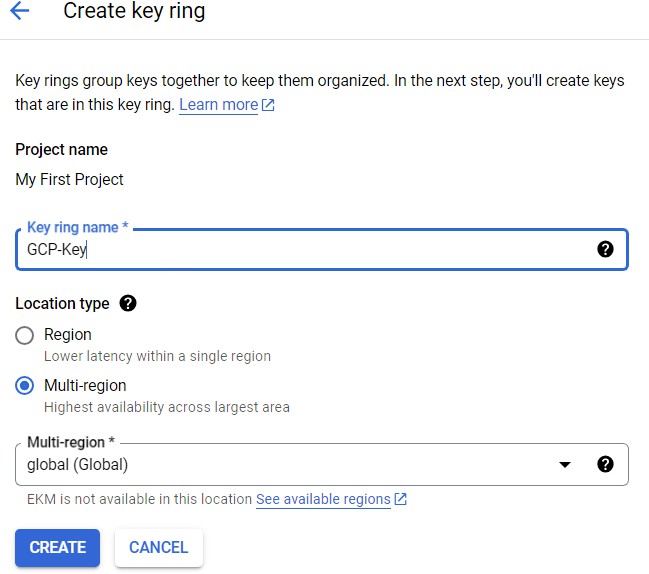
Create keyring window
-
From the Location dropdown menu, select the location.
-
Click Create. The detail page for the key ring will open.
-
Click Create key.
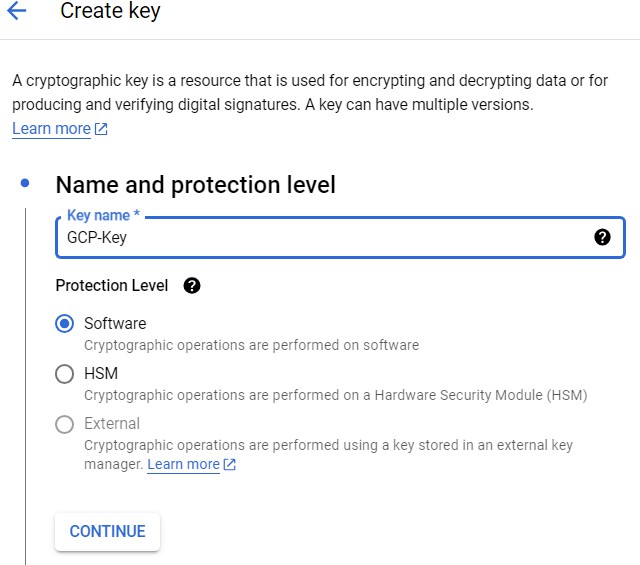
Setting Key name and Protection Level
-
In the Key name field, enter the name for your key.
-
Set the protection level to Software.
-
Click CONTINUE.
-
Select Imported key in the Key material. This prevents an initial key version from being created.
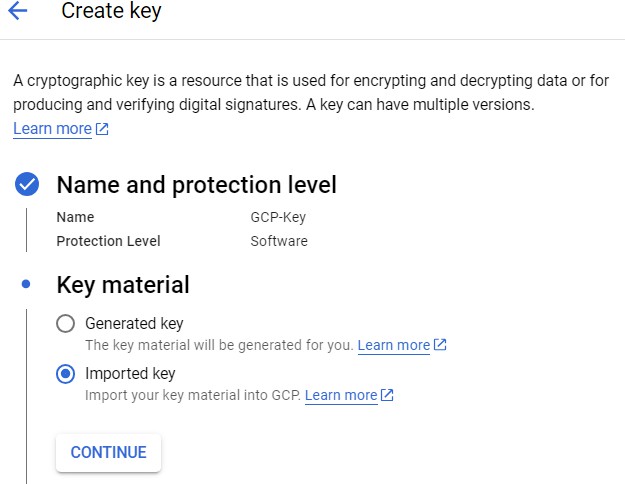
Setting Key material type
-
Click CONTINUE.
-
Set Purpose and algorithm to Symmetric encrypt/decrypt as the key we are going to import is AES Key and its purpose will be to do symmetric encrypt/decrypt.
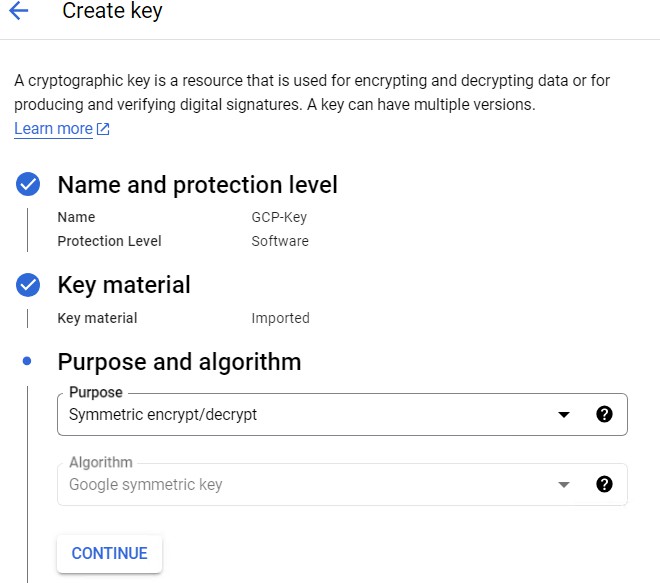
Setting up Purpose and algorithm
-
Click CONTINUE.
-
On Version click Continue with default value.
-
Optionally, in the Labels field, click Add label, if you want to add a label to your key.
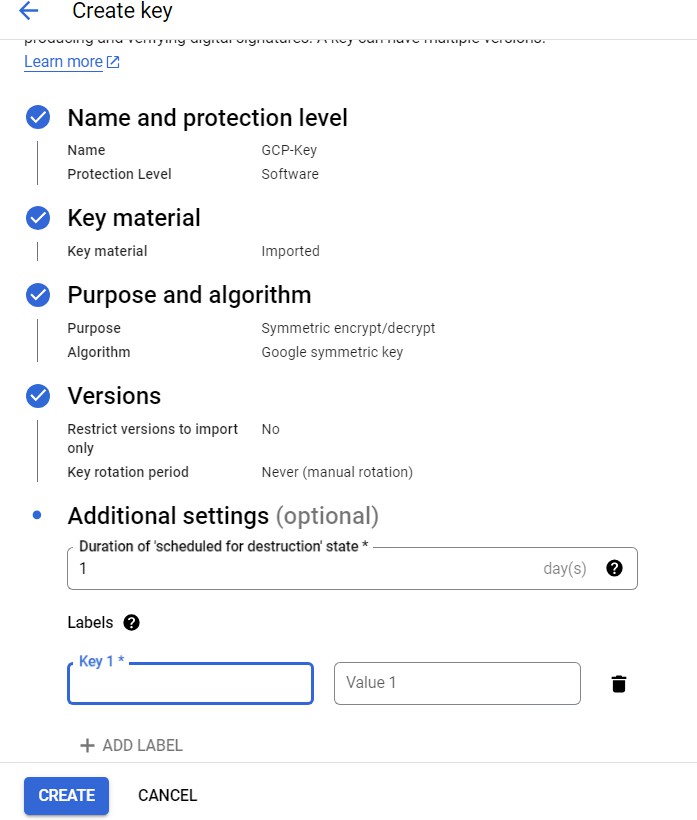
Adding Labels
-
Click Create.
For the imported keys, automatic rotation is disabled by default. If you enable automatic rotation, new key versions will be generated in the Cloud KMS, and the imported key version will no longer be the default key version after a rotation.