Please perform the following steps to configure the iLO to get enrolled with ESKM:
-
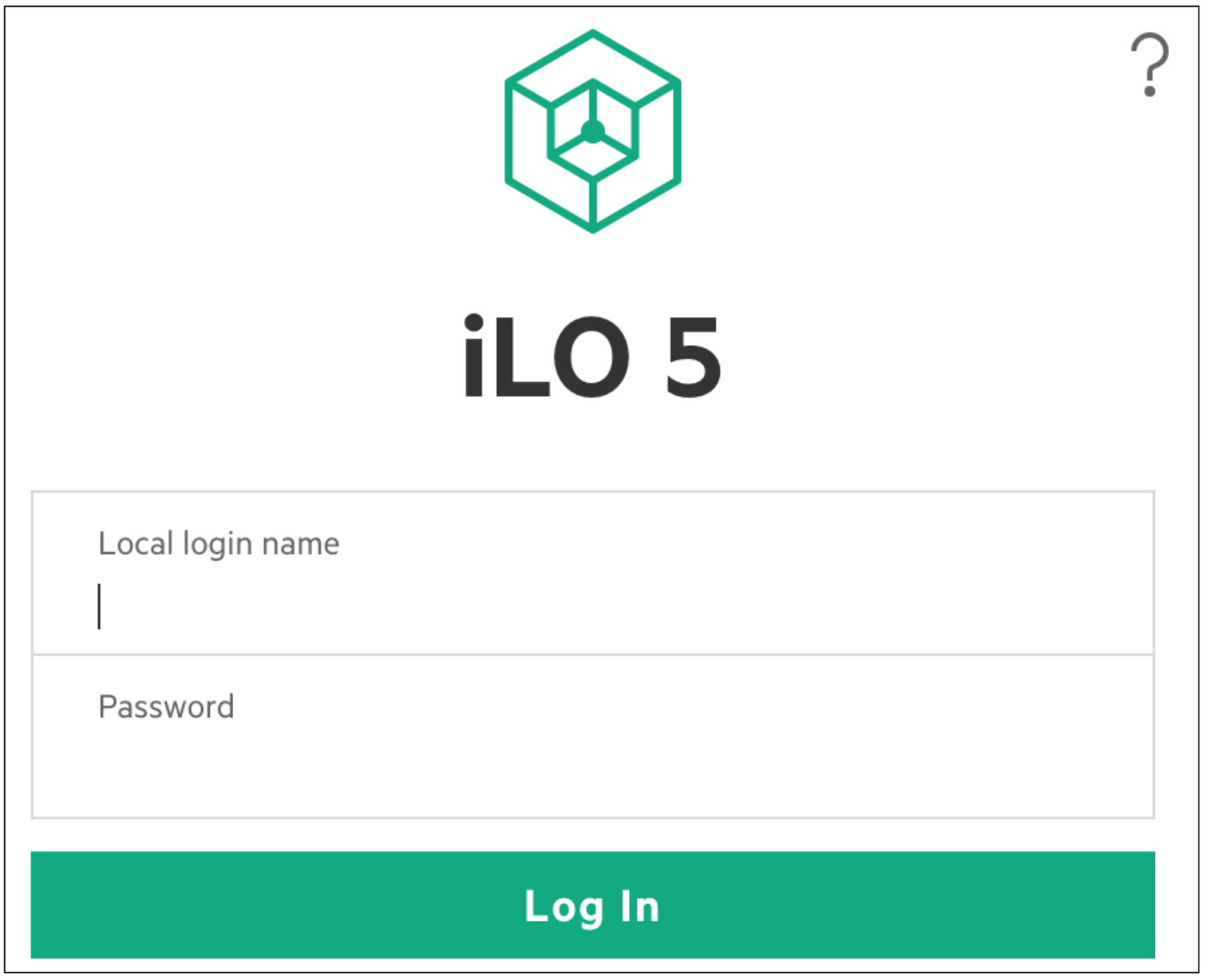
Log in to the iLO interface with “Local login name” and Password”.
-
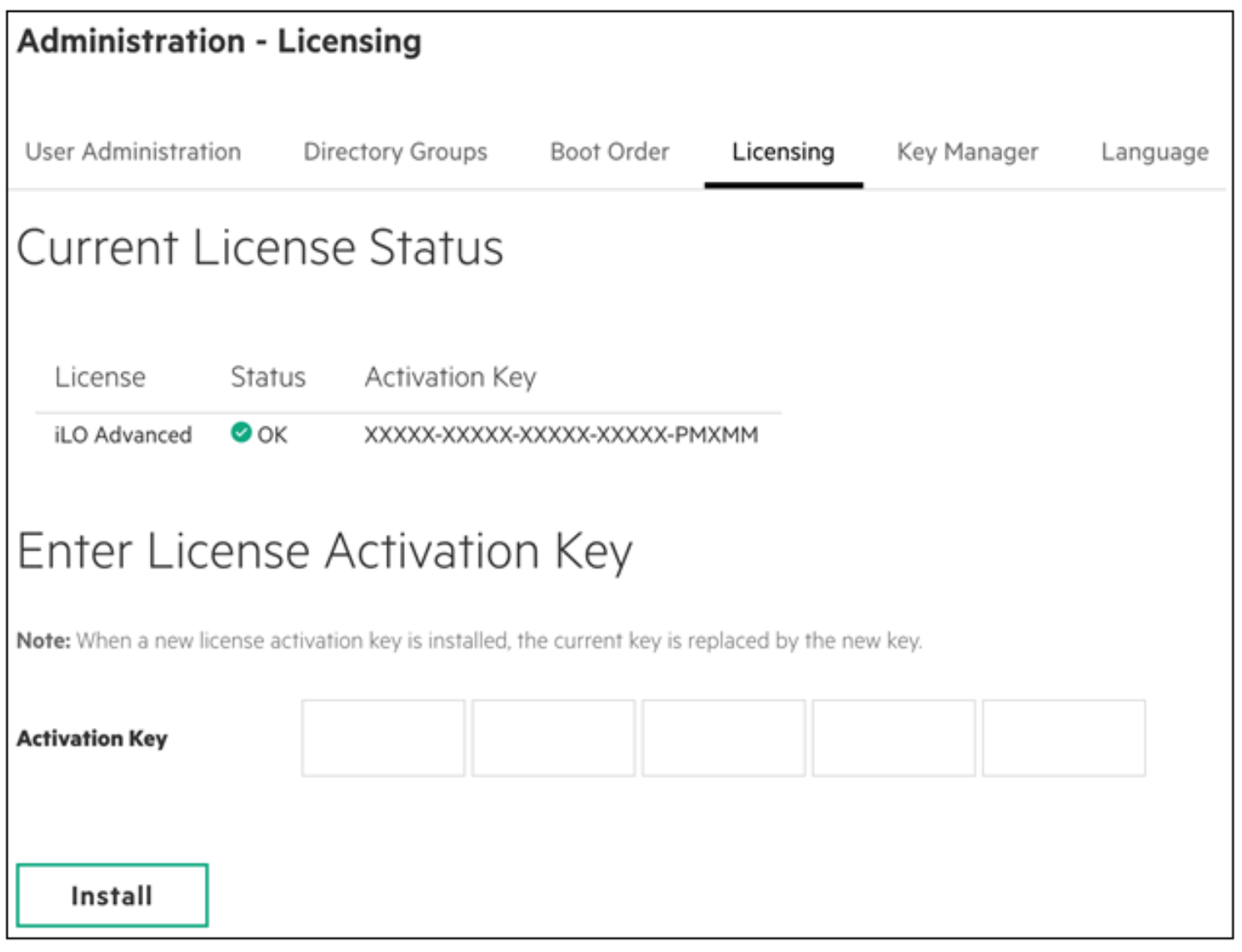
Click on the "Administration" menu and click on “Licensing” to verify if an iLO Advanced license is already installed.
Please contact HPE Support to request and install an iLO Advanced license using the following link:
-
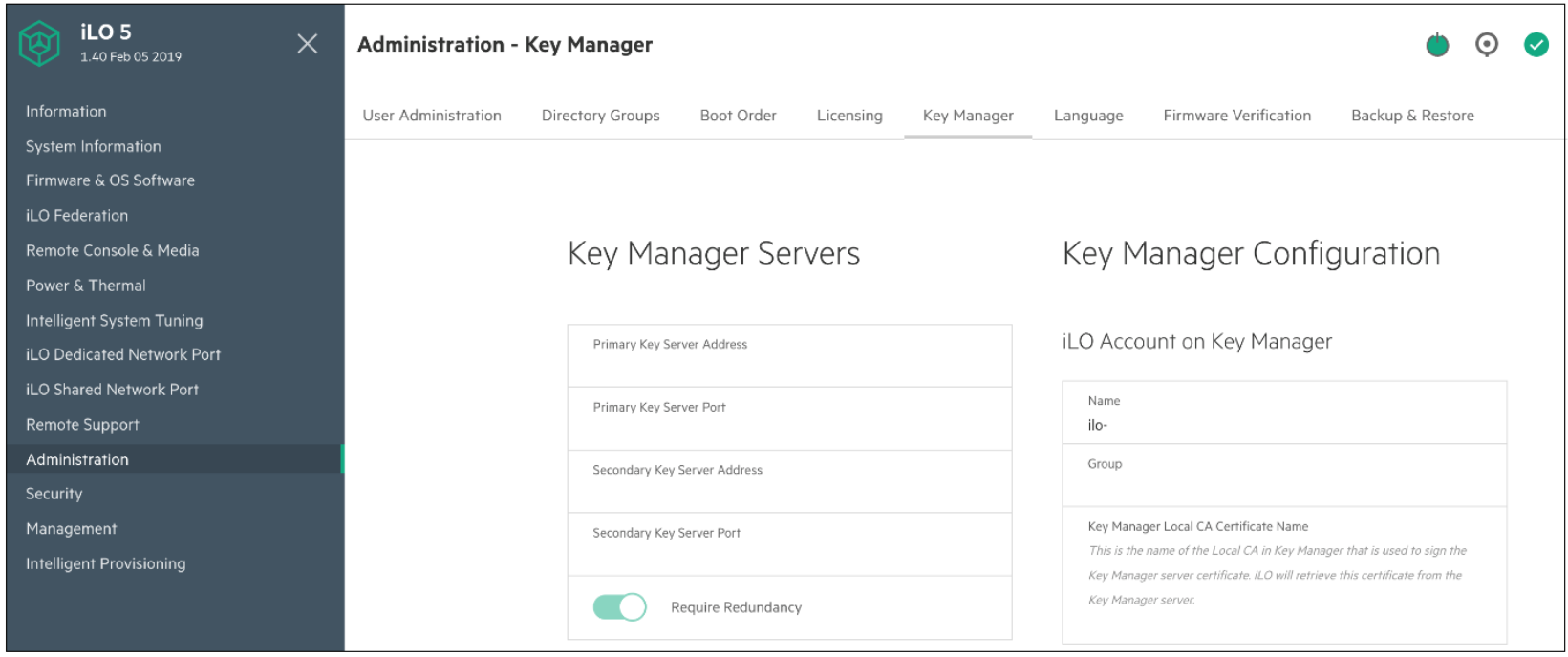
Click on the “Administration” menu and click on the “Key Manager” tab.
-
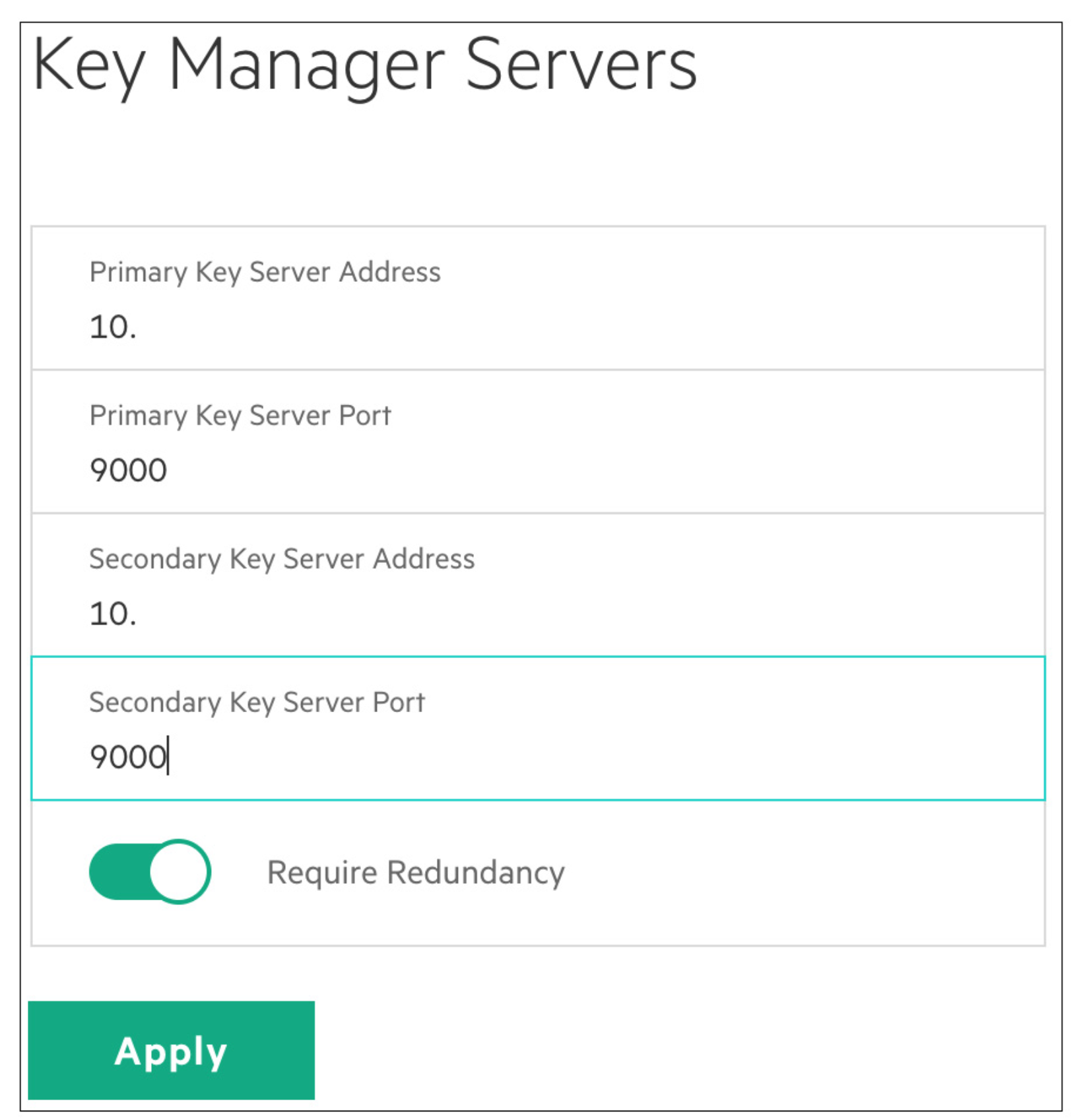
Fill out the “Key Manager Servers” form.
a. Primary Key Server Address: ESKM server IP Address.
b. Primary Key Server Port: ESKM KMS Server Port (9000).
c. Require Redundancy: Enable.
-
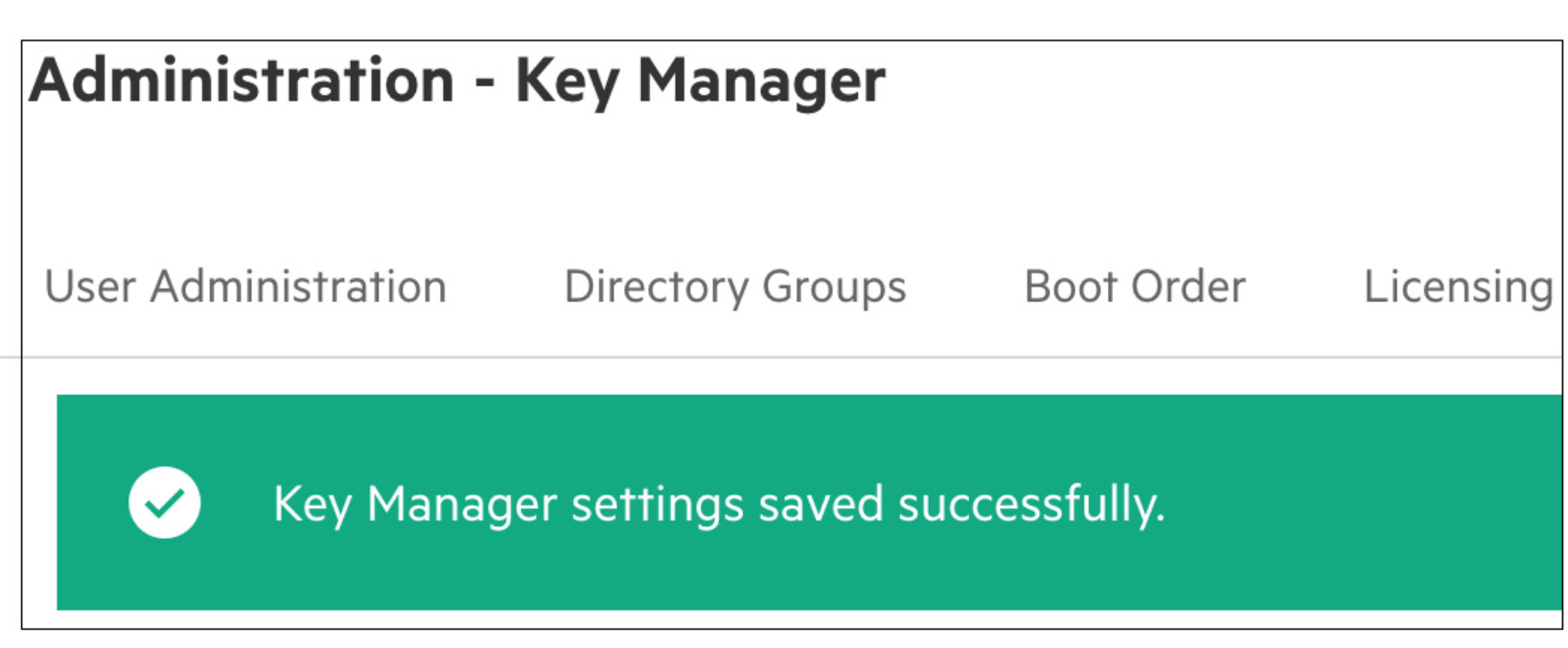
Click on Apply after filling out the “Key Manager Servers” form, and “Key Manager settings saved successfully” will be displayed.
-
Again click on the “Administration” menu and click on the “Key Manager” tab.
-
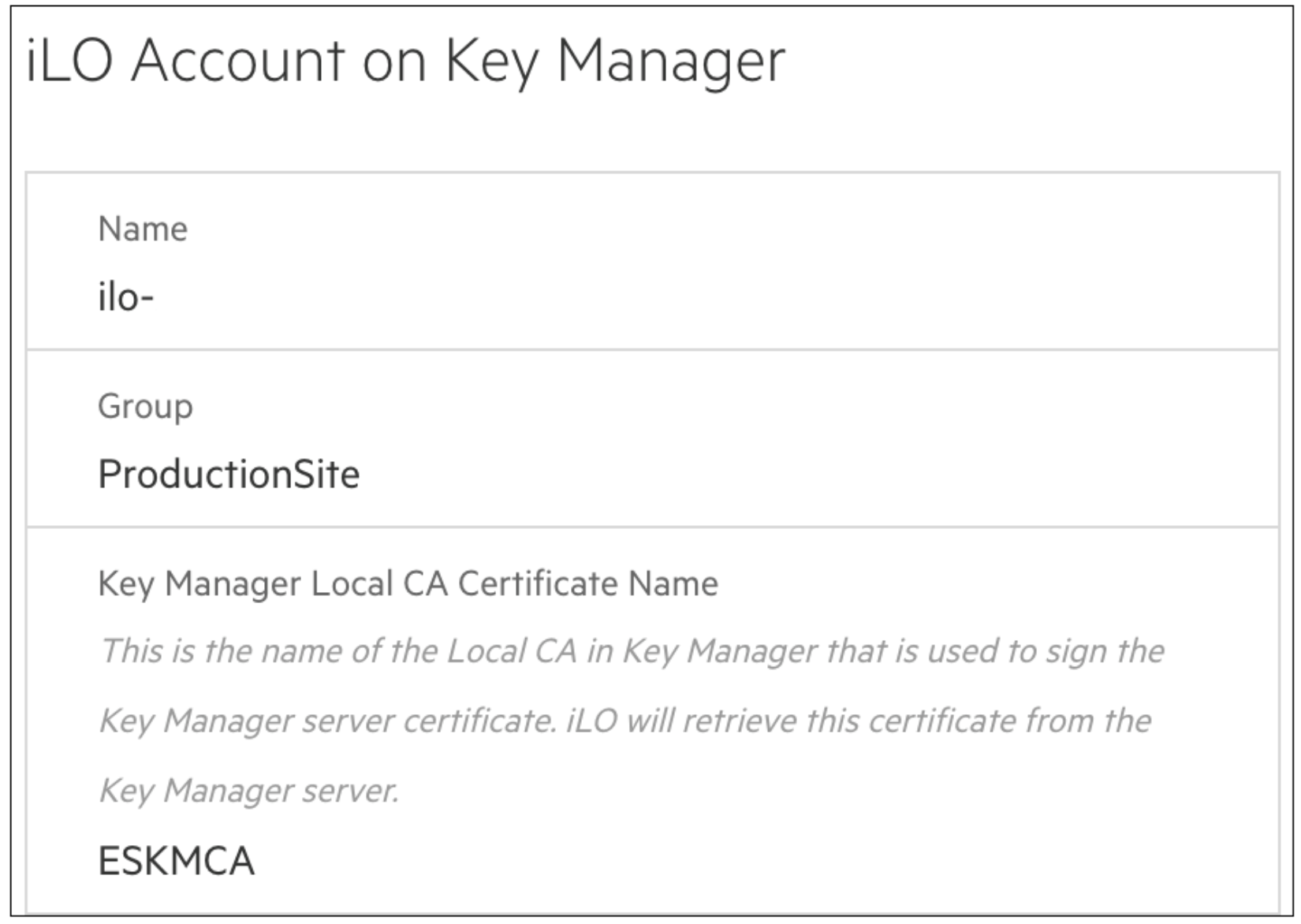
Fill out the “iLO Account on Key Manager” form under “Key Manager Configuration”.
a. Name: Will already be populated.
This is the username for the iLO of this particular ProLiant server.
b. Group: The user group we created in the ESKM.
c. Key Manager Local CA Certificate Name: The name of the Local CA created on the ESKMs.
-
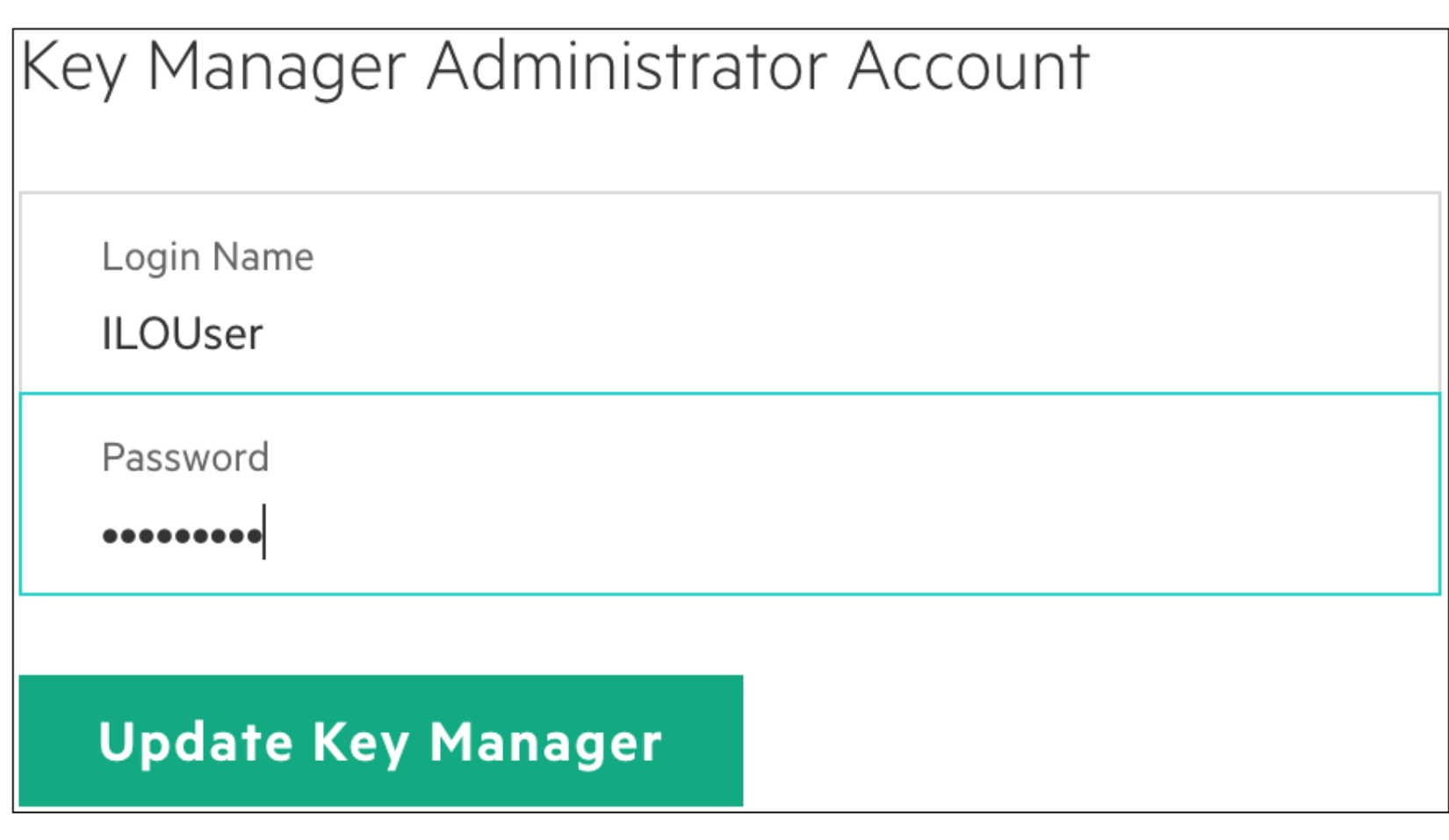
Fill out the “Key Manager Administrator Account” form under “Key Manager Configuration”.
a. Login Name: ilo_reg_user (User we created on ESKM).
b. Password: The password created on ESKM.
-
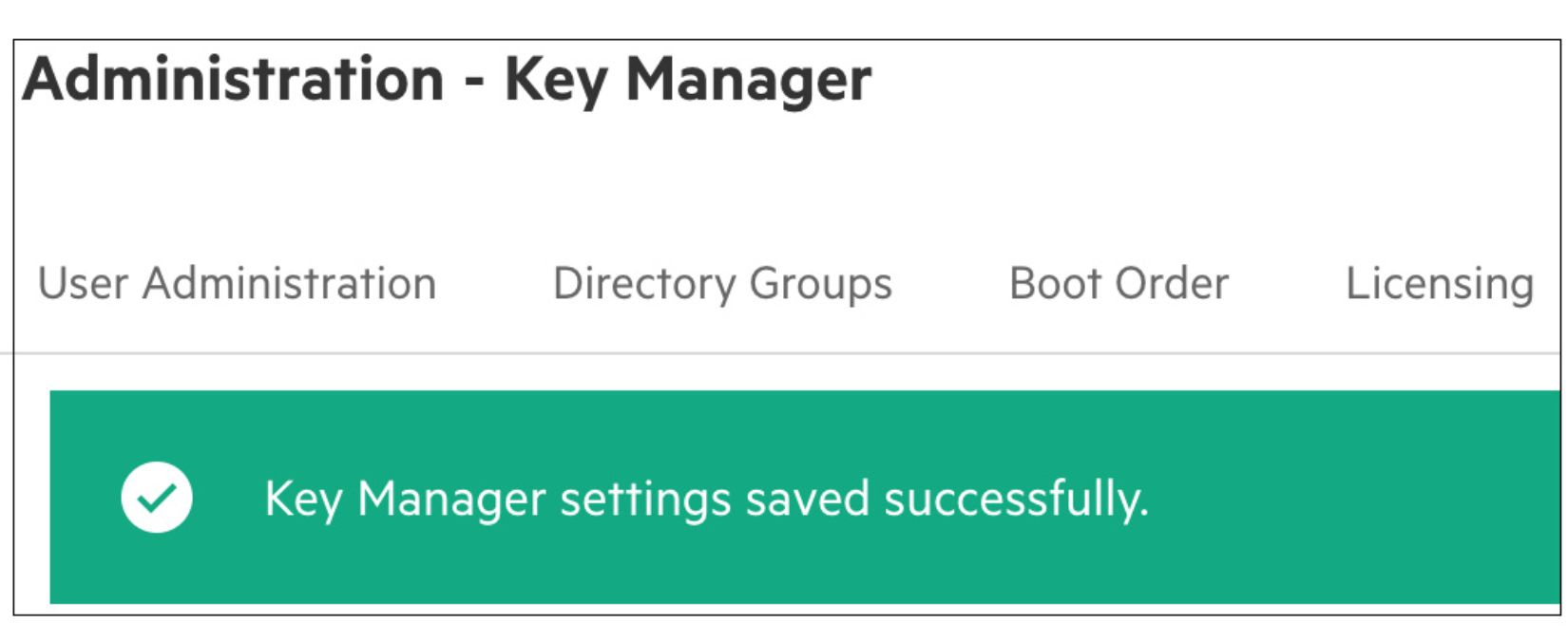
Click on Update Key Manager, and again, the “Key Manager settings saved successfully” will be displayed.
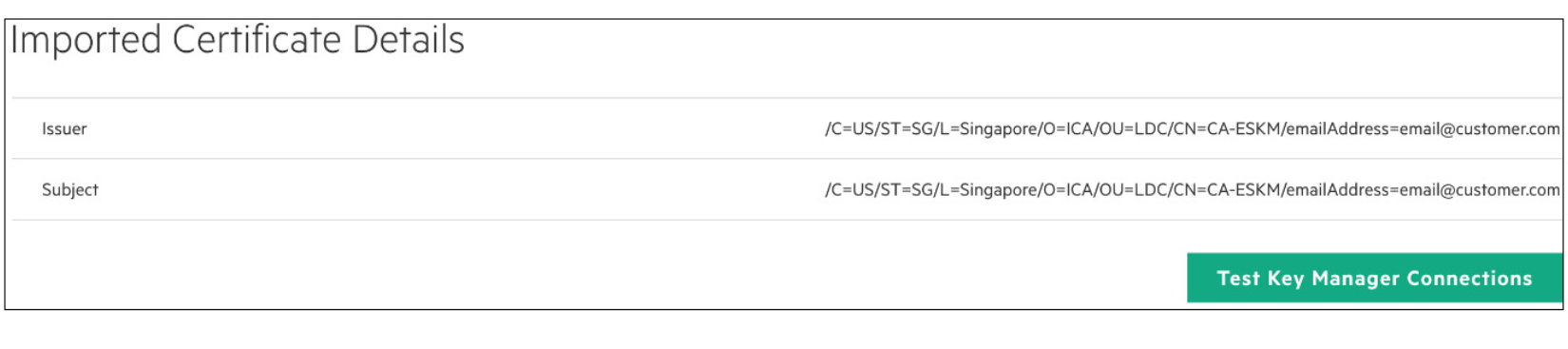
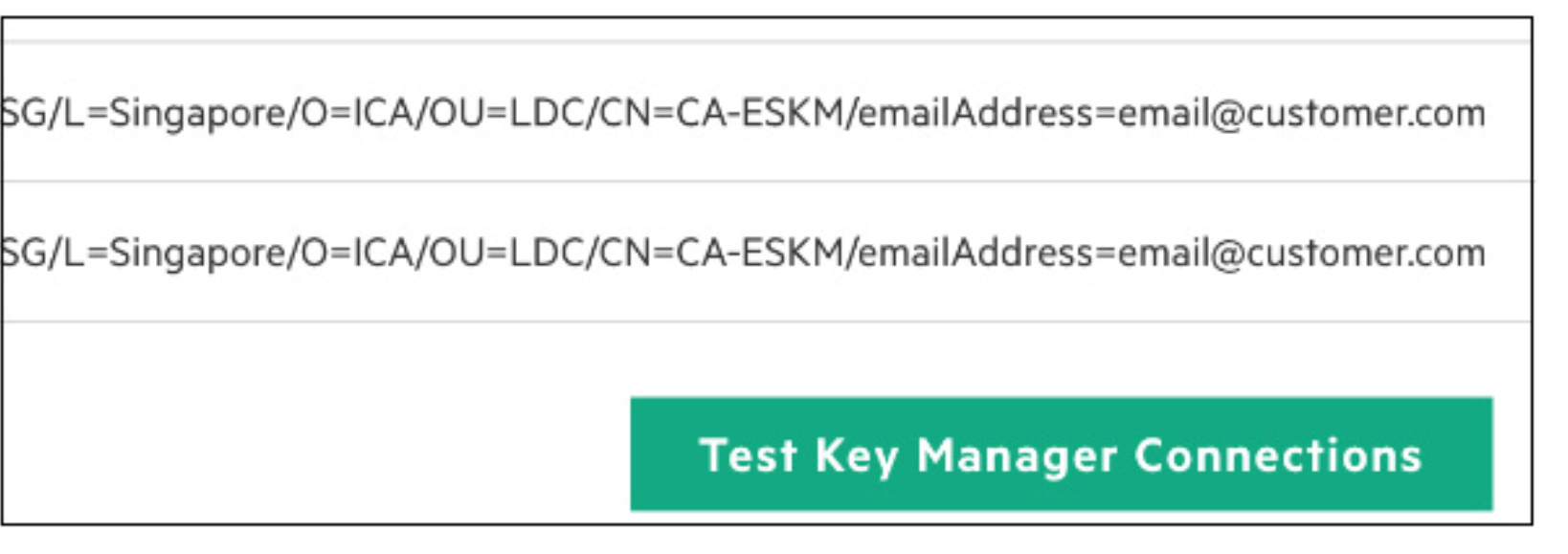
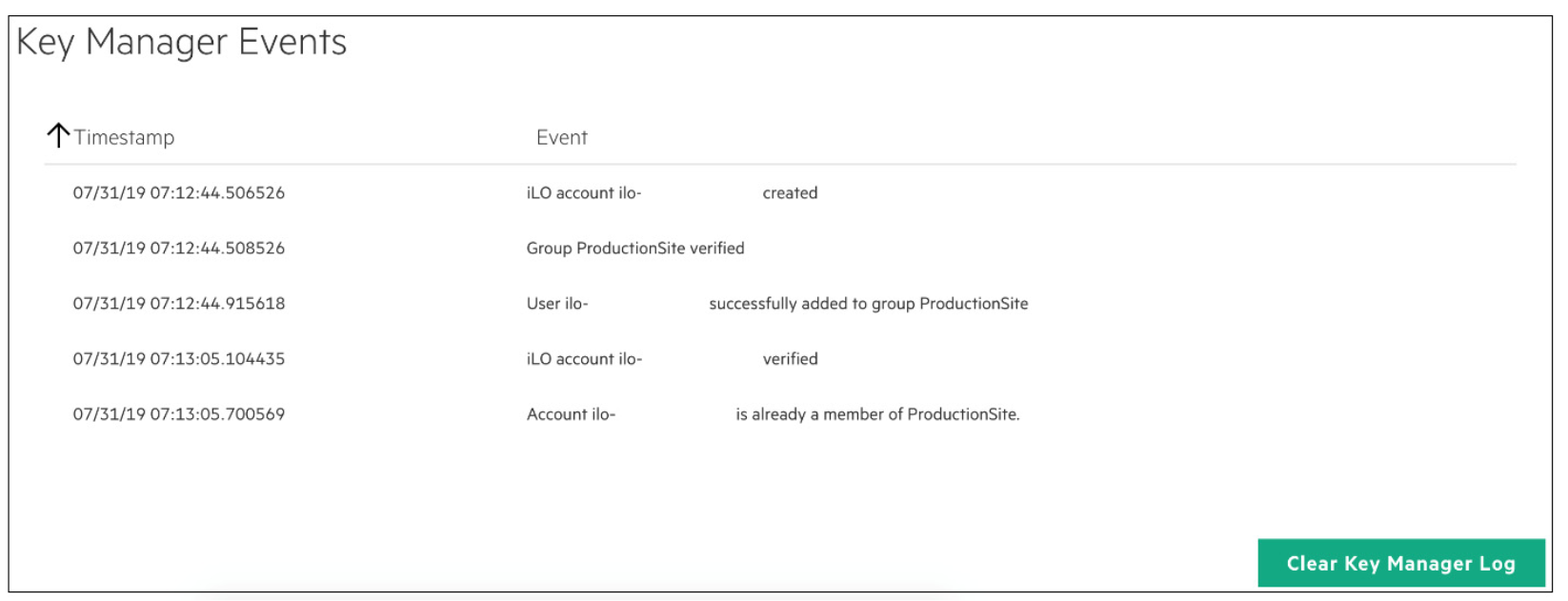
10. Click on “Test Key Manager Connections” to test the connectivity to the key managers and to view the details of the “Key Manager Events”.