

It is recommended to take backup of your data to some external storage before performing rekey operation.
-
Unmount the mounted volume from the mountpoint.
|
›_ Console |
|---|
|

Unmounting the mounted volume
-
Detach the attached LUKS volume.
|
›_ Console |
|---|
|

Detach the attached LUKS volume
-
Generate a new RSA key using p11tool2.
|
›_ Console |
|---|
|

Key generation output
-
Verify that the keys are generated onto the HSM using following command.
|
›_ Console |
|---|
|
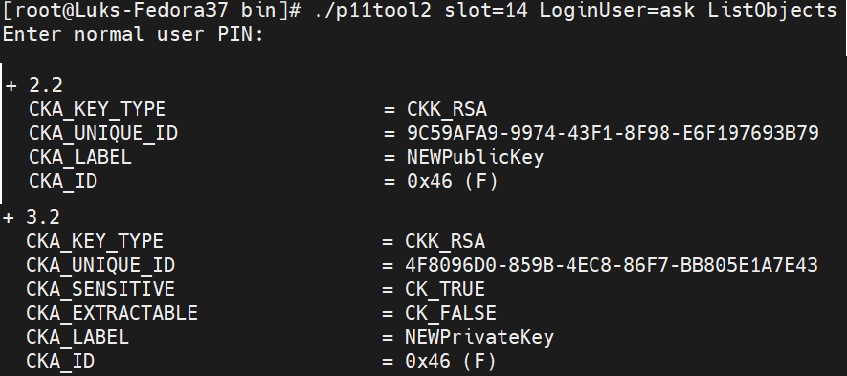
Key list using p11tool2
-
Generate a self-signed certificate with the generated key.
|
›_ Console |
|---|
|

self-sign certificate generation
-
Convert newcert.pem to
newcert.derformat.
|
›_ Console |
|---|
|

Certificate type change output
-
Import the certificate onto HSM.
|
›_ Console |
|---|
|

Certificate import using p11tool2
-
Check that the certificate is imported successfully on HSM.
|
›_ Console |
|---|
|
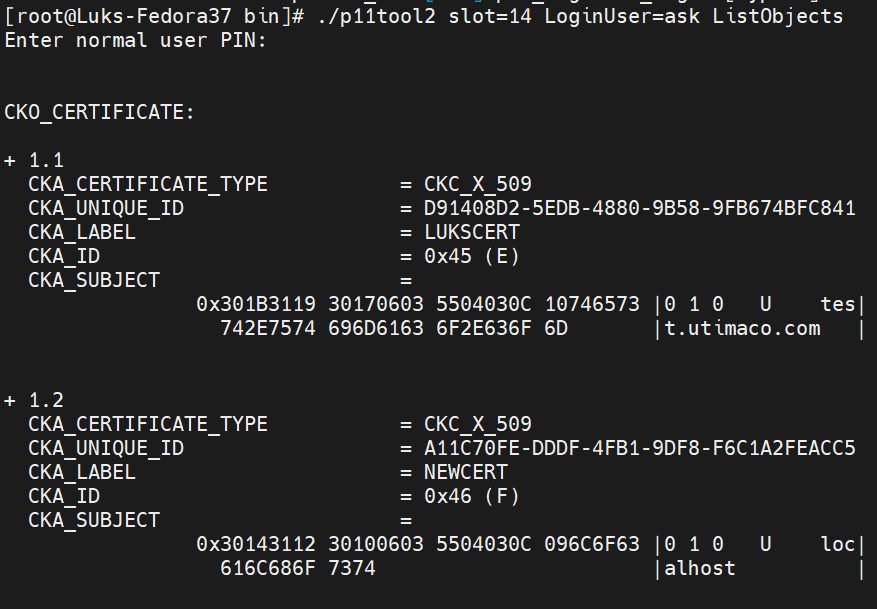
Certificate list output
-
List the objects on the slot and note down the URL of the new certificate and new private key.
|
›_ Console |
|---|
|
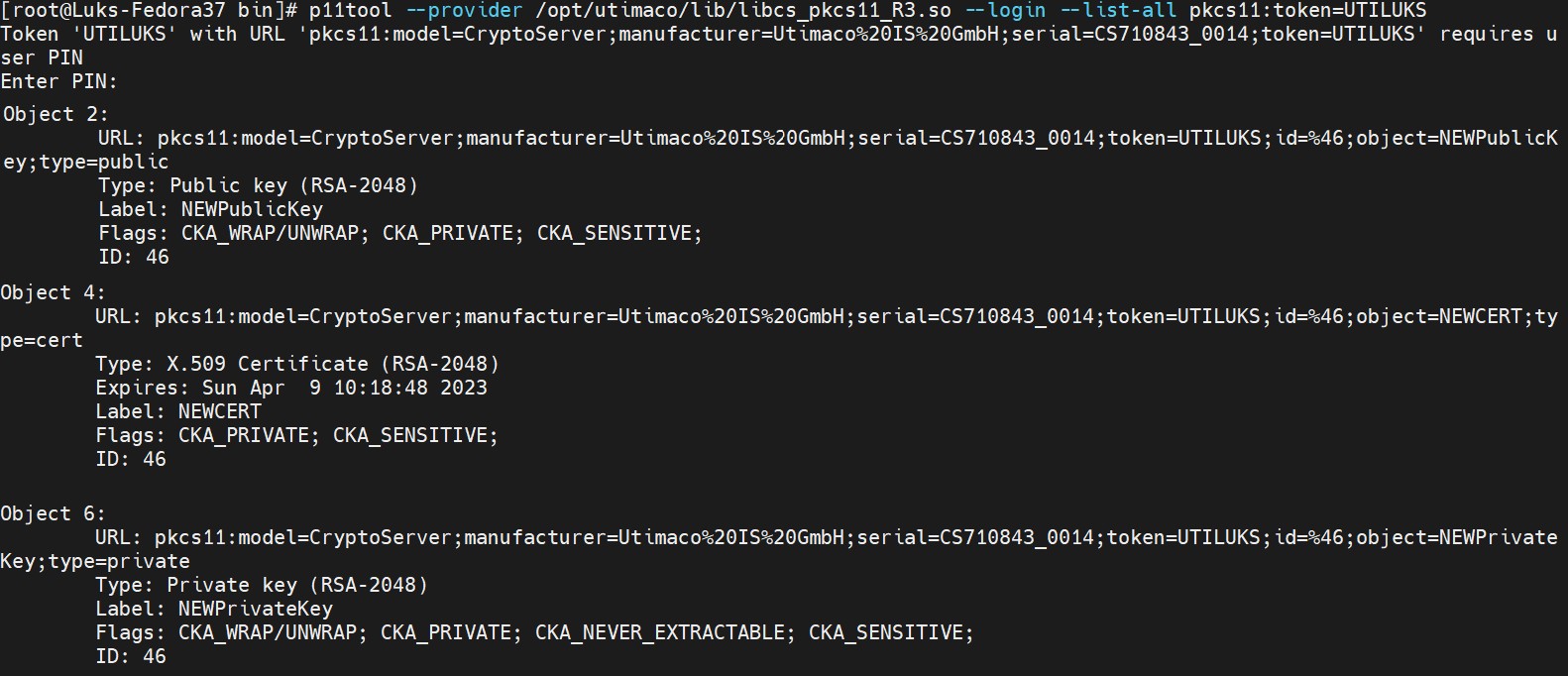
Slot objects list
-
Enroll the certificate on LUKS drive using
systemd-cryptenrollcommand.
|
›_ Console |
|---|
|

systemd-cryptenroll command output
-
Verify that the pkcs11 url of new certificate is added to the luks partition in the token section.
|
›_ Console |
|---|
|
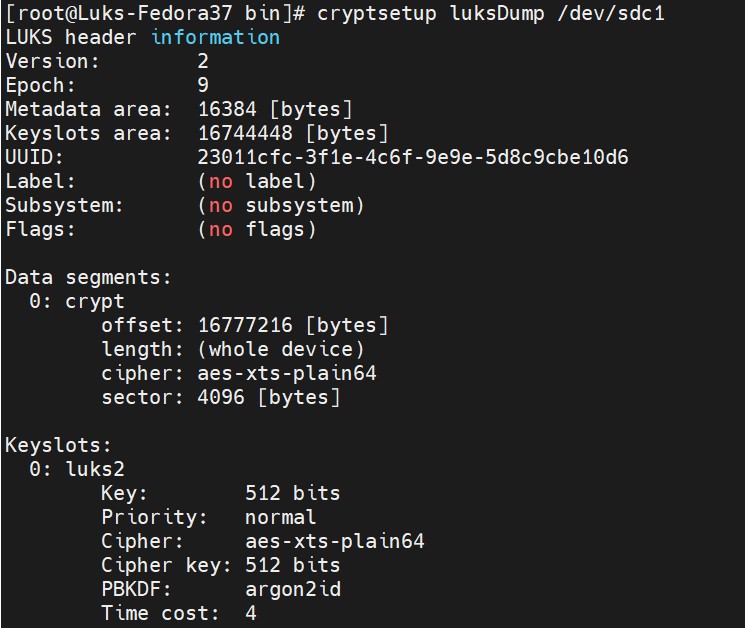
Encrypted volume information
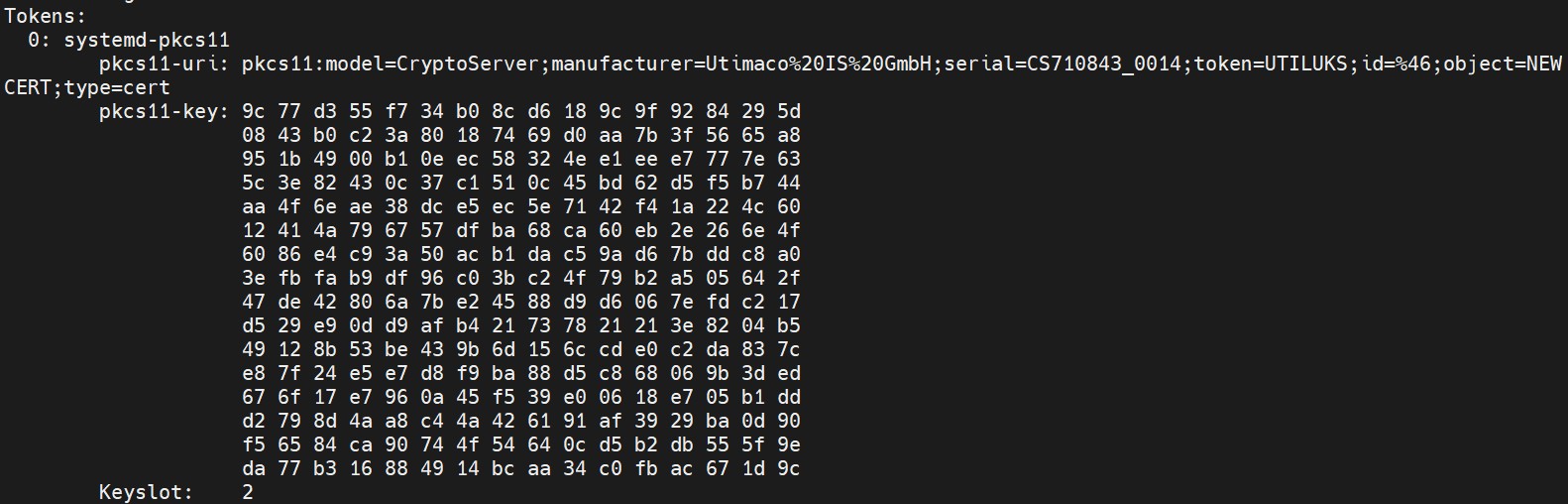
Encrypted volume information
-
Open the luks volume as newbackup disk.
|
›_ Console |
|---|
|

luksopen command output
-
Export token using below command to
header.jsonfile
|
›_ Console |
|---|
|

Exporting token id information
-
Open
header.jsonfile and replace thepkcs-uriwith type=private url of new key. Example
|
›_ header.json file |
|---|
|
-
Import the
header.jsonfile
|
›_ Console |
|---|
|

Importing token id information
-
Verify token id 2 is showing new key information using the command below.
|
›_ Console |
|---|
|
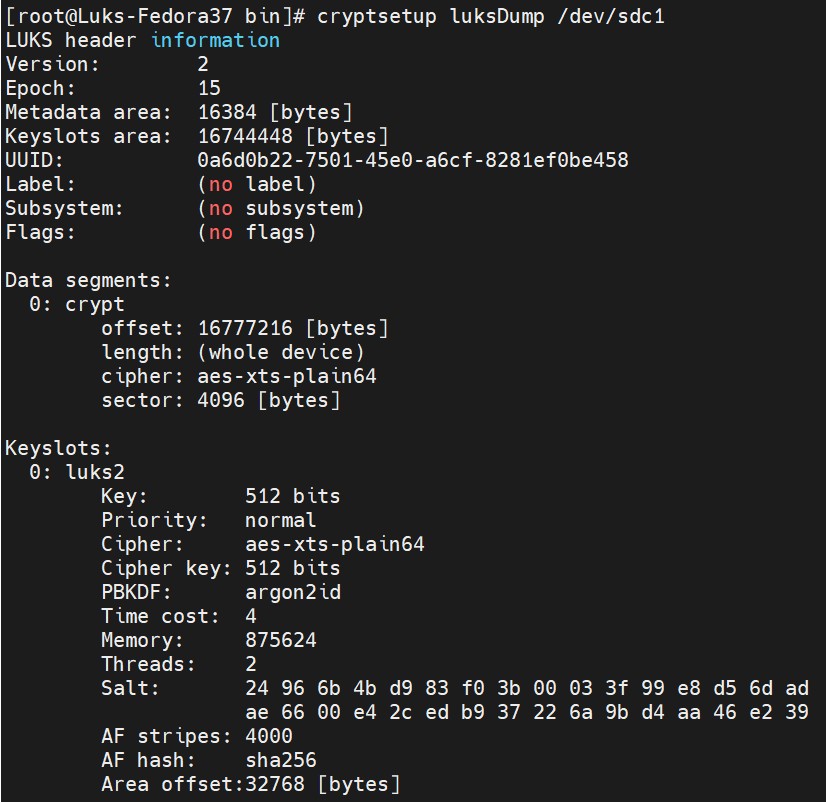
LuksDump output
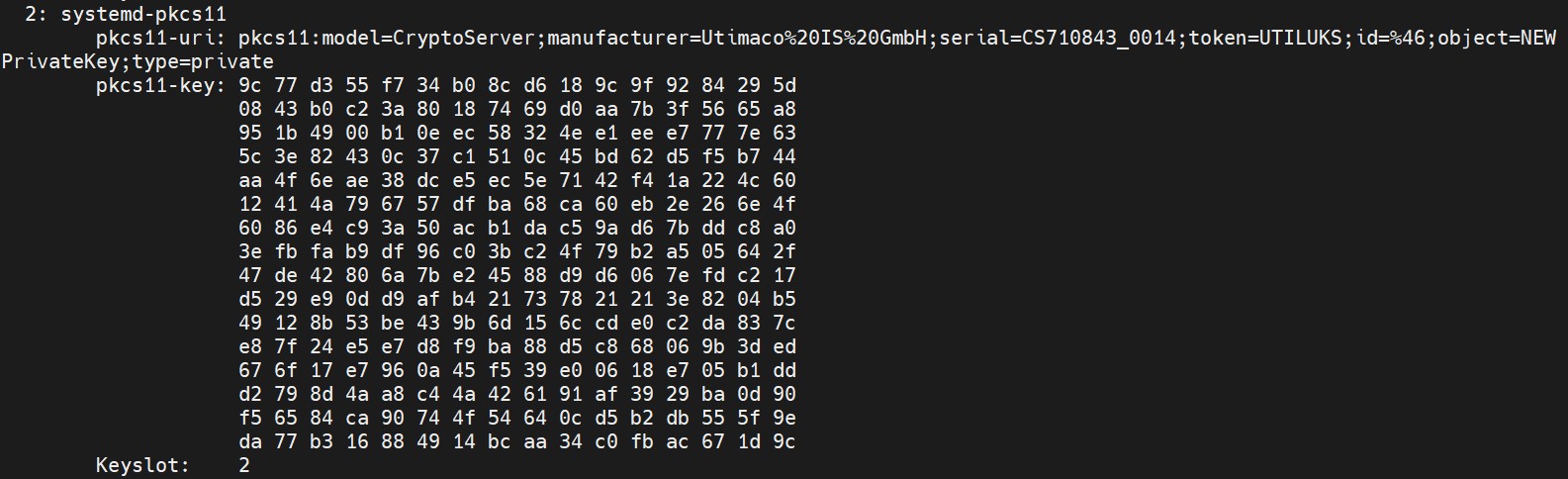
LuksDump output
-
Remove token id 0 and 1 and verify with the command below.
|
›_ Console |
|---|
|

Removing old token id
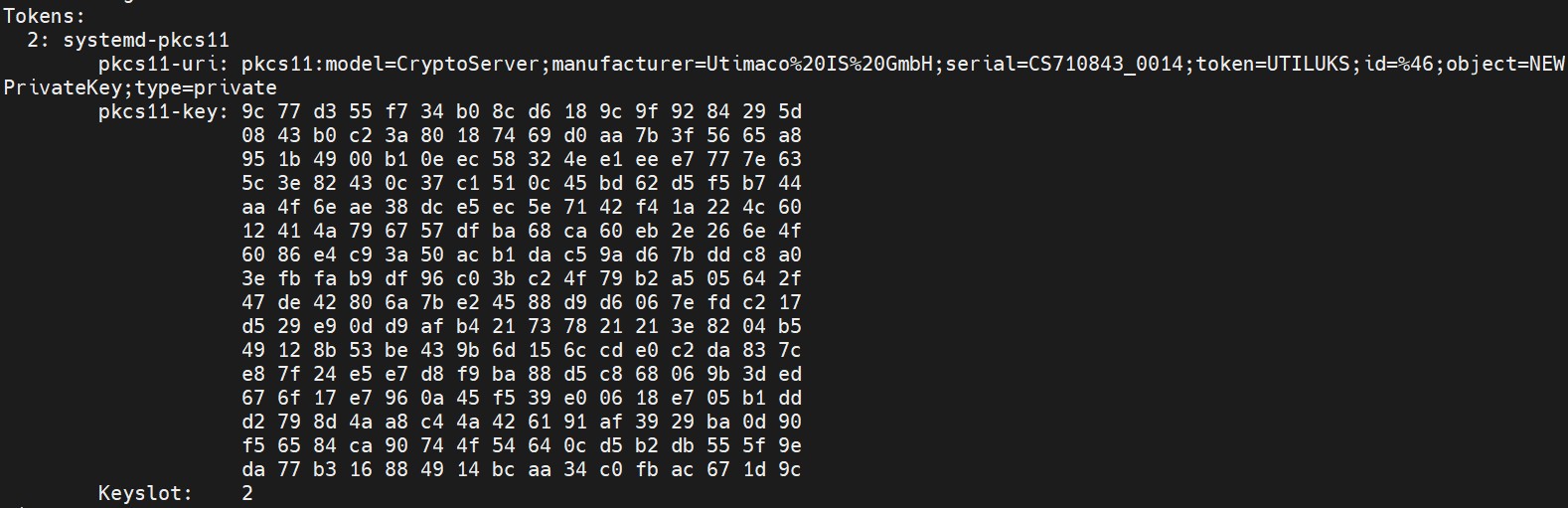
Removing old token id
-
Close the LUKS volume.
|
›_ Console |
|---|
|

lukscolse output
-
Attach the LUKS volume with
systemd-cryptsetup.
|
›_ Console |
|---|
|

Attaching luks volume
For Auto-Atttachig and Auto-Mounting LUKS volume refer to section Auto-Attaching and AutoMounting LUKS Volume during Boot.
This completes the Integration for Luks with Utimaco SecurityServer.