

-
Log on to the Domain Controller with enterprise permissions.
-
Click the Start button, open Run, and type
dssite.mscand then click OK. -
Select the top node in the left pane.
-
In the View menu, select Show services node.
-
In the left pane, select the Services and Public Key Services, and then select AIA.
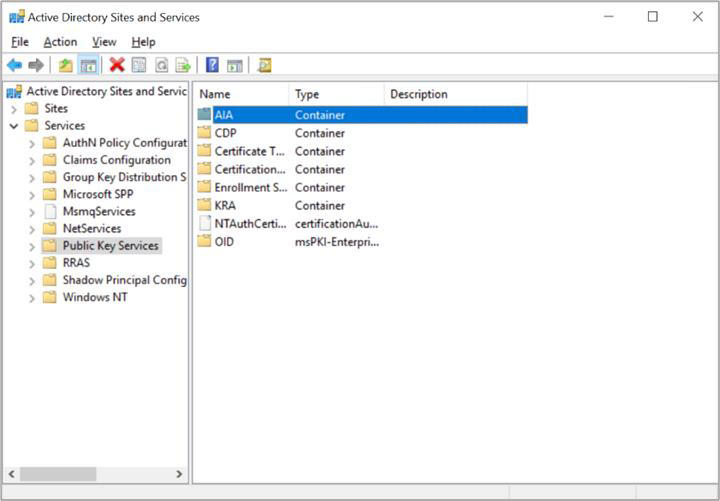
"Active Directory Sites and Services" Window
-
In the middle pane, select the CA name as it shows in the Certification Authority MMC Snap-in.
-
In the Action menu, select Properties.
-
Click Security.
-
Click Add.
-
Select Object Types, then select Computers, and then click OK.
-
Type the computer name(s) of the other cluster node(s) as the object name and click OK.
-
Make sure that the computer accounts of all cluster nodes have Full Control permissions.
-
Click OK.
-
All cluster nodes also have to be permitted on the Enrollment Services container.
-
In the left pane, select Enrollment Services.
-
In the middle pane, select the Certificate Authority name.
-
In the Action menu, select Properties. Select the Security tab and click Add...
-
Select Object Types, select Computers, and click OK.
-
Type the computer name(s) of the all-cluster node(s) as the object name.
-
Make sure that the computer accounts of all cluster nodes have Full Control permissions.
-
Click OK.
-
In the left pane, select KRA.
-
In the middle pane, select the Certificate Authority name.
-
In the Action menu, select Properties, then select the Security ta,b and click Add.
-
Select Object Types, select Computers, and then click OK.
-
Type the computer name of all cluster nodes as object names and click OK.
-
Make sure that the computer accounts of all cluster nodes have Full Control permissions.
-
Click OK.