

Once the code-signing certificate has been installed in the local personal Windows certificate store, it is possible to sign your executables, dynamic link libraries or cabinet files. Depending on how you have installed signtool, you might have to open a developer console in order to include signtool in your local Windows search path.
For the purpose of integration and verification, a self-signed certificate was generated and used for code signing. The certificate was created using the private key that was generated as part of the certificate request process.
To create a self-signed certificate, use the following command.
PS C:\Authenticode> New-SelfSignedCertificate `
>>   -Subject "CN=Utimaco Code Signing,O=Utimaco,L=Aachen,C=DE" `
>>   -Type CodeSigningCert `
>>   -CertStoreLocation "Cert:\LocalMachine\My" `
>>   -Provider "Utimaco CryptoServer Key Storage Provider" `
>>   -ExistingKey `
>>   -Container "Authenticode_CLI_Key"
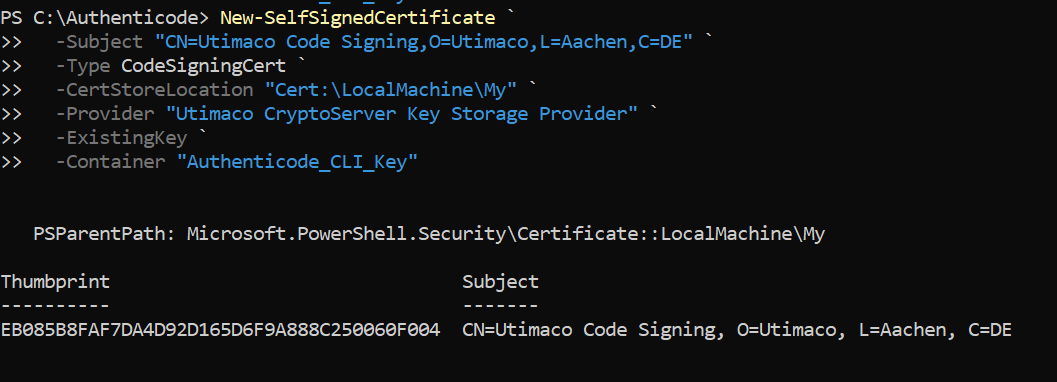
Self-signed certificate created
Use the following basic command to sign your executable. Replace "YourCompany Code Signing" with the common name (CN field) of your certificate. You can also add the /fd sha256 parameter to use the more secure SHA256 digest algorithm.
signtool sign /v /fd sha256 /sm /n "YourCompany Code Signing" sample.exe
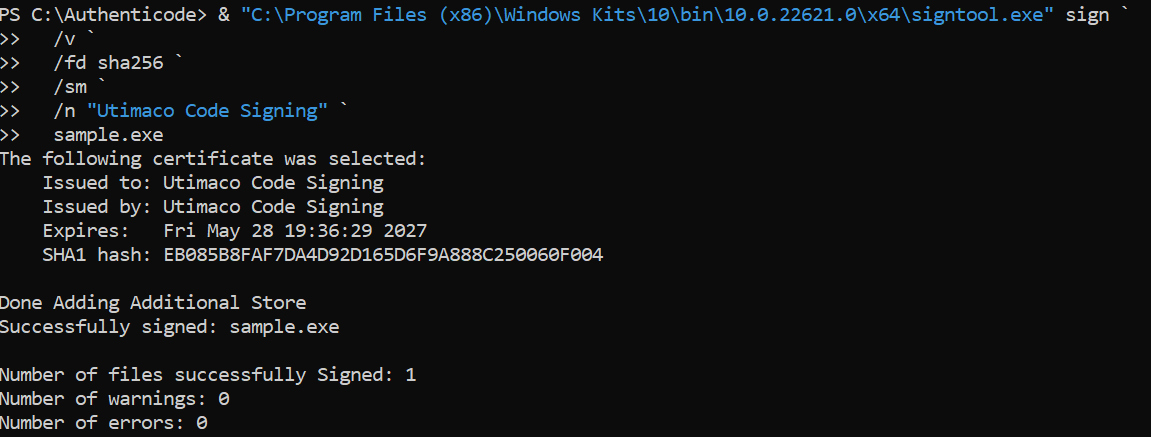
Code-signed the exe
If you are using Smartcard Authentication, the PIN Pad device will prompt to insert the Smartcard and enter the pin. Then, press the OK button on the PIN Pad.
It is advisable to also include a time stamp in your code signature. With a time stamp, the signature usually stays valid even after the expiry date of the code-signing certificate. Add a timestamping authority like DigiCert as an extra parameter to signtool, as shown next.
signtool sign /v /fd sha256 /n "YourCompany Code Signing" /t http://timestamp.digicert.com /td sha256 /sm /a sample.exe
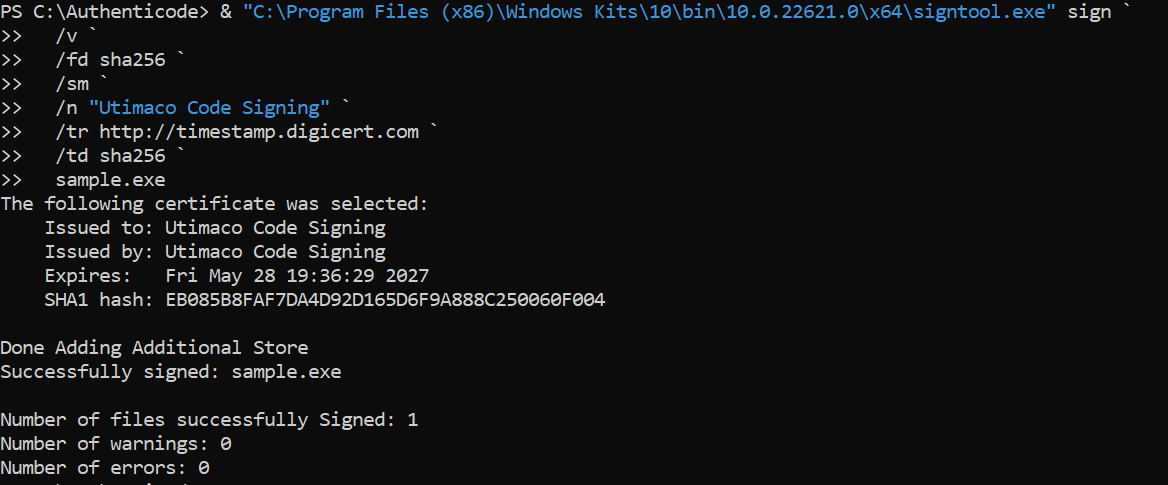
Code-sign with time-stamp