

The following example only describes a basic configuration and should be adjusted to your requirements.
-
In the Server Manager Window, the flag shows a warning after the installation. Select the flag and click on Perform additional configuration.
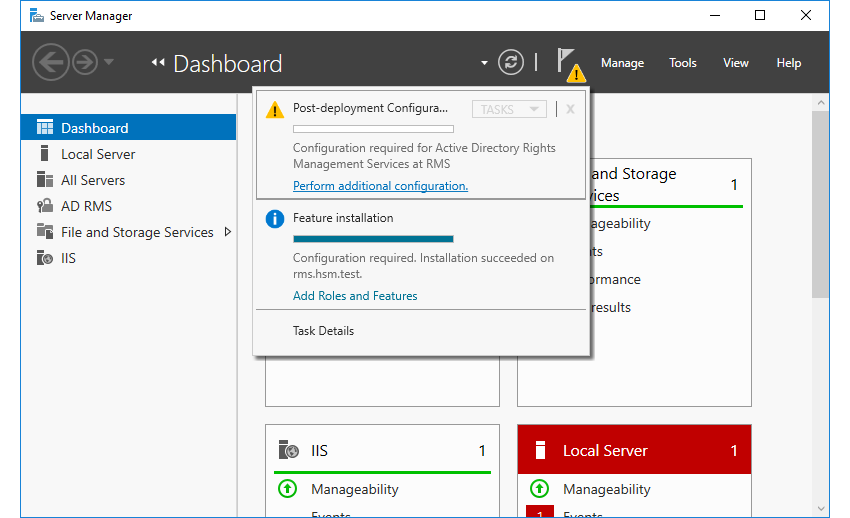
Server Manager - Post-deployment Configuration of AD RMS
-
In the AD RMS Configuration Wizard, go through the single configuration steps. It is important that you select Cryptographic Mode 2 (RSA 2048-bit-keys/SHA-256 hashes) in the step Cryptographic Mode.
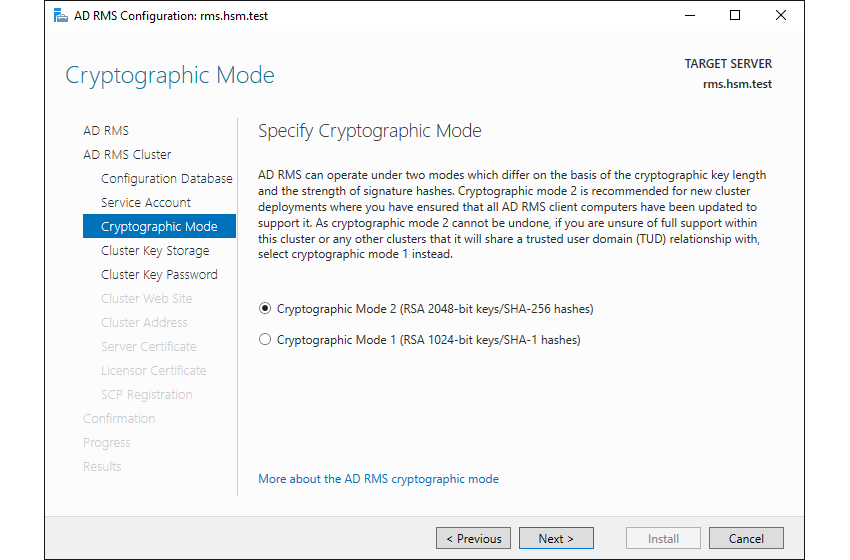
AD RMS Configuration - Cryptographic Mode
-
In the step Cluster Key Storage, select the option Use CSP key storage.
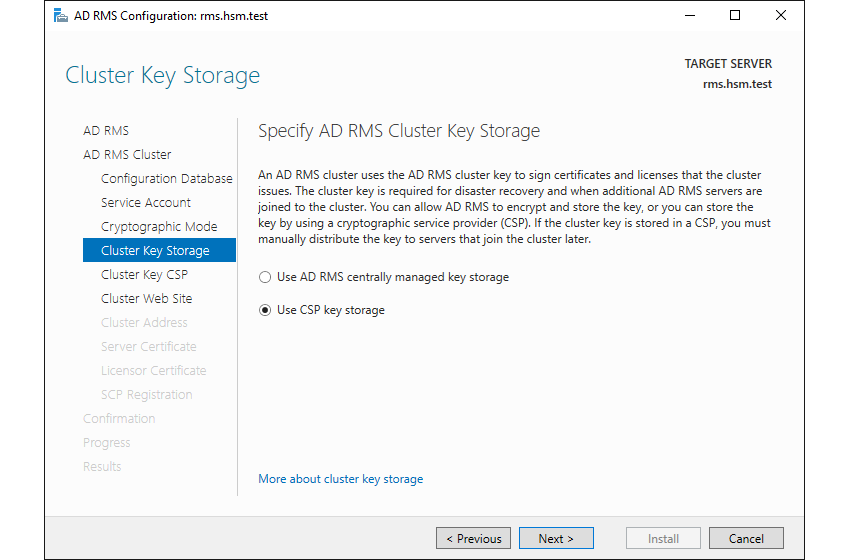
AD RMS Configuration - Cluster Key Storage
-
In the step Cluster Key CSP, select the CSP Utimaco CryptoServer RSA and AES CSP. If you want to use an existing key in the HSM, you can select one. If you want to create a new key, select the option Create a new key with the selected CSP (recommended).
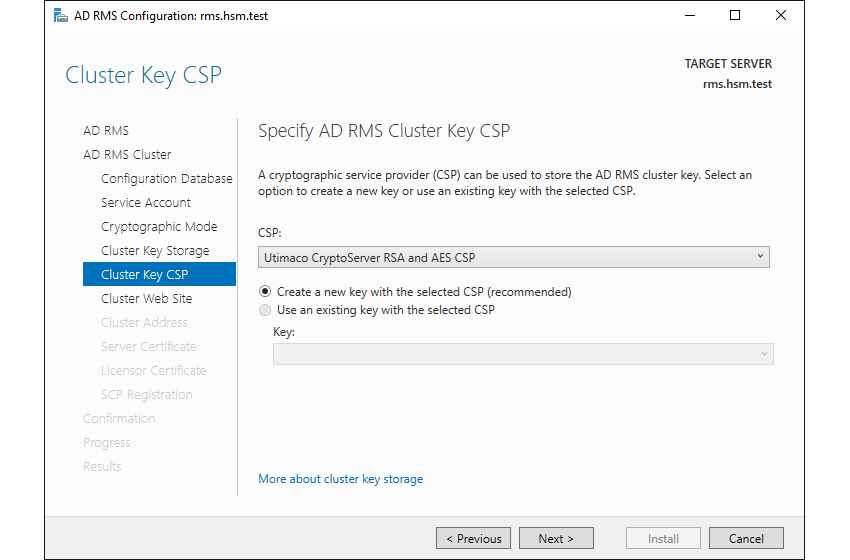
AD RMS Configuration - Cluster Key CSP
-
At the end of the wizard, please check your configuration. If everything is satisfactory, click on Install.
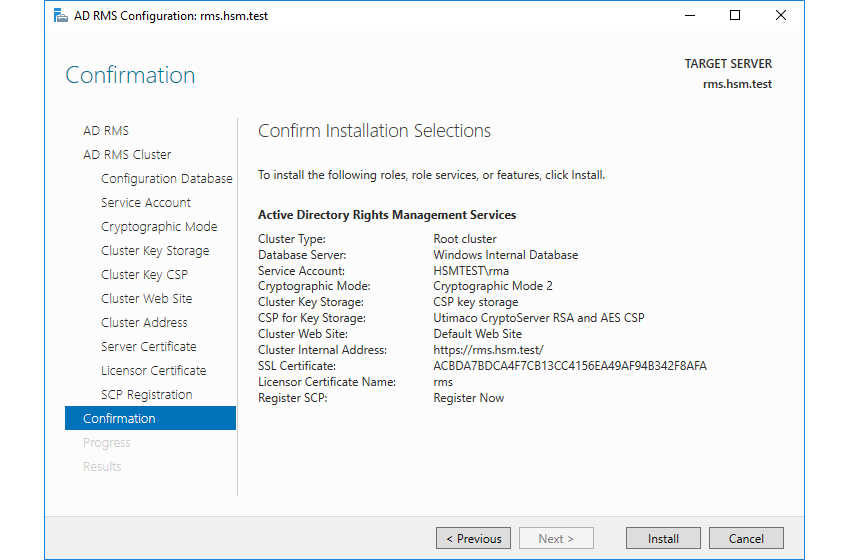
AD RMS Configuration - Confirmation
-
If the configuration was successful, you will get a confirmation that the role AD RMS was installed successfully.
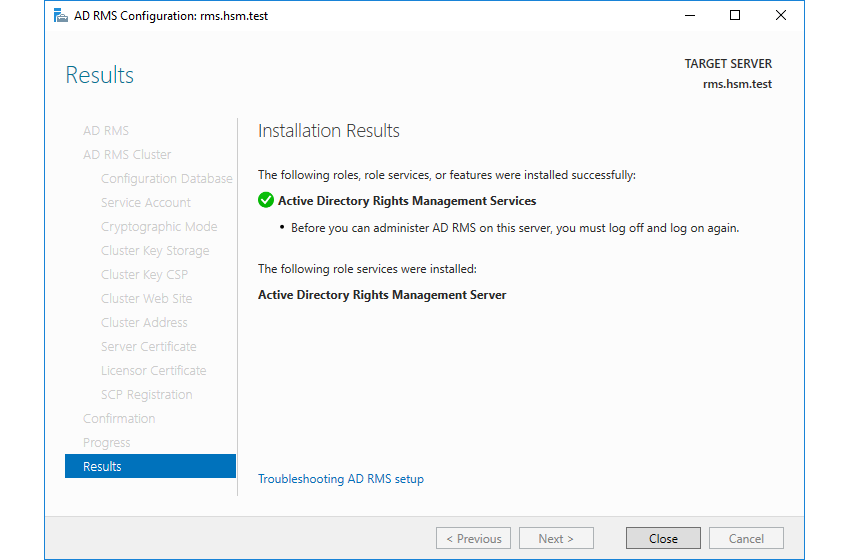
AD RMS Configuration - Results
-
You can now check if the key has been created and stored successfully in the HSM. To do this, start the PowerShell command line interface and issue the command
cngtool listkeys. If you see a key similar to the following output, the key is stored and available inside the HSM.
|
|
|---|
|
For any further configuration for AD RMS refer to the Microsoft TechNet website.