

-
Log in to Nutanix Prism Element as an administrator.
-
Select Data at Rest Encryption in the Settings page.
-
In the Cluster Encryption page, select Manage Keys and click the Rekey button under Software Encryption. For more information on validating with Re-keys, see https://portal.nutanix.com/page/documents/details?targetId=Nutanix-Security-Guide-v6_7:wc-security-data-encryption-passwords-wc-aos-t.html.
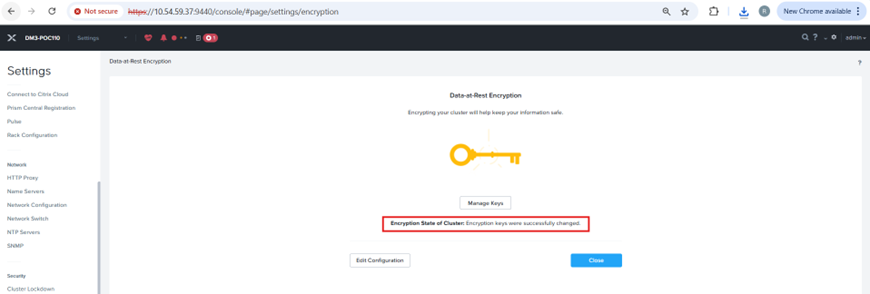
Re-key

Re-key Success
-
Shut down VMs in the Nutanix cluster.
-
Stop Nutanix Cluster Services.
-
Shut down CVMs and Nutanix Hosts in the cluster, wait for 3 minutes for the power to drain, and verify the shutdown status.
-
Shut down both nodes of KMS Server.
-
Power on Hosts and verify status(CVMs power on automatically).
-
Start Nutanix Cluster Services.
-
Power on the VMs to test the KEK (Key Encryption Key) is not retrieved from the KMS, and the DEK (Data Encryption Key) cannot successfully unlock the Drives to boot the VMs.
-
Power on and start services for the Active KMS Node and attempt to boot the Nutanix VMs and record behavior.
Verify the events/logs of the KMS cluster to see if the keys are fetched successfully from the new active KMS server.
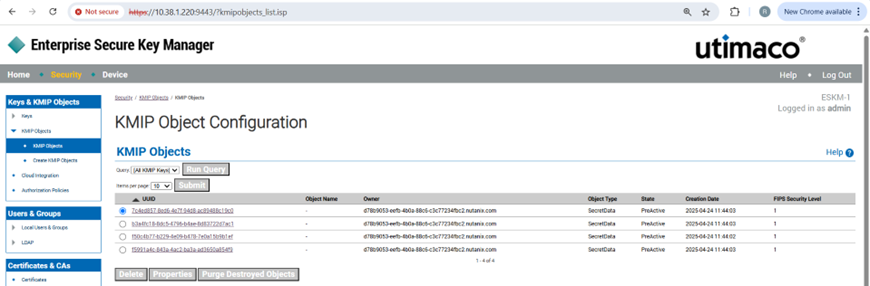
Before Re-key
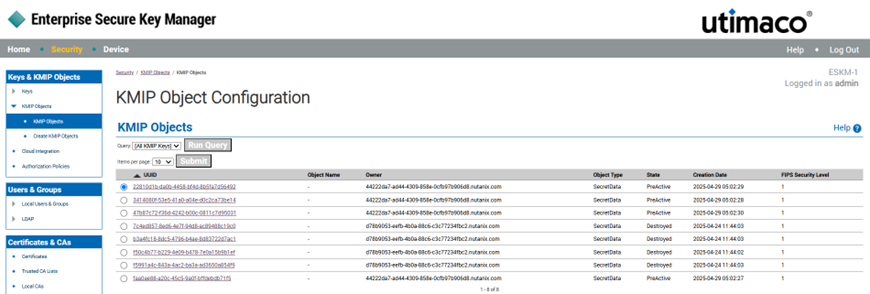
After Re-Key