

Configuration on APM
APM solutions are built using APM’s solution editor, and APM plug-ins perform the configured tasks such as key management operations and cryptographic operations. Please check APM tutorial and User Guide to get familiar with the principle of operation.
The most important plug-ins for Utimaco HSM integration are:
-
PKCS11Connector: For selecting the PKCS#11 library and a slot, and maintaining a connection with the HSM.
-
PKCS11Update: For performing specific tasks, for example key generation, signature computation, key wrapping, unwrapping and derivation, etc.
-
DataCipher: For performing cryptographic operations using Microsoft’s CNG interface and Utimaco CryptoServer Key Storage Provider. With DataCipher, you can select a certificate, and the plug-in locates the associated private key to perform signature computation.
Two sample APM solutions are provided for testing the integration, and for basis of building new solutions for key management and cryptography:
-
PKCS11 Key Management Demo – contains functions for importing a Zone Master Key for importing other keys, and a function for importing AES keys from an XML file using the ZMK.
-
PKCS11 Signing Sample – demonstrates signing data with RSA algorithm using APM and Utimaco HSM.
Configuring PKCS11Connector Plug-in
The purpose of the PKCS#11 Connector plug-in is to select a PKCS#11 Cryptoki library and a slot for performing operations. The Connector can be used also with PKCS#11 compliant smartcards, and in that case, it can request a user to insert a smartcard into the reader represented by the selected slot. With the “Session life cycle” parameter, you can select from three options, how long the PKCS#11 session is kept alive.
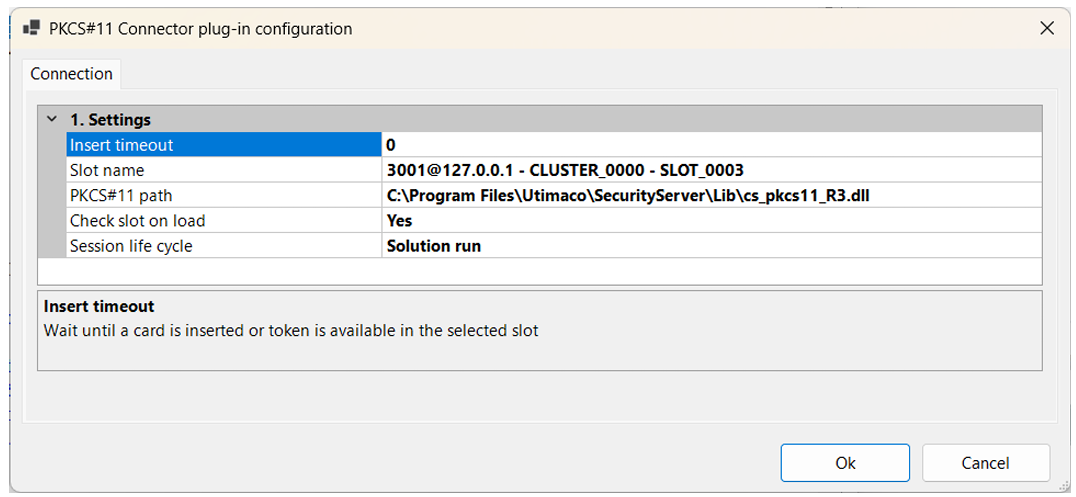
PKCS11Connector Configuration
Configuring PKCS11Update Plug-in
You can place and configure as many separate PKCS11Update plug-in instances into your solution as you need.
Select type of operation for the dropdown list:
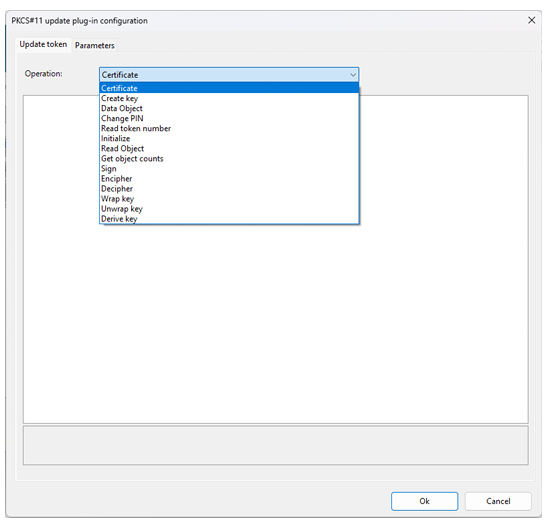
PKCS11Update Operation Selection
Configure parameters for the operation. In this example “Create key” operation is selected and parameters specific for this operation are configurable in the grid below. The plug-in is configured to generate an RSA key pair on the HSM. In the “1. Log In” section you can select whether to login SO or User. You can enter the PIN directly in the plug-in or provide it as parameter. In production environments, it is recommended to store the PIN securely or request it from user, and provide it as a linked parameter to the PKCS11Update plug-in.
In the “2. Key” section, you can configure options for the key generation and the PKCS#11 attribute list consisting of for example ID, label and key usage flags. Description of each property, and guidance on configuring it, is available at the bottom of the window.
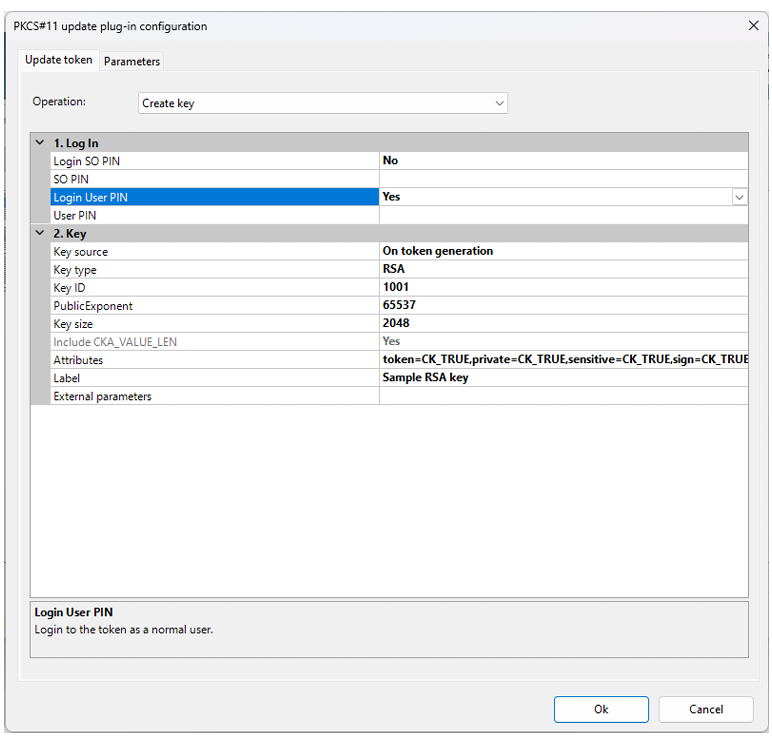
PKCS11Update Create Key Configuration
In another example, we have selected the “Sign” operation, configured it to Login User using a static PIN, selected the CKM_RSA_PKCS mechanism, and configured it to locate a key with label “MyRSAPrivateKey” for the operation.
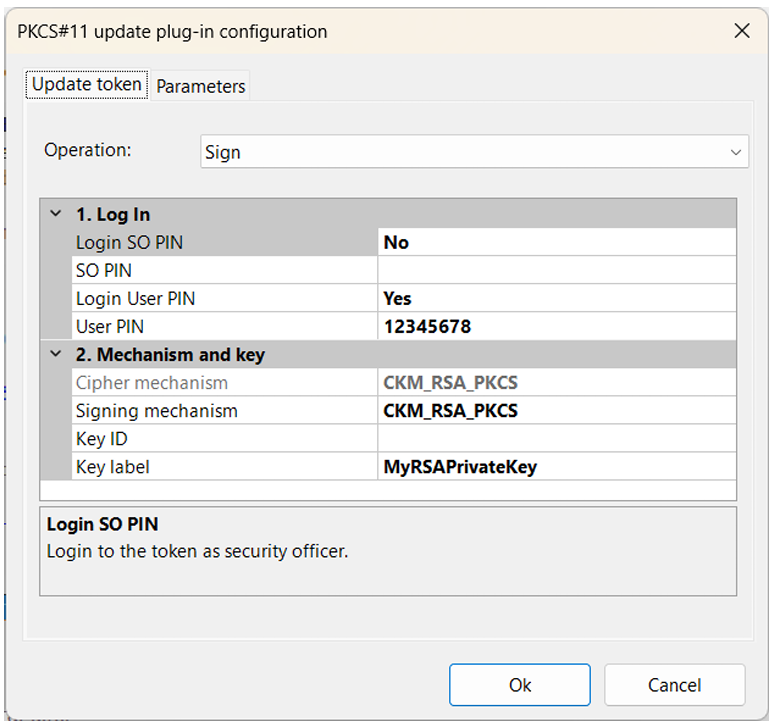
PKCS11Update Sign Operation Configuration
In the Parameters tab, you can configure the data to sign. You can configure several parameters and select whether they are mandatory or optional. You can then link the values from any other APM plug-in above the PKCS11Update plug-in instance in the solution tree. This way, the data to be signed can be provided for example from user input, text file, database or a REST web service. In similar way, you can configure symmetric encryption operations and symmetric or asymmetric decryption operations. Select “Encipher” or “Decipher”, select the mechanism (for example CKM_AES_CBC), define ID and/or Label to locate the key and configure parameters to provide the plaintext or ciphertext data for the operation.
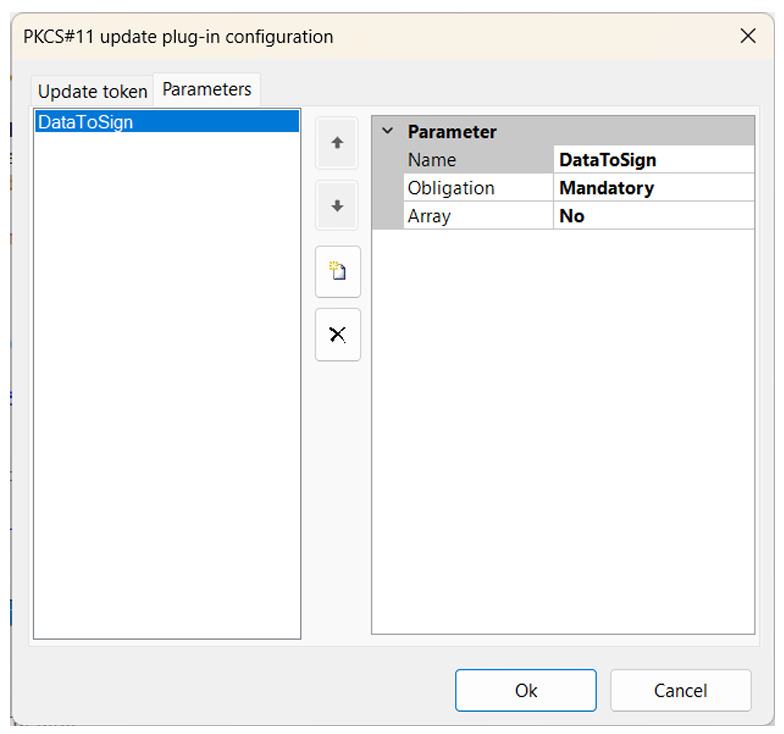
PKCS11Update Signing Parameters
Another example of using PKCS11Update plug-in, this time for a key unwrapping operation.
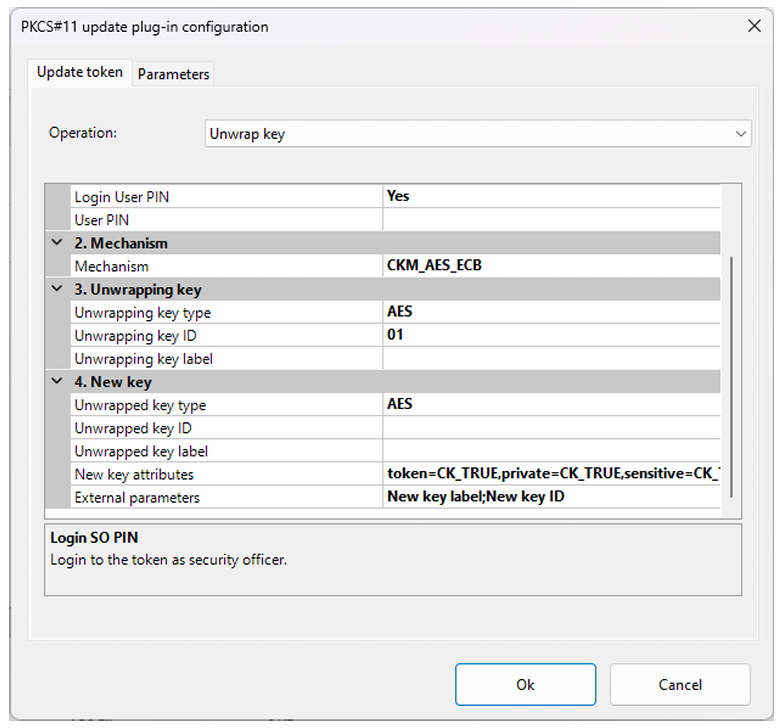
PKCS11Update Key Unwrap Configuration
Configuring DataCipher Plug-in
With the DataCipher plug-in, you can sign data using CNG and the Utimaco SecurityServer Key Storage Provider. APM locates the signing key by the certificate selected in the plug-in. You can configure certificate selection in several ways: static selection, selection by user from a selection list or dynamically based on the common name and issuer name.
APM uses the key storage provider associated with the private key. To sign data using a private key on the HSM, configure the KSP according to [CryptoServer_Manual_CSP_CNG]. Select a certificate for which the private key resides on the HSM and is connected to the certificate in the key store. Add one or more parameters and link the data to be signed to the parameters from other APM plug-ins. Select the hash algorithm.
APM signs values of all defined parameters when the plug-in is executed. APM uses the KSP associated with the private key associated with the selected certificate. This way, APM can use any KSP, regardless of whether the private key is in the software store, on a smartcard, or in an HSM. The algorithm is automatically selected based on the type of the key pair.
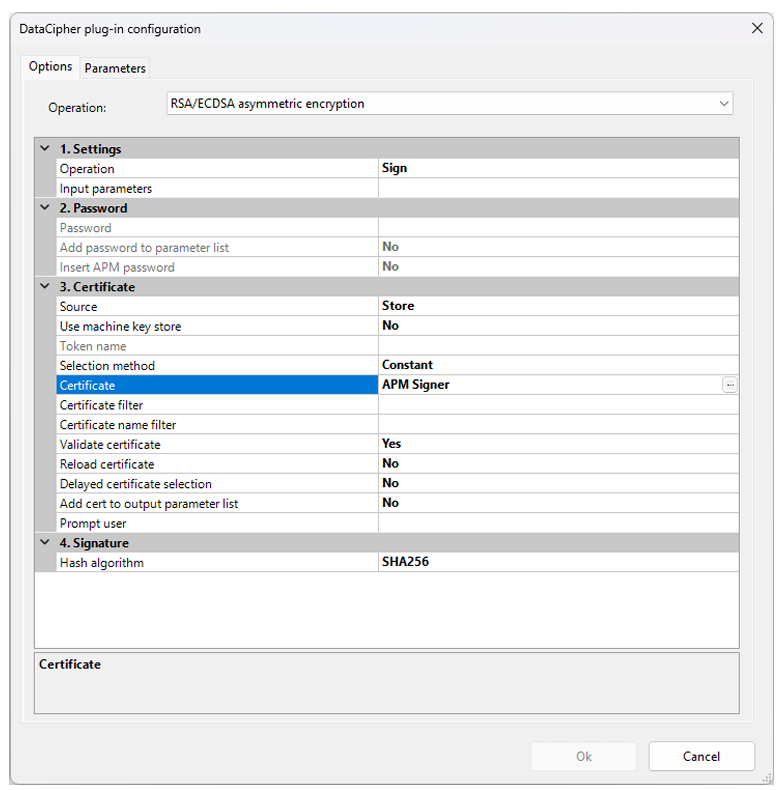
DataCipher Configuration
User Access ;anagement
APM supports the standard PKCS#11 C_Login command with parameters defined in the standard. It currently does not support Utimaco’s proprietary extensions to PKCS#11. Refer to the standard and Utimaco’s documentation on which operations require logging on as User and which operations require logging on as SO.
While it is possible to set the PIN directly in the PKCS#11 plug-in configuration window, this is recommended only in test environments. In production scenarios, it is recommended to not store the PIN as plain text. You can, for example, store it as a password-type Alias, select the alias into a hidden password field in an Input Console plug-in and link it to the PKCS11Connector plug-in’s corresponding input parameter. Alias values are stored in encrypted form. Other options are to store the PINs encrypted in any data source and use APM’s features to decrypt it when needed, or to store it on a smartcard.
APM has its own user privilege management. Run APM as Administrator to define user privileges. Select Settings->User management->Manage to define which users of the workstation have rights to use APM. You can define, for example, whether a user is allowed to only run a solution, or also modify it. You can assign permissions by user account or by AD group. Set permissions for user named *User* to give the same permissions for all users of the workstation. See APM’s User Guide for more details.
Sample Solutions Explained
The sample solutions demonstrate how to perform the following tasks using APM and the Utimaco u.trust GP HSM:
PKCS11 Key Management Demo
The PKCS11 Key Management Demo solution includes three front-end operations:
-
Key ceremony – ZMK import demonstrates a key ceremony, where a Zone Master Key (ZMK) is imported to the HSM. Three components of the ZMK are input on the keyboard separately. In a real scenario, this would be done by three different key custodians in person. APM commands the HSM to do the following:
-
Generate an ephemeral (CKA_TOKEN=CK_FALSE) AES key on the HSM.
-
Unwrap the first part of the ZMK to the HSM as a session object.
-
Combine the first and second part of the key within the HSM using C_Derive function and CKM_XOR_BASE_AND_DATA mechanism.
-
Derive the final ZMK using the result of the first derive operation, using C_Derive and CKM_XOR_BASE_AND_DATA mechanism, this time setting CKA_TOKEN=CK_TRUE for the resulting object.
-
-
Import keys from the XML file demonstrate how the ZMK is used to import a set of AES keys from an XML file. APM reads the records from the sample XML file one by one, extracts the ciphered key data and key metadata such as key type, ID, algorithm and label from each record, and unwraps each key into a new secret key object into the HSM.
-
Key wrapping demonstrates wrapping a key with the ZMK in the HSM, and displaying the encrypted key in the DataEditor plug-in.
The PKCS11 Signing Sample solution has two front-end functions:
-
Generate RSA key pair demonstrates generating an RSA pair on the HSM.
-
RSA signing test demonstrates using the generated key pair for signing a message. It locates the private key by its label and ID and uses mechanism CKM_SHA384_RSA_PKCS_PSS to sign the message linked from InputConsole plug in.