

Common Issues and How to Resolve Them
APM displays error messages in the main window. Below is an example of an error message, in a situation in which there is an attempt to generate a key pair in a slot with an uninitialized token:
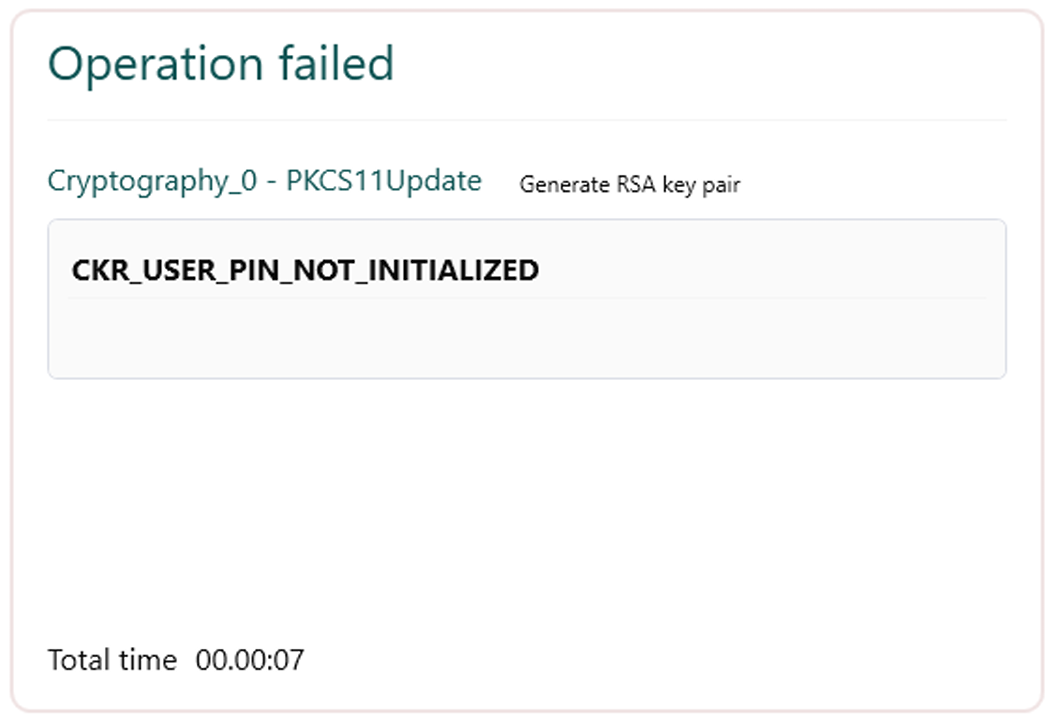
Token Not Initialized Error
More information, e.g. time when the error occurred and in which plug-in the error occurred, can be found from the log file:
29.09.2026-23.00.37:499 [61340] PLUGIN Step #1, Plugin #3: Cryptography_0 -
PKCS11Update Token not initialized
29.09.2026-23.00.37:502 [61340] PLUGIN Global, Plugin #1: PKCS11 Connector_0 -
PKCS11Connector Login USER PIN
29.09.2026-23.00.37:507 [61340] PLUGIN Step #1, Plugin #3: Cryptography_0 - PKCS11Update CKR_USER_PIN_NOT_INITIALIZED
29.09.2026-23.00.37:507 [61340] PLUGIN ERROR Step #1, Plugin #3: Cryptography_0 - PKCS11Update CKR_USER_PIN_NOT_INITIALIZED
Some common issues are:
|
Problem |
Resolution |
|---|---|
|
Incorrect PKCS#11 module is selected in PKCS11Connector plug-in |
Check the path and select the correct PKCS#11 library. By default, it is located at C:\Program Files\Utimaco\SecurityServer\Lib\ cs_pkcs11_R3.dll Be sure to use the 64-bit version of the library with APM. |
|
APM cannot connect the HSM |
If you are using the simulator, ensure that the simulator is running. Ensure that the Devices parameter is configured correctly in cs_pkcs11_R3.cfg If you are using a network HSM, ensure that firewalls allow the traffic between your workstation and the HSM. |
|
Wrong or uninitialized slot selected in PKCS11Connector plug-in |
Select a slot which has been prepared for use as described in Configuration on Utimaco u.trust GP HSM Se-Series 6.1. |
|
HSM’s security controls or consistency checks do not allow the operation |
Check carefully that, for example, when creating new objects, the CKA_* attribute lists are consistent with the object type and usage. Verify that key wrapping, unwrapping or derivation is allowed in the attributes of the keys involved in key management operations. Verify that the appropriate usage attributes are set for the keys involved in crypto-operations. |
Log Locations and Interpretation
PKCS#11 Logs:
Enabling PKCS#11 logging to facilitate easier testing and troubleshooting is recommended. This can be done by configuring the Logging Loglevel and LogPath parameters in the configuration file.
-
LogPath should point to a writable directory (not a specific file) where log files can be stored.
-
Loggin Log level controls the verbosity of the logs:
-
Set it to 1 for basic logging.
-
For detailed testing and debugging, increase the level to 4.
-
The generated log file will be named cs_pkcs11_R3.log and located in the directory specified by Log Path. Reviewing this log file can help identify and resolve issues that arise during testing.
Once testing is complete, it is advisable to reduce the Logging Log level to 1 or 2 to limit logging to only critical or important messages, thereby optimizing performance and reducing unnecessary log data.
APM Logs:
APM’s logging options can be configured in the Settings dialog, which can be accessed by clicking the following icon in the upper right corner of the main window:

In the Settings dialog, you can set for example the log path and logging level. The higher the level, the more detailed log will be written. See APM’s User Guide, Section 9 for more information. Be aware that the log may contain sensitive information. This can be addressed by setting a lower log level or protecting the log file from unauthorized access.
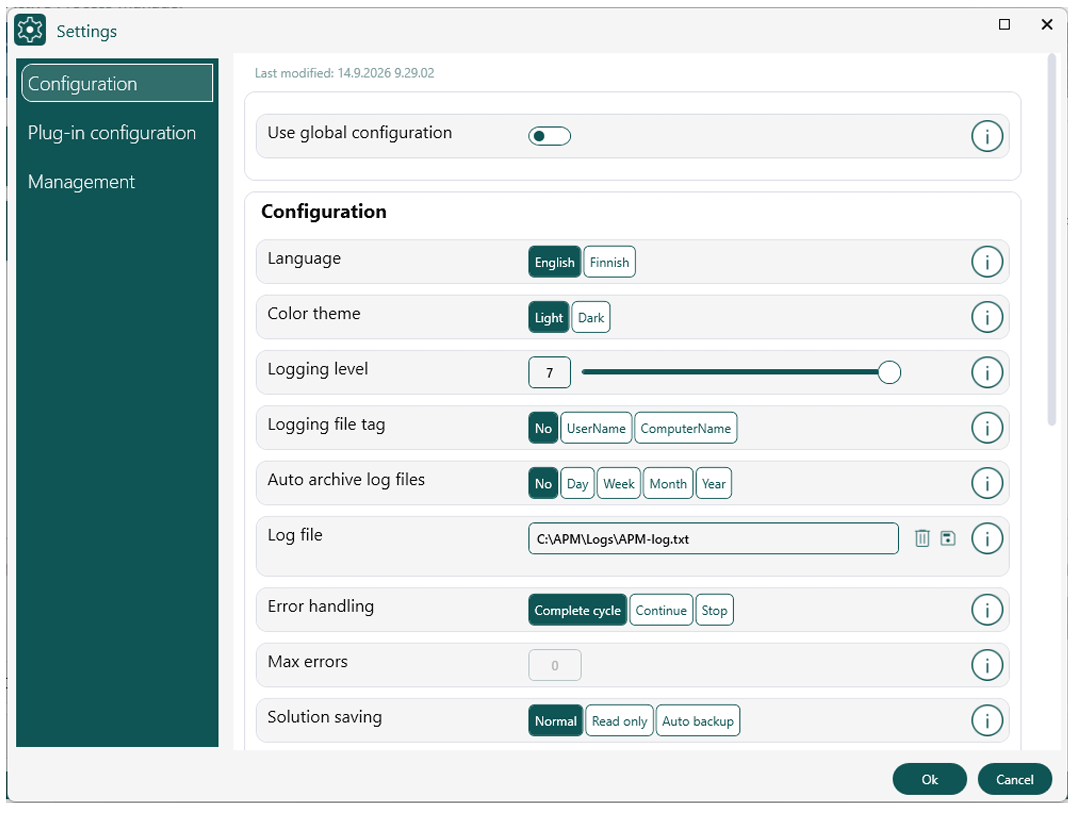
Logging Settings