

-
Log in to the machine to which the CA and Client certificates have been copied.
-
Save both certificates as .pem files.
-
Log in to the ESKM Web UI.
-
Click the Security tab and click the Known CA link under the Certificates & CA section.
-
Under the Install CA Certificate section, enter the CA name in the Certificate Name field and copy the content of the CA certificate to the Certificate textbox.
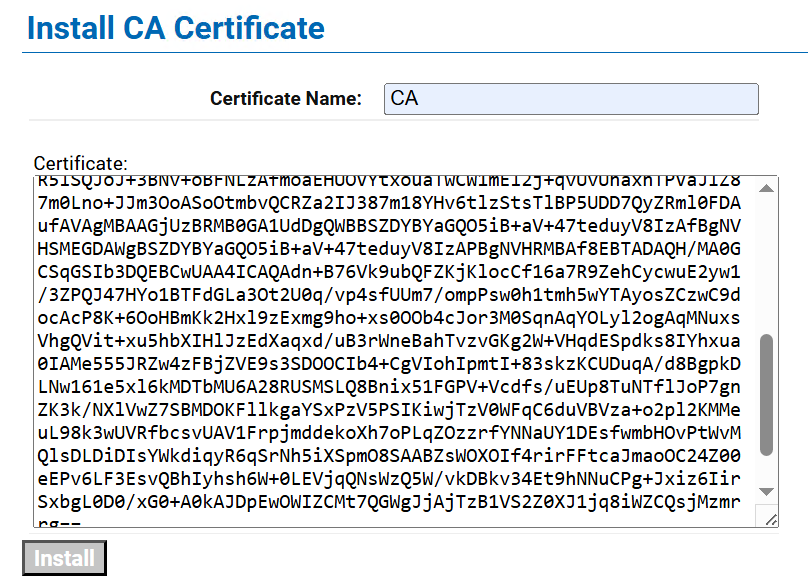
Install CA Certificate
-
Click the Install button. The newly installed CA is listed under the CA Certificate List section.

CA Certificate List
-
Click on the Certificates link under the Certificates & CA section.
-
Select the Upload from browser radio button under the Import Certificate section.
-
Select the client certificate by clicking on the Choose File button.
-
Enter a name in the Certificate Name field.
-
Enter the Private Key Password if any password was set; otherwise, leave it blank.
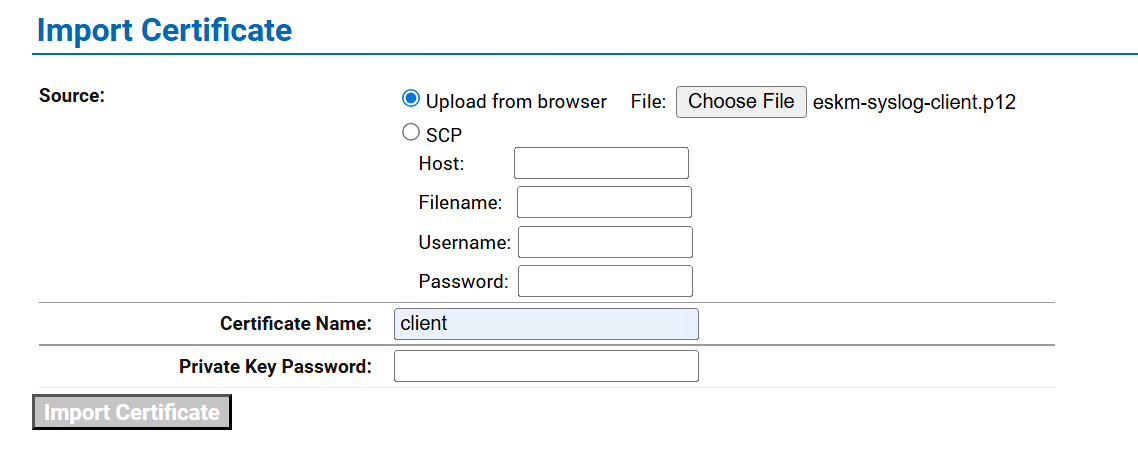
Import client certificate to ESKM
-
Click on the Import Certificate button.
-
The newly imported certificate is listed under the Certificate List section.

Client certificate listed in Certificate List