

-
To import your WrappedKey.byok into GCP KMS, use the following command.
|
›_ Console |
|---|
|

Importing wrapped key file
The key-import request is initiated. The initial state for an imported key is PENDING_IMPORT. When the state is ENABLED, the key has been imported successfully. If the import fails, the status is IMPORT_FAILED.
-
List the version of the key and verify its status.
|
›_ Console |
|---|
|

Verifying key version and status
-
You can set this key version as Primary by using below command.
|
›_ Console |
|---|
|
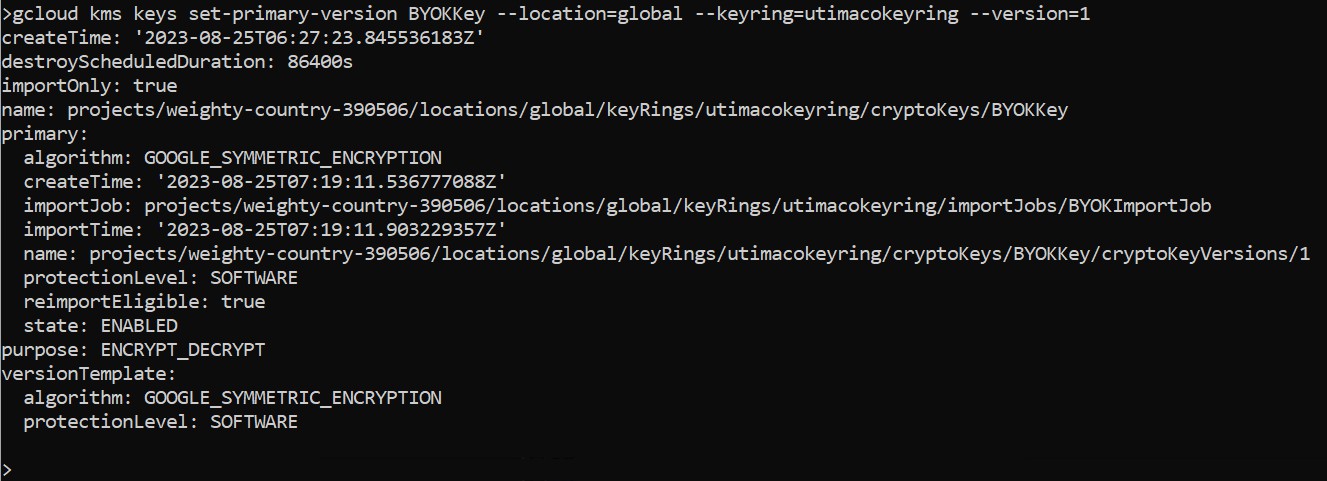
Setting imported key version as primary