

-
Open command prompt and run the certtmpl.msc command. Right-click on the Key
Recovery Agent template, then select Duplicate Template
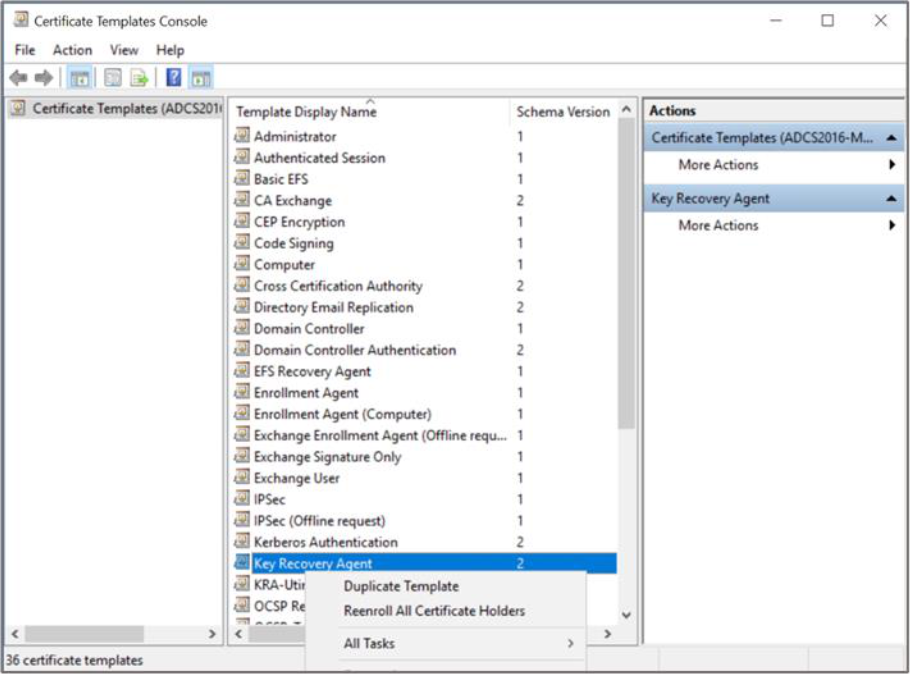
Figure 44: Certificate Template window
-
The Properties window opens, showing Compatibility tab. Select appropriate windows version under Certificate Authority and Certificate Recipient drop-down box
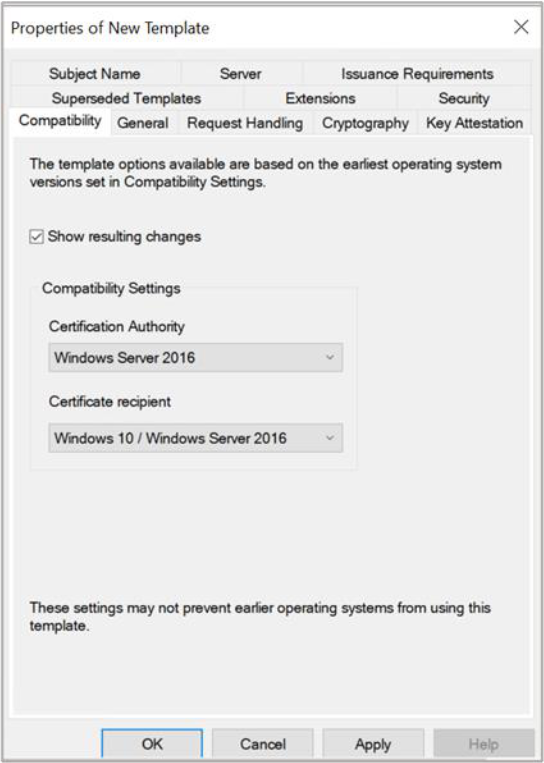
Figure 45: Compatibility Tab window
-
Select the General tab. In Template display name, type a name for the template
-
Select the Request Handling tab, and in Purpose select Encryption and Allow private key to be exported is selected
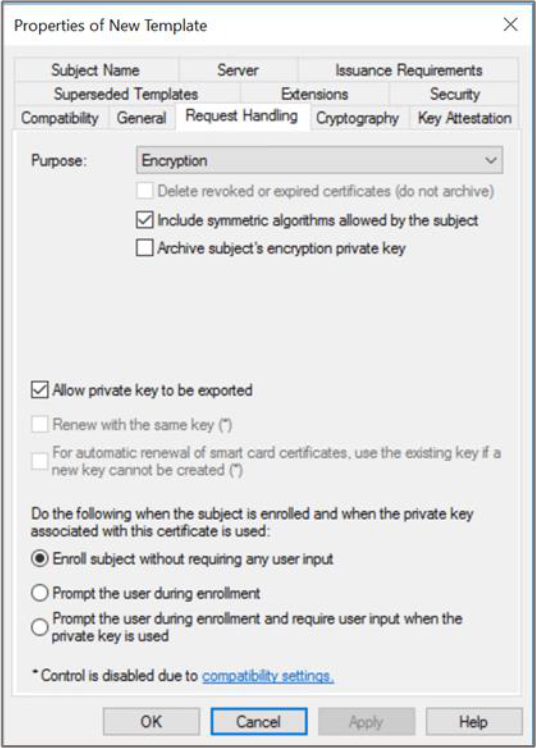
Figure 46: Request Handling window
If you are using Smartcard Authentication, the prompt will go on the PIN Pad device to insert Smartcard and enter the pin. Then press OK button on the PIN Pad.
-
Select the Issuance Requirement tab, deselect CA Certificate manager approval
-
Select the Cryptography tab, and in the Provider category select Key storage provider
-
In Algorithm Name, select the algorithm from the list
-
Select Requests must use one of the following providers, and in Providers select Utimaco CryptoServer Key Storage Provider only
If CA is on Windows Server Core and you are managing it remotely using certtmpl.msc on a different PC, you need to install the Utimaco CryptoServer Key Storage Provider on the PC that is running certtmpl.msc. Otherwise, the Utimaco CryptoServer provider will not appear.
-
In Request Hash, select a hash type
-
From the Security tab, verify if Domain Admins and Enterprise Admins are having Enroll
Permissions
-
Select Apply and click OK to save the template settings and close the Certificate Template
console\
-
Open the command prompt and run the certsrv.msc command\
-
Right-click the Certificate Templates node. Select New then select Certificate Template to
Issue
-
Select the template created in the above steps and click OK