

-
Open the command prompt and run the certtmpl.msc command
-
Right-click the User template and select Duplicate Template
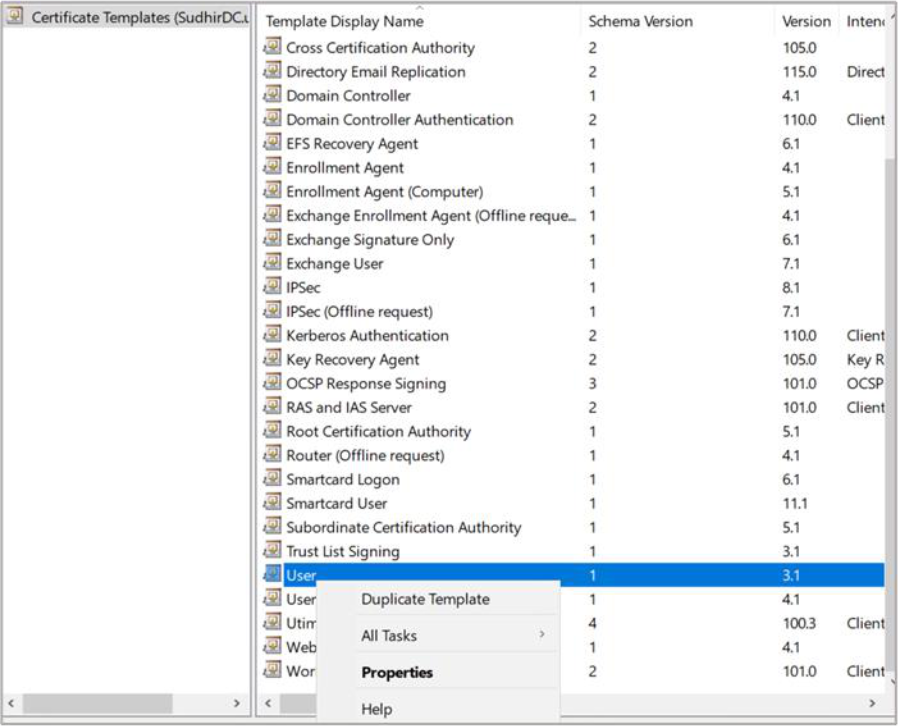
Figure 56: Certificate Template window
-
Select appropriate windows version under Certificate Authority and Certificate Recipient drop-down box under Compatibility Settings
-
Click OK
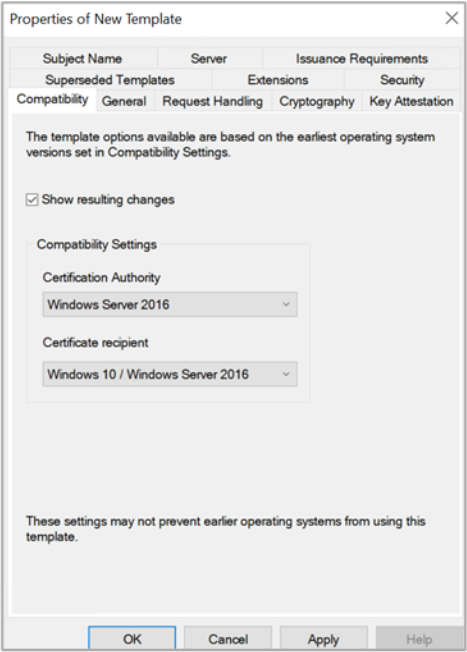
Figure 57: Compatibility window
-
On the Resulting Changes menu click OK
-
Go to the General tab and enter a name for the template (UserKeyArchival)
-
Go to the Request Handling tab and select the check box for Archive Subject’s encryption private key
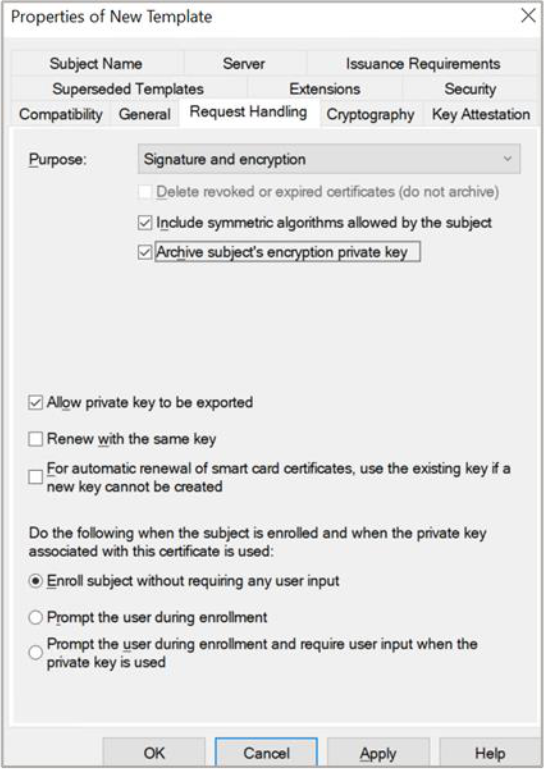
Figure 58: Request Handling window
If you are using Smartcard Authentication, the prompt will go on the PIN Pad device to insert Smartcard and enter the pin. Then press OK button on the PIN Pad.
-
Select the Subject Name tab. Uncheck the check box for Include e-mail name in subject name and uncheck the check box for E-mail name
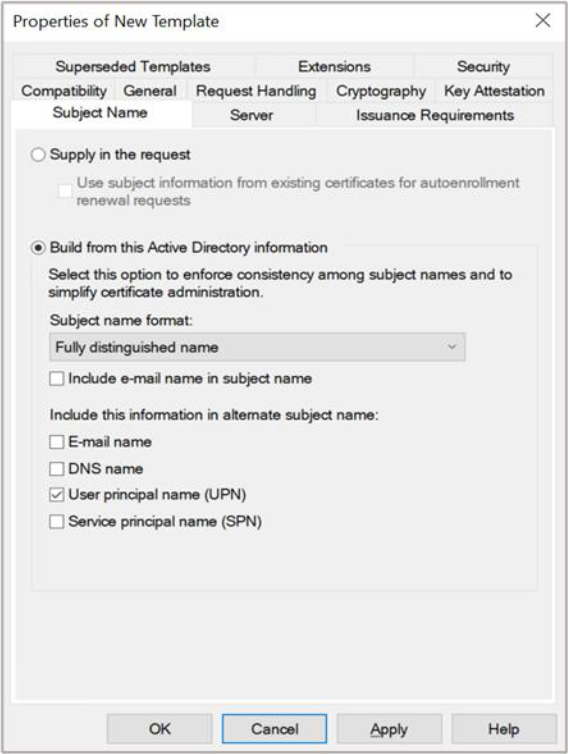
Figure 59: Subject Name Tab window
-
Click Apply and then Click OK