

Now change to your OCSP server and install the OCSP service.
-
Select Start then select Server Manager to open Server Manager
-
Select Manage then select Add Roles & Features. The Before you begin window opens. Click Next
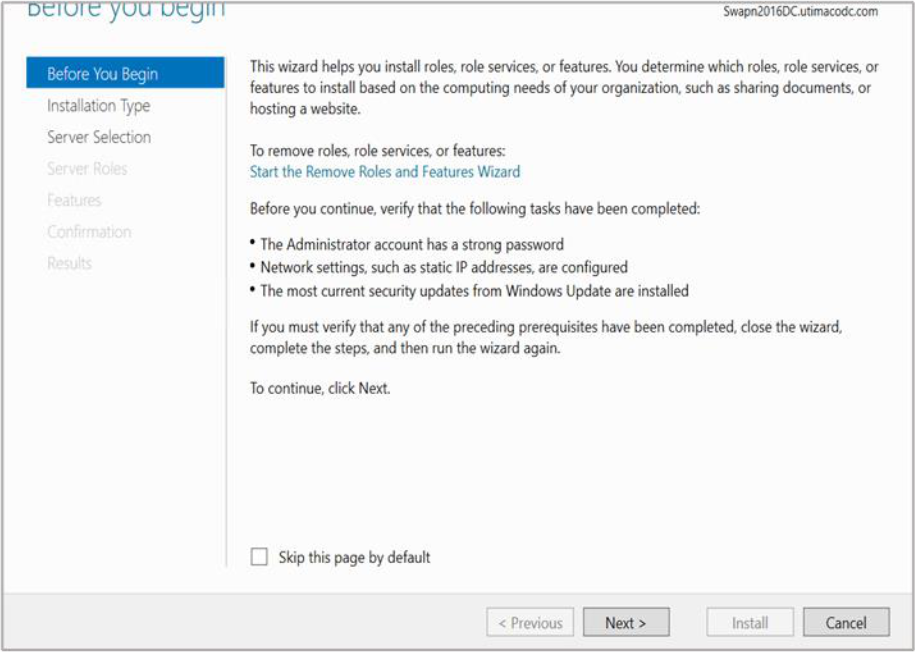
Figure 124: Before You Begin window
-
On the Select installation type window, make sure the default Role or Feature Based Installation is selected. Click Next
-
On Server selection, select a server from the server pool. Click Next
-
On the Select server roles window, select the Active Directory Certificate Services role
-
When prompted to install Remote Server Administration Tools, select Add Features. Click Next
-
On the Select features window, click Next
-
On the Active Directory Certificate Services window, click Next
-
On the Select role services window, select the Online Responder. Click Next
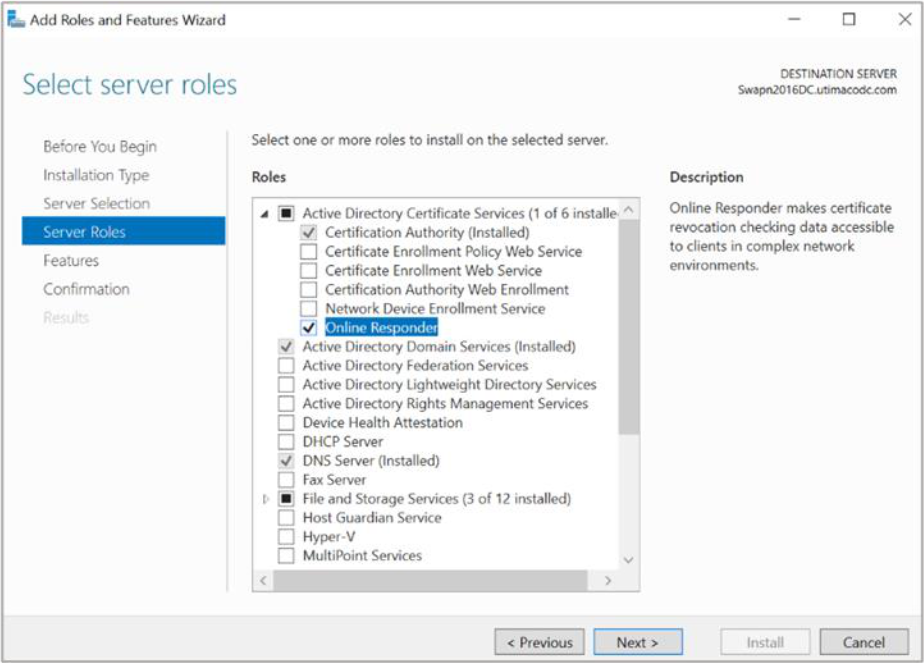
Figure 125: Select Server Roles window
-
When prompted to install Remote Server Administration Tools, select Add Features. Click Next
-
On the Confirm installation selections window, verify the information then click Install
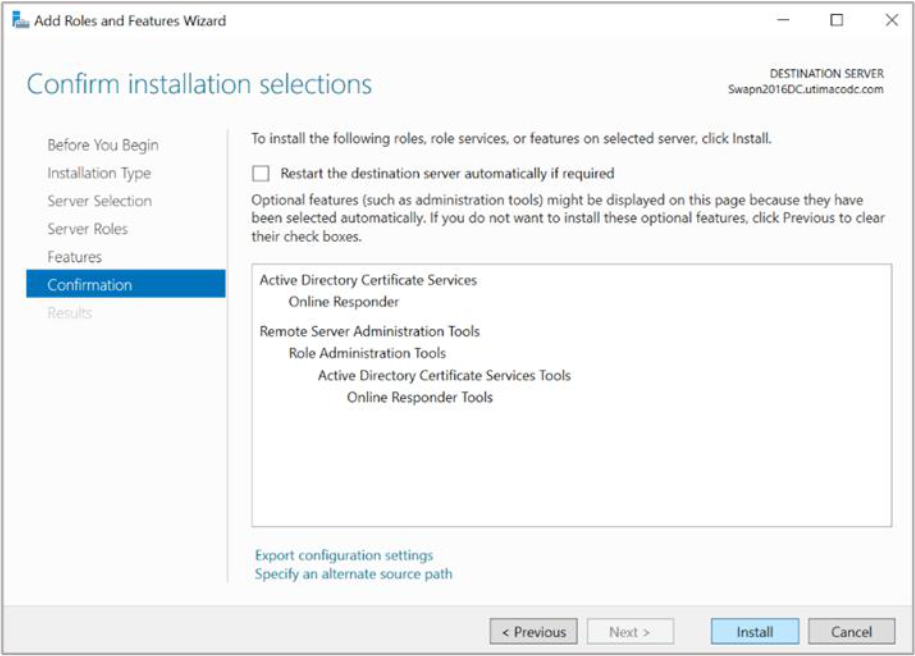
Figure 126: Confirm Installation Selections window
-
Click Configure Active Directory Certificate Server on the destination server. The ADCS Configuration Wizard displays
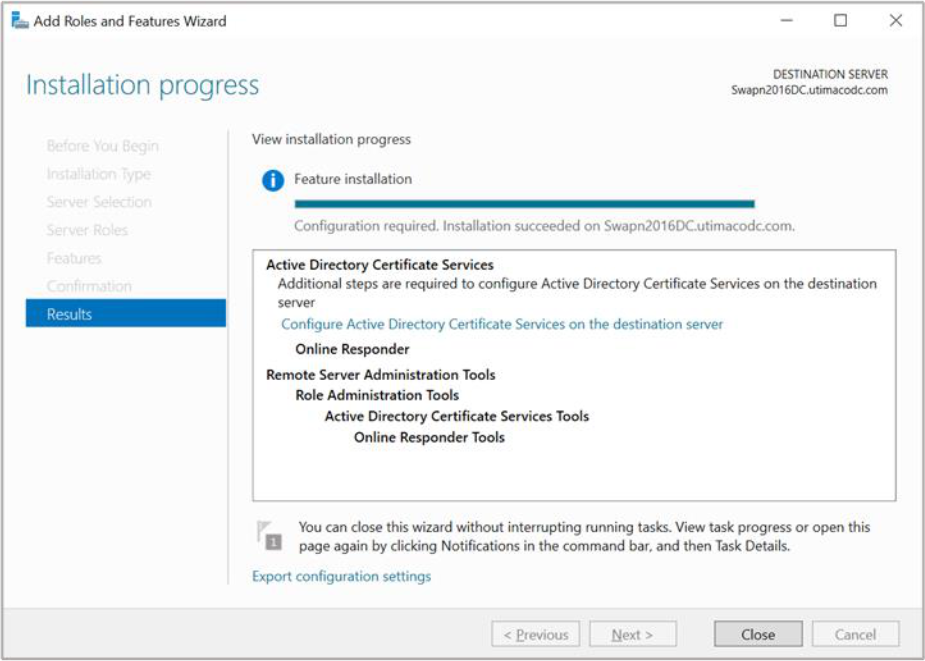
Figure 127: Installation Progress window
-
On the Credentials page click Next
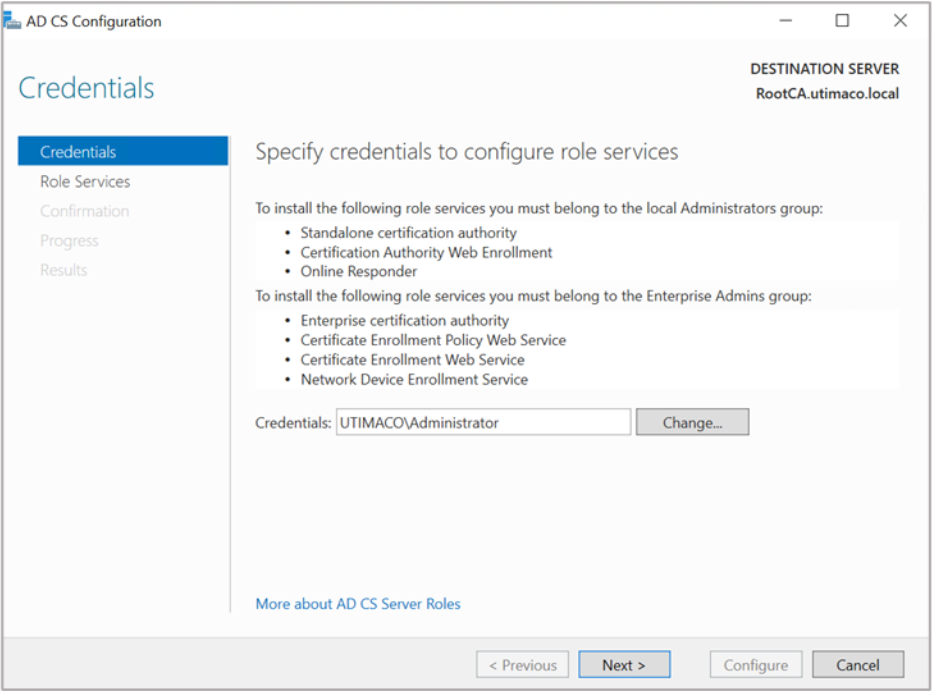
Figure 128: Credentials window
-
On the Role services page select the Online Responder check box. Click Next
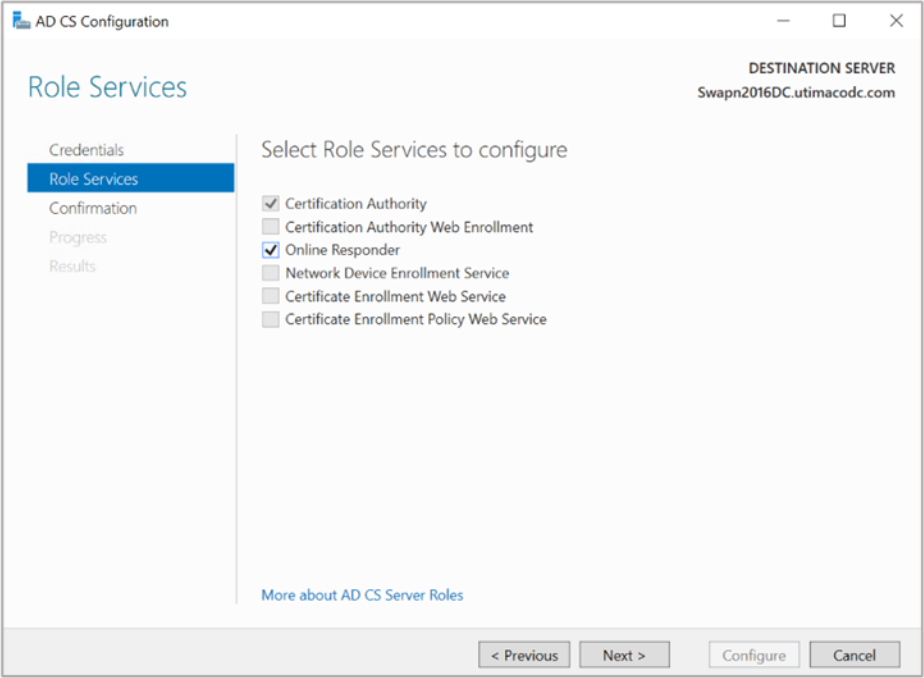
Figure 129: Role Services window
If you are using Smartcard Authentication, the prompt will go on the PIN Pad device to insert Smartcard and enter the pin. Then press OK button on the PIN Pad.
-
On the Confirmation page, click Configure and wait for the confirmation message. A message displays after successful configuration
-
On the Results page click Close to exit the ADCS Configuration Wizard
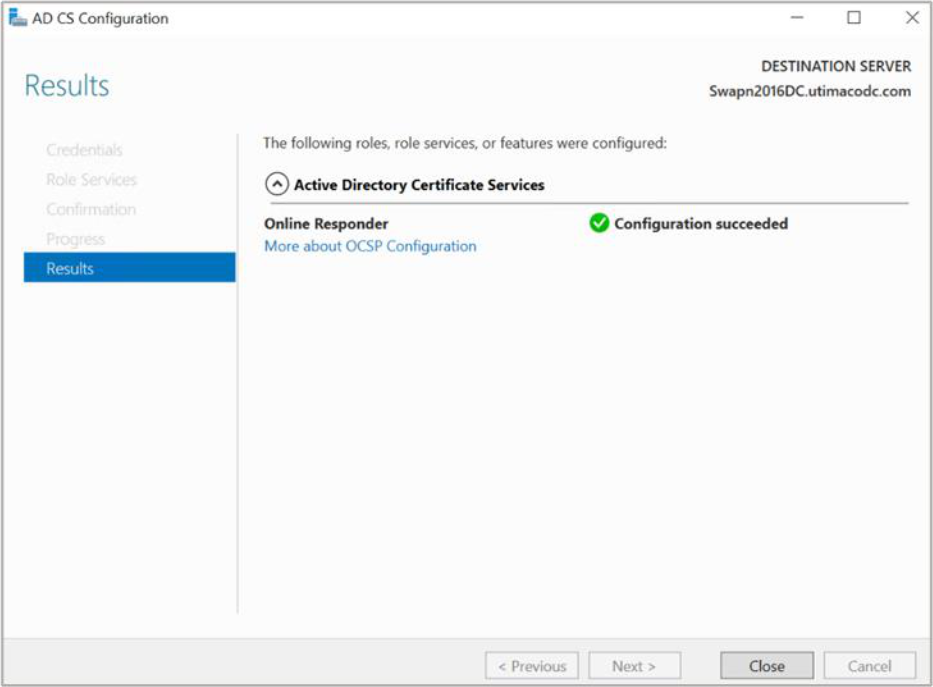
Figure 130: Results window