

To use OCSP you must create a new revocation configuration.
-
Open the Administrative tool, select Online Responder Management
-
Launch the Online Responder Management console
-
Select Revocation Configuration and then click on Action and then Add Revocation Configuration
-
On the Add revocation wizard, click Next then enter a Name for your configuration
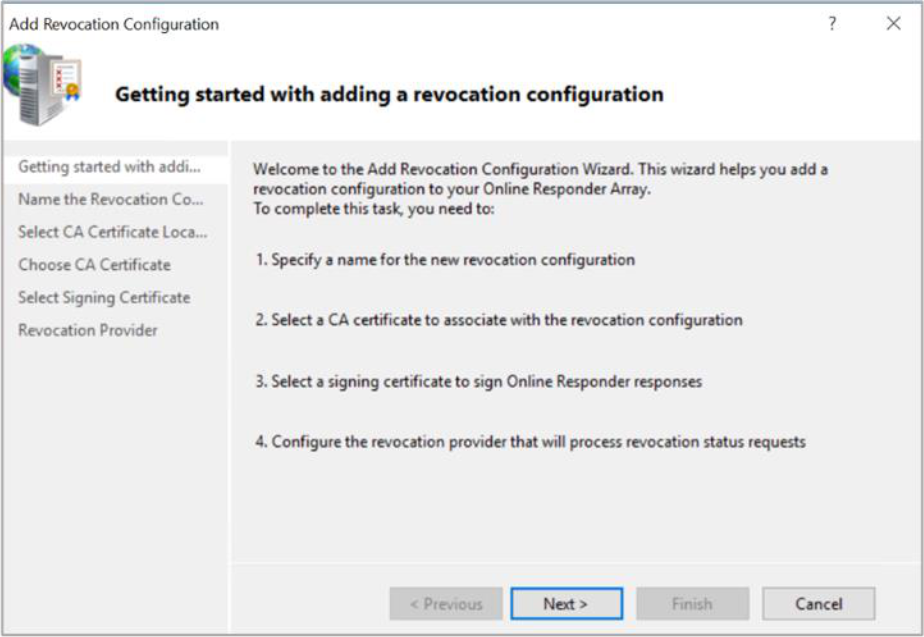
Figure 131: Add Revocation Configuration window
-
Specify the location of your CA certificate relative to your environment
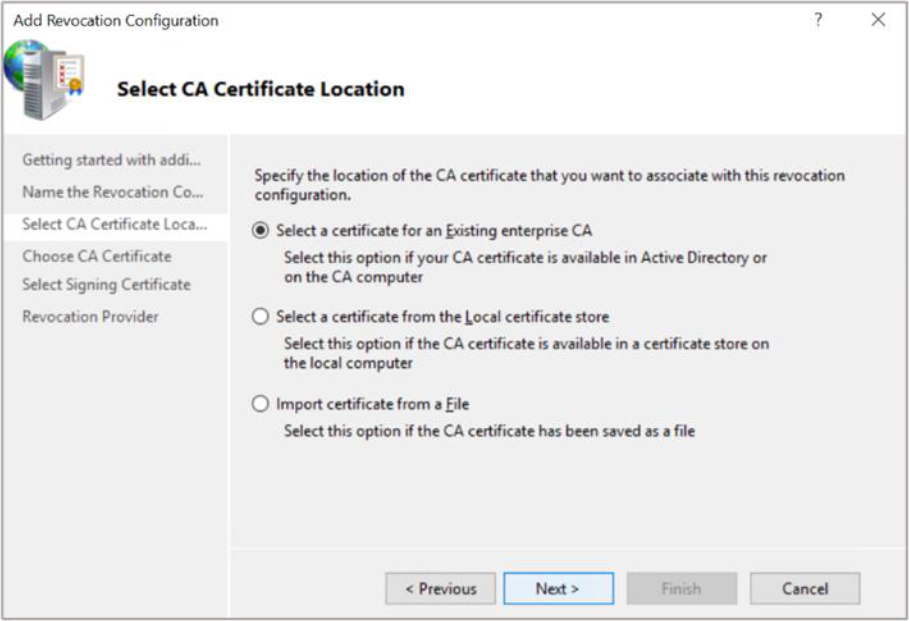
Figure 132: Select CA Certificate Location window
-
Select the OCSP certificate template created earlier and click Browse
-
Click Next on the Select signing certificate wizard, click Next
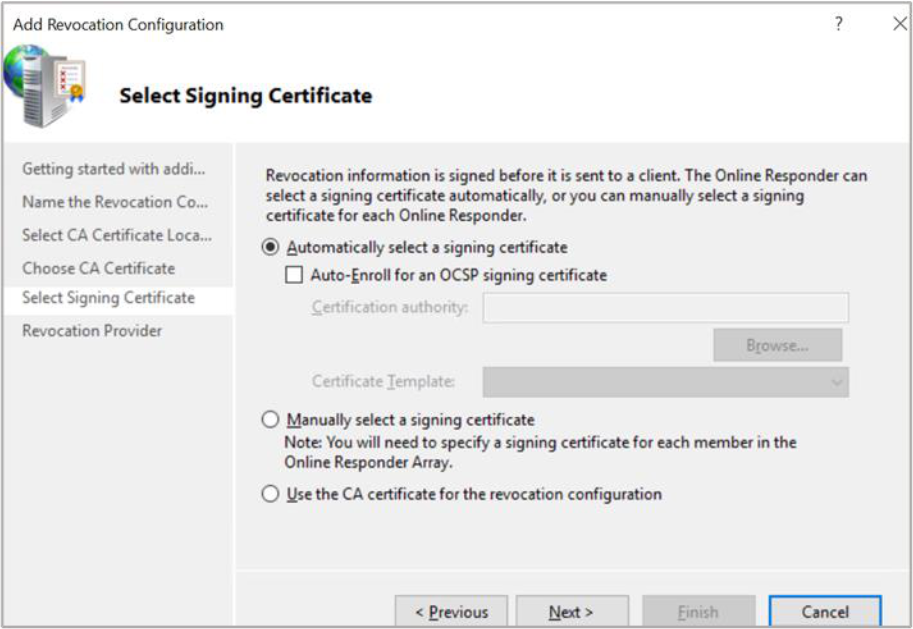
Figure 133: Select Signing Certificate window
-
To finish, configure the revocation provider. It is the location where the CRLs or Delta CRLs are stored. The configuration automatically retrieves this information in the CDP extension of the certificate
-
Once you have setup the Revocation Configuration, The Revocation Configuration Status Box displays the Online Responder status. The status should display Bad Signing on Array Controller.
-
To fix this, click on Revocation Configuration in the left-hand pane. Right-click on the certificate and select Edit Properties.
-
Click on the Signing tab. Deselect the Do not prompt for credentials for cryptographic operations check box. Click OK.
-
Go back to the Online Responder Management tool. Open Actions and click Refresh. Its status would be working now.
-
You can check if the key to this certificate is really created and stored by the Utimaco CNG provider. To do this, open a PowerShell and enter cngtool listkeys. If there is a key, then you can be assured that your Online Responder Service uses the Utimaco CryptoServer HSM correctly
|
›_ Console |
|---|
|
If you are using Smartcard Authentication, the prompt will go on the PIN Pad device to insert Smartcard and enter the pin. Then press OK button on the PIN Pad.