

First, it is necessary to prepare a template to enroll OCSP servers for a certificate which uses the Utimaco CryptoServer.
-
Open the command prompt and run the certtmpl.msc command
-
Right-click the OCSP Response Signing template and click Duplicate Template
-
Select appropriate windows version under Certificate Authority and Certificate Recipient drop-down box under Compatibility Settings
-
Click OK
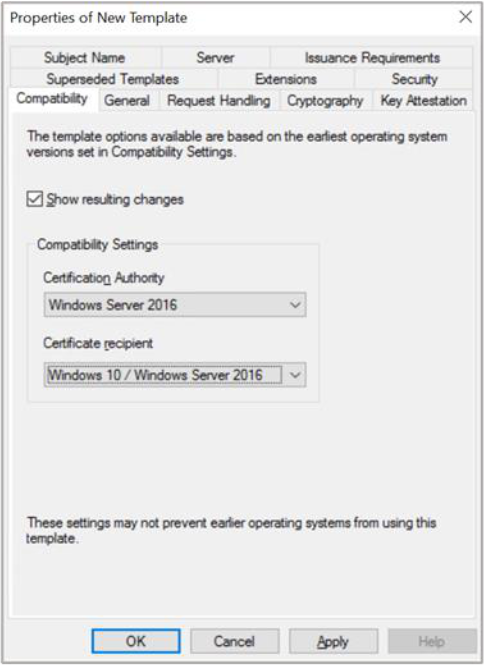
Figure 110: Compatibility Tab window
-
In the Resulting Changes menu click OK
-
Go to the General tab and enter a name for the template
-
Select the Subject Name tab
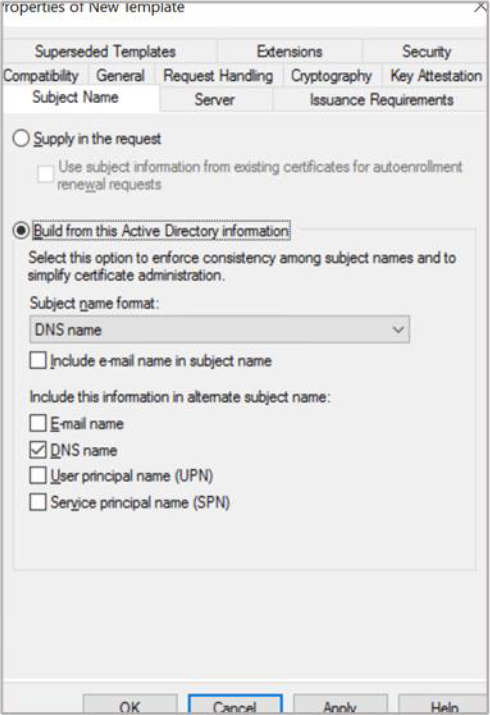
Figure 111: Subject Name Tab window
-
Uncheck the Include e-mail name in subject name check box
-
Uncheck the E-mail name check box
-
In the Request Handling tab, select the Purpose as Signature from the drop-down list.
Select Authorize additional service accounts to access the private key checkbox
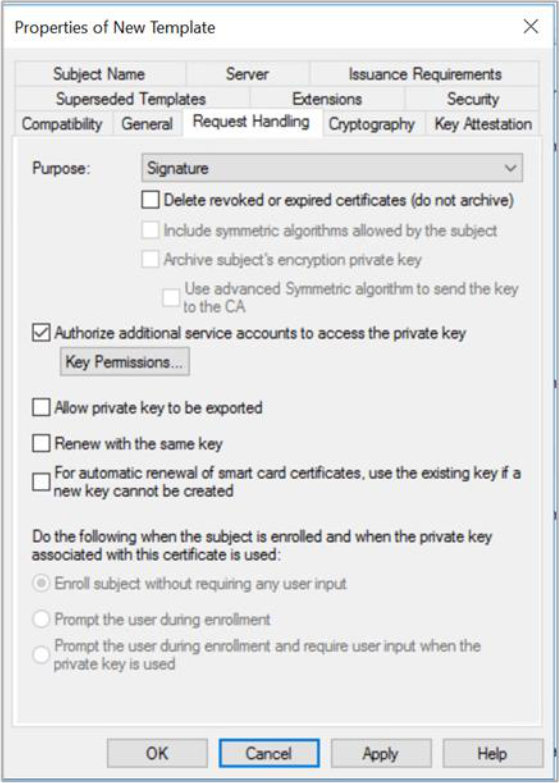
Figure 112: Request Handling window
If you are using Smartcard Authentication, the prompt will go on the PIN Pad device to insert Smartcard and enter the pin. Then press OK button on the PIN Pad.
-
Go to Cryptography tab, select Key Storage provide in the Provider category then select Algorithm name then Key Size. Check on the radio button for Request must use one of the following providers then select radio button for Utimaco CryptoServer Key storage provider and select the appropriate Hash Value
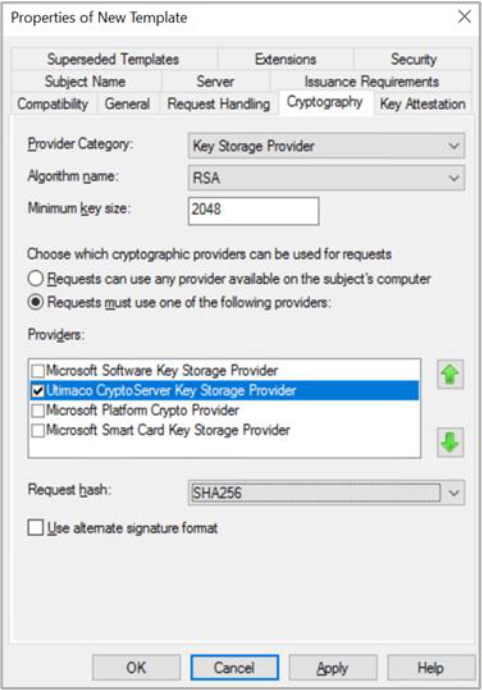
Figure 113: Cryptography Tab window
-
Go to Security Tab. Add the Computer Account and give Read, Write and Enroll permissions. Ensure Domain Admins and Enterprise Admins are having Enroll Permissions
-
Click Apply and then Click OK
-
Open the command prompt and run the certsrv.msc command
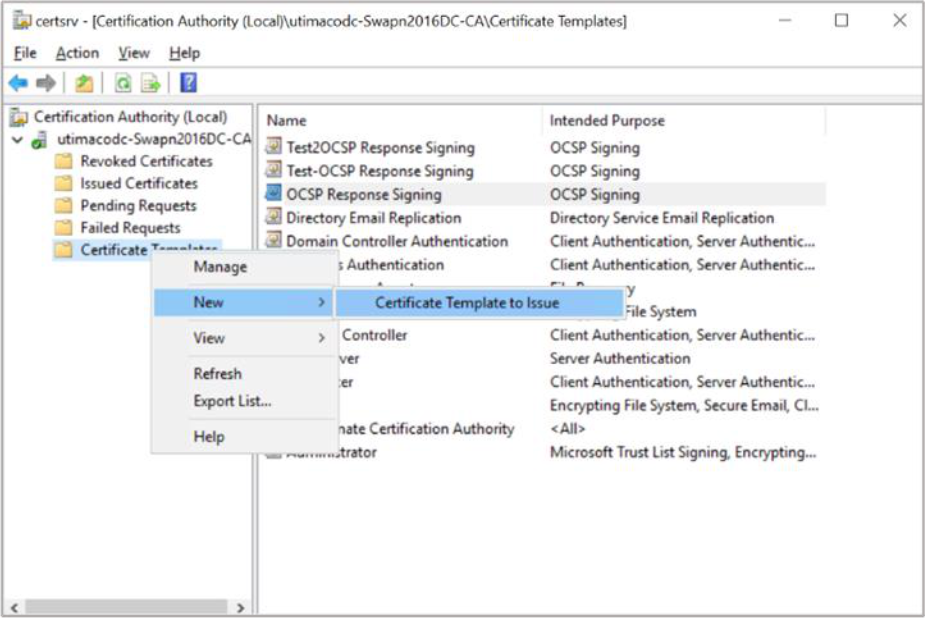
Figure 114: Certificate Authority window
-
Right-click the Certificate Templates node
-
Select New then select Certificate Template to Issue
-
Select new template for OCSP Response Signing, click OK
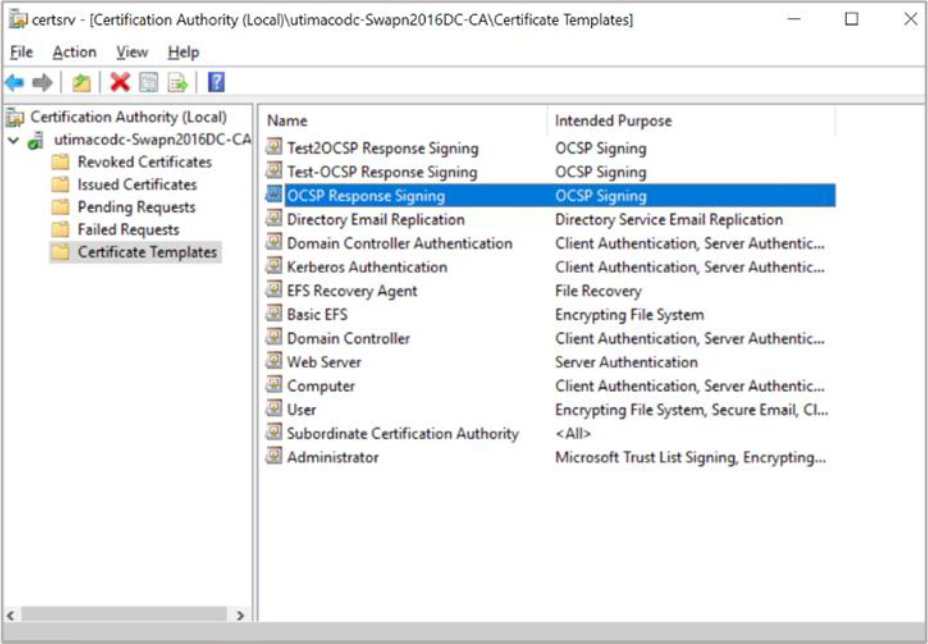
Figure 115: Certificate Authority window