

To generate the Authenticode Key, follow the steps below.
1. Create a PowerShell script file with the name Generate_AuthenticodeKey.ps1 at the appropriate location, and add the following content into the script file.
#Define Utimaco Provider

$UtimacoProviderName = "Utimaco CryptoServer Key Storage Provider"

#Define Algorithm

$AlgorithmName = "RSA"

#Define Key Size

$KeySize = 2048

# Provide the Key Name

$KeyName = "Authenticode_TestKey"

$KeyParams = New-Object

System.Security.Cryptography.CngKeyCreationParameters

$KeyParams.provider = New-Object

System.Security.Cryptography.CngProvider($UtimacoProviderName)

$KeyParams.KeyCreationOptions =

[System.Security.Cryptography.CngKeyCreationOptions]::OverwriteExistingKe y

$keySizeProperty = New-Object

System.Security.Cryptography.CngProperty("Length",[System.BitConverter]::

GetBytes($KeySize),

[System.Security.Cryptography.CngPropertyOptions]::None);

$KeyParams.Parameters.Add($keySizeProperty)

$Algorithm = New-Object

System.Security.Cryptography.CngAlgorithm($AlgorithmName)

$Key = [System.Security.Cryptography.CngKey]::Create($Algorithm, $KeyName, $KeyParams)
-
Launch PowerShell as Administrator, and run
Generate_AuthenticodeKey.ps1.
.\Generate_AuthenticodeKey.ps1

Key created successfully
If you are using Smartcard Authentication, the PIN Pad device will prompt to insert the Smartcard and enter the PIN. Then, press the OK button on the PIN Pad.
-
The generated keys will be protected by the HSM and can be verified using the command below.
cngtool ListKeys
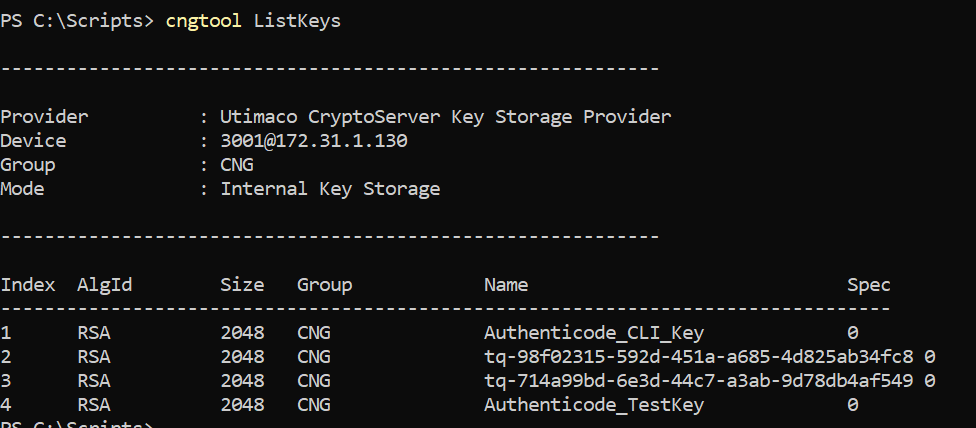
List keys
If you are using Smartcard Authentication, the PIN Pad device will prompt to insert the Smartcard and enter the PIN. Then, press the OK button on the PIN Pad.