

Firstly, it is necessary to prepare a template to enroll OCSP servers for a certificate which uses the Utimaco CryptoServer.
-
Open the Certificate Authority Manager.
-
Open the Certificate Templates Console by right-clicking on the folder Certificate Templates and Manage.
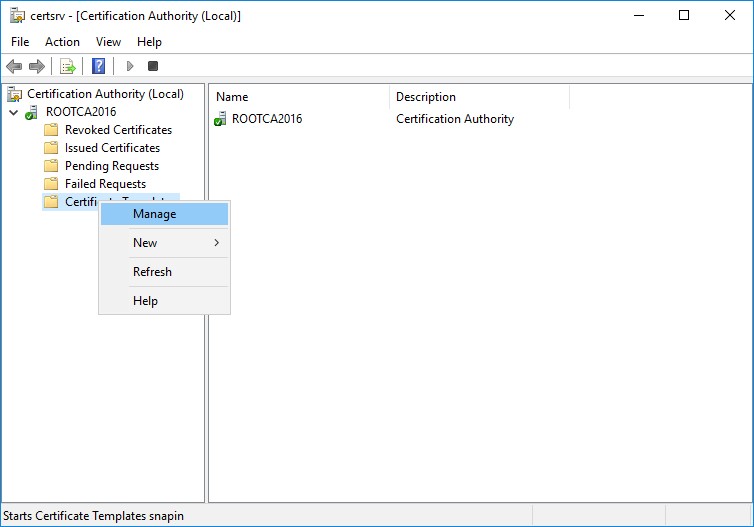
Manage Certificate Templates
-
Locate the OCSP Response Signing Certificate, and click on Duplicate Template.
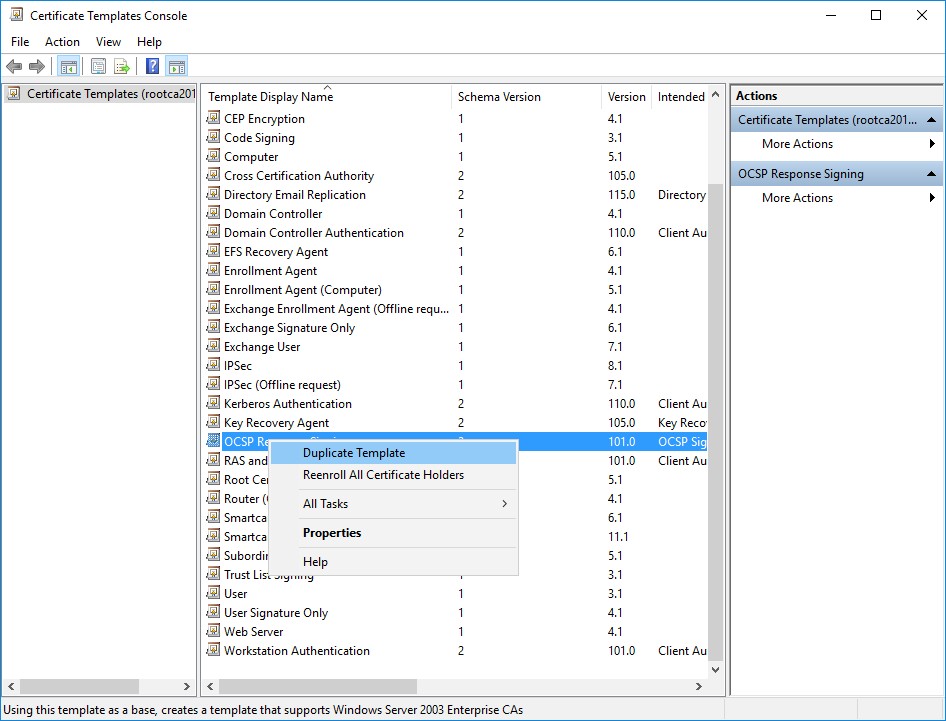
Duplicate a Certificate Template
-
It is advisable to change this certificate template to reflect your requirements. The following steps are the minimum changes necessary.
-
In the General tab, change the Template display name and the Template name.
-
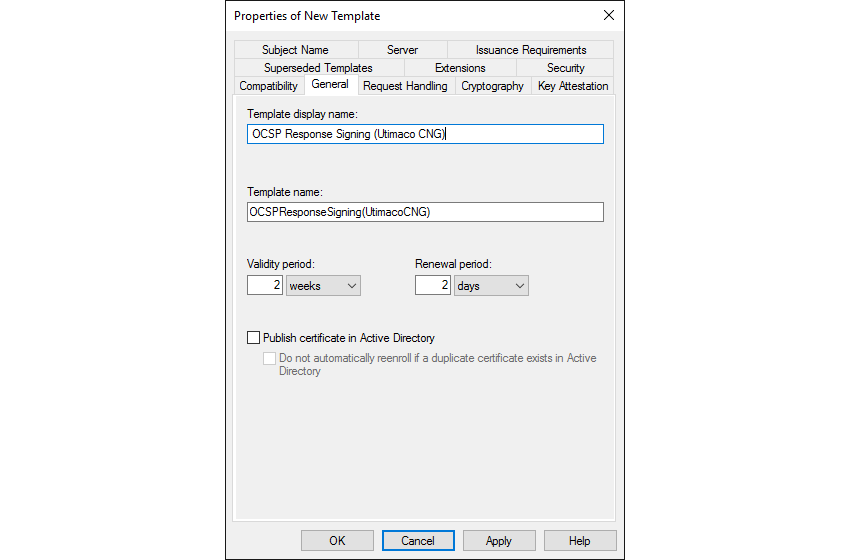
General Tab of Properties of New Template
b. In the Cryptography tab, change the Provider Category to Key Storage Provider, and check only the Utimaco CryptoServer Key Storage Provider.
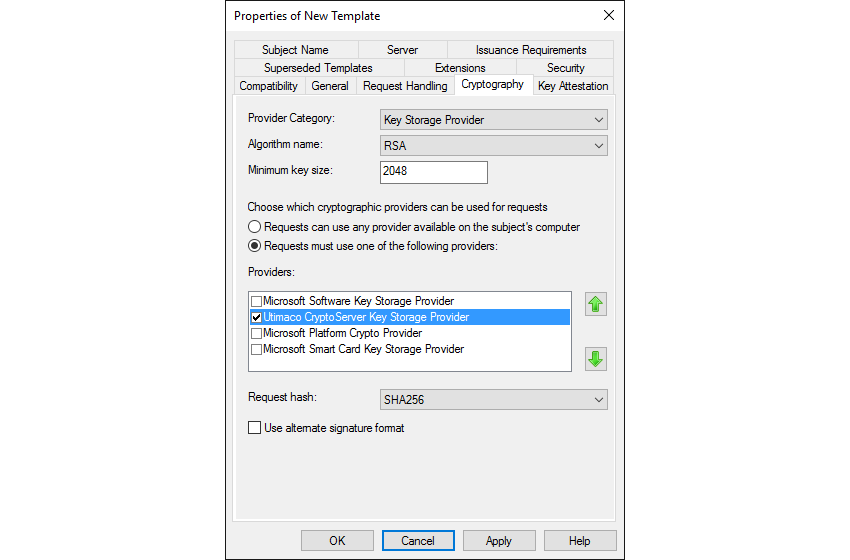
Cryptography Tab of Properties of New Template
c. In the Security tab, add all OCSP servers that will be hosting the OCSP service. Grant the server read and enroll rights.
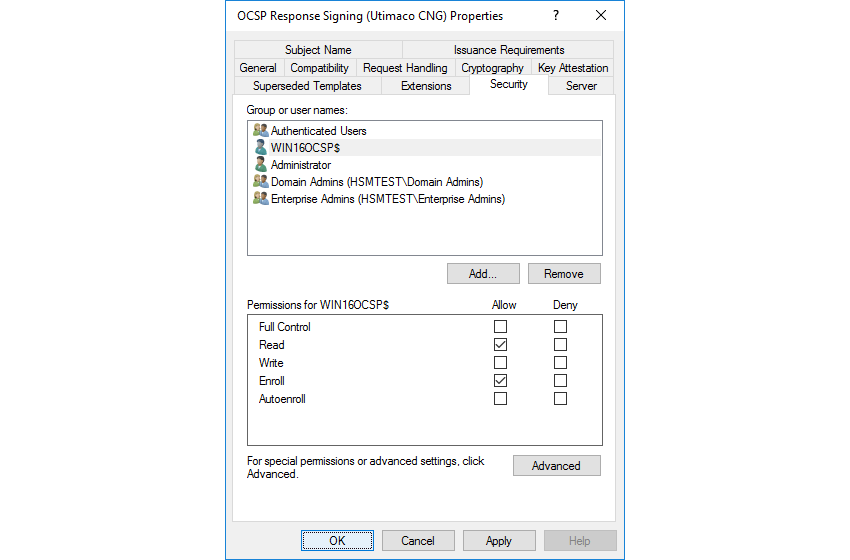
Security Tab of Properties of New Template
-
After finishing the configuration of the certificate template, confirm with OK . Then activate the OCSP certificate template.
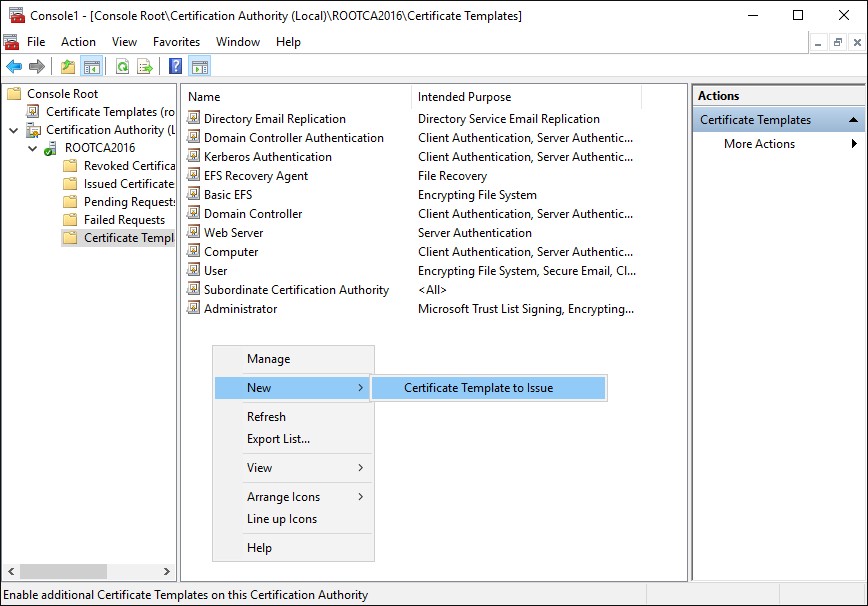
Certificate Template to Issue
-
Select the newly created certificate template and confirm with OK.
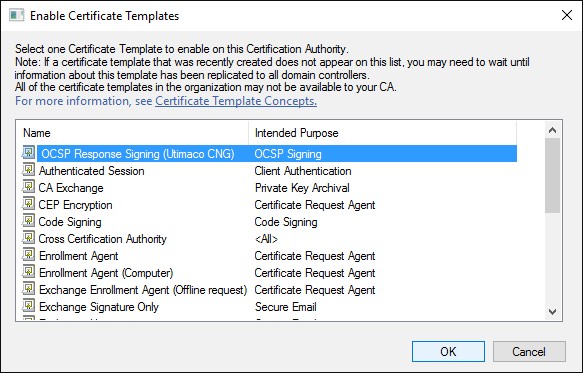
Enable Certificate Templates