

-
Navigate to Profiles section from the left panel options.
-
Choose Certificate Profile from the dropdown.
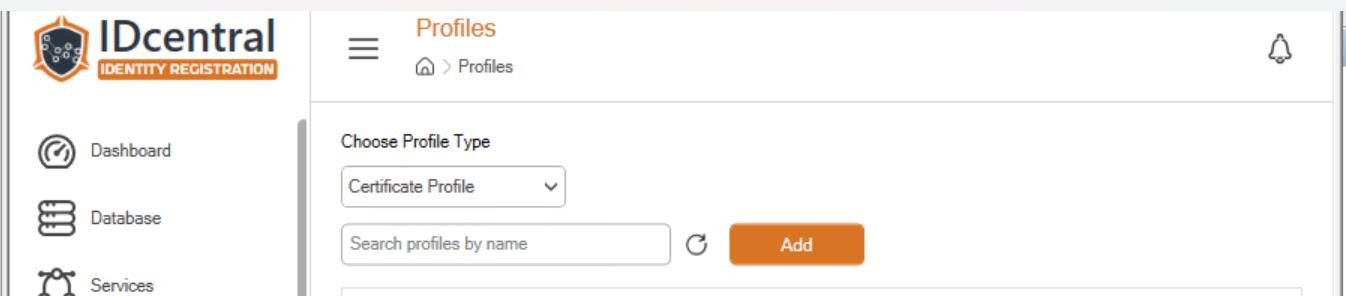
Profiles window
-
Click on Add.
-
Provide the following information.
|
Parameters |
Values |
|---|---|
|
Profile Name |
Provide a suitable name for the certificate profile |
|
Hierarchy |
Choose the configured issuing CA name from the hierarchy list |
|
Certificate Type |
Choose MS Smart Card Authentication for smartcard certificate profile |
|
Product Code |
Provide the certificate type name configured in the certificate profile configuration of u.trust Identify CMS. For example: ScardUPN |
|
Platform |
Choose suitable OS platform from the list for which the profile has been created. If applicable for all platforms, choose ANY |
|
Key Algorithm |
Choose suitable KeyAlgorithm from the list |
|
Hash Algorithm |
Choose suitable Hash Algorithm from the list |
|
Keystore Type |
Choose Microsoft CSP/CNG from the list as certificate has to be generated within the smartcard |
|
Keystore Name |
Provide a suitable keystore name |
|
Validity (in days) |
Provide the certificate validity in days |
|
Validity Offset (in seconds) |
Provide the certificate validity offset in seconds |
|
Renewal Threshold (in days) |
Number of days before the certificate expiry to initiate certificate renewal |
|
Validation Threshold (in seconds) |
Frequency interval in seconds during which the certificate validation allowed for clients |
List of parameters and values
-
Click Save to proceed with certificate profile configuration.
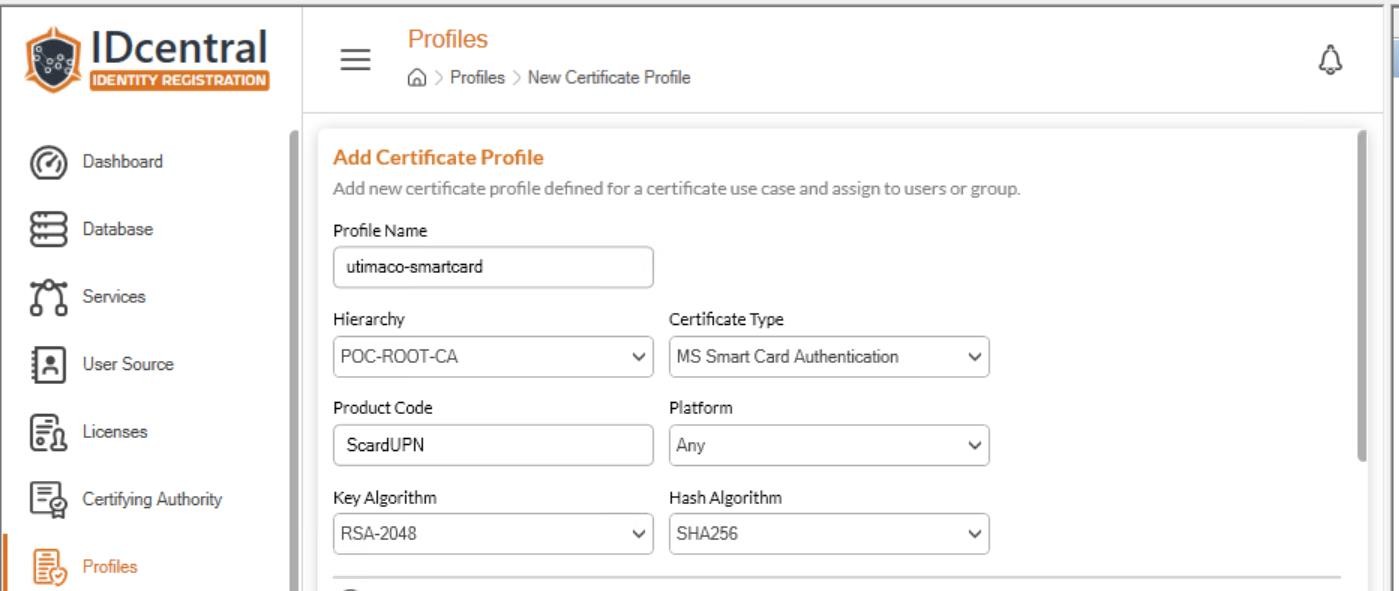
Adding certificate profile
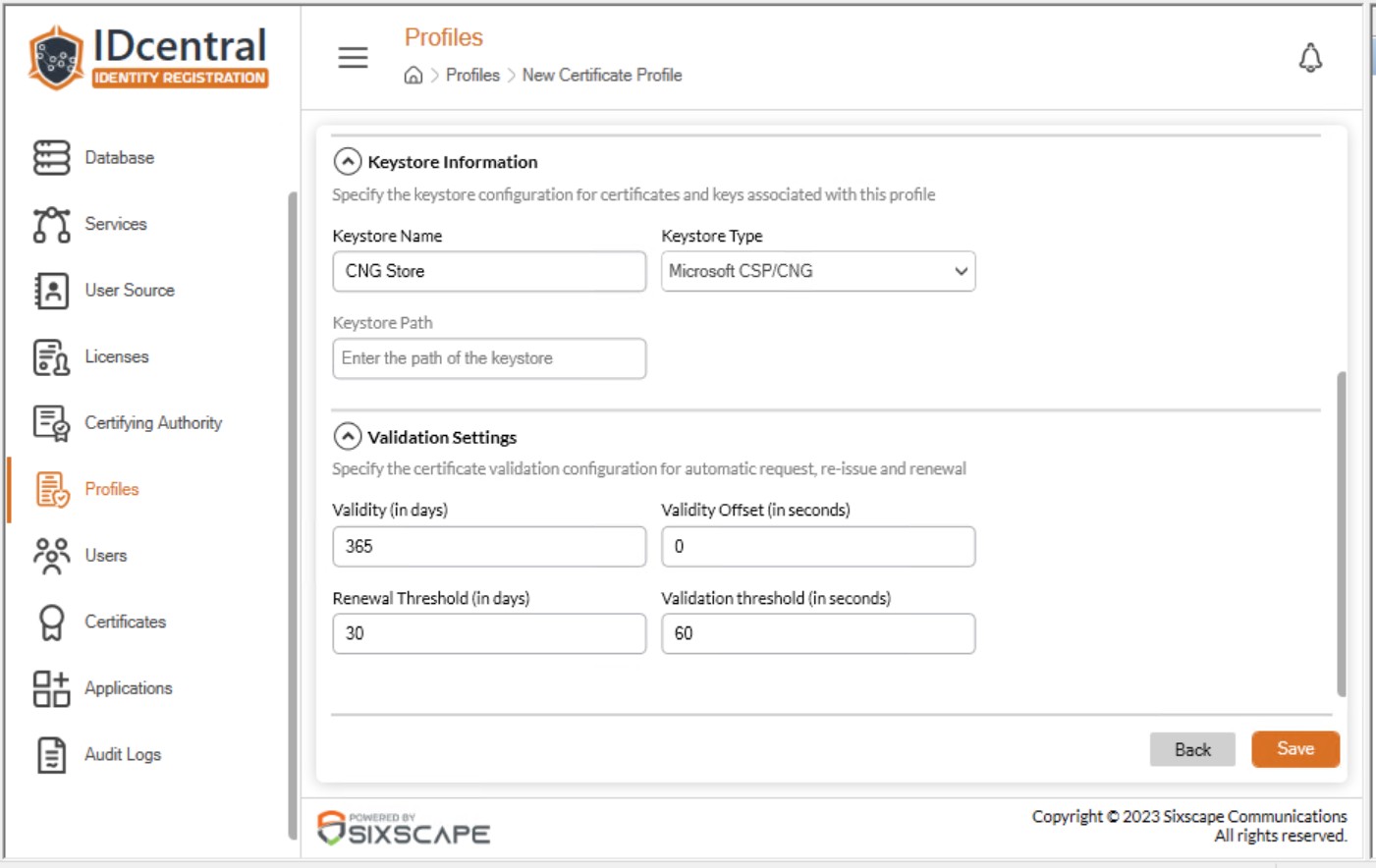
Adding certificate profile
-
On success, the Certificate profile saved will be listed in the Profiles tab.
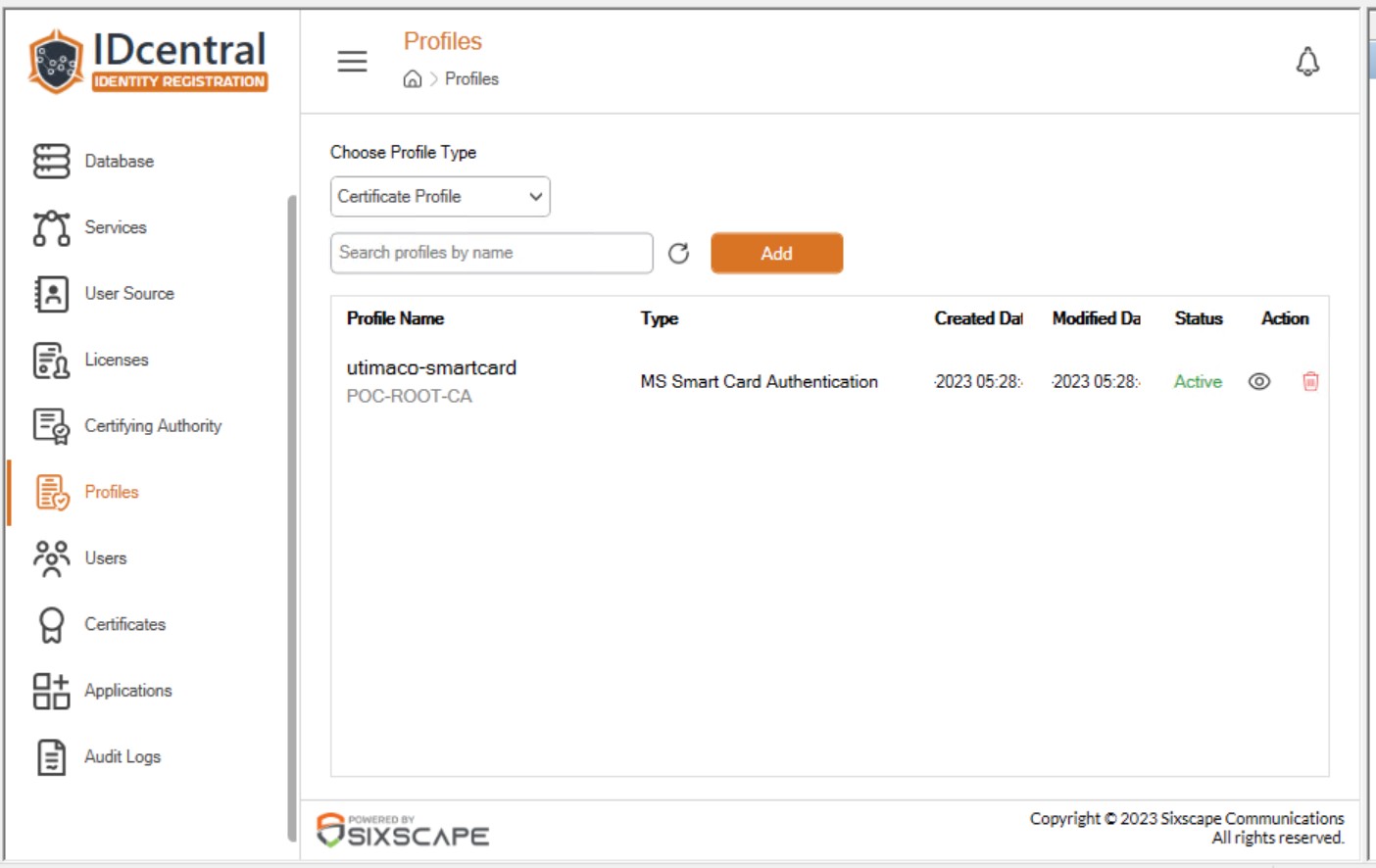
Listing Certificate profiles