

-
Log in to the Cloudflare Dashboard.
Navigate to the Cloudflare portal and log in using your credentials. -
Select the Domain.
After logging in, select the required domain from the list of configured domains. This ensures that all subsequent configurations are applied to the correct domain associated with the Keyless SSL setup.
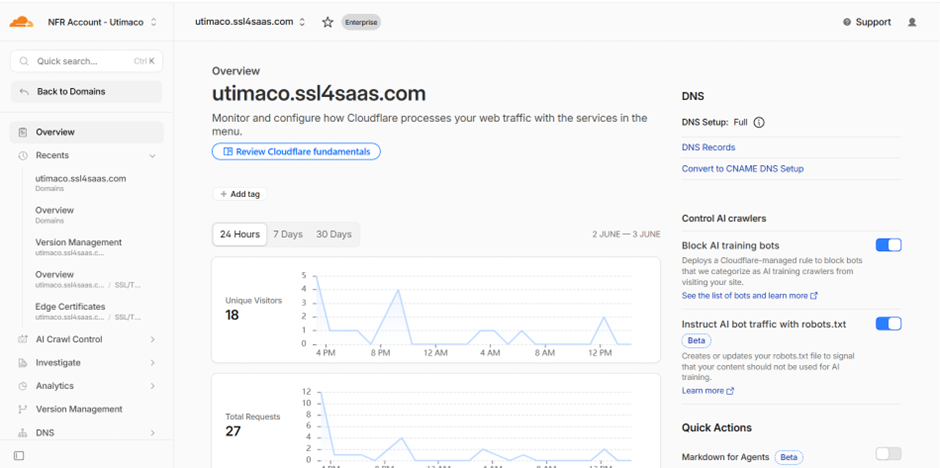
Cloudflare domain overview dashboard
-
Navigate to the DNS Configuration.
Go to the DNS section of the selected domain. The DNS section is used to manage domain records, which are required to route traffic correctly between Cloudflare, the key server, and the origin server. -
Create DNS Records.
Create the required DNS records for both the key server and user-facing application.
Key Server DNS Record
Hostname: kms.utimaco.ssl4saas.com
Type: A
Proxy Status: DNS only (Grey Cloud)
The key server hostname must be configured as DNS-only to allow Cloudflare to directly communicate with the GoKeyless server over port 2407 without proxy interference.
User Access DNS Record
Hostname: utimaco.ssl4saas.com
Type: A
Proxy Status: Proxied (Orange Cloud)
The user-facing hostname must be proxied through Cloudflare to enable SSL termination at the Cloudflare edge and to utilize the Keyless SSL configuration.
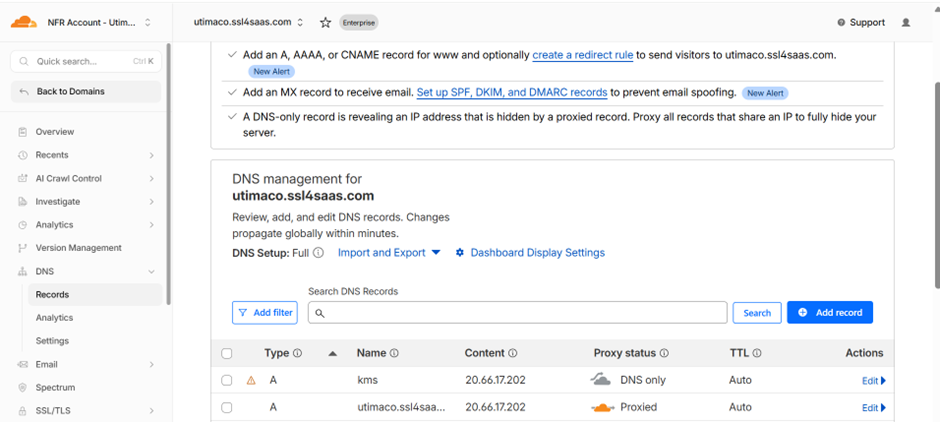
Cloudflare DNS records configuration