

You can configure SSL for IBM WebSphere application server by following the below steps:
-
From the Admin console Click on Security -> SSL certificate and key management -> Manage endpoint security configurations.
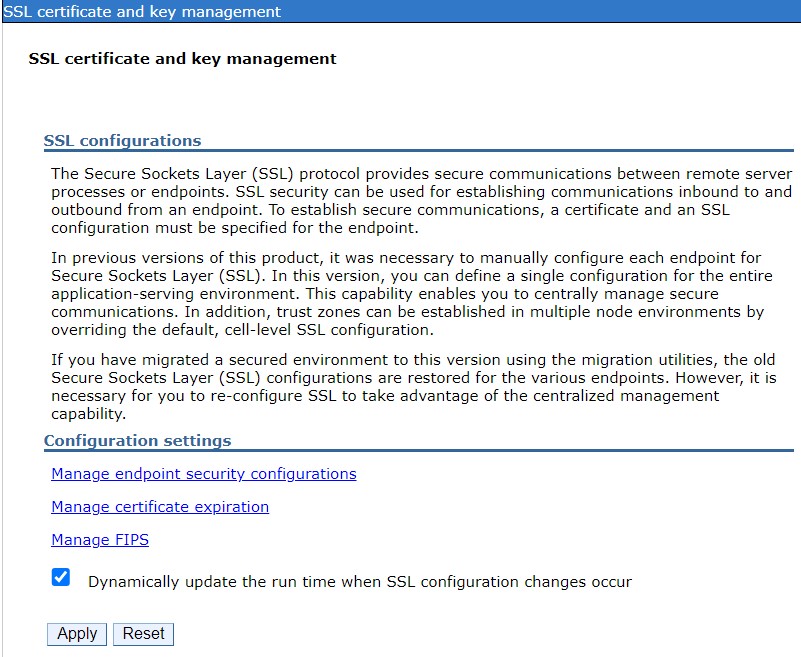
SSL certificate and key management page
-
In the inbound local topology tree, click the server’s name for example server1 below.
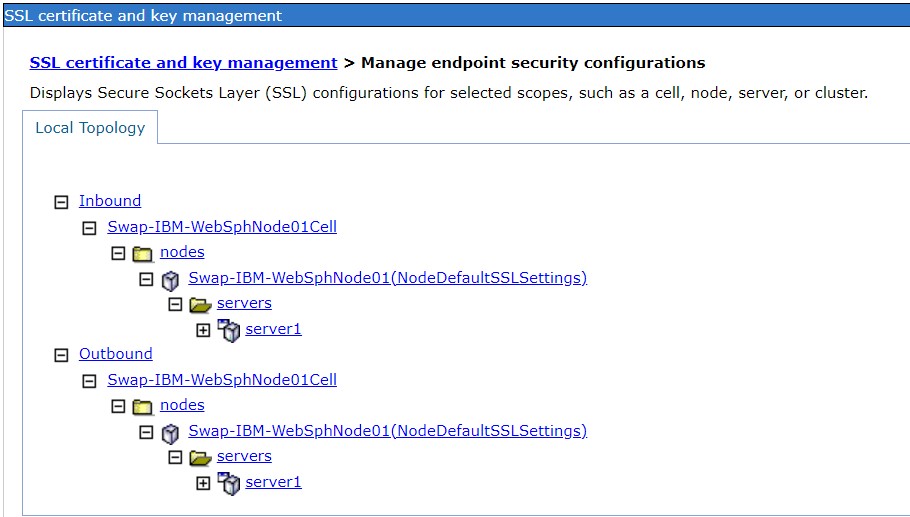
Manage endpoint security configurations page
-
Under Specific SSL configuration for this endpoint, enable Override inherited values.
-
Select NodeDefaultSSLSettings from within the SSL configuration field.
-
Click Update certificate alias list.
-
Specify the certificate alias in the keystore from the drop-down list for example ibmrsa.
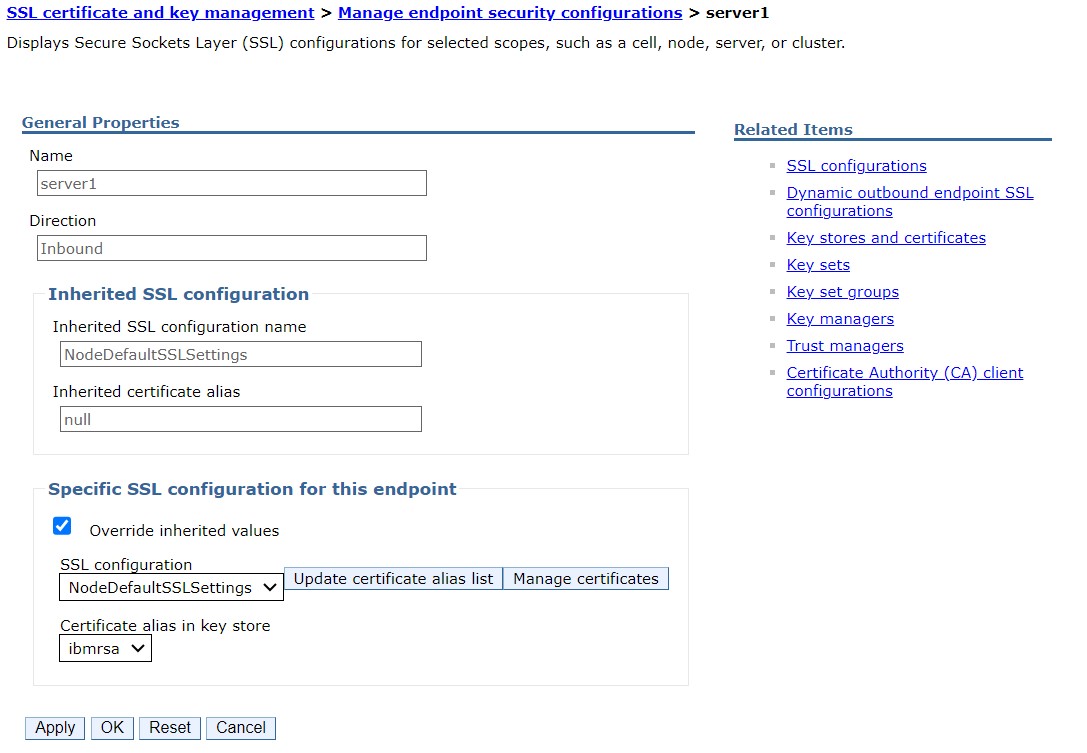
Selecting Certificate alias for SSL
-
Click OK and save the changes.
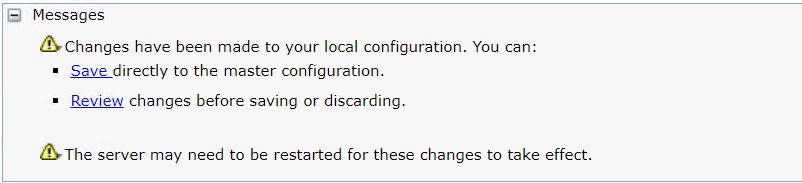
Messages to Save/Review the changes
-
From the Admin console Click on Security -> SSL certificate and key management.
-
Make sure to select to Dynamically update the run time when SSL configuration changes occur if not selected.
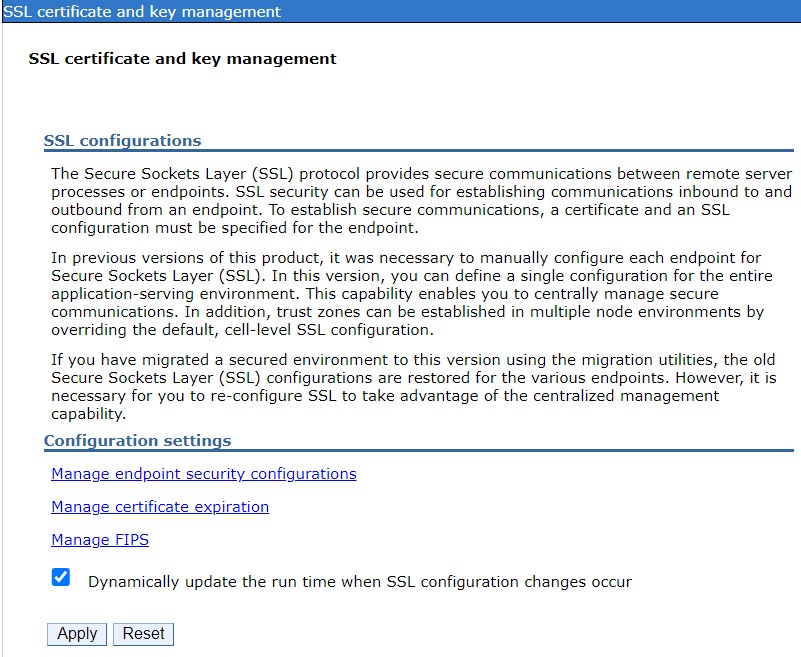
SSL certificate and key management page
-
Click Apply and save the changes.
-
Restart the WebSphere application server.
In Linux you can use commands stopserver.sh <servername> and startserver.sh <servername>to stop/start the service. In windows click on start and select IBM WebSphere Application Service utility to stop/start the service.
-
Now the access the web page https://<ServerIPAddress>:9043/ibm/console over https from browser.
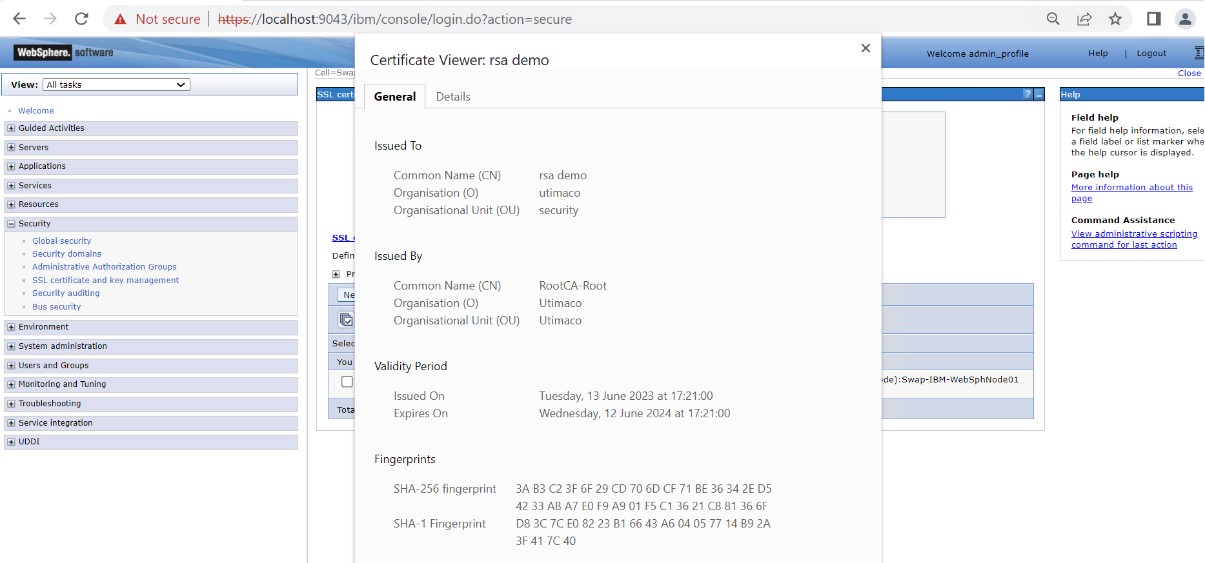
Loading page over https
This completes the Integration for IBM WebSphere Application Server with Utimaco SecurityServer.