

This section describes the procedure to create a new key to the ESKM Cloud.
To create a new key
-
Click the Manage Keys icon to view the keys list available in the cloud instance.
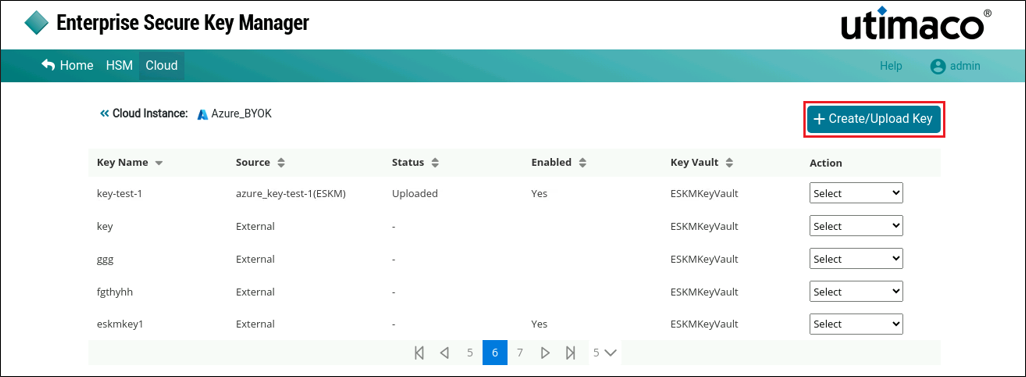
Create/Upload Key
-
Click the + Create/Upload Key button in the top right corner of the page.
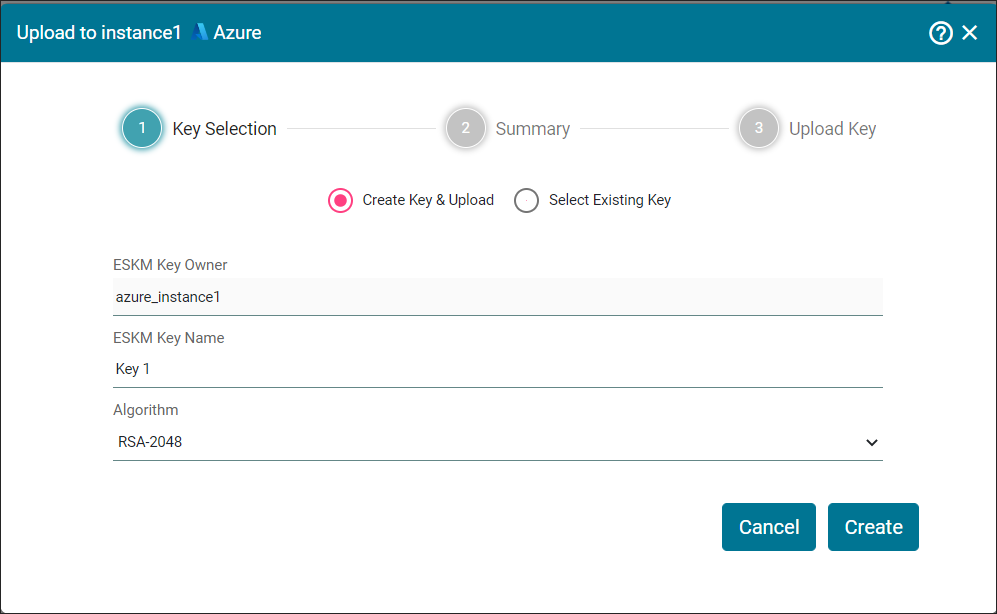
Key Selection
Provide a valid key name. Key names can only contain alphanumeric characters and dashes.
|
Parameters |
Description |
|---|---|
|
ESKM Key Owner |
It is a key vault identifier created in Microsoft Azure key Vault. |
|
ESKM Key Name |
Name of the key. |
|
Algorithm |
Algorithm used to generate the key in ESKM. |
Key selection - parameters
-
Select Create New Key & Upload option (selected by default) to create/upload a new key.
-
Enter ESKM Key Name and select Algorithm from the drop down. Click Create.
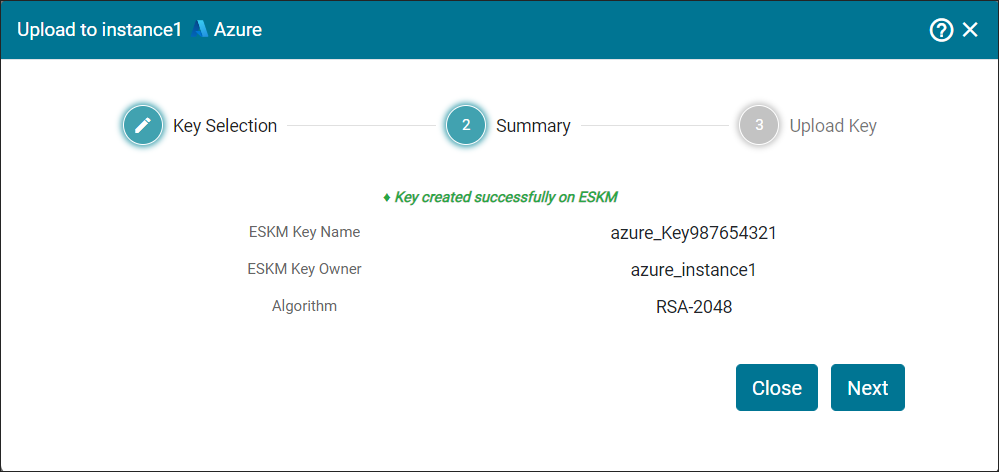
Review Summary
-
Review the Summary and click Next. You will be navigated to the Upload Key section.
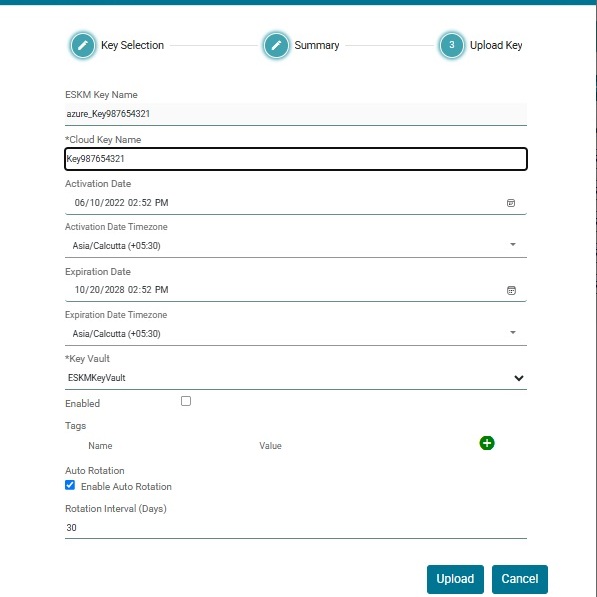
Upload Key
-
Select the Vault Key Name (by default, its value is “select”) and fill the details such as Key Vault, Enabled, Activation Date and Expiration Date. Optionally, enable Auto Rotation and specify the Rotation Interval (Days). Click Upload.
|
Parameters |
Description |
|---|---|
|
ESKM key Name |
Name of the key. It combines cloud type with the ESKM key name. |
|
Cloud Key Name |
The name of the ESKM Key to be uploaded to the Microsoft Azure cloud. |
|
Activation Date |
Set the date on which the key must be activated. |
|
Activation Date Timezone |
The activation date timezone is activated based on the current time of the system. |
|
Expiration Date |
Set the expiration date by which the key must be expired. |
|
Expiration Date Timezone |
The expiration date timezone is activated based on the current time of the system. |
|
Key Vault |
Name of the Key Vault created in Microsoft Azure. |
|
Enabled |
Check this box to activate the ESKM key in the Microsoft Azure key vault. |
|
Tags |
Tag is to organize the keys in Microsoft Azure Key Vault. Multiple Tags can be assigned for a specific key. |
|
Enable Auto Rotation |
Enables automatic creation of new key versions. |
|
Rotation Interval (Days) |
Specifies the frequency at which a new key version is automatically generated. Supported values range from 30 to 365 days. |
Parameters
Key [key_name] has been successfully uploaded to Inst1 [Azure].