

-
Click the Manage keys icon in the cloud instance and select Delete from the drop down.
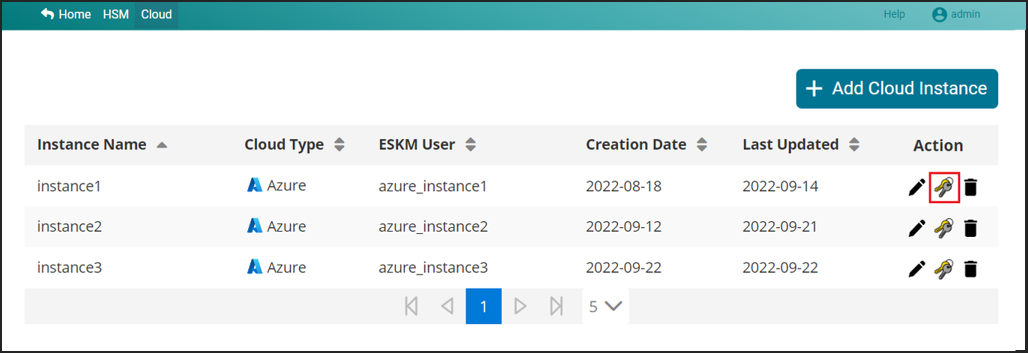
Manage keys
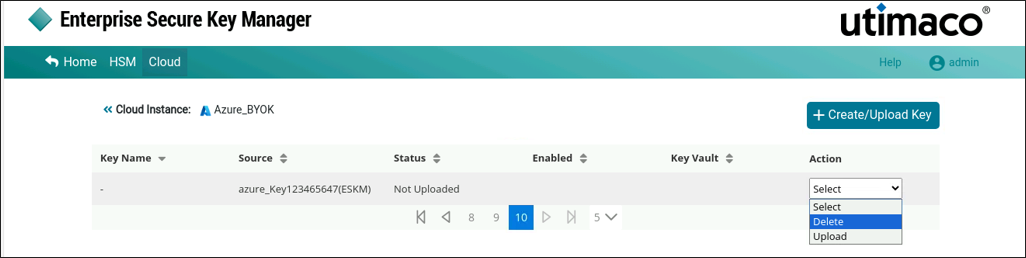
Delete keys
-
If the selected key is uploaded and is not associated with any other instance, a pop-up window will appear with a message “Are you sure you want to delete key<keyname> from <Cloud Instance Name>(Azure)?”.
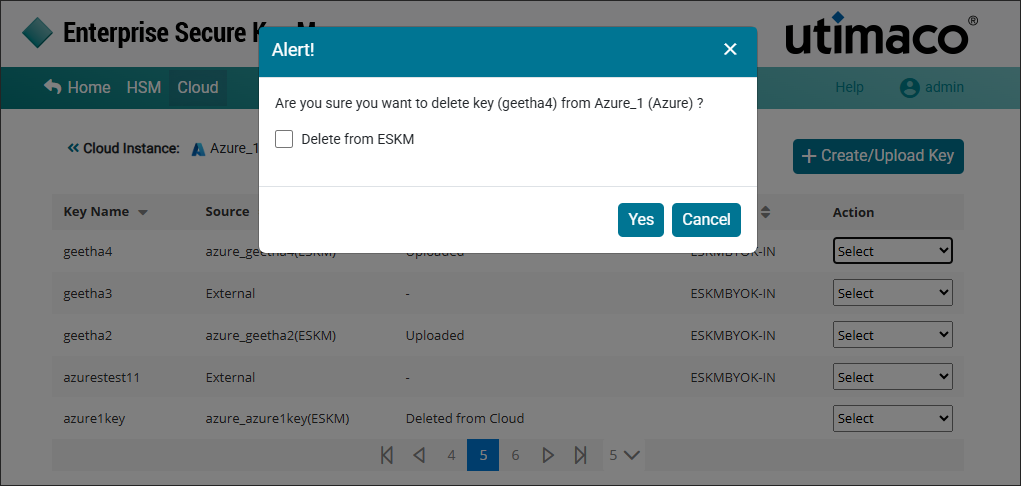
Delete key alert
-
Click Yes and the key will be deleted from the cloud.
-
If the key is uploaded and associated with another instance (locally created from another instance), a pop-up window will appear with a message “Are you sure you want to delete key <keyname> from <Cloud Instance Name> (Azure)?”.
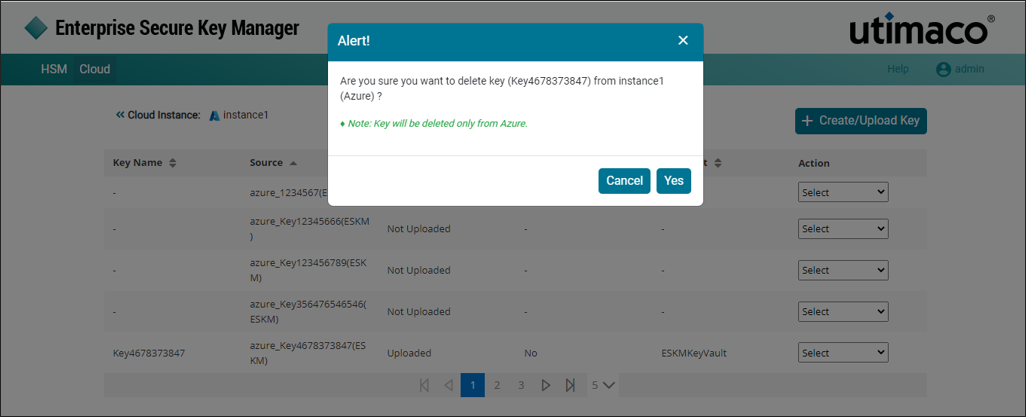
Delete key from cloud
-
Click Yes and the key will be deleted from Cloud.
-
If the selected key is not uploaded and is not associated with any other instance (locally created in ESKM), a confirmation pop‑up appears with the message: “Are you sure you want to delete key <keyname> from ESKM?”.
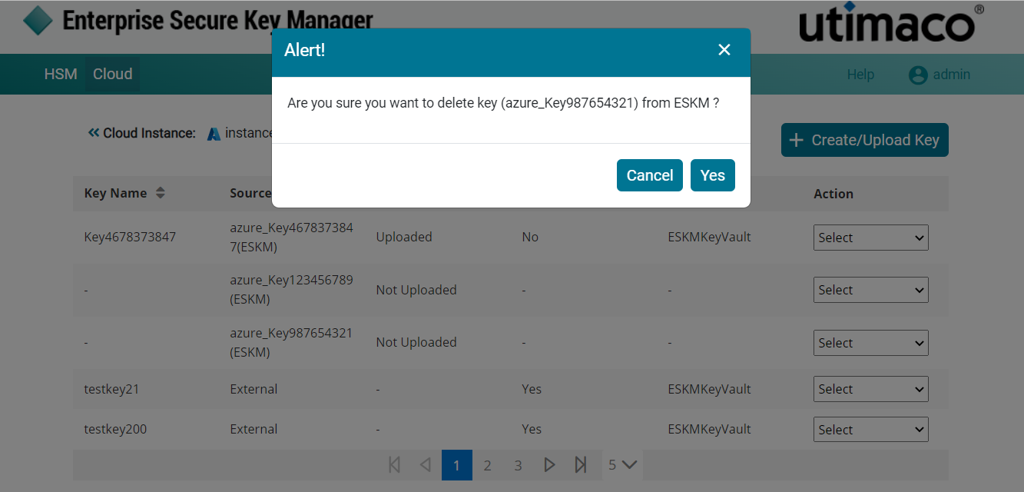
Delete key from ESKM
-
Click Yes and the key will be deleted from ESKM.
-
When deleting an external key that is not created in ESKM, the system displays a confirmation pop‑up with the message: “Are you sure you want to delete key<keyname> from <Cloud Instance Name>(Azure)?”.
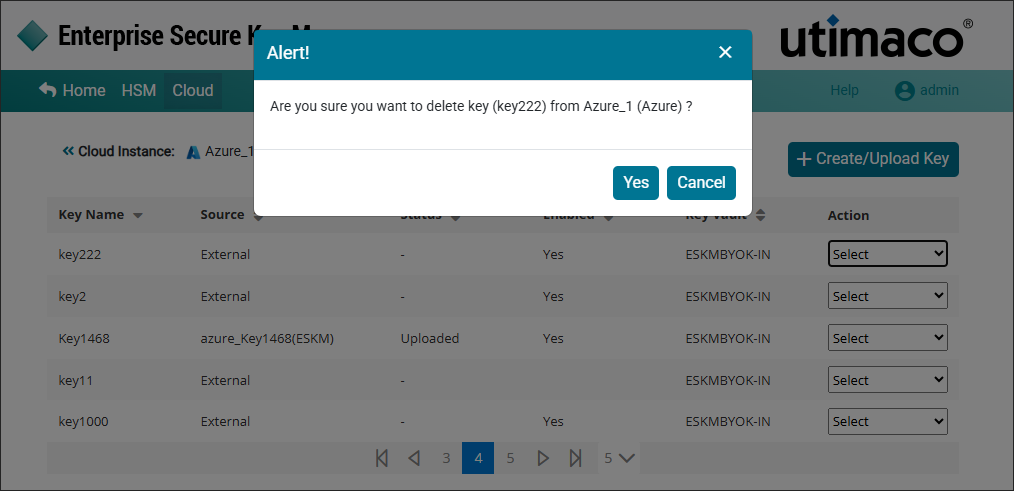
Delete external key
-
Click Yes and the key will be deleted from Azure.
Cloud Instance key [key222] removed successfully from Azure_1 [Azure].