

This section describes the procedure to upload existing Keys from Utimaco ESKM to Microsoft Azure Cloud.
To upload an existing key
-
Click the Manage Keys icon to view the keys list available in the cloud instance.
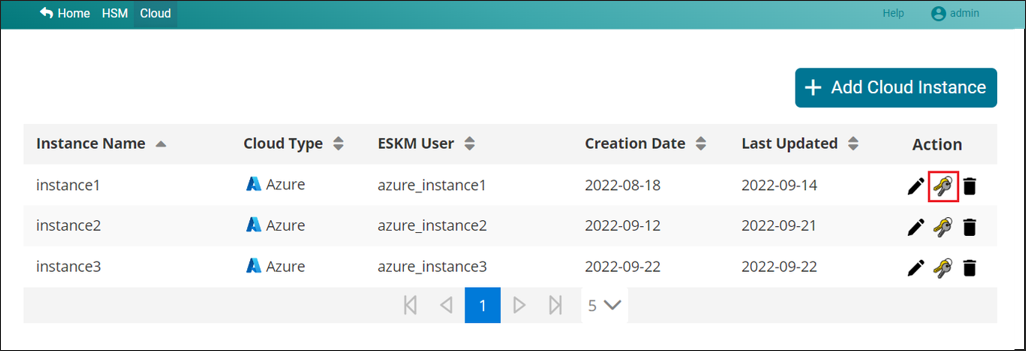
Manage Keys
-
Click the + Create/Upload Key button in the top right corner of the page.
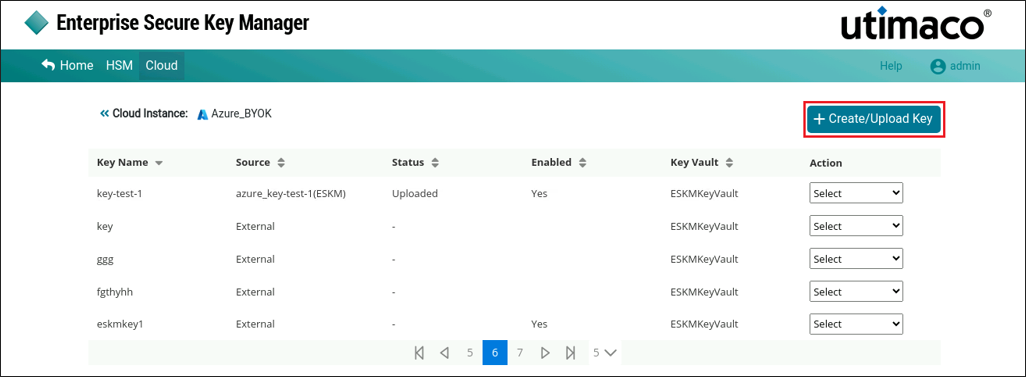
Keys list
-
Choose the Select Existing Key option to upload existing keys to the Cloud Instance.
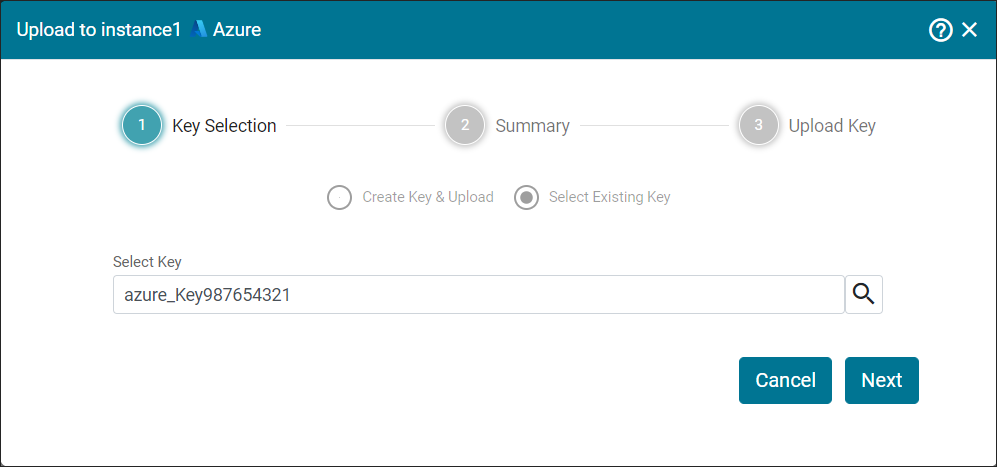
Select Key
-
Search for and select the key that you want to upload. Click Next.
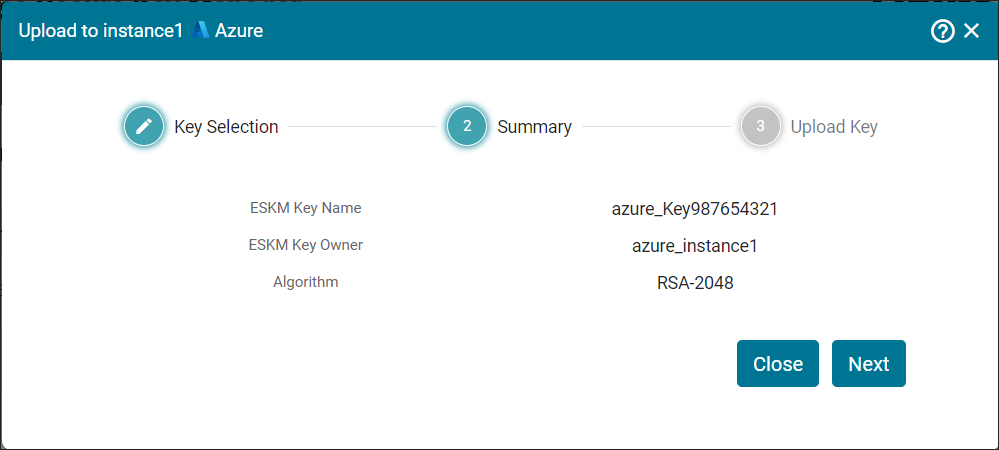
Review Summary
-
Now, you will be navigated to the Summary section. Review the Summary and click Next.
-
Enter the details such as Key Vault Name, Key Vault, Enabled, Activation Date and Expiration Date. Optionally, enable Auto Rotation and specify the Rotation Interval (Days). Click Upload.
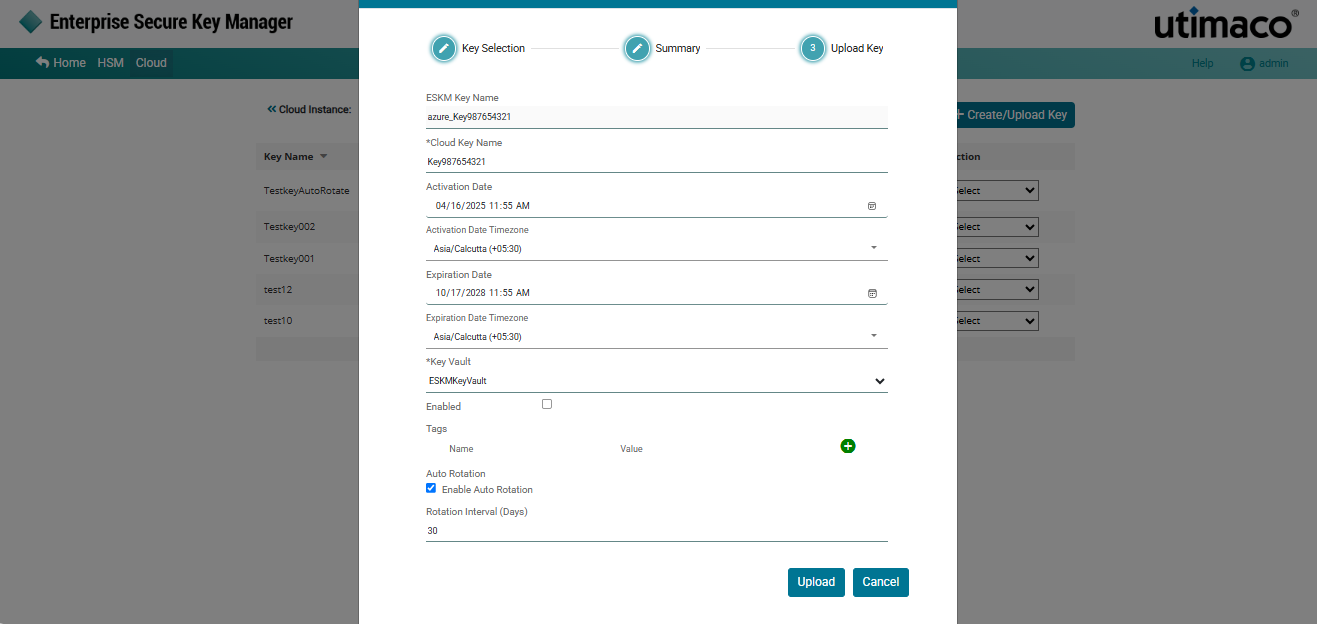
Upload existing key
Key [Key987654321] has been successfully uploaded to instance1 [Azure].