

-
Open the
/< OPENSSLDIR>/openssl.cnffile in the text editor and edit the[CA_default]section to following.
|
openssl.cnf |
|---|
|
You can change dir to the directory of your choice but make sure to use correct path in the subsequent steps. Here we have created the directory /localCA under root directory and new_certs_dir= $dir/certs
-
Create the directory
/localCA/certs.
|
›_ Console |
|---|
|
-
Create the text files
/localCA/index.txtand/localCA/serial.
|
›_ Console |
|---|
|
-
Open the
/localCA/serialfile and write 01 in it and click enter. Save the file. -
Create a key pair by using p11tool2 for root CA.
|
›_ Console |
|---|
|
This generates RSA 2048 CA private and public keys on the HSM.
-
Verify that the RSA keys are generated onto the HSM using the following command.
|
›_ Console |
|---|
|
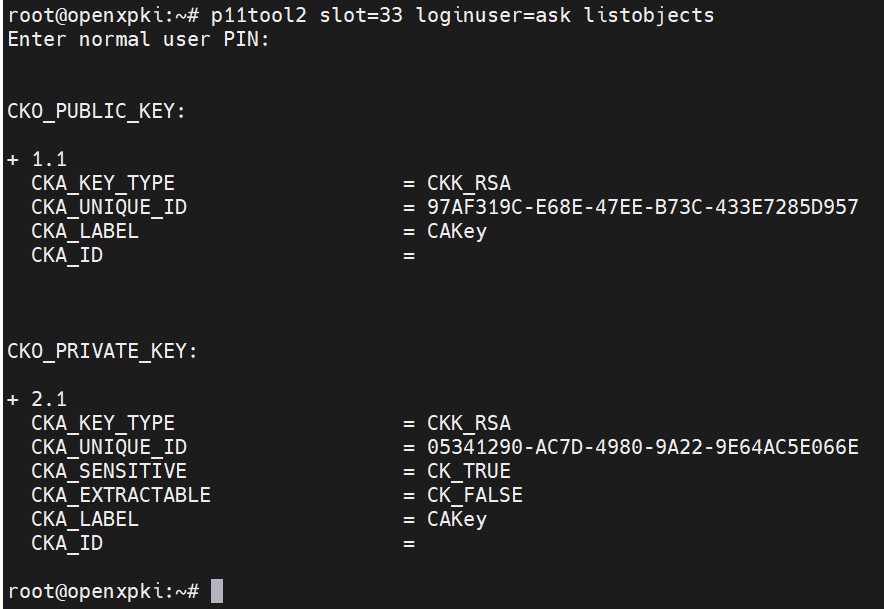
List keys
-
Create the CA certificate based on the generated key.
|
›_ Console |
|---|
|

RootCA certificate generation
Here CAKey is the Object label for the CA private key on the Utimaco HSM created in Step 5 and openxpki is a token label. Provide Slot PIN when prompted.