

The KMS server provides the interface to clients that use the KMS protocol.
Secure Sockets Layer (SSL) is required; therefore, you must specify the name of the server certificate.
To configure the KMS server, perform the following steps:
-
Select the Device tab.
-
In the Device Configuration menu, click KMS Server to display the KMS Server Configuration window.
-
In the KMS Server Settings section of the window, click Edit.
-
Configure the KMIP Server Settings.
-
The IP address can be an IPv4 address or an IPv6 address. If support for IPv6 has been enabled, see First run.
-
If necessary, change the Port and Connection Timeout values. Utimaco recommends the default values of 9000 for the Port and 3600 for the Connection Timeout.
-
For Server Certificate, select the name of the certificate you created in Setting up ESKM certificate. For example, ESKM KMS Server.
-
Enable Allow Key and Policy Configuration Operations
-
Enable Allow Key Export
-
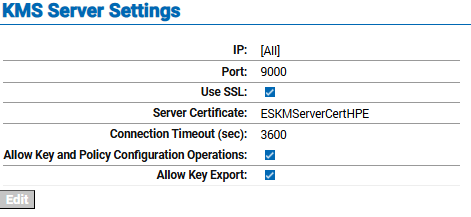
KMS Server Settings
-
Click Save.
-
Confirm that the KMS server is started.
-
Go to the Services List section of the Services Configuration page
(Device -> Maintenance -> Services -> KMS Server). -
The status of the KMS server should be Started. If the status is Stopped, select the KMS Server, and then click Start.
-
To enable KMIP client certificate, perform the following steps.
-
In the KMS Server Authentication Settings section of the window, click Edit.
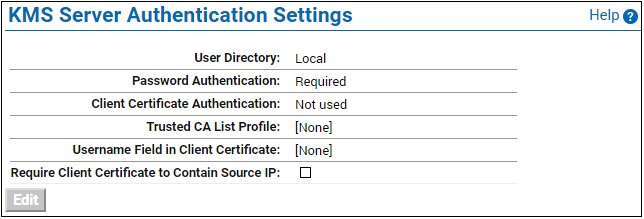
KMS Server Authentication Settings - Edit
-
Click the appropriate option under User Directory, Password Authentication, and Client Certificate Authentication. Select the appropriate Trusted CA list and Username in Client Certificate and click Save.
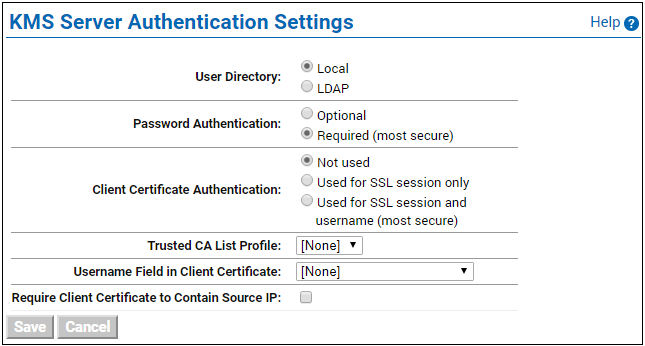
KMS Server Authentication Settings - Authentication